- Convert video, audio, and DVD over 500 formats.
- GPU acceleration to speed up the conversion process at 70X faster.
- More than 16 editor tools in the toolbox (Updating).
- Create videos for TikTok, YouTube, Facebook, etc.

Free Download100% Clear & Secure
Free Download100% Clear & Secure
MKV to WAV
Back to main page
Setting
Custom resolution:
| Core Features | Web Version | Pro Desktop |
| Max File Size | 50MB (Login: 100MB) | No Limit |
| Daily Limit | 2 Files (Login: 10 Files) | Unlimited |
| AI Video Upscaling | No | Yes (Up to 4K/8K) |
| GPU Acceleration | No | Yes (70X Faster) |
| Batch Processing | No | Yes |
Failed to upload media file! Please try again, or use AnyMP4 Video Converter Ultimate for Desktop.(Error code: 20015)

The original video resolution is higher than 1080p. If you want to output the original high resolution, you need to download the Pro Version. Or would you like to output the default 1080p resolution?

At a Glance
Extracting pristine, uncompressed WAV audio from MKV videos under 100 MB can use convenient online tools like FreeConvert. However, for MKV files over 1GB, desktop solutions such as AnyMP4 Video Converter Ultimate or VLC are strongly recommended to avoid online upload limits and failures completely.
Converting MKV to WAV can sometimes be frustrating, for example, when you want to extract lossless WAV background music from a 10GB HD MKV movie for editing, but the online converter crashes because the file is too large. At this time, a method that can quickly, safely, and batch-extract high-quality audio is needed. So why extract a WAV from an MKV? MKV is a powerful container that contains pristine multi-channel sound. Extracting can prevent any quality loss and ensure full lossless audio. Whether you are dealing with a single massive video or need to process large MKV files, this 2026 guide covers the best desktop and online tools.
Our Testing Environment
We tested on Windows 11 and macOS systems using 5 4K MKV movie files totaling over 12GB. We focused on evaluating conversion speed, multi-audio track retention rate, CPU usage, and privacy/security.
| Tool Name | Max File Size | Batch Processing | Conversion Speed | Data Privacy |
|---|---|---|---|---|
| AnyMP4 Video Converter Ultimate | Unlimited | Yes (Fast) | GPU Accelerated | 100% Local |
| VLC Media Player | Unlimited | No | Standard | 100% Local |
| FreeConvert | 1GB Max | Limited | Dependent on the Internet | Cloud-based |
Desktop software is the optimal solution for handling large media files. Unlike web converters, offline tools process data directly on your computer's CPU, which is extremely fast and not limited by network latency. More importantly, it keeps your source files 100% local, ensuring absolute data privacy.
For the best MKV-to-WAV conversion experience, we strongly recommend AnyMP4 Video Converter Ultimate. This professional, all-in-one desktop tool is specifically designed to handle ultra-large media conversions with maximum efficiency. It also has many user benefits as follows:
• 120x hardware acceleration.
Benefit: Say Goodbye to Upload/Download Waits. You no longer have to endure browser lag to extract WAV audio from multi-gigabyte HD movies. With hardware acceleration, you can complete the lossless audio extraction of an entire feature-length film in the time it takes to brew a cup of coffee, completely freeing up your computer's processing power.
• Unrestricted batch conversion.
Benefit: Extract Audio from Entire TV Seasons in One Click. No more processing files manually one by one. Drag an entire season of MKV TV shows directly into the software and batch output to WAV format with a single click, saving you hours of tedious, repetitive work.
• 100% local processing & offline capability.
Benefit: Absolute Privacy for Your Personal Media. There is no need to upload private family videos or unreleased commercial footage to cloud servers. All conversions are completed locally on your device, eliminating the risk of data leaks at the source.
1. Download and install AnyMP4 Video Converter Ultimate on your computer. After installing, it will launch automatically.
Secure Download
Secure Download
Click Add Files/Folders to upload your MKV video files/folders. Or directly drag them into the program.

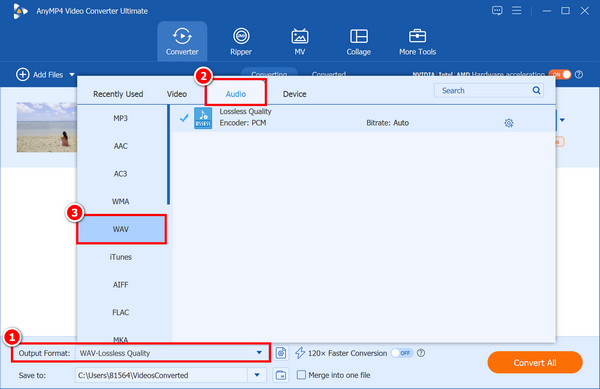
2. Click Output Format to select the Audio tab > WAV from the drop-down list. You can also customize the settings (encoder, sample rate, bitrate, etc.) via the gear-shaped Custom Profile button.
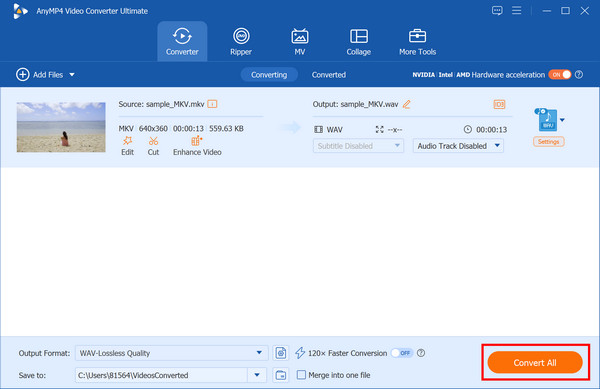
3. Choose the path for the converted file. Then, click Convert All to start extracting WAV from MKV files.
What I Love:
Downsides:
VLC Media Player is a free, open-source, and cross-platform tool. In addition to playing media files, it has a powerful built-in transcoding engine that lets you extract video streams and save pure audio files natively, without an internet connection. This feature also makes it ideal for extracting WAV audio files from MKV videos.
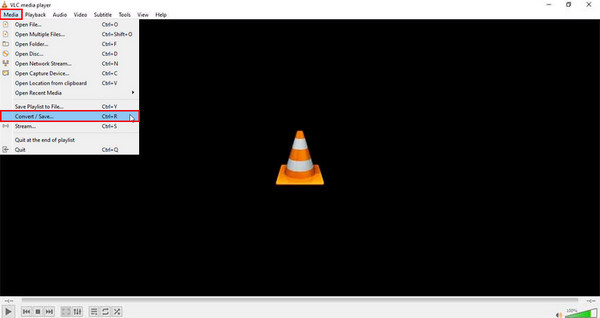
1. Open VLC, click on Media in the top menu, and select Convert / Save... (or press Ctrl + R).
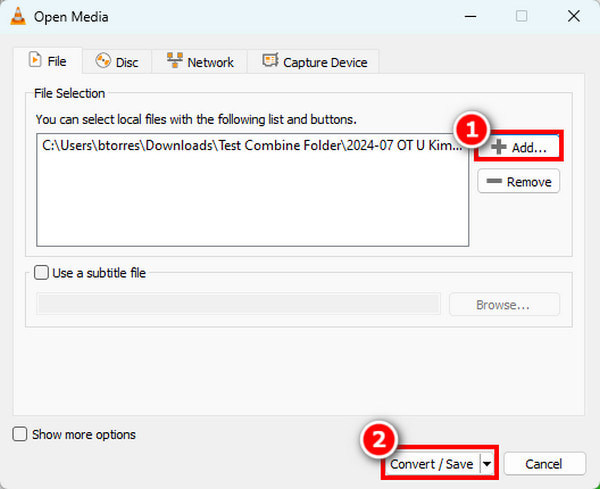
2. Click the + Add... button under the File tab to select your MKV files, then click the Convert / Save button at the bottom.
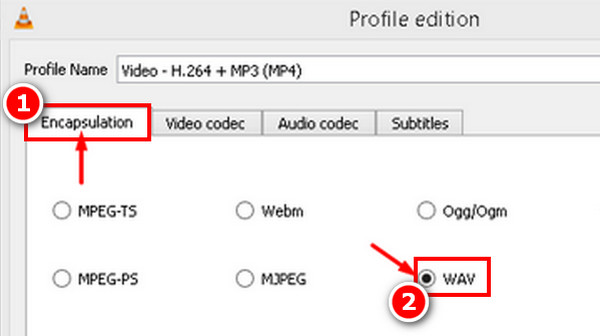
3. Click the button next to Profile. In the newly popped-up window, select WAV from the Encapsulation tab.
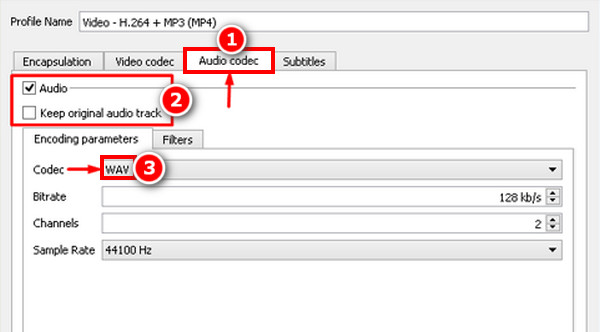
Go to the Audio codec tab, check the Audio box, and choose the WAV codec. Then, click Save.
4. Click Browse to choose your destination folder and click Start to extract your WAV audio file from MKV.
What I Love:
Downsides:
FreeConvert is an excellent, lightweight online platform perfect for temporary conversion needs. It lets you process files directly in your web browser, making it incredibly convenient when you do not want to install software just to convert a short video clip.
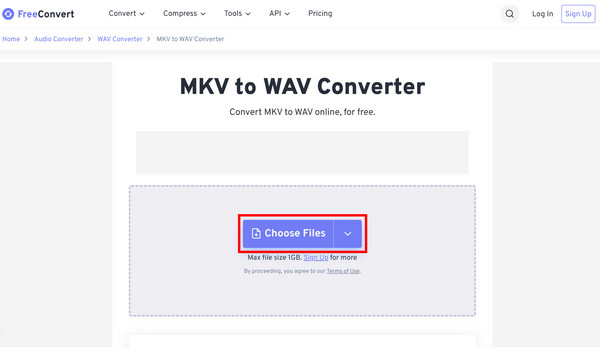
1. Go to FreeConvert's MKV to WAV converter and click Choose Files to upload your MKV.
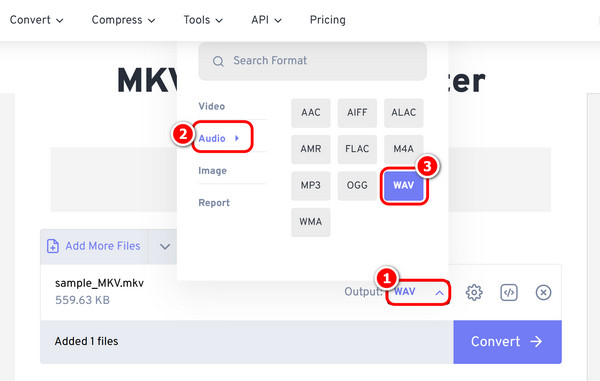
2. Click the Output option, then select WAV from the Output dropdown menu > the Audio tab.
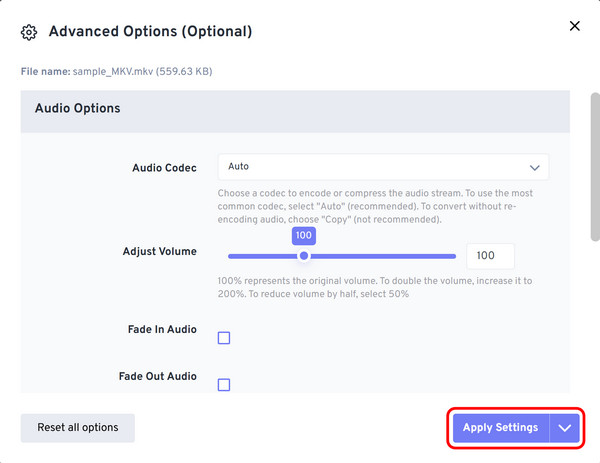
You can click the gear button to adjust settings such as the audio codec, volume, sound effects, and more as needed. After setting, click Apply Settings.
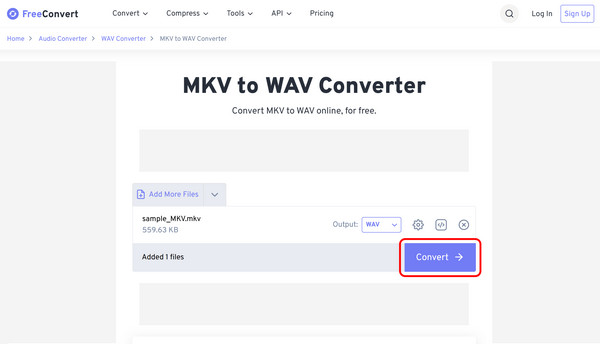
3. Click Convert in the lower-right corner, wait for the cloud processing to finish, and click Download to save your WAV file.
What I Love:
Downsides:
Does converting MKV to WAV reduce the original audio quality?
The short answer is no, converting MKV to WAV will not reduce the original audio quality.
How can I extract a 10-minute WAV audio clip from a specific scene in an MKV movie?
To extract a specific 10-minute scene as a WAV file, you can use tools such as FFmpeg, Audacity, or VLC Media Player.
Are there any file size limits when using online MKV-to-WAV converters?
Yes, absolutely. If you use a free online converter (where you must upload the file to the website), you will almost always encounter strict file size limits.
How do I select a specific language audio track when converting a multi-track MKV to WAV?
Since MKV is a container format that can hold multiple audio tracks, the software typically extracts only the first track by default when converting to WAV. So, you will need to specify this separately.
Can VLC Media Player batch convert multiple MKV files to WAV at once?
Yes, VLC Media Player can batch convert multiple MKV files to WAV at once, though its batch-processing interface is a bit hidden and can be hard to find.
For small MKV clips under 1GB, lightweight web-based tools like FreeConvert are sufficient. However, for movies over 1GB, multi-track selection, or batch processing, local desktop software like AnyMP4 is indispensable. Stop wasting time uploading GBs of video to the cloud. Download AnyMP4 Video Converter Ultimate for free and start converting MKV to WAV audio instantly!
Secure Download
Secure Download
 Updated by Alice Thorne to Convert Audio, Convert Video
 More readings
 Top 6 Methods on How to Convert WAV to M4A
Convert your favorite music in WAV format to M4A? We will tell you several methods to convert WAV to M4A for playback on any devices with high quality.
 [5 Solutions] How to Convert WAV to M4R Online/Offline Easily
Read and learn how to convert WAV to M4R free online or offline. Thus, you can DIY iPhone ringtone with all songs in WAV or other formats easily.
 5 Best Ways to Convert MKV to MOV in 2026 (No Quality Loss)
Find the best way to convert MKV to MOV? Get the top 5 methods for Mac/Windows, including free online tools that deliver 4K-quality video without re-encoding.
 How to Convert MKV to MP4: 2026 Guide (Tested & Lossless)
Can't play MKV files on your iPhone or Premiere Pro? Learn how to convert MKV to MP4 without losing quality using our top tested tools for 2026. Read more!
 Add your comments to join the discussion here