
Quick Summary: Best MKV to GIF Converters
We commonly use Graphics Interchange Format (GIF) files for memes, reactions, and short clips on social media. If you want to turn MKV to GIF, you'll notice that MKV files are HD videos. If you convert them directly, you may end up with large, low-quality GIFs. The key is simple: trim it into a short clip first, then convert. This post will provide solutions for Windows, Mac, and online platforms. We will also add tips to maintain high quality and keep file sizes small.

If you need to convert MKV to GIF in high quality, AnyMP4 Video Converter Ultimate is the best choice, especially for large files. It comes with a GIF Maker that can cut video length, adjust output size, and frame rate before exporting. These factors are essential since GIFs are limited to 256 colors. Additionally, it offers editing tools for rotating, cropping, adjusting effects, applying filters, and adding watermarks.
Secure Download
Secure Download
Features
PROS
CONS
Here's how to convert MKV to GIF:
1. Upon opening AnyMP4 Video Converter Ultimate, the Converter tab opens by default. Switch to the More Tools tab and select the GIF Maker tool from the tool selection. Then, click the Video to GIF option to import the MKV file.
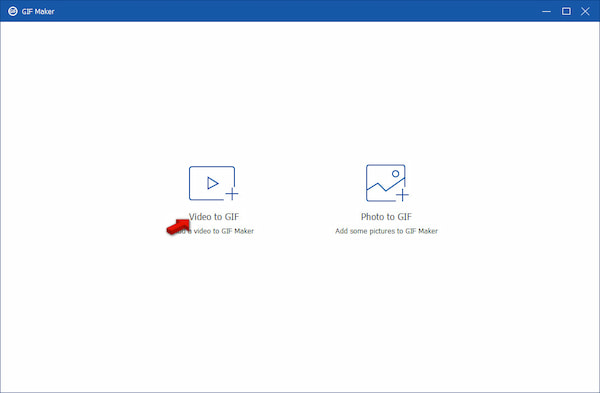
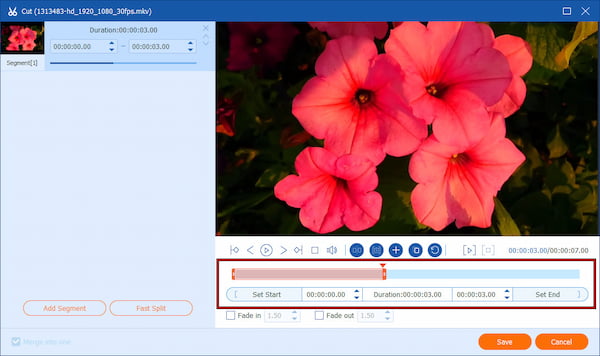
2. Use the Cut tool to trim your MKV to 3-5 seconds. Adjust the output size and set the frame rate to 10-15 FPS. You can also click Edit to use tools for cropping, rotating, and watermarking.
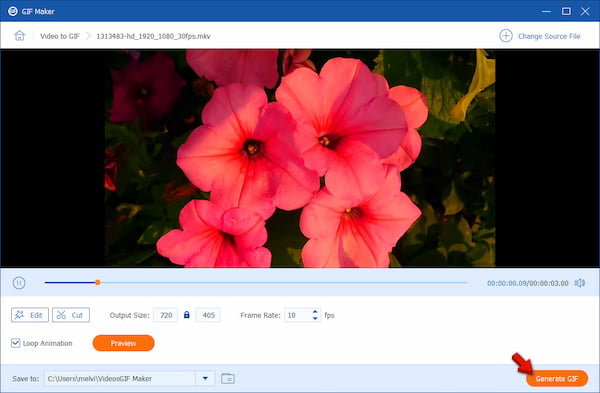
3. Click Preview to check the output. If you're satisfied, click Save To to set the output folder. Hit the Generate GIF button to start the conversion. After the conversion, you can access the newly created animated GIF in your specified folder.
Editor's Note: Trimming clips before export reduces file size without compromising quality. It also provides smoother motion than most GIF editing tools. Please use lower FPS presets to improve looping quality.
If you prefer not installing software, AnyMP4 Free Video Converter Online offers a beginner-friendly way to convert MKV to animated GIFs. It supports over 300 media formats, including MKV, making it highly versatile for video-to-GIF conversion. It also handles files up to 100 MB, suitable for most short clips. Beyond simple conversion, you can configure encoder settings, resolution, frame rate, and output quality. These controls help you create a more accurate and optimized GIF.
PROS
CONS
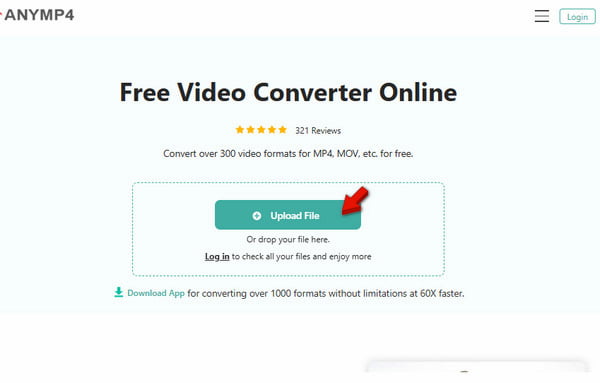
1. Reach the official page of the free MKV to GIF converter by clicking the provided link. On the homepage, click Upload File to import the MKV video from your local drive. You can also drag and drop the MKV file directly to the central area for easy uploading.
2. Under the Video tab, click the Format selector and choose GIF. Adjust the encoder, resolution, frame rate, and quality settings to optimize size and playback smoothness. Next, click Save to begin processing. After completing the conversion, download your GIF file.
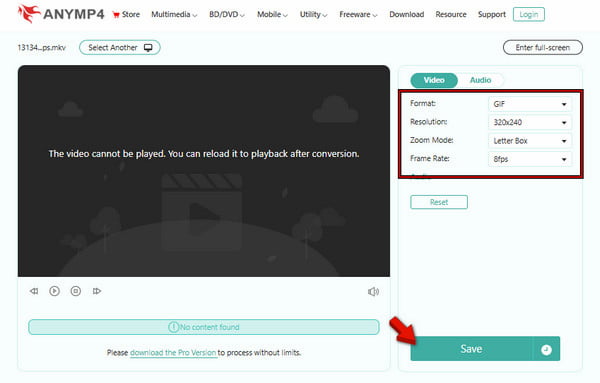
Editor's Note: AnyMP4 Free Video Converter Online performs best when you adjust resolution, frame rate, and encoder settings before converting. These options help optimize quality and file size, especially for MKV clips. While it cannot match its desktop version, it still delivers high-quality GIFs for quick, browser-based workflows.
CloudConvert is a reliable MKV-to-GIF converter for converting video to GIFs. It supports almost 200 media formats, including MKV, and offers basic output settings controls. This tool also offers a generous file size limit of up to 1GB.
PROS
CONS
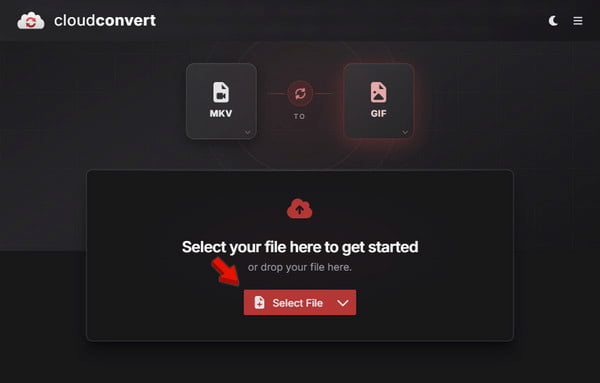
1. On the CloudConvert homepage, click the Select File button to upload MKV files from your local computer. Alternatively, click the pulldown menu to import files from cloud services.
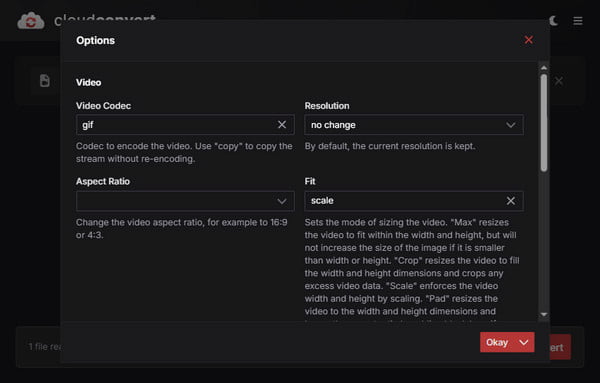
2. In the Format selector, click the Image section and choose GIF. Then, click the Options button to adjust the video codec, resolution, aspect ratio, and frame rate.
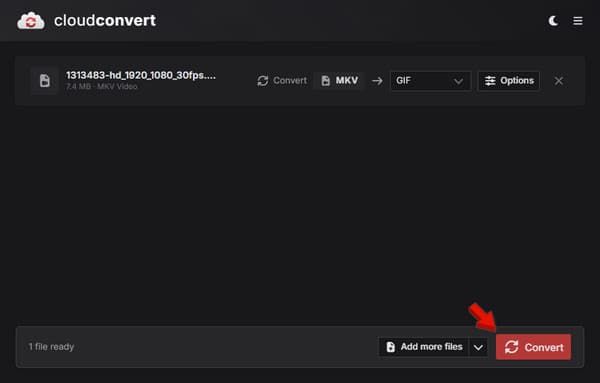
3. Click Convert to begin converting your MKV file to GIF format. After completing the conversion, download the converted GIF file directly to your device.
Editor's Note: CloudConvert is fast and efficient, much like the other online options. However, free users are limited to 25 conversions per day. It means CloudConvert only works best for occasional or moderate use rather than heavy, batch-heavy workflows.
EZGIF is a highly popular free GIF Maker online for converting up to 200MB MKV to GIF. In addition to GIF conversion, this free MKV to GIF converter allows you to trim, resize, and optimize clips before exporting them.
1. Navigate to the EZGIF Video to GIF page and click Choose File. Upload your MKV video from your local files and click Upload Video to proceed.
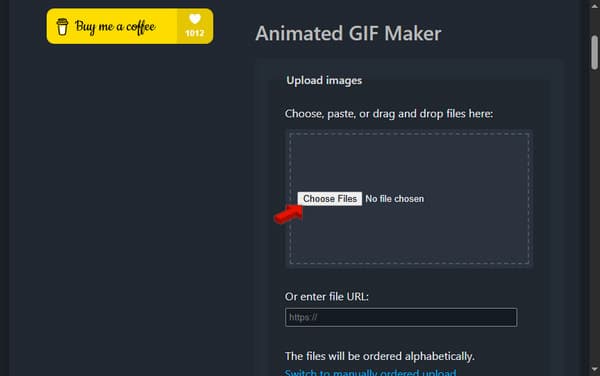
2. After uploading, select the start and end time to convert only a short segment. Configure important settings, then click Convert to GIF! and wait for the tool to process your MKV file.
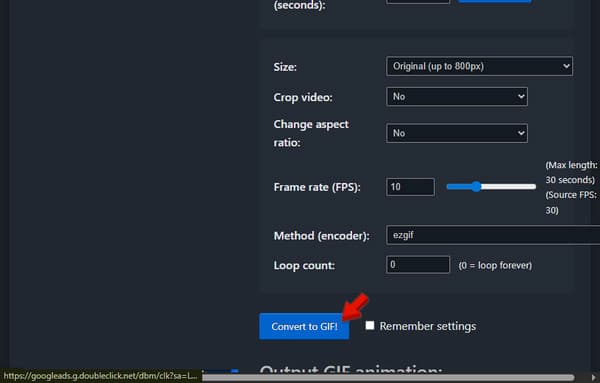
Editor's Note: EZGIF performs best when you carefully trim clips before conversion, which improves looping smoothness. You need to optimize frame rate and resolution manually to avoid oversized GIF files. Also, it helps to maintain a clean, shareable quality for social media use.
| Tool Name | Platform | Input File Size Limit | Watermark | Batch Convert | Supported Inputs | Free Limit | Editing Tools |
|---|---|---|---|---|---|---|---|
| AnyMP4 Video Converter Ultimate | Windows and Mac | No file size limit | No | Yes | MKV and 500+ other formats | Trial version | Yes |
| AnyMP4 Free Video Converter Online | Web | 100 MB | No | No | MKV and 300+ other formats | No | No |
| CloudConvert | Web | 1 GB | No | Yes | MKV and almost 200 formats | 25 conversions/day | Yes |
| EZGIF | Web | 200 MB | No | No | MKV and 10+ other formats | No | Yes |
When learning how to make a GIF from MKV, the biggest challenge is balancing file size with visual quality. MKV files are usually high-definition and long, so converting them directly results in oversized GIFs. Controlling the output before exporting is the key to optimizing output performance and loading speed.
Can I convert MKV to GIF without losing quality?
GIFs have a lower color palette, about 256 colors, compared to MKV videos. However, AnyMP4 Video Converter Ultimate lets you adjust the frame rate and resolution to maintain the quality.
Why is my converted GIF file so large, and how can I fix it?
MKV videos are high-definition. If you convert a long MOV file, the resulting GIF will be massive. Trim the video to 35 seconds and lower the frame rate to 10-50 FPS to fix this.
Is it safe to convert private MKV videos using online tools?
Reputable online tools like CloudConvert delete your files from their servers within 24 hours. However, for highly sensitive or personal videos, it is always safer to use offline desktop software to convert your files locally.
Converting MKV to GIF is easy with the right tool, depending on file size and quality needs. For professional results and large MKV files, AnyMP4 Video Converter Ultimate is the most reliable option. For quick online conversions, AnyMP4 Free Video Converter Online offers a convenient alternative. These tools can create high-quality GIFs with a smaller file size.
Secure Download
Secure Download
 Updated by Alice Thorne to GIF, Convert Video
More readings
 5 High-Profile GIF Looper [Latest Review]
Do you want to make GIFs loop but don’t know which tool to use? See the five GIF loop makers we have listed here!
 How to Create GIF Files on iPhone With Photos/Videos
Maximize the feature on your iPhone device by creating funny GIFs. That is right, the iPhone can be used to make GIFs with ease. Here is the guide to doing it.
 How to Send GIFs on an iPhone (SMS, Snapchat, and Whatsapp)
Let us create a light vibe when chatting by sending GIFs using your iPhone. This article offers steps to send animated images on iPhone via messaging apps.
 5 Ways to Add Text to GIF and Meme [Quick and Easy]
Are you looking for a text editor you can use to add text to your Meme and GIF? If yes, you are certainly in the right place! Check them out here.
 Add your comments to join the discussion here