Best 5 Methods to Convert M4A to WAV with Lossless Quality (2026 Updated)
Top Picks at a Glance:
- Best for Power Users: AnyMP4 Video Converter Ultimate (70X speed + lossless batching).
- Best for One-off Tasks: Convertio (No installation, cloud-based).
- Best for Apple Users Apple Music App (Native, free).
- Best for Tech Enthusiasts: VLC Media Player (Open-source, versatile).
- Best for Audio Engineers: Audacity (Granular waveform and metadata control).
As high-fidelity audio becomes the standard for both professional creators and audiophiles, the need to convert Apple’s M4A (MPEG-4 Audio) into the studio-standard WAV (Waveform Audio File Format) has never been higher. Whether you are prepping tracks for a Digital Audio Workstation (DAW) like Pro Tools or seeking uncompressed archival quality, choosing the right tool is critical to avoid "generation loss."
|
Conversion Speed |
Batch Capability |
Audio Quality |
Ease of Use |
Best For... |
| AnyMP4 Video Converter Ultimate |
(70X) |
Unlimited |
Lossless Pro |
|
High-volume & Pro use |
| Convertio |
(Network-based) |
Limited (Max 2) |
Standard |
|
Quick, one-off files |
| Apple Music |
(Moderate) |
Library-based |
Standard |
|
Mac users / CD Burning |
| VLC Player |
(Moderate) |
Yes |
High |
|
Repairing corrupted files |
| Audacity |
(Manual) |
No |
Lossless Pro |
|
Sample editing & DJs |
Technical Comparison: M4A vs. WAV
Understanding the container and codec differences is the first step toward professional-grade audio management.
| M4A (AAC / ALAC) |
VS |
WAV (LPCM) |
| Compressed (Lossy or Lossless) |
Compression |
Uncompressed (Lossless) |
| Usually 16-bit |
Bit Depth |
Up to 32-bit (Float) |
| Up to 96kHz |
Sample Rate |
Up to 192kHz or higher |
| Apple Ecosystem / Streaming |
Standard |
Professional Audio / Broadcast |
| iPhone playback, storage saving |
Best Use Case |
Music production, CD Burning, Archiving |
Why Convert to WAV?
WAV is the "gold standard" for audio editing. Unlike compressed M4A files, WAV files do not require CPU-intensive decoding during playback in editing software, ensuring smoother performance in multi-track sessions.
Method 1: AnyMP4 Video Converter Ultimate (Best for Professionals)
AnyMP4 Video Converter Ultimate is engineered for high-volume, high-fidelity transcoding. In 2026, it remains the only consumer-grade tool that fully utilizes AI-driven hardware acceleration (NVIDIA, AMD, and Intel) to maintain "Bit-perfect" quality while converting at 70X speed. It is specifically designed to handle ALAC (Apple Lossless) to WAV (PCM) transitions without losing a single bit of data.
Download the latest version of AnyMP4 Video Converter Ultimate. Launch the program and ensure your GPU drivers are updated to enable maximum hardware acceleration.
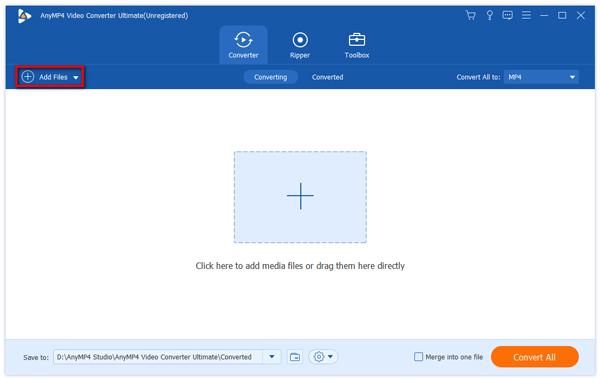
1. Import M4A Assets
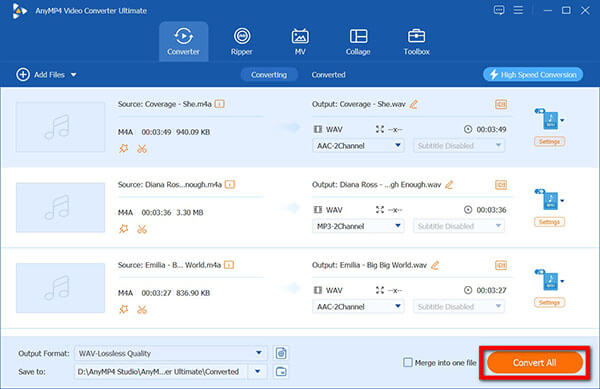
Click the Add Files button or simply drag and drop an entire folder of M4A files into the main workspace. The software will display the metadata (bitrate, duration, etc.) for each track.
2. Configure Output Profile:
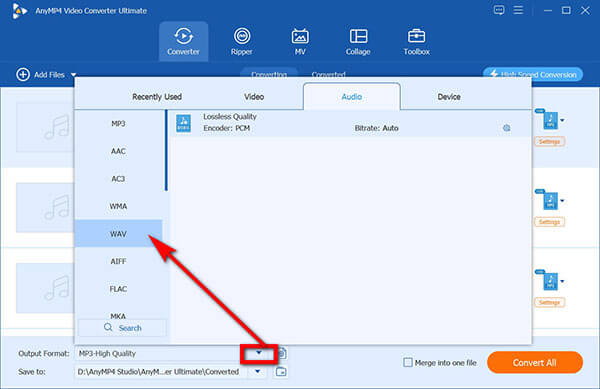
Click the Output Format drop-down list on the left side of the file list. Navigate to the Audio tab and select WAV from the sidebar.
Tips
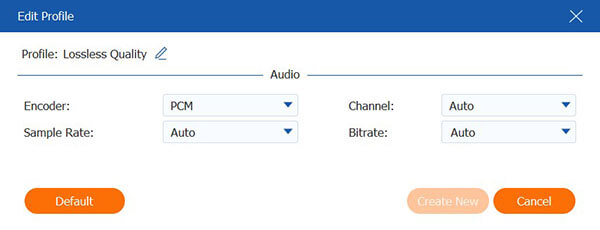
Click the Custom Profile (Gear icon). Set the Sample Rate to "Auto" or match your source (e.g., 48,000Hz) and set Bitrate to the highest level to ensure no fidelity is lost.
3. Start Batch Conversion
Select your destination folder at the bottom. Click Convert All. A 5-minute song typically converts in less than 3 seconds on modern systems.
Editor's Experience:
"During my testing, I imported a 2GB library of M4A concert recordings. While most tools struggled or crashed, AnyMP4 utilized my NVIDIA RTX GPU to finish the entire batch in under 45 seconds. What impressed me most was the 'Keep Original' setting—it ensured the sample rate remained identical to the source, preventing any phase distortion."
Method 2: Convertio (Best for Quick Online Access)
Convertio is the premier browser-based M4A to WAV solution for users who prioritize convenience over batch power. It operates entirely in the cloud, meaning you don't need to strain your local CPU. It is ideal for Chromebook users or those on public computers.
1. Access the Portal
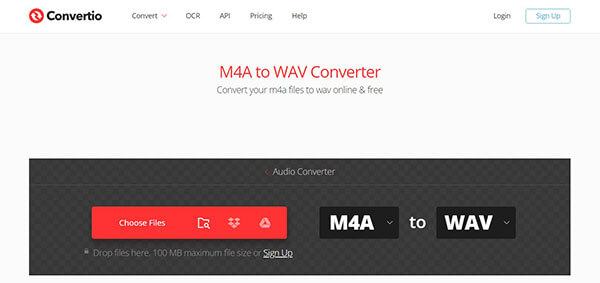
Navigate to the Convertio M4A to WAV page.
2. Upload Source M4A File
Click Choose Files to select M4A files from your local drive, or click the icons to sync directly from Google Drive or Dropbox.
The maximum file size of each audio file is 100MB. Do not upload the file that exceeds that file size.

3. Advanced Settings (Optional)
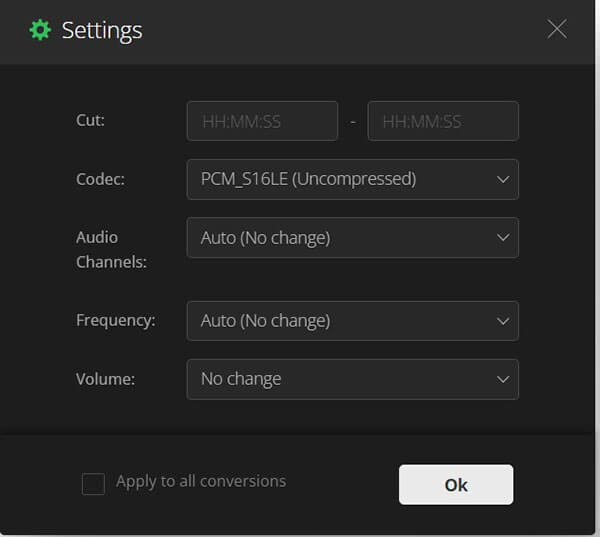
Click the Settings (Wrench icon) next to the output format. Here you can trim the audio or change the audio channels (Mono/Stereo).
4. Cloud Process
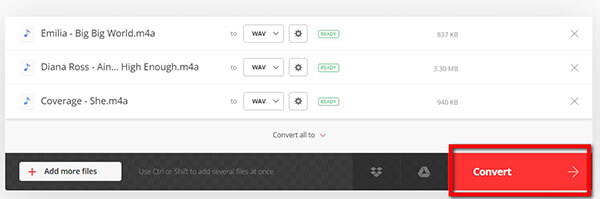
Click Convert. Once the status bar reaches 100%, it means the conversion process is done.
Once the "Finished" message appears, click Download to save the converted WAV files.
Tips
Files are stored for 24 hours, and they will be deleted from their servers for privacy.
Editor's Experience:
"I often use Convertio when I'm on my Chromebook or a public terminal. It’s incredibly reliable for small files. However, be aware: if your M4A is a high-bitrate ALAC file exceeding 100MB, the free tier will block you. It’s a great 'Plan B,' but the upload/download loop makes it tedious for large albums."
Method 3: Apple Music / iTunes (The Native Way)
For users who want a free solution without downloading third-party software, Apple’s native apps are the most reliable. Note that the process involves changing the "Import" logic of the app.
1. Open Preferences
Launch the Music app. In the top menu, click Music > Settings.
Or go to Edit > Preferences in iTunes on Windows
2. Configure Encoder
Go to the Files tab (Or General tab) and click Import Settings.
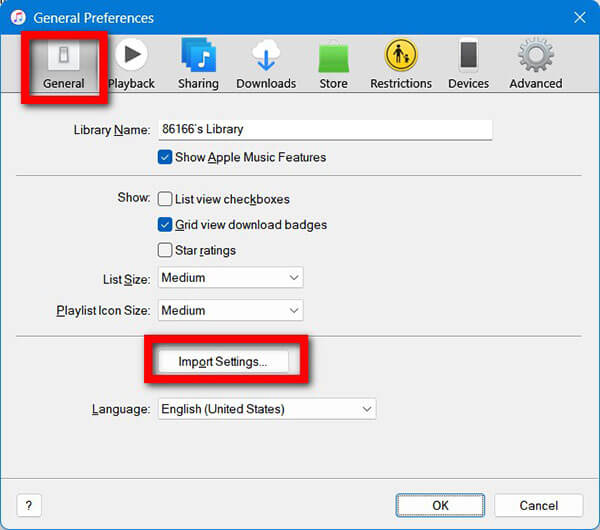
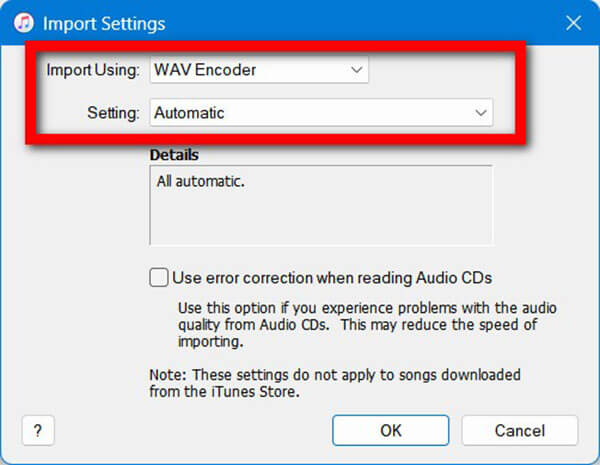
Change the "Import Using" dropdown to WAV Encoder. Under "Setting," choose Automatic or Custom (to specify 16-bit/44.1kHz). Click OK.
3. Generate WAV File
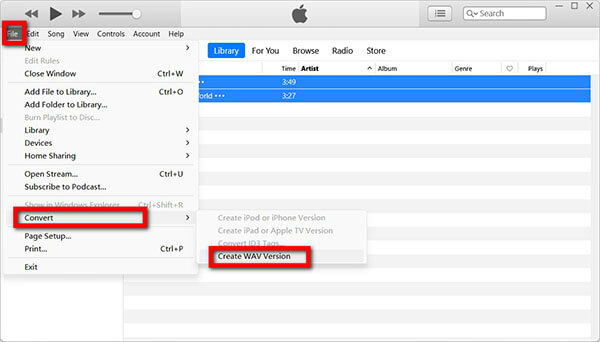
Select the M4A tracks in your library. Go to File > Convert > Create WAV Version.
4. Locate File
Right-click the new version and select Show in Finder to move it to your desired folder.
Editor's Experience:
"The 'hidden' nature of this feature is its biggest downside. Many users don't realize you have to change your Global Import Settings first. Once configured, it's a solid tool, but it lacks the speed of dedicated converters and won't let you adjust advanced PCM parameters like bit-depth."
Method 4: VLC Media Player (The Open-Source Workhorse)
VLC is a versatile tool that can repair minor header errors in M4A files during the conversion process. It is the best choice for users who value open-source transparency.
1. Open Media Menu
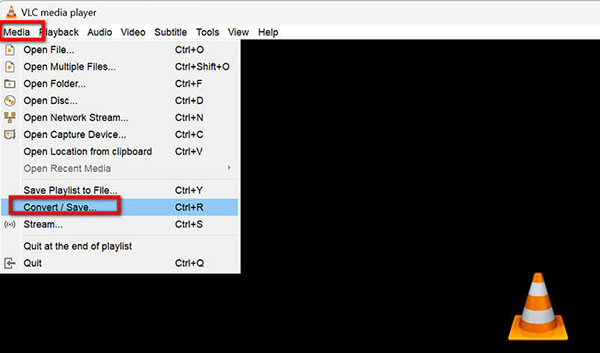
Launch VLC. Go to Media > Convert / Save (or Ctrl+R).
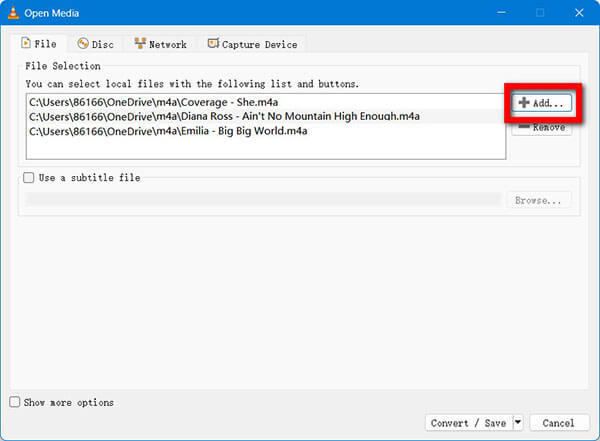
2. Add M4A Files
Click Add to load your M4A files. Click the Convert button at the bottom.
3. Create Custom Profile:
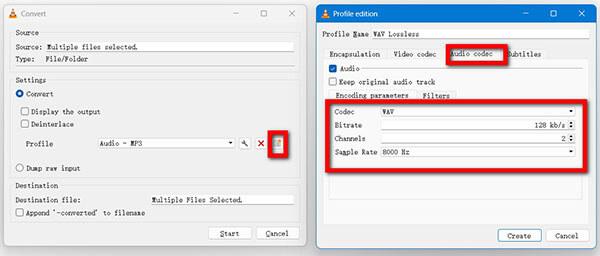
In the "Profile" section, click the Create New Profile icon (the sun icon). Name it "WAV Lossless."
Under Encapsulation, select WAV.
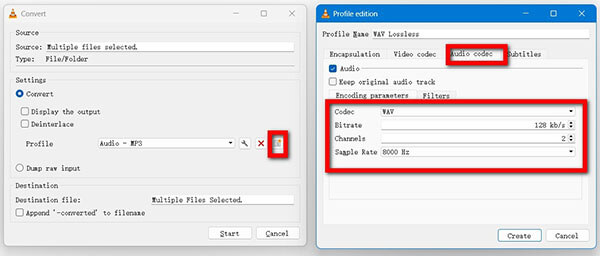
Under Audio codec, check the "Audio" box, select WAV (or PCM) from the codec list, and keep the "Original audio track" box checked to avoid re-compression.
4. Start M4A to WAV Transcoding
Select your destination and click Start. The progress bar will move as if the file is playing.
Editor's Experience:
"VLC is my 'rescue' tool. I once had a corrupted M4A file that other converters wouldn't open; VLC’s robust engine bypassed the header errors and successfully transcoded it to a clean WAV. The interface is a bit clunky, but its reliability is unmatched for a free tool."
Method 5: Audacity (The Best for Metadata & Editing)
Audacity is the preferred tool for podcasters and musicians who need to inspect the audio waveform and edit ID3 tags before exporting to WAV.
1. Setup FFmpeg
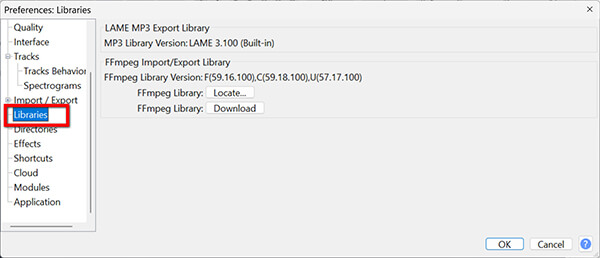
Audacity cannot natively read M4A (AAC) without the FFmpeg Import/Export Library. Go to Edit > Preferences > Libraries to ensure it is installed.
2. Import Audio
Drag the M4A file onto the Audacity timeline. You can now see the waveform to check for clipping or silence.
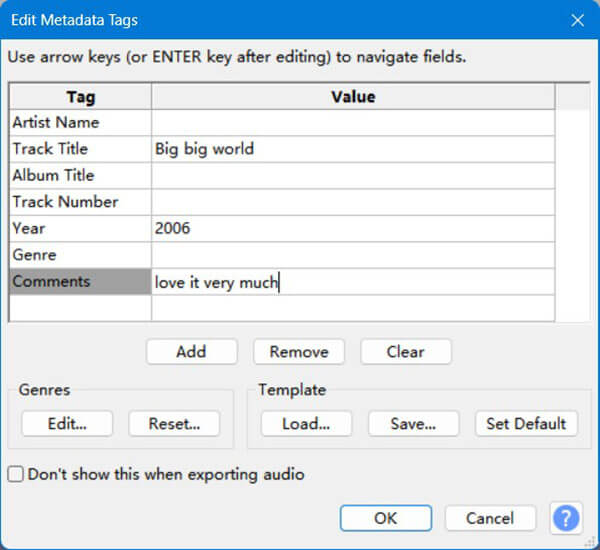
3. Edit Metadata
Go to Edit > Metadata Tags if you wish to change the Artist or Album info, which will be embedded in the WAV "INFO" chunk.
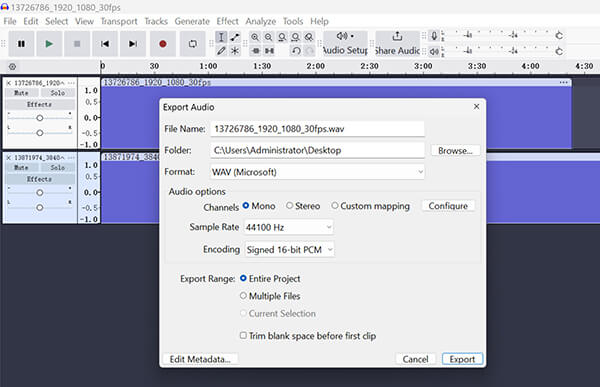
4. Export Path
Go to File > Export Audio. In the export window, choose WAV (Microsoft) signed 16-bit PCM (for standard use) or 24-bit PCM (for high-end studio use). Click Save.
Editor's Experience:
"When I'm preparing samples for a music project, I use Audacity. It allows me to trim silence from the beginning of a track and normalize the volume before exporting to WAV. Just remember: you must install the FFmpeg library first, or Audacity will throw an error when trying to read M4A files."
FAQs
Q: Will converting M4A to WAV make the sound better?
A: No. If the source M4A is lossy (AAC), converting to WAV won't restore missing data. However, it prevents further quality loss if you plan to edit the file multiple times.
Q: Why is my converted WAV file 10 times larger than the M4A?
A: This is normal. WAV is uncompressed. Think of M4A as a "zipped" folder and WAV as the "unpacked" contents. A 50MB WAV file provides the raw data needed for high-end audio hardware.
Q: How do I batch convert 1,000 files quickly?
A: For high-volume tasks, AnyMP4 Video Converter Ultimate is the most efficient due to its multi-core CPU and GPU distribution.
Q: Is M4A the same as WAV?
A: No. Developed jointly by Microsoft and IBM, WAV (Waveform Audio File Format) is the standard container for uncompressed audio bitstreams on personal computers. While M4A is an audio file created in the MPEG-4 format used to store compressed audio and video data by Apple. They are in different formats and used on different platforms.
Q: Does Windows Media Player convert M4A to WAV?
A: No. Generally speaking, Windows Media Player is the media player to play video and audio files on a Windows computer. It can work as the audio converter to rip CDs into digital formats like WAV, MP3, WMA, and FLAC, instead of converting M4A to WAV. If your device cannot play M4A files, you can install an M4A player.
Q: Is M4A lossless?
A: M4A is the container to store the audio streams for lossless ALAC or AAC lossy codec. It can be lossless or lossy, depending on the code it contains.
Conclusion
Choosing the right converter is less about the "how" and more about the "how much." How much time do you have? And how much do you care about your audio's soul?
- • The Power User's Choice: If you have a massive library and a low tolerance for waiting, AnyMP4 Video Converter Ultimate is the undisputed champion. Its 70X hardware acceleration and "bit-perfect" lossless engine mean you don't have to sacrifice your afternoon—or your audio quality.
- • The Quick Fix: For that one-off 5MB recording, Convertio or your browser-based tools are fine, provided you don't mind the upload wait.
- • The Purist’s Path: If you're already in the studio prepping for a mix, Audacity remains your best friend for a final, clean export.



 Add your comments to join the discussion here