- Convert video, audio, and DVD over 500 formats.
- GPU acceleration to speed up the conversion process at 70X faster.
- More than 16 editor tools in the toolbox (Updating).
- Create videos for TikTok, YouTube, Facebook, etc.

Free Download100% Clear & Secure
Free Download100% Clear & Secure
Video to WAV
Back to main page
Setting
Custom resolution:
| Core Features | Web Version | Pro Desktop |
| Max File Size | 50MB (Login: 100MB) | No Limit |
| Daily Limit | 2 Files (Login: 10 Files) | Unlimited |
| AI Video Upscaling | No | Yes (Up to 4K/8K) |
| GPU Acceleration | No | Yes (70X Faster) |
| Batch Processing | No | Yes |
Failed to upload media file! Please try again, or use AnyMP4 Video Converter Ultimate for Desktop.(Error code: 20015)

The original video resolution is higher than 1080p. If you want to output the original high resolution, you need to download the Pro Version. Or would you like to output the default 1080p resolution?

Quick Summary
Need a quick answer? Here are the top tools and the basic steps to extract high-fidelity audio right now:
When you are finishing a killer video edit or archiving a live concert, only to realize you need the isolated audio for your DAW. You are staring at a massive 4K MP4, but you only want the sound, and you cannot afford the detail-stripping compression of an MP3. That is exactly when you need to convert video to WAV. A true WAV file locks in uncompressed PCM audio quality, giving you a perfect 1:1 replica of the original soundstage. In this guide, we will share 3 easy methods to extract lossless audio using dedicated desktop software, open-source media players, and quick browser apps. Continue reading below to find your perfect extraction tool.
| Speed | Audio Quality | Batch Processing | Best For | |
|---|---|---|---|---|
| AnyMP4 Video Converter Ultimate | Extremely Fast (GPU Accelerated) | 1:1 Lossless PCM Extraction | Yes (Unlimited) | Professional editors, large bulk tasks |
| VLC Media Player | Average (CPU Rendering) | Good (Requires Manual Setup) | No | Budget users, open-source fans |
| Convertio | Depends on Internet Bandwidth | Standard (Basic Parameters) | Yes (Requires Paid Tier) | Quick, one-off mobile tasks |
If you do not want to spend more time on video to WAV conversion process, you need a light tool. AnyMP4 Video Converter Ultimate is easy to use with a clean interface. It functions as a specialized MP4 to WAV converter with various custom profile settings like bitrate, same rate, etc. Then you can complete the conversion without degrading the sound quality.
PROS
CONS
Detailed steps for lossless audio extraction from video:
1. Load Your Video File
Free download this video to WAV converter on your Windows or Mac computer.
Secure Download
Secure Download
Open the software. Click the Add Files button at the top-left corner, or just drag and drop your video files straight into the main interface.

2. Set Output Format
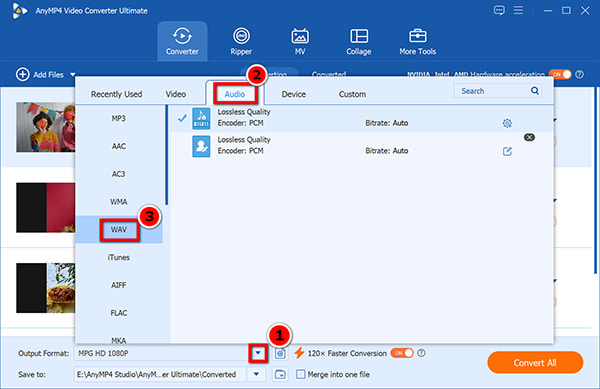
Look for the Output Format drop-down menu on the bottom left. Click it, switch to the Audio tab, and choose WAV from the left panel.
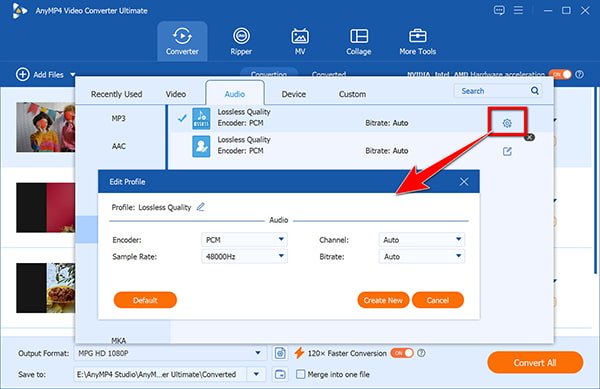
Click the Custom Profile (gear icon) next to the WAV format. Here, set your Audio sampling rate (like 48000 Hz) and bitrate to match your DAW project. Click Create New.
3. Start Video to WAV Conversion
Choose your save folder at the bottom. Finally, hit the big Convert All button to extract your lossless audio instantly.
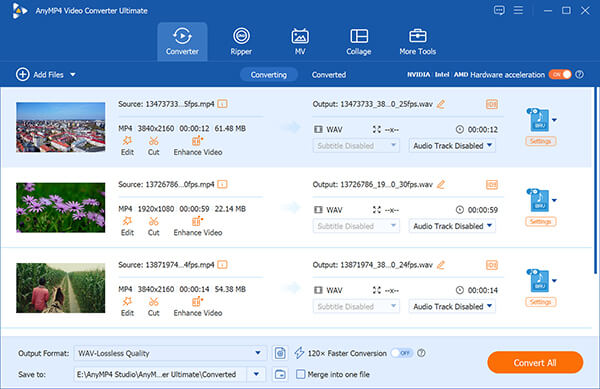
When doing batch conversions, rename your video files systematically before loading them into the software. It saves you an immense amount of time later when you are sorting through audio tracks.
Moreover, its powerful toolbox features enable you to edit WAV metadata, remove audio noise, and more.
Overall, AnyMP4 Video Converter Ultimate is our go-to daily driver. It is practically idiot-proof and handles the heavy lifting without crashing your CPU. If you value your time, need to process dozens of clips at once, and require guaranteed 1:1 High-fidelity sound extraction, this is the desktop solution that simply gets out of your way and works.
What if you are on a zero-dollar budget? You turn to VLC Media Player. Most people think VLC is just for watching movies. In reality, it packs a raw transcoding framework that can Extract audio from MP4 with precision.
PROS
CONS
Detailed steps to extract audio from video via VLC:
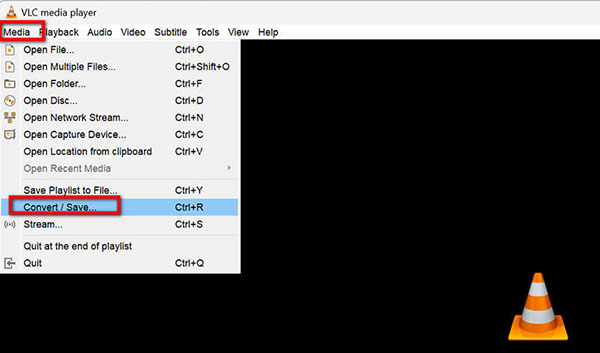
1. Access Convert / Save
Open VLC. Click the Media tab at the top and select Convert / Save.
2. Add Video File to VLC
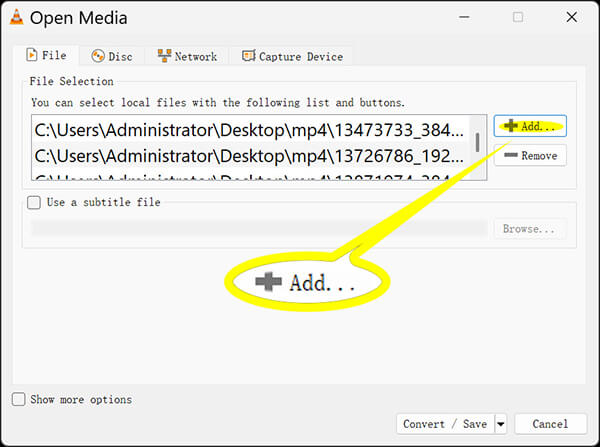
Click the Add button to load your target video file. Then, click the Convert / Save button at the bottom.
3. Build a WAV Profile
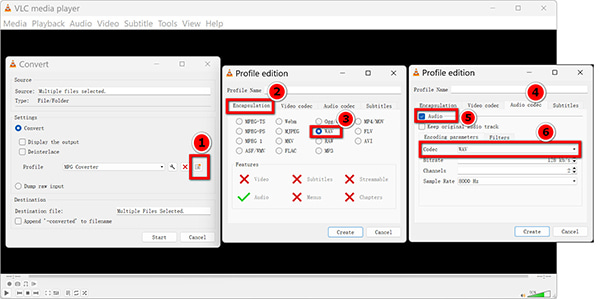
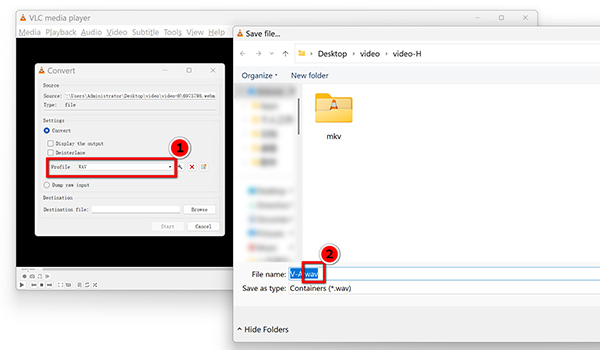
In the Profile dropdown, VLC doesn't always show WAV. Click the wrench icon to build one. Select WAV encapsulation, enable the audio in the Audio codec tab, and save it. It’s clunky, but it works.
4. Convert Video to WAV in VLC
Click Browse to specify your output destination.
Do not skip this: VLC is notoriously stupid about file extensions. It will often leave the extension blank. You MUST manually type .wav at the end of your filename, or your PC will treat it as an unreadable mystery file.
Hit Start. Once the conversion is done, you can find the converted WAV file and open them in the WAV player.
VLC is the ultimate "it ain't pretty, but it's free" tool. We love it for emergencies when we are stuck on a laptop without our main software suite. Just be prepared to wrestle with the retro menus and double-check your output folders, because trying to do batch conversions with VLC is an absolute nightmare.
Sometimes you just need to transform a tiny video clip into an uncompressed audio format right away. You do not have time to install apps. This is where cloud utilities like Convertio step in.
PROS
CONS
Detailed steps for browser-based processing video to WAV:
1. Upload the Source Asset
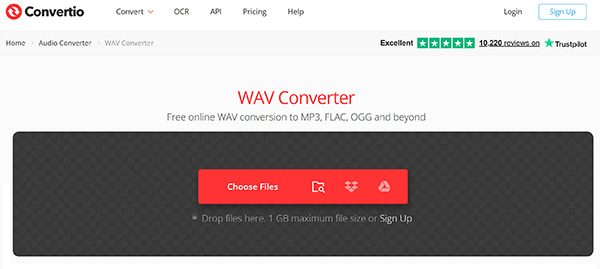
Open your browser and go to Convertio's video to WAV converter (https://convertio.co/mp4-wav/). Click the red Choose Files button.
2. Custom WAV Format
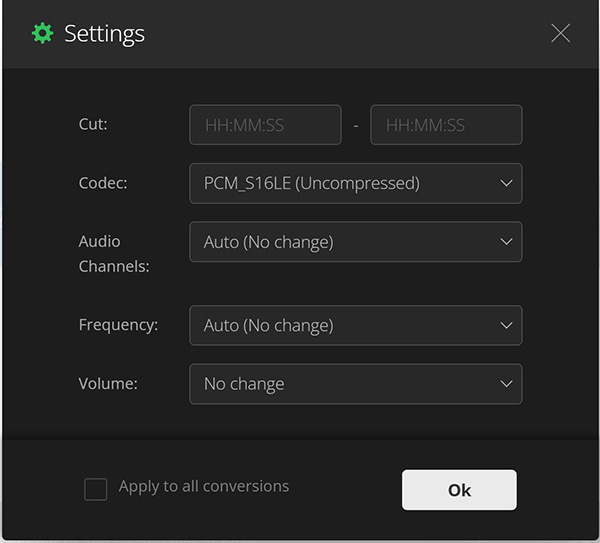
After loading this video file to Convertio, WAV is the default output format. Click the custom profile option, adjust the codec, audio channel, volume as you wish.
3. Convert Video to WAV
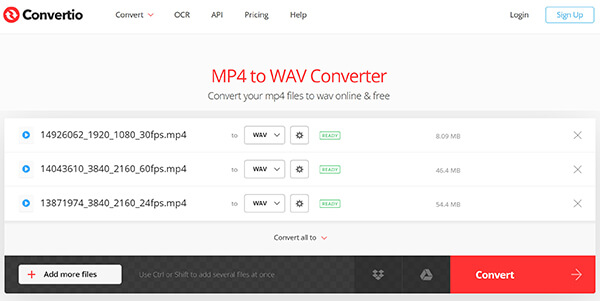
Click the large Convert button. The reality check here: If you are on terrible coffee shop Wi-Fi or trying to upload a 2GB 4K video, go grab a coffee. You are entirely at the mercy of your upload bandwidth.
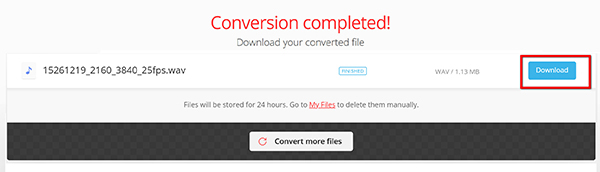
4. Download the Track: Once the cloud finishes, click the blue Download link to save the new WAV file.
If you ever use a web converter for client work, check their privacy policy first. Free services often retain files on their servers, which could violate a non-disclosure agreement.
We keep Convertio bookmarked strictly for "panic moments." It is fantastic for bypassing installations when a client sends a tiny reference clip over Slack. However, due to the severe 100MB free-tier upload limits and the obvious privacy risks of uploading unreleased media to a random server, it will never replace a local desktop app for serious studio work.
Before we start ripping files apart, let's address the elephant in the room. Why not just extract to MP3? It's smaller, right?
Yes, and it is also destructive. MP3 is a lossy format. The compression algorithm literally deletes audio frequencies it assumes human ears won't miss just to save file space. When you are pulling audio from a video for professional mixing, podcast mastering, or archival purposes, that compression introduces harsh digital artifacts and muddies the soundstage.
WAV, on the other hand, is an uncompressed audio format. It holds the raw, unadulterated acoustic data exactly as it was originally recorded. Sure, it takes up more hard drive space, but let's be real, in the modern editing bay, disk space is cheap, but audio fidelity is priceless. If you care about the final product, WAV is the only professional choice.
| WAV (Uncompressed) | MP3 (Compressed) | |
|---|---|---|
| Data Integrity | 100% Lossless (Exact 1:1 replica) | Lossy (Frequencies are permanently deleted) |
| File Size | Large (~10MB per minute) | Small (~1MB per minute) |
| Bitrate Capability | Up to 4608 kbps (or higher) | Capped at 320 kbps |
| Best Used For | Pro post-production, DAWs, sound archiving | Streaming, casual listening, email attachments |
| Audio Artifacts | None. Pure acoustic representation. | Prone to digital distortion on high/low ends. |
Q: Does converting MP4 to WAV improve the original audio quality?
A: No, it does not. You cannot create clean data out of thin air. If your original video has a highly compressed track, converting it simply wraps that audio inside a larger container. However, it prevents further degradation. Moving to WAV locks down the current quality state for your editing pipeline.
Q: How do I ensure the WAV file is compatible with professional DAWs?
A: You must pay attention to your sample rate. The industry standard baseline for video post-production is 48kHz at 24-bit PCM. Avoid non-standard sample rates, as they cause synchronization errors.
Q: Can I extract audio from encrypted or protected video files?
A: This is a hard legal wall. If a video asset is locked down with DRM, like files purchased through streaming providers, standard extraction software will fail to process it. Always ensure you possess the legal distribution rights before pulling audio assets.
That's all for how to convert video to WAV. You really don't have to lose sound quality when extracting audio from a video file. As long as you convert it to an uncompressed WAV file, the original audio remains completely intact. In this post, we've walked you through 3 proven ways to get the job done. You can use AnyMP4 Video Converter Ultimate for fast, heavy-duty batch conversions, rely on VLC Media Player as a completely free alternative, or try Convertio for a quick online fix. Just pick the tool that fits your current project, double-check your sample rates, and start saving your audio the right way.
 Updated by Alice Thorne to Convert Audio, Convert Video
 More readings
 10 Ways to Convert between WAV and MP3 on Computer & Mobile
Looking for the best WAV to MP3 converter? We tested 10 methods on desktop, online, and mobile. From AnyMP4 (top pick) to free tools, find yours here.
 How to Convert MOV to WAV (Lossless Audio) on Windows & Mac
Easily extract high-quality WAV audio from MOV videos. Get the best 3 converters for batch conversion and 100% original quality.
 10 Best MP4 to WAV Converters for Lossless Audio Extraction
We tested the 10 best MP4 to WAV converters for computers and mobile devices. Get expert tips on PCM and bit rates to extract WAV without losing quality.
 5 Best Ways to Convert Video to MP4 (High Quality & Fast)
Tired of File not supported errors? Learn how to convert any video (MOV, MKV, AVI) to MP4 with the best free and pro converters for 70x speed and 4K quality.
 Add your comments to join the discussion here