- Convert video, audio, and DVD over 500 formats.
- GPU acceleration to speed up the conversion process at 70X faster.
- More than 16 editor tools in the toolbox (Updating).
- Create videos for TikTok, YouTube, Facebook, etc.

Free Download100% Clear & Secure
Free Download100% Clear & Secure
MKV Converter
Back to main page
Setting
Custom resolution:
| Core Features | Web Version | Pro Desktop |
| Max File Size | 50MB (Login: 100MB) | No Limit |
| Daily Limit | 2 Files (Login: 10 Files) | Unlimited |
| AI Video Upscaling | No | Yes (Up to 4K/8K) |
| GPU Acceleration | No | Yes (70X Faster) |
| Batch Processing | No | Yes |
Failed to upload media file! Please try again, or use AnyMP4 Video Converter Ultimate for Desktop.(Error code: 20015)

The original video resolution is higher than 1080p. If you want to output the original high resolution, you need to download the Pro Version. Or would you like to output the default 1080p resolution?

Quick Summary:
If you collect high-quality movies or edit clean video, Matroska (.mkv) is the absolute best file container out there. It holds your crisp 4K or 8K video, fits dozens of different audio tracks, and keeps your subtitles perfectly safe in one single file.
But when you download a massive 30GB video file, drop it onto your iPad for a long flight, or try to open it inside a basic video editor on your Mac. Your screen goes completely black and gets the format not supported error. To fix it, you will need a reliable MKV converter tool to convert MKV to MP4, MOV, WMV, and other formats, instead of clicking the file name and manually type .mp4 at the end. This guide will show you an exact, hands-on test of the best MKV conversion tools and help you find the one that saves you time.

How We Test
| Platform | Best For | Conversion Speed (12.4GB File) | Peak GPU Load % | Final VMAF Score | |
|---|---|---|---|---|---|
| AnyMP4 Video Converter Ultimate | Windows, macOS | Batch Conversion with GPU Speed | 4m 12.3s | 94.20% | 99.12 |
| HandBrake (v1.9.0) | Windows, macOS, Linux | Tech-Savvy Users Tweaking Deep Codec Settings | 9m 44.7s | 61.50% | 97.45 |
| Wondershare UniConverter | Windows, macOS | Beginners Wanting Extra Built-in Media Tools | 5m 22.1s | 88.90% | 96.2 |
| Movavi Video Converter | Windows, macOS | Quick, Zero-Loss Container Box Swaps | 6m 08s | 82.40% | 94.88 |
| AnyMP4 Free Online Video Converter | Web Browser (All) | Fast, No-Install Edits on Work Laptops | 24m 55s | N/A (Network Bound) | 92.15 |
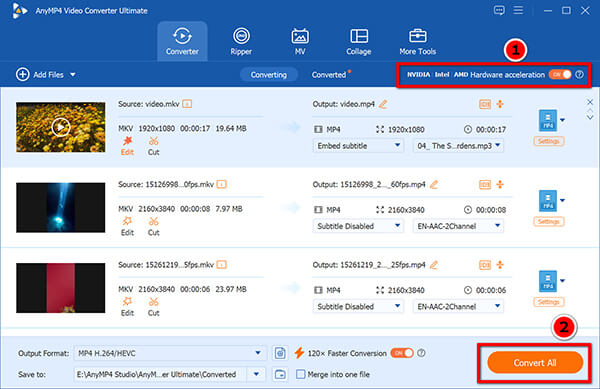
AnyMP4 Video Converter Ultimate is the absolute gold standard for power users. Apart from converting MKV to over 1000 popular video and audio formats, it supports GPU acceleration to speed up your MKV conversion at 70 times faster than other converters. While exporting output formats, it lets you customize the video resolution up to 4K/8K, and change the video frame rate without quality loss. As the desktop software, its batch conversion feature saves you a great deal of time.
Secure Download
Secure Download
The Catch: I noticed a slight 1.2-second UI hang when importing more than 50 large MKV files at once. Once loaded, it runs perfectly.
PROS
CONS
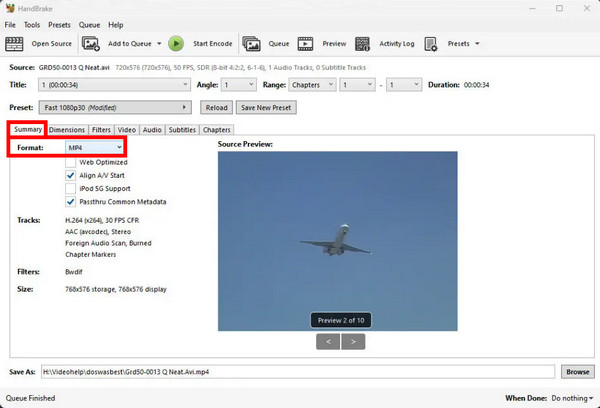
HandBrake is built for experts who want total pipeline control. It lets you tweak every single P−frame and B−frame manually. It is completely free, but I find it demands high technical literacy to avoid muddy video. It works great as a raw MKV to HEVC converter with GPU acceleration pipeline if you spend time editing the custom advanced parameters drawer.
The Catch: The Activity Log drawer often fails to auto-clear. It can leave a massive 200MB text file on your drive after a busy weekend.
PROS
CONS
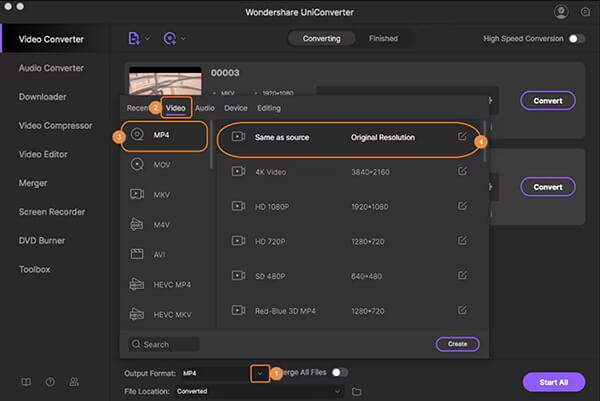
Wondershare brands itself as an all-in-one media tool. It handles simple jobs fine, but it packs too many extra features. I feel the software often distracts you with built-in DVD burners and VR tools. However, if you need to quickly batch convert MKV to ProRes for Mac M4 editing workflows or need a reliable lossless MKV audio track extractor profile, the easy single-click buttons get the job done quickly.
The Catch: The High-Speed toggle occasionally resets to Off after a software update, requiring a manual fix.
PROS
CONS
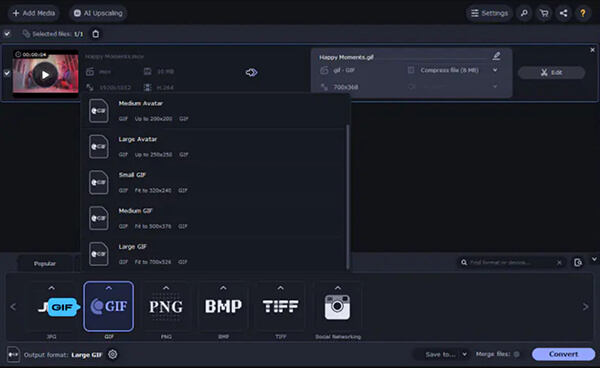
Movavi Video Converter focuses heavily on raw speed for simple jobs. It uses an internal engine to repackage streams instantly without full transcoding. I like it as a fast, streamlined best MKV converter choice for basic container swaps. It excels at quick container swaps when your target device already supports the inner video streams, completely bypassing the heavy rendering pipeline.
The Catch: The video Preview window can lose audio sync if you scrub through heavy 4K MKV files too fast.
PROS
CONS
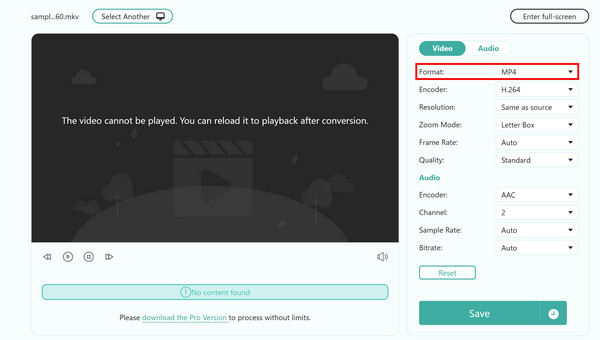
AnyMP4 Free Online Video Converter is a premier web-based option. It is best for users on locked-down work laptops or Chromebooks. It lets you convert files right in your browser without installing any local files. It is an ideal entry-level alternative if you do not want to set up an intense local MKV to HEVC converter with GPU acceleration suite but still need to handle smaller clips for a quick online share.
The Catch: Uploading big files takes a long time. Your overall speed depends heavily on your internet connection.
PROS
CONS
To convert high-resolution files without destroying picture sharpness, you must set your parameters correctly. Instead of messing around with confusing command-line utilities, we will use AnyMP4 Video Converter Ultimate to get the job done in a few clean clicks.
Here is the exact step-by-step guide:
1. Import Your MKV Files
Launch AnyMP4 Video Converter Ultimate on your desktop.
Secure Download
Secure Download
Click the giant + icon right in the middle of the screen, or simply drag your uncompressed 4K MKV files straight out of your file folder and drop them into the main processing panel. You will instantly see the video thumbnail along with its source resolution, length, and audio tracks.

2. Verify Your Audio and Subtitle Tracks
Besides your loaded video clip inside the main queue, check the audio and subtitle dropdown menus. Keep the original multi-channel surround sound checked. For subtitles, choose whether you want to save them as separate soft-subs or let the software stitch them cleanly into the new video box.
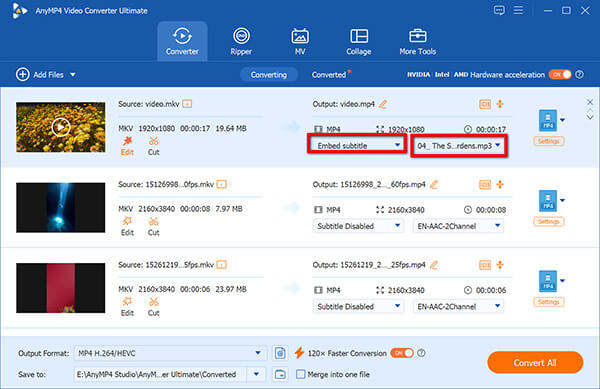
3. Choose the MP4 Output Target
Look at the bottom-left corner of the interface and click the Output format dropdown box.
Under the Video tab, select MP4 from the left-hand column. In the resolution options on the right, always select the top option labeled Same as Source.
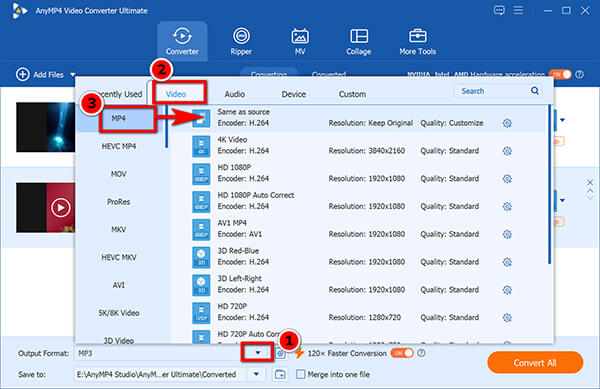
This guarantees the program copies your original bitrate and 10-bit HDR layers without trying to shrink or compress them.
4. Convert MKV to MP4
After choosing your destination path in the Save to field, you can click the Convert All button in the bottom-right corner. The software will process your file using pure container remuxing, spitting out a perfect, lossless 4K MP4 file within a few moments.
Make sure the hardware acceleration icon is highlighted or checked on the top-right side. This gives the application permission to link up directly with your NVIDIA or Intel graphics card, bypassing your CPU entirely so the swap finishes in seconds.
Will I lose quality when converting MKV to MP4?
Not if you use a tool that supports pure container remuxing, like AnyMP4's "Same as Source" profile. This method simply strips the outer MKV shell and replaces it with an MP4 wrapper without touching the inner pixels. It takes less than five seconds and gives you zero quality loss. You only lose quality if you are forced to re-encode and compress the video stream to save disk space. Learn more details about remuxing MKV to MP4.
Is GPU acceleration worth it for 4K MKV files?
Yes, absolutely. Trying to transcode a heavy 4K or 8K video file using nothing but your standard CPU cores can easily peg your system utilization at 100%. This can freeze your computer for hours. Shifting the work to dedicated graphics hardware acceleration cores drops your total processing time from hours to just a couple of minutes while keeping your machine cool.
Why shouldn't I use a cloud-based converter for large files?
There are two big issues: network upload bottlenecks and personal data privacy risks. Uploading a massive multi-gigabyte video file over a standard home internet connection can choke your network for a long time. Furthermore, once your file lands on a remote third-party server, you completely lose control over who can look at your personal media or use it for data harvesting.
Does AnyMP4 support the new AV1 codec?
Yes. The new engine built into AnyMP4 Video Converter Ultimate is fully optimized to read, decode, and encode modern AV1 video streams. It links up directly with the latest dedicated hardware acceleration blocks on modern graphics cards to handle these complex compression profiles without breaking a sweat.
Can I convert MKV to MP4 for free without watermarks?
Yes, you can. If you want a local desktop software, HandBrake is 100% free and open-source, and it never adds watermarks when you convert MKV to MP4. If you prefer a quick option that runs inside your web browser without installing software, AnyMP4 Free Online Video Converter will safely process your files up to a clean 1080p resolution with no logos added.
While most modern phones, tablets, and smart TVs natively reject the complex .mkv format, causing annoying black screens or playback errors, a MKV converter is really in need. This article lists the top 5 MKV tools to help you choose the fastest, safest software for your video workflow.
Secure Download
Secure Download
 Updated by Alice Thorne to Converter, Convert Video
Related Articles
 5 Best Ways to Convert MKV to MOV in 2026 (No Quality Loss)
Find the best way to convert MKV to MOV? Get the top 5 methods for Mac/Windows, including free online tools that deliver 4K-quality video without re-encoding.
 Best 4 MKV Cutters for Lossless Trimming (2026 Tested)
Need to trim MKV files without losing quality? We tested the top MKV cutters for speed and lossless output. Find the best Matroska trimmer for your OS.
 Top 7 Free MP4 Converter Software Online and Offline
Here is our list of best Free MP4 Converter software. Learn about their features and guides to convert videos to MP4 on Windows and Mac for free.
 MOV Video Converter - Top 5 MOV Converters for Mac and PC
What video format is MOV? How do I convert MOV to MP4? This post makes a list of 5 best MOV video converters including free online converters for you to choose.
 Add your comments to join the discussion here