
Key Takeaways:
You can convert Opus to WAV using the following 3 reliable methods:
Have you ever tried to drag an Opus voice note or a web audio clip straight into your video editor, only to be met with a scary file not supported error? Yes, it's super frustrating. Because professional video editors like Premiere Pro require uncompressed PCM audio for precise timeline synchronization, whereas Opus is a heavily compressed web format whose direct import frequently triggers format errors or severe audio desync. If you’ve ever wondered how to fix this, you’re in the right place. To get rid of the sync drift or error messages. You just need to convert Opus to WAV. Follow the 3 methods in this guide to open Opus smoothly in your editor or player.
| Setup Friction | Batch Time (50 files) | Sample Rate Integrity | Peak RAM Load | |
|---|---|---|---|---|
| AnyMP4 Free Online Audio Converter | No | No (Manual 1 by 1) | Matches source | Browser tab ~400MB |
| Audacity | Requires FFmpeg.dll | No (Manual 1 by 1) | User must define | 1.1GB |
| AnyMP4 Video Converter Ultimate | No (Native Support) | 18.4s (GPU Accelerated) | Locked to 48kHz | 214MB |
Opus is a great, small codec. It is perfect for web streaming or quick voice messages because it takes up very little space. But professional video editors are built differently. They want clean, uncompressed audio in a standard format like WAV.
When you put an Opus file into your timeline, the software often gets confused. You might see a format error, or your audio can drift out of sync by the end of the video. This happens because the editor expects a high-quality audio file, but gets a compressed format instead. To use Opus in Premiere Pro without any trouble, you need to convert Opus to WAV first.
Got a single WhatsApp voice note to WAV you need to handle right now? You don't need fancy, heavy software. I’ve found that the AnyMP4 Free Online Audio Converter is my go-to choice.
Unlike ad-infested cloud converters that put you in a random queue, this tool is fast and private. Since it runs right in your browser, it’s a great way to handle that WhatsApp voice note to WAV conversion without worrying about your files sitting on some sketchy server. Here is how I use it:
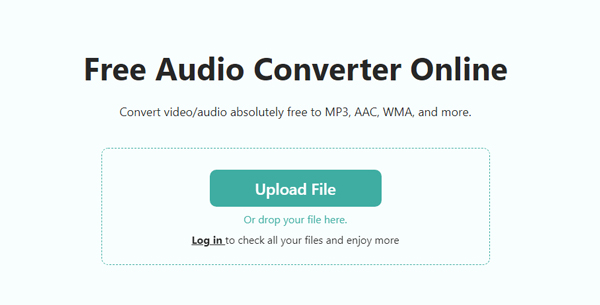
1. Open your browser and head over to the AnyMP4 Free Online Audio Converter website.
2. Look at the bottom format panel and choose WAV as your target output format.
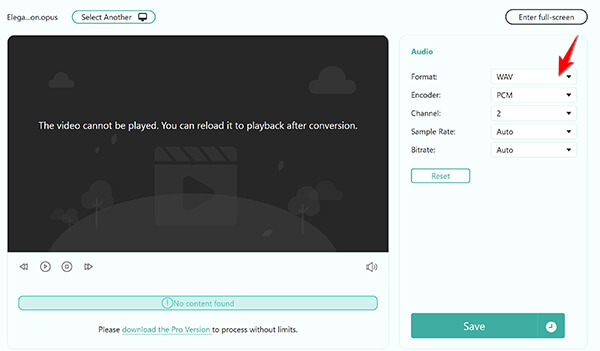
3. Hit the Save button, then this freeware will process your Opus file. Once the conversion is done, you can download it immediately to your computer.
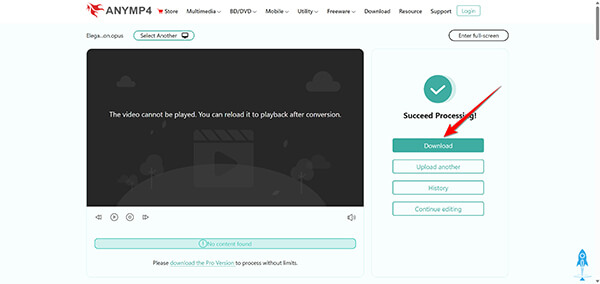
Using a browser tool takes literally ten seconds. If you find yourself doing this often, you might also want to bookmark a reliable wav converter page just to keep your workflow clean and organized.
Audacity is a free favorite for many audio nerds, but it isn't always a smooth ride. If you drag an Opus file into a fresh install of Audacity, you’ll get an annoying error. I had to manually hunt down and install the FFmpeg library just to get the software to recognize the file. It felt like an unnecessary chore.
Finding the 16-bit PCM export setting meant clicking through three hidden menus, which makes a simple task annoying. If you want to use it, here are the steps you have to follow:
1. Download and launch Audacity, then try opening your Opus file. If it fails, follow the prompt to download and install the optional FFmpeg library for Windows or Mac.
2. Drag and drop your Opus file right into the main Audacity workspace once the library is linked.
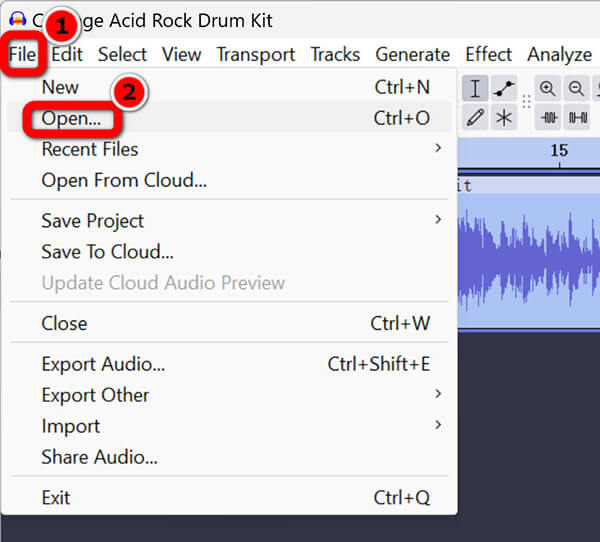
3. Go to the top menu, click File, select Export Audio to select the device where you save the converted WAV file.
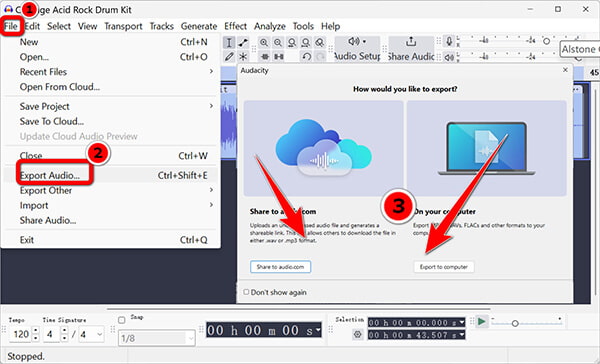
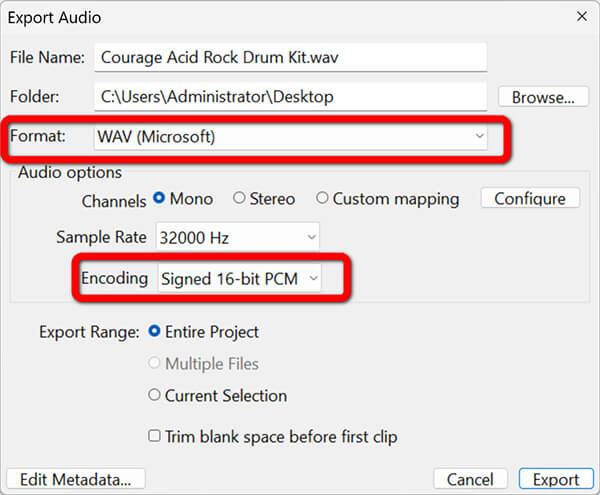
In the Export Audio window, you just need to change the header dropdown to WAV (Microsoft) and set the encoding to Signed 16-bit PCM, then hit save.
Then you just wait, and once the conversion is complete, you can open it with a WAV player.
Turning lossy to lossless in Audacity works, but it takes way too many clicks for a simple task. Moreover, it does not support batch conversion, so you will take more time to handle multiple Opus files.
When you have a whole folder of audio clips, doing things one by one is a nightmare. This is where you need to batch convert Opus to lossless WAV. For this heavy lifting, I use AnyMP4 Video Converter Ultimate. It solves that annoying Audacity FFmpeg headache because it comes with built-in, native Opus support. Besides, it lets you change the output WAV sample rate settings. WhatsApp records Opus at odd sample rates, like 16kHz. If you do not change your settings, your audio will go out of sync. Like Audacity, it also offers many audio editing features like audio noise enhancement, trim/merge audio, compress audio, and more.
Now, let’s follow these steps to fix it:
Secure Download
Secure Download
1. Open AnyMP4 Video Converter Ultimate on your computer and click the Add Files button to select your entire folder of Opus clips. You can also drag and drop your multiple Opus files into this software.

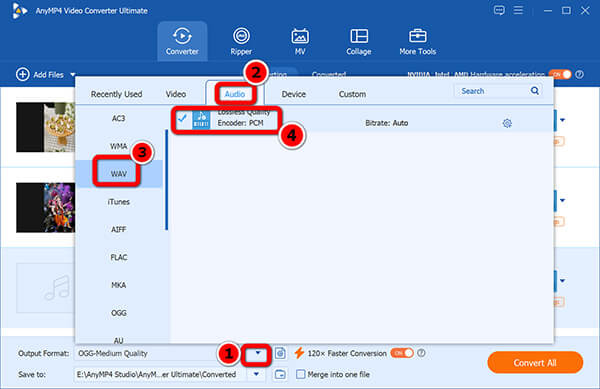
2. Click the profile format dropdown menu on the right side of the imported files, go to the Audio tab, and select WAV.
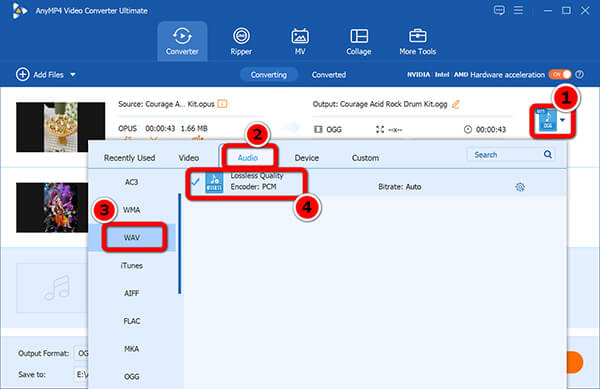
If you have multiple Opus files and need to convert to WAV at one time, then you can select the dropdown list of Output Format at the bottom-left side, then go to Audio > WAV.
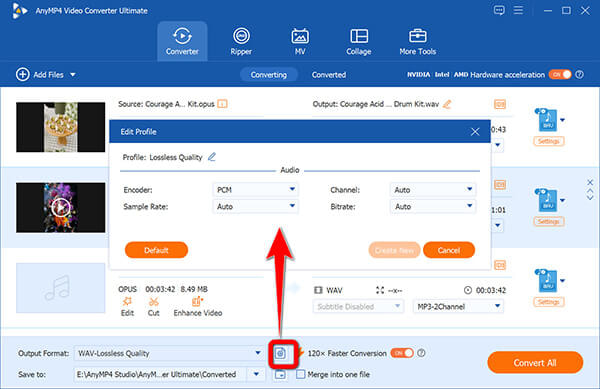
If you want to adjust the output WAV parameters like bitrate, encoder, etc., just click the small gear icon (Custom Profile) next to the WAV format to open the output settings window.
Manually change the sample rate dropdown from auto to 48000 Hz (48kHz) to match video standards, then click Create New.
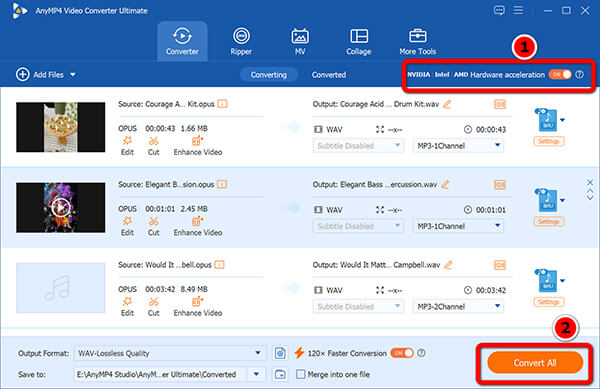
3. Hit the Convert All button at the bottom right to process your files in seconds, and before that, just enable the hardware acceleration at the top-right corner.
Getting your files ready this way ensures zero sync drift in your NLE. If you also work with other media types, keeping tools like a video to WAV extractor handy makes editing life so much easier.
Does converting a WhatsApp voice note to WAV improve the audio quality?
No. Converting a lossy file to a lossless one won't magically bring back the data that was already thrown away during the initial recording. It just puts the existing audio into a larger, more compatible container.
Why can't I import an Opus file into Adobe Audition without converting?
Most professional audio programs look for uncompressed audio in standard formats like WAV or AIFF. Opus is a compressed web format, so the software often does not have the built-in decoder needed to read it.
Why did my 3MB Opus file turn into a 65MB WAV file?
That is just how uncompressed audio works! Opus is heavily compressed. When you convert Opus to WAV, you are taking that compressed file and expanding it to its full, uncompressed PCM audio format size. If you want to save your space, you can compress WAV file after conversion.
How can I batch convert Opus to lossless WAV on a Mac?
If you're wondering how to change Opus to WAV on Mac, desktop tools like AnyMP4 Video Converter Ultimate work seamlessly on macOS, letting you drop in folders and process them all at once without messy terminal commands.
The tool you pick to convert Opus to WAV depends completely on your project size. If you have one random file, the AnyMP4 Free Online Audio Converter is your best friend. It’s quick, easy, and won't bug you with ads. For those who like free open-source software and only occasionally edit audio, Audacity gets the job done, provided you don't mind hunting down the FFmpeg library.
However, if you are a professional video editor or a podcaster dealing with dozens of voice clips, do yourself a favor and use AnyMP4 Video Converter Ultimate. The native Opus support and the ability to lock your audio to 48kHz mean you spend more time editing and less time fixing sync issues.
Secure Download
Secure Download
 Posted by Alice Thorne to Convert Audio
More readings
 How to Edit Metadata of Bulk WAV Files (2026)
Are you looking for a solution to edit the metadata of WAV files on your computer? Read this article to find the best ways for Windows, Mac, and online tools.
 5 Methods to Convert FLAC to WAV for Lossless Audio Quality
Read this post to learn how to convert FLAC to WAV with 5 tested tools in 2026. Keep the original audio quality with our step-by-step beginner guide.
 5 Best WAV Converters in 2026 - Tested on Lossless Audio
Are you looking for the best WAV converter? Read this complete 2026 review to find the most suitable one for you!
 How to Convert MOV to WAV (Lossless Audio) on Windows & Mac
Easily extract high-quality WAV audio from MOV videos. Get the best 3 converters for batch conversion and 100% original quality.
 Add your comments to join the discussion here