The Ultimate Guide to Extracting High-Fidelity Audio from MKV (2026)
Quick Summary:
- AnyMP4 Video Converter Ultimate: Best for large MKV movies; extracts 5.1 surround sound locally in seconds with zero quality loss.
- MKVToolNix & FFmpeg: Best for tech-savvy users; offers 100% free, blistering fast, lossless command-line stream copying.
- Online Converters: Best for small clips (<1GB); highly convenient with no installation required.
Many people might face the same situation where you would like to extract the background music or the audio from an MKV file. Extracting an audio file from the MKV videos is viable work. Lucky for you, there are many high-quality audio extractor tools that are available to help you remove the audio track from the MKV file and save it as MP3 or other popular audio formats. You can check out these tools along with the easy steps demonstrated below in this post to help you extract audio from MKV successfully.
Part 1. Understanding MKV Audio Tracks: Why It's More Than Just a Conversion
If you convert videos frequently, you must have listened to the MKV format. MKV is a container format that can hold massive amounts of data: multiple multi-channel audio streams (e.g., English, Spanish, Director's Commentary), multiple subtitle tracks, and chapter markers.
Standard converters often get confused by this complexity, either merging all tracks into a chaotic noise or, worse, completely ignoring high-end codecs like DTS-HD or Dolby TrueHD. To get a clean audio extraction from MakeMKV, you need an intelligent solution that understands container layers.
Part 2. Best Tool: Extracting Multi-channel Audio via AnyMP4 Video Converter Ultimate
We start with AnyMP4 Video Converter Ultimate because it is very easy to use and has more advanced options than many audio rippers. Using it, you can rip sound from any MKV video file and then save the extracted audio into a lot of popular audio formats like MP3, WAV, WMA, AAC, FLAC, and more.
On top of that, AnyMP4 Video Converter Ultimate supports extracting sound from all kinds of video files like MKV, MP4, AVI, MOV, FLV, WMV, WTV, WebM, AVCHD, OGV, 3GP, and more. Before extracting, you are able to edit the video or audio in many ways to make your source file more satisfying.
Features
- Easily extract the audio from MKV in original quality.
- Support exporting the ripped audio to any popular audio formats, such as MP3, AAC, etc.
- Support extracting sound from almost all video files like MKV, MP4, MOV, AVI, FLV, VOB, etc.
- Convert video to various video and audio formats as well as keep the source audio file intact.
- Provide powerful editing tools, such as cropping, rotating, watermarking, and more.
- Offer many powerful in-built tools, including video enhancer, video compressor, GIF maker, etc.
- Works as a media player on Windows and Mac.
Now, let's follow us to see the detailed steps.
1. After installing and launching the AnyMP4 Video Converter Ultimate, click the Add Files button in the upper-left corner to import the MKV file that you want to extract audio.

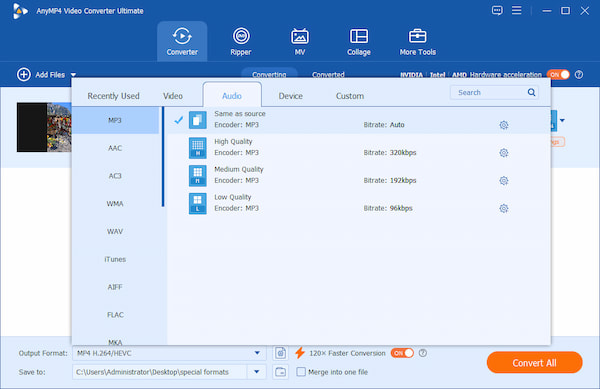
2. Choose one audio track you want to extract from the imported MKV file. Then, click Output Format to choose MP3/FLAC or other audio formats as your preferred output format under the Audio tab.
Tips
You can bonusly click the gear icon to adjust the channel, bitrate, and other audio parameters.
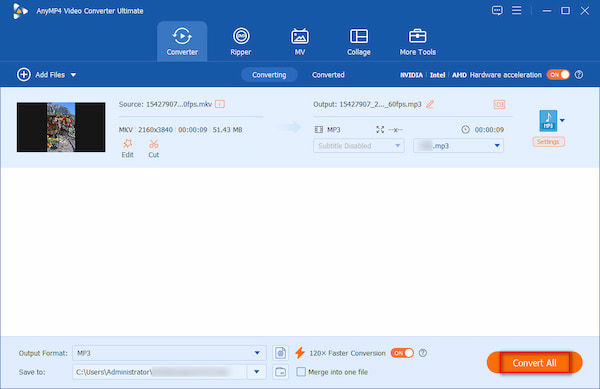
3. In the last step, hit the Convert All button to start extracting MP3 audio from the MKV file; the process may take only a few seconds. Once done, you can enjoy your audio file on its own. That’s the end.
Follow the steps above to try extracting high-fidelity audio from MKV files. With its perfect balance of audio quality and extraction speed, it is an ideal choice for many people looking to convert MKV files to audio formats.
Part 3. The Geek Way: Using MKVToolNix and FFmpeg for Lossless Extraction
3.1 MKVToolNix
Maybe you haven’t heard of MKVToolNix, but it is actually a Swiss-Army Knife for handling MKV files. By using its companion GUI tool, gMKVExtractGUI, you can 'demux' (unwrap) the MKV container. This does not convert the audio; it literally pulls the raw .ac3, .dts, or .aac track out of the box in milliseconds with absolutely zero quality loss.
Now, we will share with you the steps for extracting audio with this tool.
1. Download and install MKVToolNix from its official website. Then, download the extension called gMKVExtractGUI and place its executable inside the main MKVToolNix installation folder.
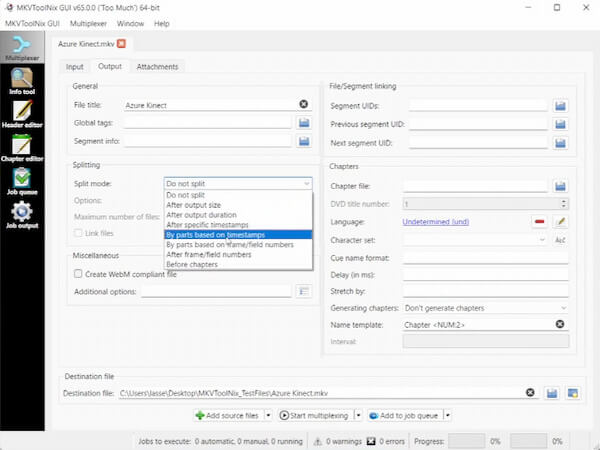
2. Launch gMKVExtractGUI and drag and drop the MKV files into the input area.
3. The full audio tracks will be listed in the interface. Choose and check the audio streams you want to extract.
4. Lastly, choose a destination folder at the bottom. Click the Extract button to save the original audio files to your destination folder.
3.2 FFmpeg
FFmpeg is the first choice for people who want to automate extraction via scripts on macOS or Windows. The specific command: ffmpeg -i input.mkv -vn -acodec copy output.ext, can help you extract the first audio track from an MKV file without re-encoding.
Now, let's see this step-by-step guide.
1. To install FFmpeg on your computer, install FFmpeg via Scoop or Winget on Windows, and open Terminal and install via Homebrew on Mac.
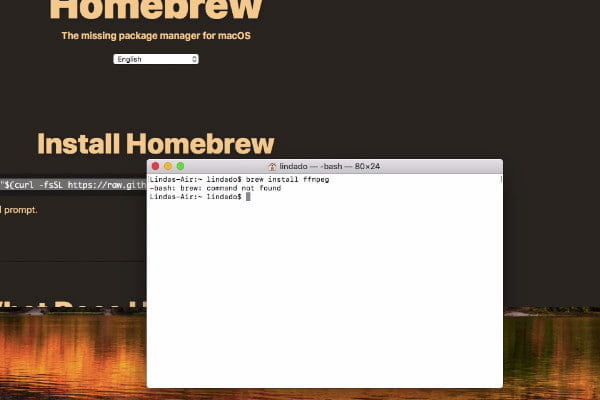
2. Navigate to the folder where your MKV file is saved.
- • On Windows, hold Shift, right-click inside the folder, and select Open PowerShell window here.
- • On Mac, right-click the folder and select New Terminal at Folder.
3. For different purpose, choose differentcommands:
- • To copy the audio stream exactly as it is (No loss, blistering fast): ffmpeg -i input.mkv -vn -acodec copy output.m4a
- • To extract and re-encode the audio directly into a 320kbps high-quality MP3: ffmpeg -i input.mkv -vn -acodec libmp3lame -ab 320k output.mp3
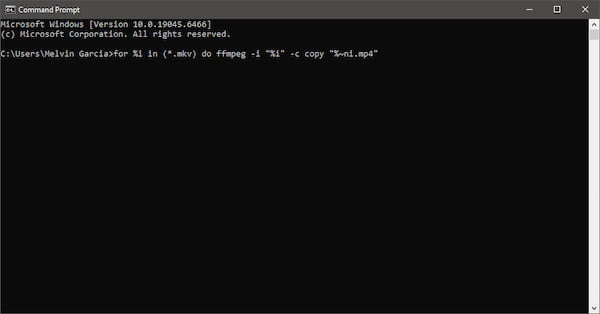
4. Finally, click the Enter button to end. It will process the command locally on your machine.
These two methods are good for tech-savvy users and audiophiles. Both of them offer blistering fast, 100% lossless extraction for free, but require command-line knowledge or complex setups.
Part 4. Online Tools: Fast for Clips, Risky for Movies
4.1 FreeConvert
FreeConvert is a popular video and audio conversion tool that is able to convert MKV files to audio files. Most online tools have a file size limitation, and so does FreeConvert. To use it, you must use the MKV files that are under 1GB.
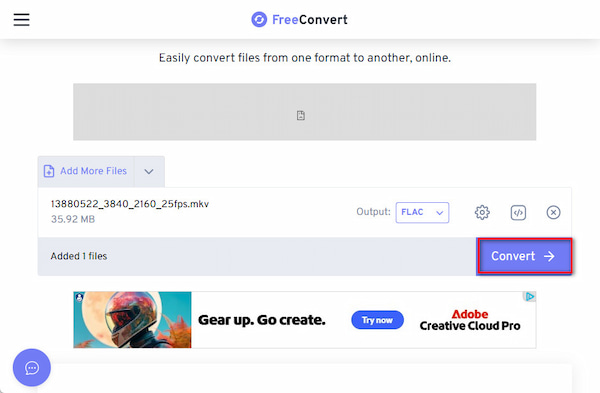
1. Access and open FreeConvert on the browser. Click the central Choose Files button to import the MKV files. Otherwise, you can choose other options in the drop-down list: From Device, From Dropbox, From Google Drive, From OneDrive, and From Url.
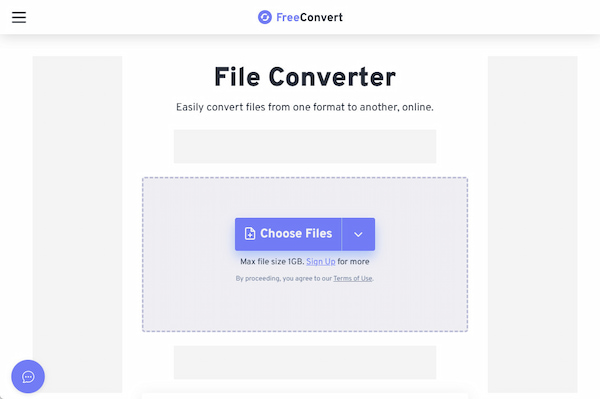
2. After loading the MKV file, go to Output to open its drop-down list and choose Audio > FLAC.
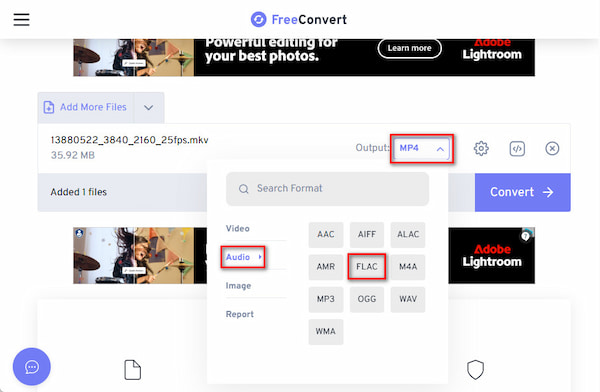
3. Lastly, click the purple Convert button to start the conversion. When the process is done, click the Download button to save it to your computer.
4.2 AnyMP4 Free Audio Converter Online
Free Online Video Converter is one of the best online audio extractors that you can use for free. This stunning tool works well with almost all popular video formats, including MKV, MP4, MOV, AVI, VOB, and plus more. With this wonderful audio extracting tool, you can rip the audio file from the MKV video online without installing any desktop software on your computer. Additionally, it can works as an MKV to WAV converter, or a MKV to AAC converter to help you change MKV audio format.
To do this, please follow the steps shared below:
1.Visit its official website: https://www.anymp4.com/free-online-video-converter/.
2.Press the Add Files to Convert button and then download the launcher to activate it.

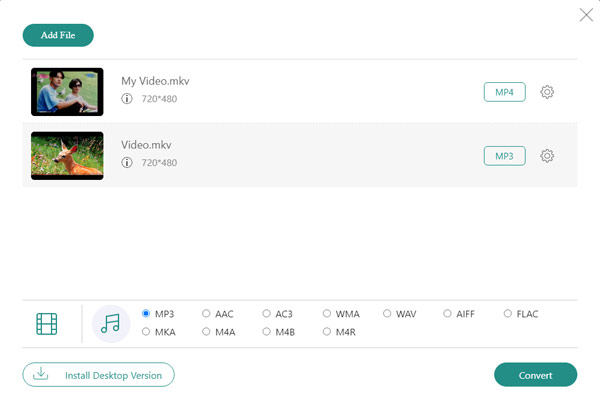
3.Add the MKV files that you want to extract sound from. After uploading, select the MP3 or other audio formats you’d like to convert from the Audio tab. When you’re ready to separate the audio from the video, click the Convert button to start.
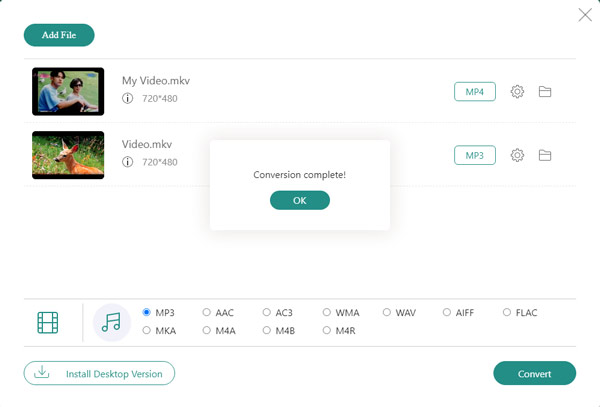
Once the extracting process is completed, your extracted audio file will be exported to your hard drive automatically, and you can enjoy the audio on your portable devices with ease.
Learn more about How to extract BPM from MP3 here
These two online ways are suitable for casual people who occasionally want to extract high-quality audio files from MKV files. You should note that these two tools are good for quick, lightweight video clips under 1GB. Sometimes, it may show slow upload speeds, and you just wait.
Part 5. Troubleshooting: Common MKV Audio Extraction Errors
- • The 'Silent File' Bug: Extracting an advanced DTS-HD track into a basic MP3 container often results in a file with zero sound. Always match high-end codecs with lossless containers like WAV or FLAC unless your extractor downmixes properly.
- • The 'Launcher' Loop: Many online converters claim to be 100% cloud-based but force you to download malicious .exe or .pkg launchers that trigger browser security warnings. Stick to verified secure desktop software or entirely native cloud platforms.
Part 6. FAQs
How do I extract audio from MP4?
You can use AnyMP4 Video Converter Ultimate to extract the sound from the MP4 file. Then, launch the program and drag your MP4 files into it. Next, click the Convert All to button and choose the MP3 format as the output format from the Audio tab. In the end, just press the Convert All button to start extracting.
Can VLC extract audio?
As a media player, VLC can extract audio from any format videos VLC supports. Besides, you also can choose the audio format you want while extracting audio in VLC.
Why does my extracted audio only play in the left channel in editing software?
It may be because a single-source mono track was saved into a dual-channel stereo container, leaving the right channel completely empty. You can use the editing tool to change a clip's attributes from Stereo to Mono, or apply a 'Fill Right with Left' audio effect to duplicate the sound.
How can I batch extract all multi-language tracks from an MKV at once?
Standard converters only rip the first track, but you can extract all streams simultaneously using MKVToolNix by checking all audio IDs in the GUI panel. Alternatively, you can use FFmpeg in your terminal with the command ffmpeg -i input.mkv -map 0:a -c copy output.m4a to split every audio track instantly without re-encoding.
Conclusion
Through the above comprehensive tutorial, you are bound to know how to extract audio from an MKV file. With the help of a practical audio extractor with a user-friendly interface designed, even novices can deal with the audio extraction issues. Choose one appropriate tool from the article and download it to try it out!





 Add your comments to join the discussion here