
Quick Summary:
To convert MKV to MP4 using FFmpeg without losing quality, use the exact command: ffmpeg -i input.mkv -c copy output.mp4. This process takes only seconds because it merely changes the video container format without re-encoding the data. If you aren't comfortable typing command lines, GUI tools like AnyMP4 Video Converter Ultimate or HandBrake offer a much easier, click-and-convert experience.
FFmpeg convert MKV to MP4 is one of the most reliable ways to improve video compatibility across devices and platforms. FFmpeg is a free, open-source tool that enables video conversion using simple command-line commands. Its biggest advantage is lossless remuxing, which changes only the container format without re-encoding. This post explains 3 methods to convert MKV to MP4 using FFmpeg and 2 alternative tools for easier workflows. We will help you choose the best solution based on speed, simplicity, and technical skill level.

Converting MKV to MP4 boils down to three things: compatibility, convenience, and usability. MKV is powerful, but it can't match MP4's universal reach. By switching to the industry standard, you get:
Want to learn more about MKV vs MP4 and which format is best for your videos? Discover the key differences and choose the right one for your needs through the provided link.
Using FFmpeg to convert MKV to MP4 is the most efficient method available. It performs remuxing, which changes the container format from MKV to MP4 without re-encoding the file. It allows conversions to finish in seconds while preserving 100% of the original quality.
Before converting files, you need to install FFmpeg on your system.
On Windows: Download the precompiled FFmpeg build from the official website. Then, extract the files and add the bin folder to your system PATH.
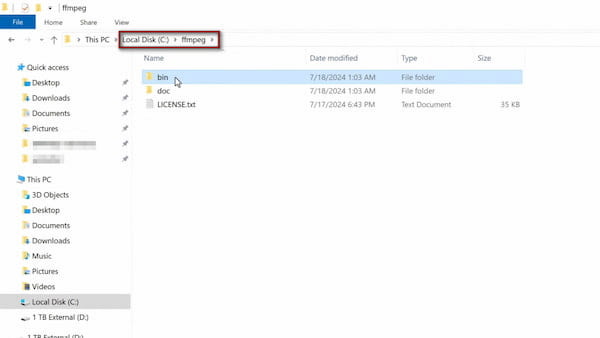
On Mac: Install with Homebrew using brew install ffmpeg.
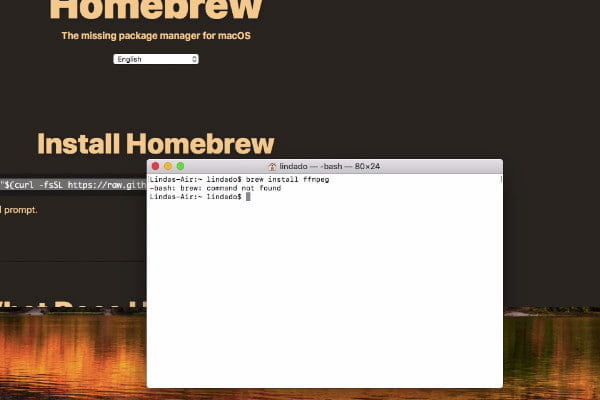
To verify installation, open your terminal or command prompt and type ffmpeg -version.
FFmpeg works entirely through the command line, which may seem intimidating at first. However, it delivers unmatched performance once you get the hang of it.
The simplest and fastest way to convert MKV to MP4 with FFmpeg is by using this command:
ffmpeg -i input.mkv -c copy output.mp4
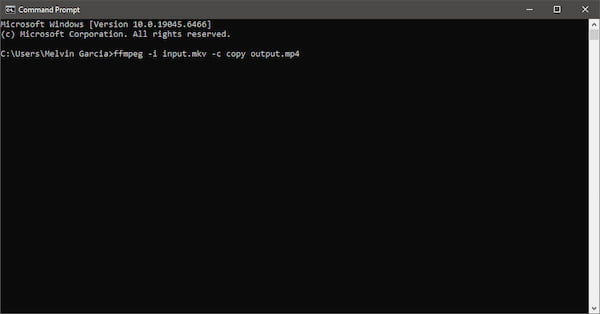
This command copies the original video and audio streams directly into a new MP4 container without re-encoding. The result is zero quality loss, ultra-fast processing, and minimal CPU usage. If your MKV file contains unsupported codecs, some players may fail to play the MP4 output. In that case, you need to re-encode the file. After conversion, your video is ready to play in most media players, including MOV players.
If you have multiple files, FFmpeg allows batch processing through simple scripts.
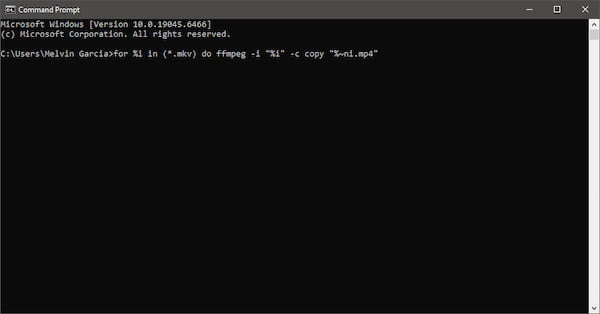
Windows (Command Prompt): for %i in (*.mkv) do ffmpeg -i "%i" -c copy "%~ni.mp4".
Mac (Terminal): for f in *.mkv; do ffmpeg -i "$f" -c copy "${f%.mkv}.mp4"; done.
This command will automatically batch-convert MKV to MP4 using FFmpeg's lossless stream-copy mode. Batch conversion is a huge productivity boost, but always test with one file first to avoid repeating errors across multiple files.
If you want the speed of FFmpeg but prefer a modern graphical interface, AnyMP4 Video Converter Ultimate is arguably the best premium tool on the market right now. This tool lets you convert MKV to MP4 without re-encoding, with no complex commands required. It delivers lossless video conversion with the same speed as FFmpeg but through a clean, intuitive interface. If you need to batch convert MKV to MP4 or switch a video container format for better compatibility, this tool makes the process effortless for both beginners and professionals.
Why AnyMP4 Video Converter Ultimate is a Better Choice:
Secure Download
Secure Download
Here's how to convert MKV to MP4 in FFmpeg alternative:
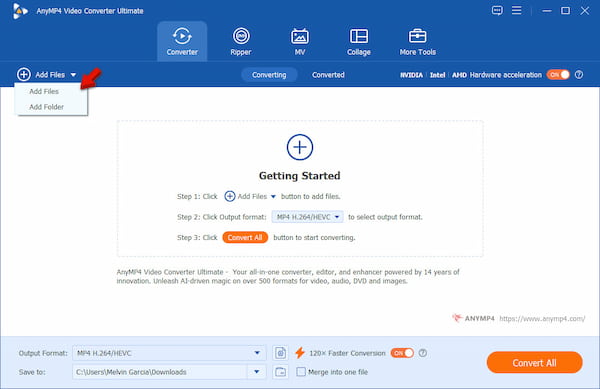
1. As soon as AnyMP4 Video Converter Ultimate launches, it opens the Converter tab by default. Click the + Add Files button and choose Add Files to import a single video. If you're working with multiple files, select Add Folder to load an entire batch quickly.
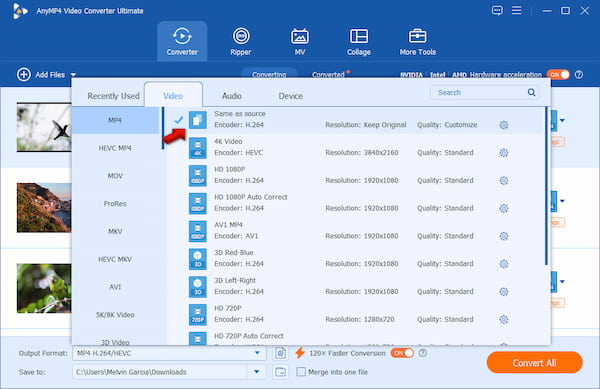
2. Go to the Output Format selector and navigate to the Video category. Select MP4 H.264/HEVC as your output format and choose a quality preset such as Same as Source to maintain original resolution and clarity. For higher resolution, choose the MP4 4K Video quality preset.
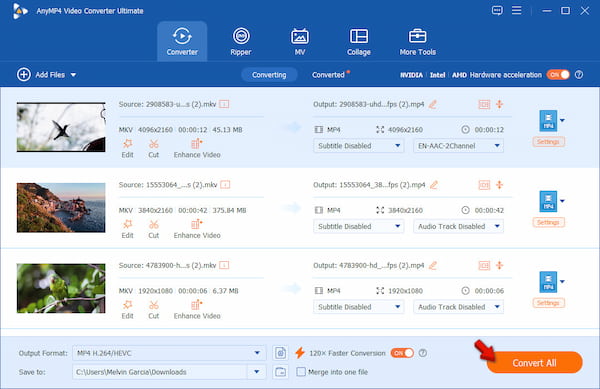
3. Next, click the Save To selector to select your path destination. Then, enable the 120× Faster Conversion toggle to maximize speed while maintaining quality. Finally, click Convert All to process your files in just a few seconds.
AnyMP4 Video Converter Ultimate delivers FFmpeg-level performance without the steep learning curve. Unlike command-line tools, it requires no coding, no syntax errors, and no guesswork. You get high-speed processing, GPU acceleration, and one-click presets that maintain original quality.
Secure Download
Secure Download
HandBrake is one of the most trusted options for users who prefer free, open-source tools. It is easier to use than command-line tools while still offering advanced encoding controls. However, it does not support stream copying (lossless passthrough).
Here's how to transcode MKV to MP4 in FFmpeg, a free alternative:
1. On HandBrake, click Open Source to import your MKV file. You can also drag and drop the video directly into the interface. In the Summary tab, choose MP4 as your format.
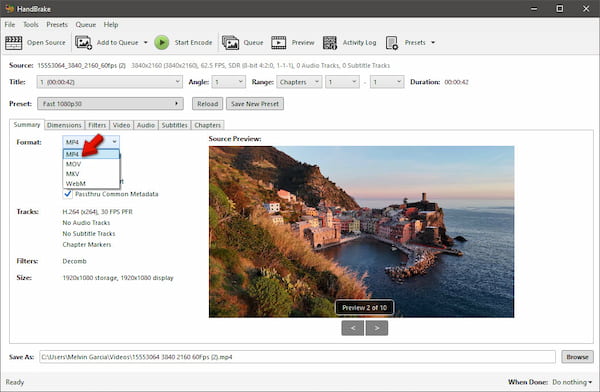
2. Select a preset such as Fast 1080p30 or HQ 720p30 depending on your needs. Click Browse next to the Save As field to specify the output destination. Then click the circular, green Start Encode button to initiate the conversion.
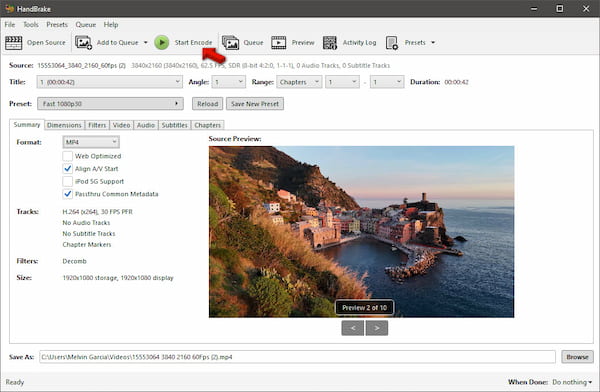
When converting MKV to MP4 in HandBrake, it re-encodes the entire video, which increases processing time. A task that takes seconds in FFmpeg or AnyMP4 Video Converter Ultimate may take 15-30 minutes in HandBrake, with slight quality loss.
Testing Methodology: To give you accurate advice, I tested a 1GB 4K MKV file across these tools on my standard editing rig to measure speed, usability, and quality retention.
| Tool | Interface Type | Learning Curve | Speed (1GB 4K Video) | Lossless Passthrough? | Best For |
|---|---|---|---|---|---|
| FFmpeg | Command Line | Very High | ~5 Seconds | Yes (-c copy) | Geeks & Developers |
| AnyMP4 Video Converter Ultimate | Modern GUI | Very Low | ~10 Seconds (GPU Accel.) | Yes | Efficiency seekers & Creators |
| HandBrake | Traditional GUI | Medium | ~18 Minutes (Re-encode) | No | Open-source fans on a budget |
Q: Does converting MKV to MP4 with FFmpeg lose quality?
A: No, converting MKV to MP4 with FFmpeg does not degrade quality when using the -c copy parameter. This method performs remuxing, meaning it simply transfers the video and audio streams into a new container without re-encoding them.
Q: Why does my FFmpeg MP4 output have no audio?
A: Some MKV files use formats like DTS, which are not fully compatible with MP4 containers or certain players. When using FFmpeg with -c copy, the audio is copied as-is, which can cause playback issues. To fix this, you can re-encode the audio into AAC using -c:v copy -c:a aac.
Q: Why should I choose AnyMP4 over HandBrake?
A: AnyMP4 is a better choice than HandBrake for faster, lossless conversions. AnyMP4 supports stream copy, allowing you to convert videos in seconds without quality loss. In contrast, HandBrake always re-encodes, which takes more time and reduces quality.
Q: What is the difference between MKV and MP4?
A: MKV supports multiple audio tracks, subtitles, and chapters, making it ideal for high-quality storage. MP4, on the other hand, is more widely supported across devices, including smartphones, TVs, and web platforms.
Q: Can I use VLC to convert MKV to MP4?
A: Yes, you can use VLC to convert MKV to MP4, but it is not the most efficient option. VLC requires full re-encoding during conversion, which slows the process. While it is a convenient free tool for occasional use, it lacks the speed, ease of use, and lossless capabilities offered by AnyMP4 Video Converter Ultimate.
Format incompatibility shouldn't slow you down. If you're comfortable with commands, FFmpeg convert MKV to MP4 is the fastest and most powerful solution available. But for most users, simplicity matters just as much as speed. For a smooth, hassle-free experience, AnyMP4 Video Converter Ultimate offers the perfect balance of performance and ease of use. Meanwhile, HandBrake remains a solid free option if you don't mind longer processing times.
Summary of Methods:
Secure Download
Secure Download
 Updated by Alice Thorne to Convert Video
More readings
 5 Best Ways to Convert MKV to MOV in 2026 (No Quality Loss)
Find the best way to convert MKV to MOV? Get the top 5 methods for Mac/Windows, including free online tools that deliver 4K-quality video without re-encoding.
 7 Best MKV to MP3 Converters (Free, Online & 320kbps) | 2026
Discover the top 7 free MKV to MP3 converters for Mac, Windows, and online. Batch convert, keep 320kbps quality, and no size limits.
 5 Easy Ways to Convert M3U8 Playlist to MP4
If you have downloaded a M3U8 file and you want to share this video with your friends, learn here to convert M3U8 playlist to MP4 for smooth playback.
 10 Best Methods to Extract Audio from MP4 Video Losslessly
Enjoy music from videos without watching videos is really easy, you can easily extract audio from MP4 with some useful tools and methods.
 Add your comments to join the discussion here