
The Quick Answer:
Are you trying to change a .mid file into a .wav file, only to end up with a muted track or terrible, robotic sound quality? You are not alone. Converting MIDI to a lossless format like WAV (1411.2 kbps) requires specific tools that handle digital audio rendering, not just basic format swapping. Below, we break down the three most 3 effective offline methods to get the job done right.

How We Test
We tested these methods on Windows 11 using a 10MB multi-track symphony MIDI file. Here is how they stack up.
| Best For | Batch Support | Audio Quality | Price | |
|---|---|---|---|---|
| AnyMP4 Screen Recorder | Perfect native sound | No (Real-time only) | Excellent | Free Trial / Premium |
| NCH Switch Converter | Bulk batch processing | Yes | Excellent | Free Trial / Premium |
| Audacity | Free open-source routing | No (Real-time only) | Very Good | 100% Free |
If you upload a 50KB MIDI file to a standard free online converter, the resulting WAV file usually sounds like a cheap 8-bit toy. Why?
MIDI files are just instructions (pitch, velocity, duration). They require a Soundfont (.SF2) or synthesizer to produce sound. Web-based tools use heavily compressed, low-quality synthesizers on their servers to save bandwidth. Furthermore, downloading massive, uncompressed WAV files from browser tools often causes timeouts and puts your original compositions at risk on third-party servers.
To keep your audio quality strictly lossless, you must process the file locally on your computer. Here is how to do it.
If you want your WAV file to sound exactly the way it does when you play it on your computer, you need to record the internal audio routing directly. AnyMP4 Screen Recorder is the best tool for this job. It captures the pure digital stream straight from your sound card, bypassing generic conversion software entirely.
PROS
CONS
How to capture MIDI to WAV using AnyMP4:
1. Play MIDI in VLC
Before hitting record, you need a media player that can actually render the MIDI data out loud. Out of the box, VLC Media Player is silent when playing MIDI because it lacks an internal instrument library.
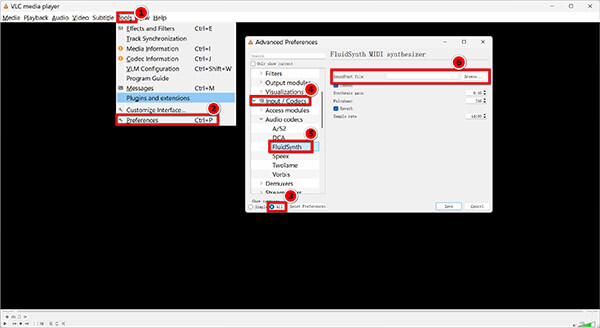
To fix this quickly, download a free SoundFont file (such as GeneralUser_GS.sf2) and save it to a local folder with no special characters in the path. Open VLC, press Ctrl + P for Preferences, select All at the bottom left, and navigate to Input / Codecs > Audio codecs > FluidSynth. Click Browse to select your newly downloaded .sf2 file, hit save, and completely restart VLC.
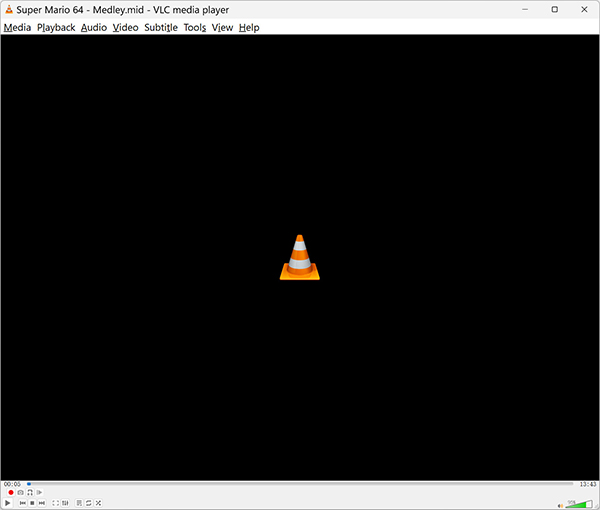
Finally, drag your .mid file into the player, pause the playback immediately, and ensure the timeline is at the 00:00 mark.
2. Prep the audio recorder
Free download, and run AnyMP4 Screen Recorder on your Windows or Mac computer.
Secure Download
Secure Download
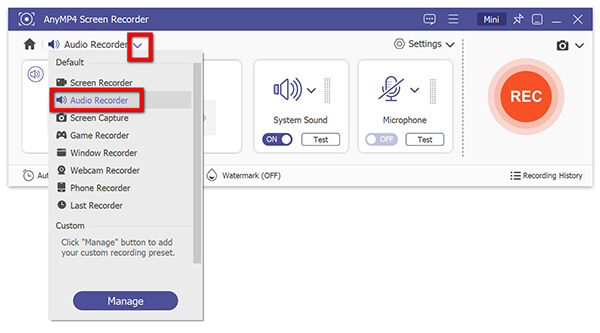
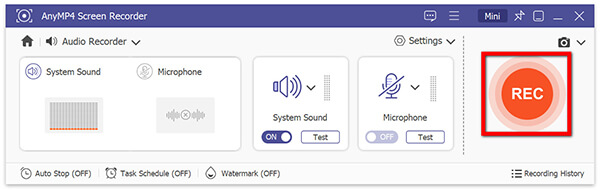
Choose the Audio Recorder module from the main dashboard to access the sound capture settings.
3. Lock in the lossless settings
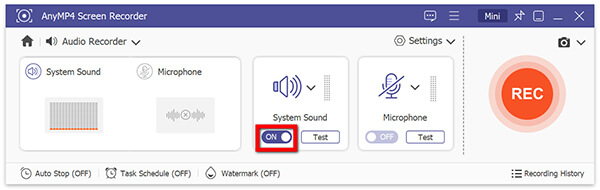
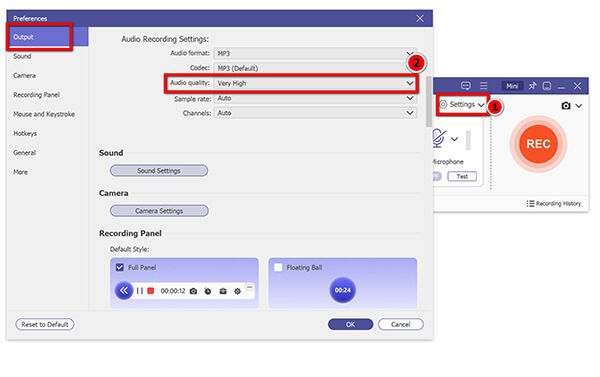
This is critical. Turn System Sound ON, but absolutely ensure Microphone is toggled OFF (otherwise, you will record room noise).
Hit the gear icon to access Preferences, jump to Output, and lock the format to WAV at the Very High quality setting.
4. Capture the internal stream
Hit the red REC button. Let the 3-second countdown finish, then quickly tab over to your media player and hit play. Once the track is done, stop the recording, trim away any dead air using the preview window, and safely export your file.
Our Testing Experience: During our hands-on evaluation on a Windows 11 setup, we used a complex 10MB multi-track symphony MIDI to test the recording quality. The results were incredibly satisfying. Instead of the flat, compressed sound you usually get from web converters, the recorded WAV file retained the exact acoustic depth of the native Microsoft GS Wavetable Synth. The built-in audio trimmer was a lifesaver for cutting out the dead silence before hitting play, though having to sit through a 5-minute track in real-time requires a bit of patience.
Real-time recording is not practical if you have an entire folder of retro game soundtracks. For bulk processing, NCH Switch Audio Converter is a dedicated desktop utility that maps MIDI scores to local audio assets instantly.
PROS
CONS
How to batch convert using NCH Switch:
1. Queue the MIDI files
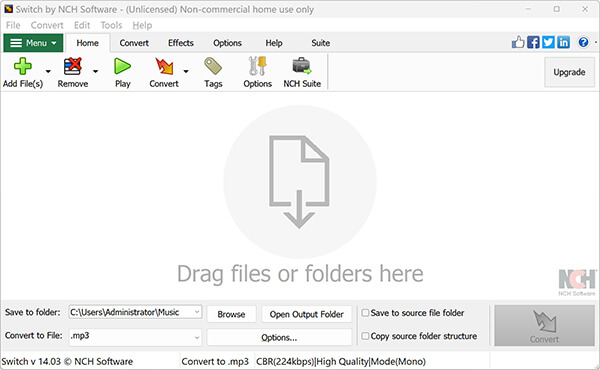
Fire up NCH Switch. You can either click the green Add File(s) button on the top ribbon or drag your target folder straight into the empty workspace.
2. Define the output format
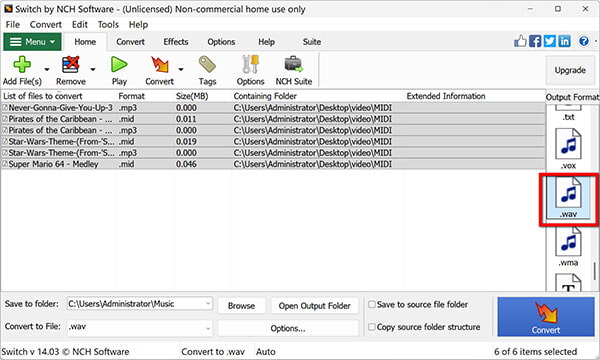
Look down at the bottom-left corner of the interface. Change the target format drop-down menu to .wav.
3. Tweak the sample rate
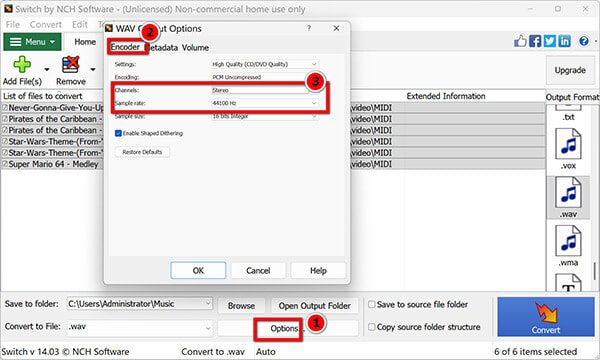
Do not skip this phase if you care about fidelity. Click on Options next to WAV at the bottom-left corner, and go to the Encoder tab. To hit standard CD lossless benchmarks, dial the Sample Rate to 44100 Hz and ensure the channel is set to Stereo.
4. Process the batch
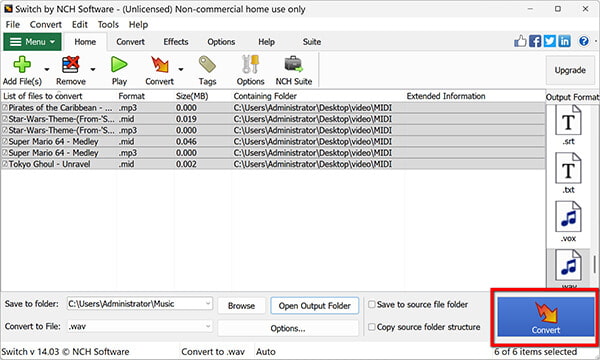
Pick a destination folder in the output directory field. Finally, click the large Convert button on the bottom right. The software will chew through the queue and drop pristine WAV files directly onto your hard drive.
Now, you can use a WAV player to watch converted MIDI files without efforts.
Our Testing Experience: We threw a folder of over 50 retro game MIDI files at NCH Switch on our macOS 14 test machine to see if it would choke. It didn't flinch. The software blazed through the entire batch in seconds, utilizing local hardware acceleration flawlessly without a single freeze. While the user interface feels like a blast from the past, the ability to manually tweak the volume normalization saved several of our velocity-heavy tracks from nasty digital clipping. It is an absolute workhorse for bulk tasks.
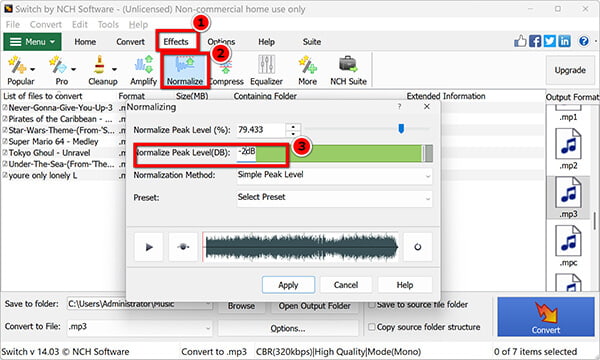
MIDI files often have loud velocity peaks. To prevent your WAV file from crackling, go to the Effects tab in NCH Switch and enable Normalize, or manually drop the output volume by -2 dB before hitting convert.
Audacity is a fantastic free audio editor, but it cannot export a static MIDI file to WAV by default. However, you can use its "WASAPI loopback" feature to force it to record its own playback.
PROS
CONS
1. Import the file
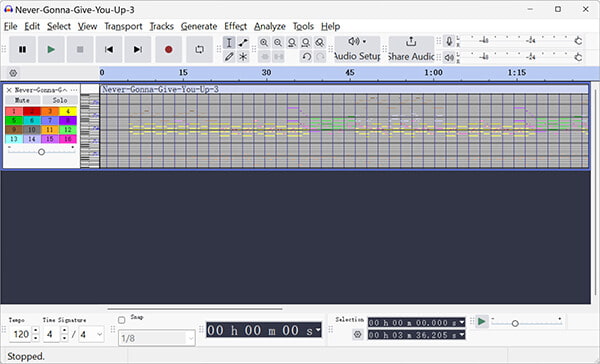
Toss your MIDI file straight into the Audacity workspace. You will see the raw note data populate the timeline immediately.
2. Reroute the Audio Host
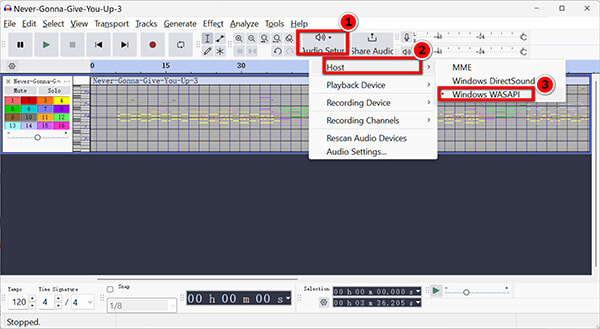
By default, Audacity uses MME. Look at the top toolbar, find the Audio Setup dropdown menu, and swap the host to Windows WASAPI.
3. Target the Loopback device
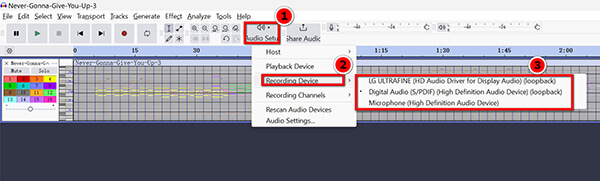
Next to the host setting under Audio Setup, find the Recording Device dropdown. Select the hardware output labeled with (loopback)—like Speakers (Realtek) (loopback). This tricks Audacity into listening to its own playback.
4. Record and Export
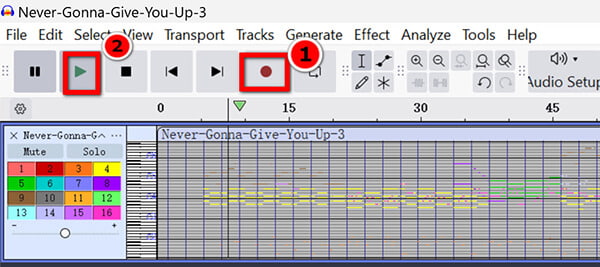
Hit the red Record circle, then immediately press the green Play triangle. Watch as Audacity draws actual WAV waveforms underneath your MIDI track.
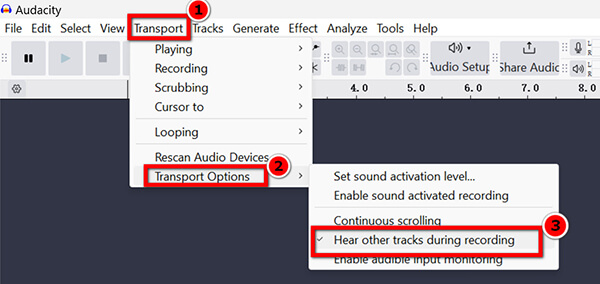
Here is a crucial detail that trips up many beginners: once you hit Record, Audacity locks the playback button (it turns grey). You do not need to hit Play! Instead, go to the top menu, click Transport > Transport Options, and ensure Hear other tracks while recording (Overdub) is checked.
Now, simply hit the red Record button. Audacity will automatically start playing your MIDI track out loud while simultaneously drawing the new WAV waveform on a track below it.
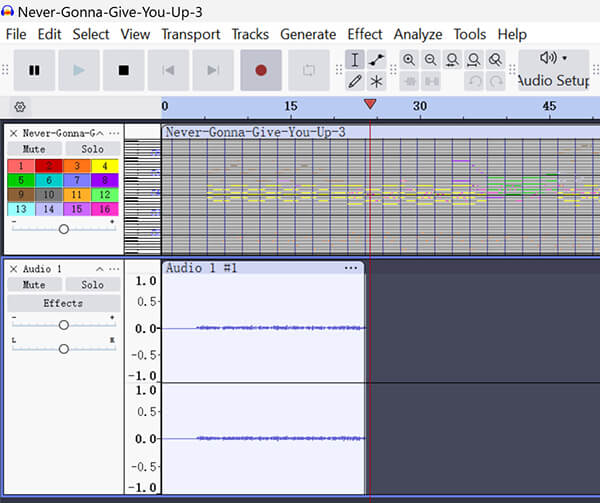
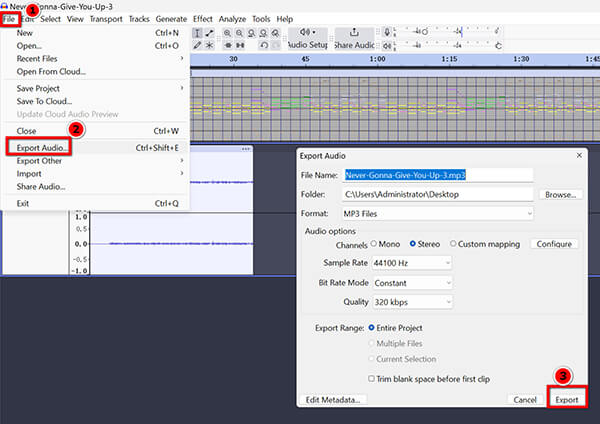
When it is over, hit Stop. Delete the silent MIDI note track, trim your edges, and head to File > Export Audio > WAV (Microsoft) signed 16-bit PCM.
Our Testing Experience: Routing audio internally via WASAPI initially felt like a geeky workaround, but it proved highly reliable. During our tests, watching Audacity actively draw the uncompressed WAV waveform in real-time as the MIDI played was reassuring. The final 16-bit PCM export sounded pristine. However, constantly switching back and forth between the media player and the Audacity window, and then manually deleting the silent MIDI note tracks afterward, introduced noticeable workflow friction compared to using a dedicated recorder.
Q: Why does standard audio software reject my MIDI files?
A: MIDI is a data format, not an audio format. It lacks the actual sound wave data that software looks for when processing files like MP3s or WAVs.
Q: Can I convert MIDI to WAV without an internet connection?
A: Yes. By using desktop software like NCH Switch or internal recording tools like AnyMP4 Screen Recorder, all rendering is handled by your computer's local hardware.
Q: How do I fix low volume or distortion after conversion?
A: Digital clipping happens when instrument tracks overlap and overload the volume limit. Use your software’s "Normalize" feature before exporting, or manually lower the master output gain by a few decibels.
When converting MIDI to WAV, ditch the browser-based converters. They compromise your data privacy and destroy your audio quality.
If you have massive folders of files to get through, download NCH Switch Audio Converter for rapid bulk processing. But if you want a pristine, 1:1 copy of exactly how the instruments sound on your native system, capturing the audio internally via AnyMP4 Screen Recorder is the undisputed best way to secure a lossless WAV file.
 Updated by Alice Thorne to Convert Audio
More readings
 MP3 to MIDI – 6 Best Methods to Convert MP3 to MIDI, or Vice Versa
Want to convert MP3 to MIDI, or vice versa? Here are the 6 best methods you should know to transcode between the two audio formats with the original quality.
 10 Best MP4 to WAV Converters for Lossless Audio Extraction
We tested the 10 best MP4 to WAV converters for computers and mobile devices. Get expert tips on PCM and bit rates to extract WAV without losing quality.
 5 Best Ways to Convert M4A to WAV (Free, Online & Pro) - 100% Quality
Learn how to convert M4A to WAV on Windows, Mac, and Online by using AnyMP4, iTunes, VLC, and Audacity to ensure lossless audio quality.
 Top 10 Ways to Convert between WAV and MP3 on Computer and Mobile
To convert a particular WAV file into the MP3 format, you need a WAV to MP3 converter application. Here are top 10 best methods to convert between WAV and MP3.
 Add your comments to join the discussion here