How to Convert AIFF to WAV in 2026 (Free & High Quality)
The most reliable and efficient way to convert AIFF to WAV is by using professional desktop software that supports batch processing, such as AnyMP4 Video Converter Ultimate. However, why do you need to convert AIFF in the first place? This is because these files are not compatible with modern music players, which warrants converting AIFF to WAV or other digital formats better suited for modern use. In this article, we will highlight six of the best options, each with detailed tutorials.

Quick Answer: The Fastest Way to Convert AIFF to WAV
Quick Three-Step Guide
1. Download and run AnyMP4 Video Converter Ultimate.
2. Drag and drop your AIFF files.
3. Select WAV as the output and click Convert All.
| Feature |
AIFF |
WAV |
| Developer |
Apple |
Microsoft / IBM |
| Audio Quality |
Lossless Quality |
Lossless Quality |
| Compression Type |
Uncompressed Audio |
Uncompressed Audio |
| Compatibility |
Apple Ecosystem (iOS, iPad, macOS) |
Universal (macOS, Windows, iOS, Android, Linux) |
| File Size |
Large file sizes due to uncompressed audio. |
Large file sizes due to uncompressed audio. |
AIFF vs. WAV: Which Uncompressed Format is Better
AIFF and WAV are identical in audio quality and file size; both are raw, uncompressed formats. The only difference between the two options is their compatibility. On the one hand, AIFF is developed exclusively for the Apple ecosystem, making it highly optimized for iOS, iPad, and macOS. On the other hand, WAV is more universally compatible across platforms and devices, including macOS, Windows, iOS, Android, and Linux.
As such, the edge of WAV, with its greater versatility and technical compatibility, technically makes it the better choice. However, this advantage offers very niche benefits, since the AIFF format is better suited to Apple ecosystem devices, rendering WAV’s compatibility with Apple’s operating systems obsolete.
Part 1. Best Way to Batch Convert AIFF to WAV Losslessly (Highly Recommended)
If you are looking for a way to convert AIFF to WAV for more compatibility, AnyMP4 Video Converter is the best choice for you. This AIFF to WAV converter not only helps you convert video files to your desired formats but also converts various audio files to satisfy you. Besides, it offers useful editing options.
In our latest performance tests, AnyMP4 successfully batch-converted 100 50MB AIFF files to WAV format in 2 minutes, and spectrum analysis showed a 100% retention of audio quality.
For added versatility, converted WAV files can be perfectly and seamlessly imported into mainstream audio/video editing software (such as Adobe Premiere Pro, Audition, and DaVinci Resolve) without causing audio sync issues or format recognition errors.
Using WAV audio for editing projects is advisable, as its superior sound quality is highly beneficial for multimedia editors.
You can first download this AIFF-to-WAV converter from our site.
To learn how to use the program, make sure to read our guide below.
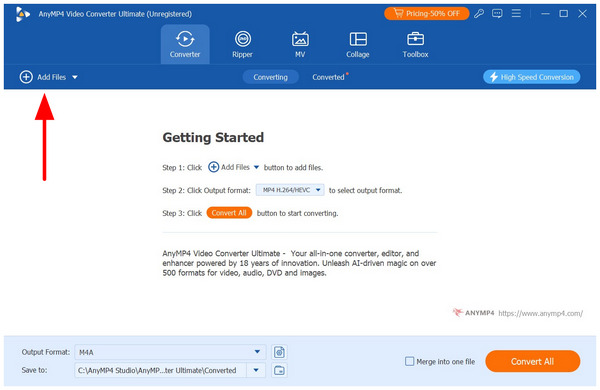
1. Open AnyMP4 Video Converter Ultimate and then select the Add Files option in the Converter tab. Navigate through your files to find the AIFF files you want to convert.
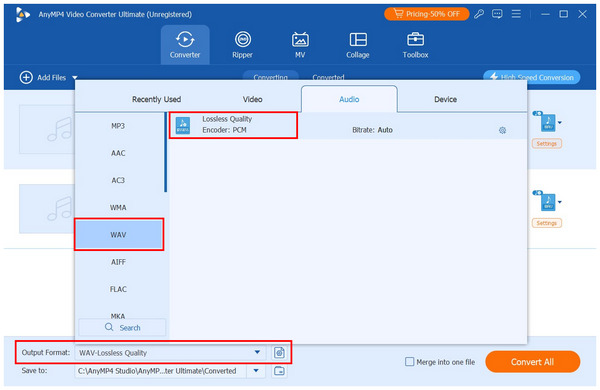
2. Once your AIFF file has been added. Select Output Format, go to Audio, and choose WAV. Then, select the lone Lossless Quality conversion profile for format conversion.
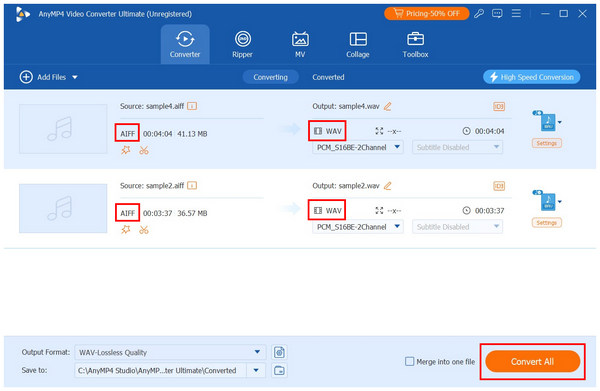
3. With the conversion profile selected, you will return to the Converter tab. With the setup now done, select the Convert All option to begin the AIFF-to-MP3 conversion.
Part 2. How to Change AIFF to WAV for Free (Desktop & Open-Source)
Method 1: Using Apple Music (Mac)
We will start our selected desktop and open-source solutions with the built-in solution in Apple Music app. Although it is developed as a music streaming option, the software is equipped with advanced settings that can be tinkered with to make the tool capable of converting added music to the library in the format of your choice. One of the options available is WAV.
To learn how to set up and use the WAV encoder option of Apple Music, make sure to read our simple three-step guide below.
1. Open Apple Music, then go to Music > Settings/Preferences > Files > Import Settings. In the settings menu, locate the Import Using dropdown and select WAV Encoder. Click OK to confirm.
2. With the import setting now set, click on File in the taskbar and select Import. Then, locate the AIFF you want to convert.
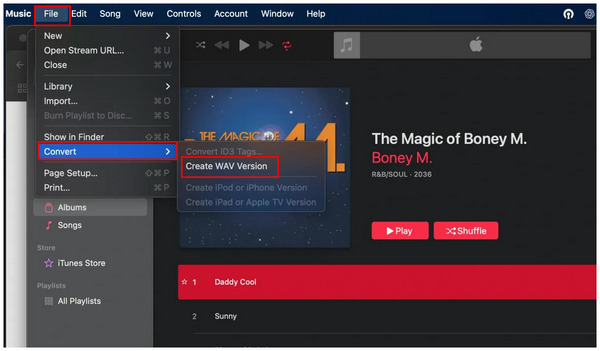
3. Once the AIFF file has been added to your library, select it. Then, click on File > Convert > Create WAV Version.
Method 2: Using Audacity (Windows/Mac)
For more advanced users, audio engineering and editing tools are a viable choice. Fortunately, the Audacity open-source program is a solid option. Although it is not as simple to use as media converters or online tools, it is also far from difficult. You can easily use it to convert AIFF to WAV, even if you're a beginner.
However, Audacity has a setup requirement that may feel complex for new users. It may be free, but it requires learning how to install the FFmpeg library or exporting separately.
1. Open Audacity and select File in the taskbar. Then, click on Open to select the AIFF file you want to open in the software.
2. Once the AIFF file has been added, click on File again and select Export Audio. In the pop-up menu that will open, select Export to Computer.
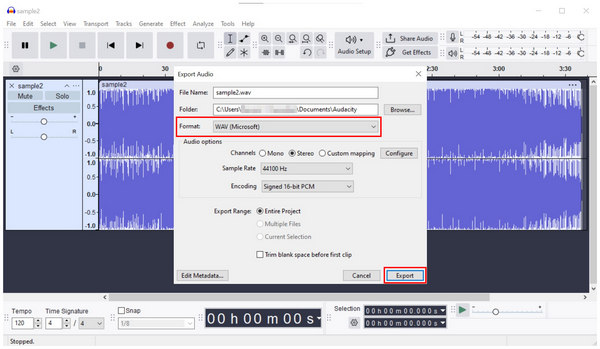
3. In the Export Audio menu, check the Format section, as it is set to WAV by default. Otherwise, click the drop-down menu and select WAV. Finally, click on Export.
Method 3: Using VLC Media Player (Windows/Mac)
Although more known as a multimedia player, VLC Media Player offers an advanced feature that can handle basic format conversion. However, the WAV option is not easily accessible among the conversion profiles in the tool. To convert files to WAV using VLC, you have to use the Audio - CD option.
Learn how to use the program using our three-step guide below.
1. Open VLC Media Player and select Media. In the drop-down menu, select Convert/Save.
2. In the next menu that opens, select Add, then navigate to your file manager to find the AIFF audio you want to convert to MP3. Once the file has been added, click on Convert/Save.
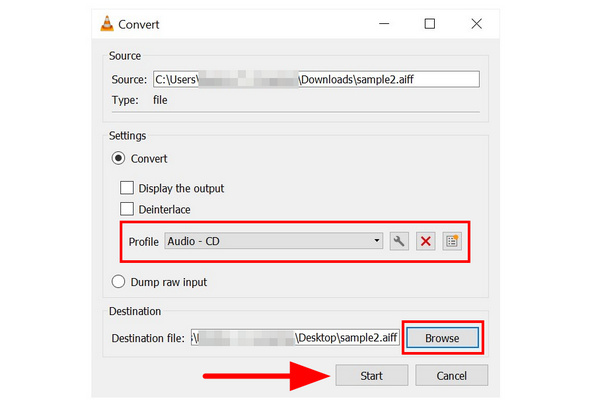
3. In the convert menu, select Profile and choose the Audio - CD option. Select, Browse, and set the save destination of the file to be converted to WAV. Finally, click on Start to begin format conversion.
Part 3. Top 2 Online AIFF to WAV Converters (No Installation)
Top 1. Zamzar
Zamzar is one of the most professional online converters for converting AIFF to WAV. It is totally free and an online conversion. There are other options for converting if you need to convert other audio file formats. With its speed and convenient interface, you will have a better experience. Follow the steps below to convert AIFF to WAV.
Unfortunately, Zamzar free users are limited to 50 MB per upload. If you have an AIFF album over 50MB or need to convert dozens of files at once, it is highly recommended that you download the AnyMP4 desktop app to reduce upload time and protect your privacy.
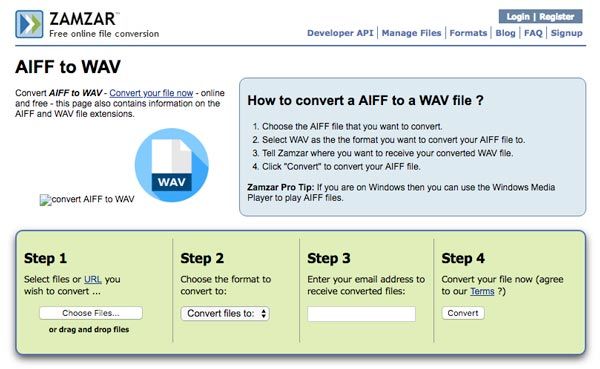
1. Select the AIFF files from "Choose Files…". You can choose audio files from your computer or a URL to convert.
2. Choose the output format as WAV, then click "Convert files to:" to get WAV from Music Format.
3. In order to gain the output file, you are asked to insert your email address in the blank in this step.
4. Start converting AIFF to WAV. You can click the "Convert" button to turn AIFF to WAV in no time.
Not only uncompressed AIFF, but this free online audio converter also supports converting compressed AIFC to MP3, WAV, etc.
Top 2. FreeConvert
Another excellent choice for online format conversion is FreeConvert. It has a significant advantage over Zamzar, with a huge file size limit of up to 1GB. Unfortunately, it has a monthly basic conversion quota, and uploading large AIFF files takes a very long time. As such, it makes the tool an unreliable option for regular format conversions.
1. Go to FreeConvert’s website and click Choose Files. Then, import the AIFF file you want to convert.
2. With the AIFF file now added, click on Output and set it to WAV. Click on Convert to proceed.
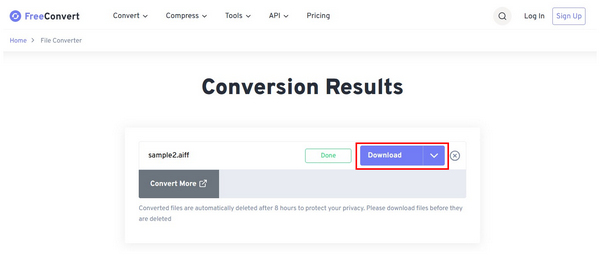
3. Wait for a few seconds during the conversion process. Finally, select Download to import the converted MP3 back to your device.
Part 4. FAQs about AIFF to WAV Conversion
Is WAV or AIFF better?
Both AIFF and WAV are of the same quality, but WAV is widely used on PC, while AIFF is mostly used on Macs. Besides, WAV offers better metadata support and broadcast support, while AIFF does not. As a result, AIFF may be the better choice for the music file.
Does VLC convert AIFF to WAV?
No. The output supported by VLC is OGG, MP3, and FLAC. It does not support converting AIFF to WAV.
Is AIF the same as AIFF?
Yes. The file extensions for the standard AIFF format are .aiff and .aif.
Does converting AIFF to WAV lose quality?
Not at all. Both AIFF and WAV are uncompressed, lossless PCM audio formats. The conversion only changes the container, and the audio data itself remains 100% intact.
How can I batch convert AIFF to WAV for free?
You can use open-source software like Audacity or the free trial version of the professional tool AnyMP4 Video Converter Ultimate for efficient batch processing.
Can I convert AIFF to WAV on my iPhone/Android?
Yes, you can use a mobile browser to access online converters like Zamzar. However, given that AIFF files are usually large, it is recommended to process them on a computer or use a dedicated mobile audio conversion app.
Conclusion
AIFF-to-WAV conversion between different audio formats can be rather easy with the help of professional converters. The article lists 3 of the best AIFF-to-WAV converters you can use to convert audio files professionally. If you need to convert AIFF to WAV once, you can use the online solution. Of course, you can also use Abyssmedia or AnyMP4 Video Converter Ultimate to get the WAV files for your iPod or other devices. Just use the solutions and enjoy the audio files now.





 Add your comments to join the discussion here