Top 5 Ways to Convert MP3 to WAV (Free)
Key Takeaways:
- Why convert MP3 to WAV? Converting MP3 to WAV doesn't improve audio quality. It is done purely for software compatibility with DAWs (like Pro Tools, Ableton), hardware samplers, and legacy audio engines that require uncompressed PCM format.
- Can you recover lost quality? No. MP3 is lossy; converting to WAV puts compressed audio into a larger container without restoring deleted frequencies.
- Best Fast Online Tool: AnyMP4 Free Online Audio Converter (100% free).
- Best Batch Desktop Tool: AnyMP4 Video Converter Ultimate (GPU acceleration, bulk folder processing).
Last month, we tried loading a batch of podcast clips into a legacy audio editor for a quick re-render. The editor flat-out refused them. Why? Every single file was an MP3, and the software demanded uncompressed WAV files. We had hundreds of megabytes of audio effectively locked away until we converted them. If you are stuck in the same boat, let us clear something up before you waste two hours tweaking settings: Converting an MP3 to a WAV file will NOT make your audio magically sound better, but DAWs, hardware samplers, and legacy audio software need uncompressed PCM data to process sound without adding latency or decoding artifacts. That is what we will share: 5 best MP3 to WAV converters to make the conversion.
1. AnyMP4 Free Online Audio Converter - Best for Quick Online MP3 to WAV
If you need a quick, no-nonsense conversion right inside your browser, AnyMP4 Free Online Audio Converter gets the job done without slapping a gross watermark on your audio.
Best For: Users who need to convert individual MP3 files on the fly without installing software.
The Problem It Solves: It bypasses system compatibility issues by letting you render standard 16-bit WAV files right from Chrome, Safari, or Edge.
Test Result: It handled our 320kbps MP3 effortlessly, spitting back an uncompressed 44.1kHz WAV file in around 20 seconds without throwing up annoying ad pop-ups.
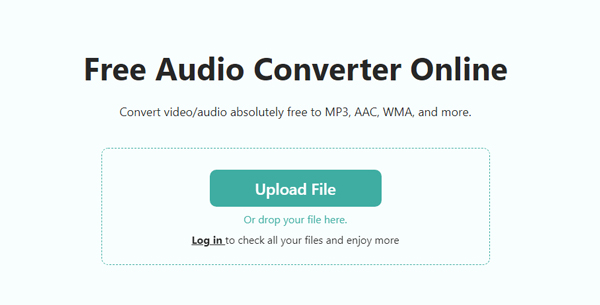
1. Go to the AnyMP4 Free Online Audio Converter page on your desktop or mobile browser. Click Upload File to select your target MP3 track.
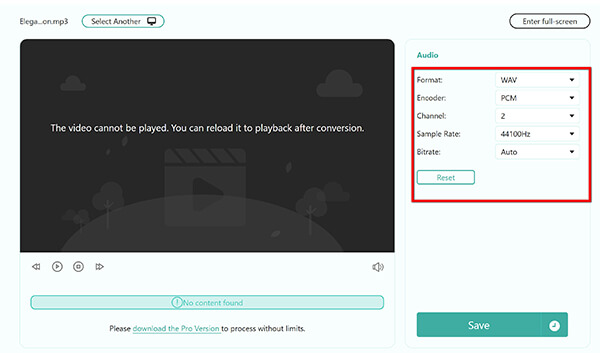
2. In the right Format drop-down list, select WAV. Optionally, next to your file if you need to lock the audio channel to Stereo or adjust the Sample Rate to 44100Hz for video editor compatibility.
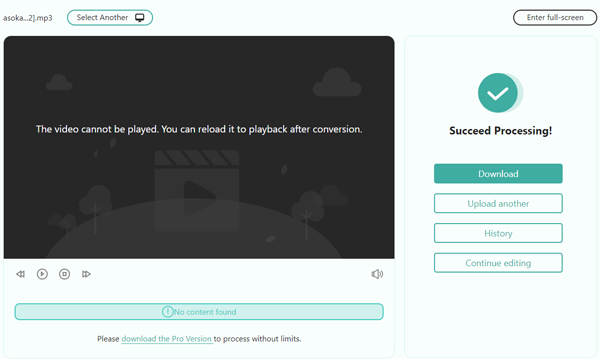
3. Click Save to start converting MP3 to WAV. Once the conversion is done, download the uncompressed WAV file instantly.
PROS
- 100% free with no watermark limits.
- Auto-deletes uploaded files from servers within 24 hours for privacy.
- Allows basic sample rate tweak right in the browser.
CONS
- Requires an active internet connection.
- No true bulk processing for massive folders.
2. AnyMP4 Video Converter Ultimate - Best for Batch MP3 to WAV
When you are dealing with hundreds of MP3 tracks, web converters will slow you down. AnyMP4 Video Converter Ultimate uses hardware acceleration to crunch through massive batch queues locally on your machine.
Best For: DJs, video editors, and podcasters who need to convert entire audio folders in seconds.
The Problem It Solves: It fixes the slow conversion bottlenecks, web upload wait times, and privacy concerns inherent to cloud tools.
Test Result: We tossed a 50MB batch of mixed-bitrate MP3s at it. It completed the entire conversion in roughly 3 seconds flat per file using GPU acceleration.
1. Free download the MP3 to WAV converter, and launch the software.
Drag an entire folder of MP3 tracks directly into the central workspace for batch MP3 to WAV conversion.

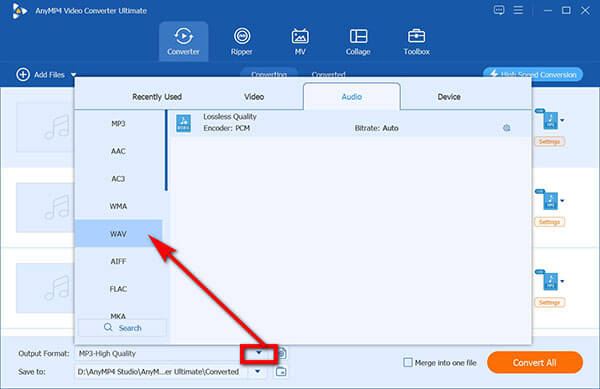
2. Click Output Format in the bottom-left corner and switch to the Audio tab.
Select WAV from the left list, and select Lossless Quality (or customized 24-bit PCM).
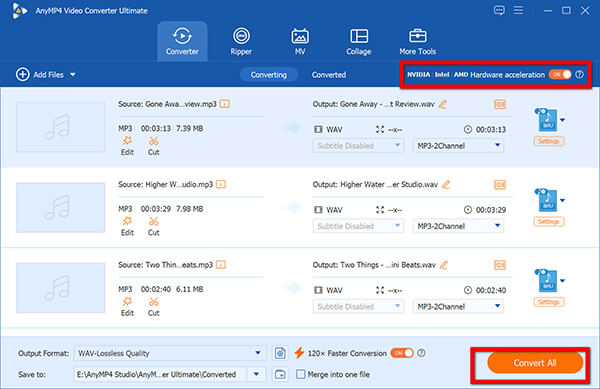
3. Enable Hardware Acceleration at the top right to unleash your GPU. Click Convert All. The app processes the batch simultaneously and automatically saves them to your designated output directory without freezing your system.
PROS
- Blazing 70x conversion speeds with full hardware acceleration.
- No file size restrictions or cloud privacy risks-everything stays local.
- Built-in audio editing (trimming, volume boost, and metadata editor).
- Retains original ID3 tag metadata seamlessly.
CONS
- Desktop software download required (paid upgrade after trial).
3. Switch Audio Converter - Best Cross-Platform Audio Converter
Switch by NCH Software has been around forever. It looks like a retro Windows XP app, but behind that dated UI lies a solid, dependable converter engine.
Best For: Users who want a straightforward desktop batch converter for simple workflow tasks across Mac and PC.
The Problem It Solves: It gives you direct control over sample rates and channel outputs without complex editing menus.
Test Result: Converted our test batch at roughly 5 seconds per track. Metadata was preserved, though the free version occasionally prompts you with upgrade nag screens.
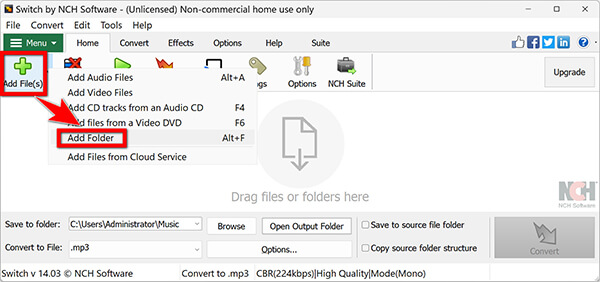
1. Click Add File(s) > Add Folder to import your target MP3 audio directory.
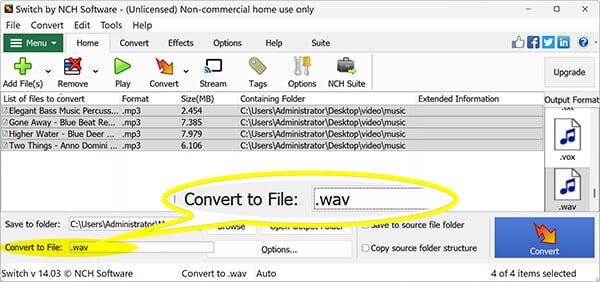
2. Under Convert to File at the bottom, select .wav.
3. Click Options to manually specify PCM Uncompressed 16-bit or 24-bit depth.
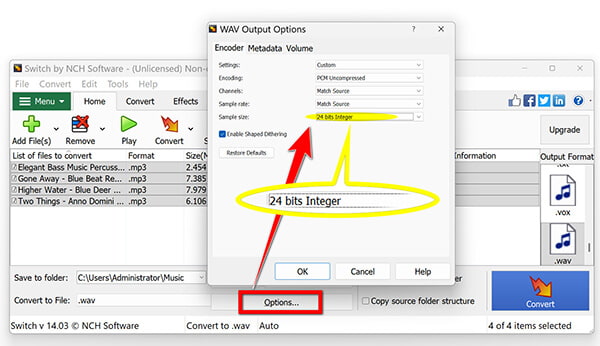
4. Hit the green Convert button in the bottom-right corner.
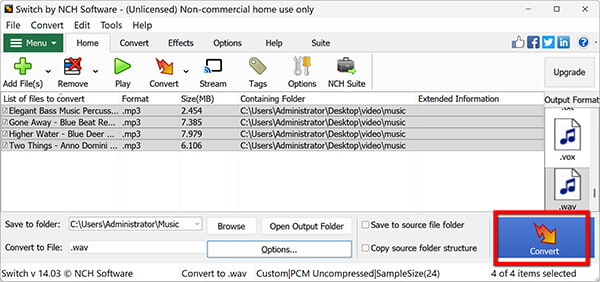
After the conversion is done, you can open your converted files in WAV player.
PROS
- Extremely lightweight and stable.
- Robust cross-platform support (Windows, Mac, Android).
CONS
- Interface feels outdated.
- The free tier aggressively nudges you to buy a commercial license.
4. iTunes/Apple Music - Best Built-In macOS Option
If you are on a Mac, you don't actually need to download third-party software or upload files to a website. The built-in Music app (formerly iTunes) has an encoder hidden inside its settings menu.
Best For: Mac users who want to convert audio without downloading extra apps or visiting conversion sites.
The Problem It Solves: Eliminates third-party app installs by leveraging macOS native tools.
Test Result: The conversion process was smooth, taking roughly 8 seconds per file. However, finding the setting buried deep inside menus is frustrating if you don't know where to look.
1. Open Apple Music on your Mac and go to Music > Settings in the top menu bar. For Windows users, you can click Edit > Preferences.
2. Click the Files tab, then click Import Settings.
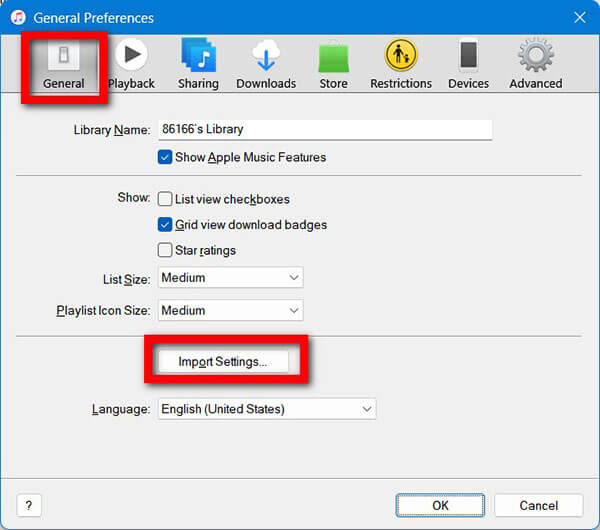
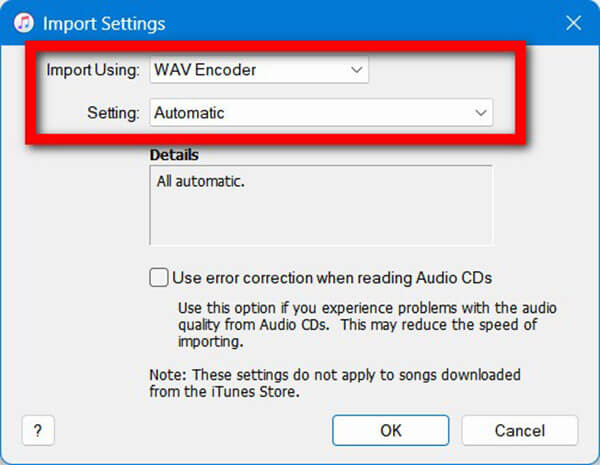
3. Change the Import Using dropdown to WAV Encoder and select Automatic quality. Click OK.
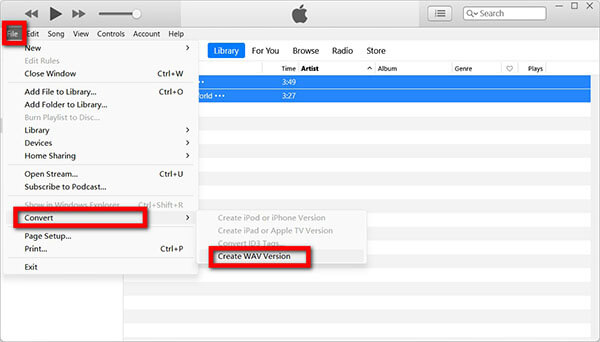
4. Highlight the MP3 tracks in your Music library. Go to File > Convert > Create WAV Version. Apple Music will render duplicate .wav copies right alongside your original tracks.
PROS
- Already installed on every Mac.
- Preserves track info and artwork within your Apple library automatically.
CONS
- Clunky multi-step setup hidden inside preference panels.
- Automatically duplicates converted tracks into your library, cluttering storage.
5. AConvert - Best No-Registration Online Tool
AConvert is a bare-bones online file utility that handles conversions across various media types, including audio.
Best For: Quick online conversions when you don't care about advanced settings or custom sample rates.
The Problem It Solves: Provides a quick online file converter without requiring account registration.
Test Result: The conversion was somewhat sluggish (~30 seconds per file), and it locked our output sample rate to a fixed 44.1kHz regardless of the source.
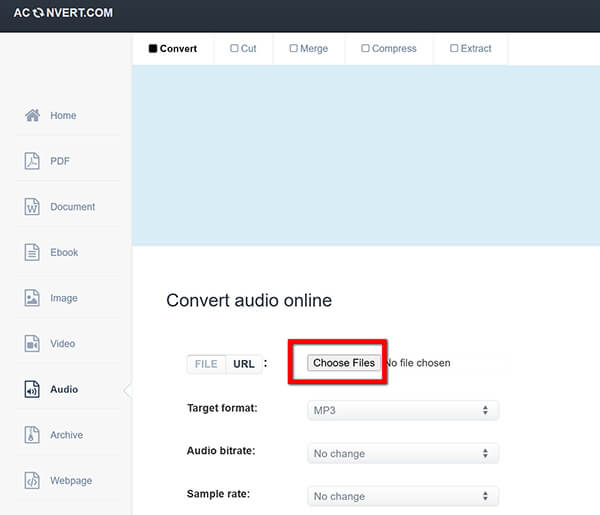
1. Go to AConvert’s Audio portal and click Choose Files to import MP3 files to this online tool.
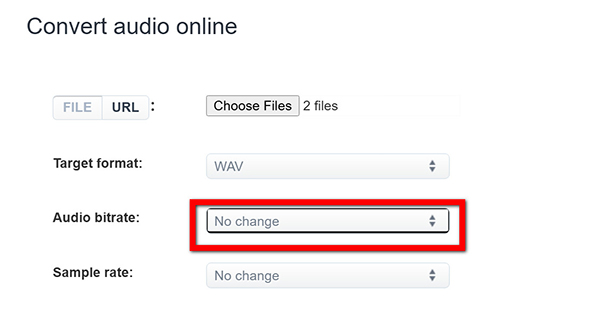
2. Ensure Target format is set to WAV. Under Audio Bitrate, select No Change to prevent unnecessary quality dropping.
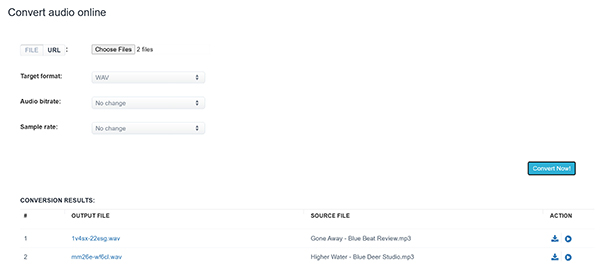
3. Click Convert Now! scroll down to the Conversion Results section, and hit the download icon.
PROS
- Fast, registration-free conversion.
- Web tool without downloading any software.
CONS
- Heavy ad clutter on the site layout.
- Limits custom sampling rate settings during rendering.
Does Converting MP3 to WAV Restore Lost Audio Quality?
We see this all the time on forums: web services claiming their AI can "restore missing frequencies" when converting MP3 to WAV. Let's call it what it is-nonsense. Once an MP3 codec cuts frequencies above 16kHz to save space, that audio data is gone forever. Saving it as a WAV simply wraps that compressed audio into a lossless container. Don't fall for marketing gimmicks that promise HD audio restoration from a 128kbps file!
MP3 vs. WAV
MP3 is a lossy format. When it was created, a perceptual codec permanently threw away frequencies your ears supposedly wouldn't notice to shrink the file size. Converting that file to WAV, a lossless PCM format, is like taking a low-res JPEG and saving it as an uncompressed TIFF. You get a massive file container, but the lost detail doesn't magically reappear. So why bother? Compatibility and editing.
To wrap your head around why converting back and forth behaves this way, check out how these formats handle raw data:
|
MP3 |
WAV |
| Audio Type |
Lossy (Compressed) |
Lossless PCM (Uncompressed) |
| Bitrate |
128 – 320 kbps |
1,411 kbps (16-bit / 44.1 kHz) |
| File Size |
~1 MB / min |
~10 MB / min |
| Best For |
Casual listening & saving space |
DAWs, DJ gear, & professional editing |
| Conversion Reality |
Frequencies already stripped |
Larger container (Zero quality gain) |
When you convert WAV to MP3, the audio encoder discards imperceptible frequencies to save disk space.
When you convert MP3 to WAV, the encoder simply takes those remaining data points and wraps them inside an uncompressed 16-bit PCM WAV container. It does not magically reconstruct missing audio data. Think of it like blowing up a low-res photo: the image gets physically bigger on screen, but the blurriness remains.
If you convert back and forth repeatedly (MP3 > WAV > MP3), you won't lose quality during the WAV step, but every time you compress back to MP3, the lossy encoder will degrade the audio further. Check more details here about MP3 vs. WAV.
FAQs
Why convert MP3 to WAV if it doesn't improve quality?
Compatibility and processing performance. Many digital audio workstations (DAWs), video editing suites, and standalone hardware devices (like older DJ decks or radio equipment) process raw, uncompressed PCM audio better than compressed MP3 streams.
How to convert MP3 to WAV on Mac?
You can use the built-in Apple Music app. Change your Import Settings under Preferences to WAV Encoder, select your MP3 tracks, and click File > Convert > Create WAV Version. Alternatively, use an online tool like AnyMP4 Free Online Audio Converter inside Safari.
My audio editor only accepts WAV, but my library is MP3. Will converting back and forth damage quality?
Converting MP3 to WAV is a lossless operation-it won't degrade your existing audio quality further. However, if you edit that WAV file and export it back into MP3 format, the lossy encoder will re-compress the file, leading to extra generation loss.
Does converting MP3 to WAV improve sound quality?
No, absolutely not. MP3 is a lossy format, meaning high-frequency data was permanently discarded during compression. Saving an MP3 as a WAV file simply wraps existing data in a larger container.
How to batch convert MP3 to WAV for DJ software like Serato?
For massive DJ libraries, desktop software like AnyMP4 Video Converter Ultimate is your best bet. Drag your entire track folder in, pick WAV as your output format, and run local GPU batch rendering. This ensures your tracks maintain proper waveform rendering and cue points without crashing your setup live.
Conclusion
Converting MP3 to WAV is purely a tool for compatibility and workflow smoothing, not an audio upgrade button. If your audio software, legacy sampler, or DJ rig demands uncompressed PCM audio to run without crashing, make the conversion and move on.
- • Need to fix a quick single file without installing junk? Go for a web-based tool like AnyMP4 Free Online Audio Converter.
- • Handling gigabytes of files, full albums, or DJ libraries? Use a desktop tool like AnyMP4 Video Converter Ultimate.
- • Looking for built-in macOS options? Stick to the native Apple Music app.
And remember: if you ever need to squeeze those oversized WAV masters back down for mobile storage or online sharing, check out our step-by-step guide on how to convert WAV to MP3.




 Add your comments to join the discussion here