
QCP is an audio format encoded QCELP or EVRC mainly used for the cellphone and the suffix is QCP. It is based on RIFF, a generic format for storing chunks of data identified by tags. And it does not specify how voice date in the file is encoded. However, the special QCP format is almost hardly played on the computer, so you should convert it to other audio format like WAV.
AnyMP4 Video Converter is also the QCP to WAV Converter; it can help you convert the special QCP to other popular audio formats including WAV, MP3, AAC, etc. Besides, it provides some editing functions for you to choose, such as trimming, merging, etc. You can really have a try if you need.
Secure Download
Secure Download
At the first step, you should download this QCP to WAV Converter from our website and then install it to your computer.
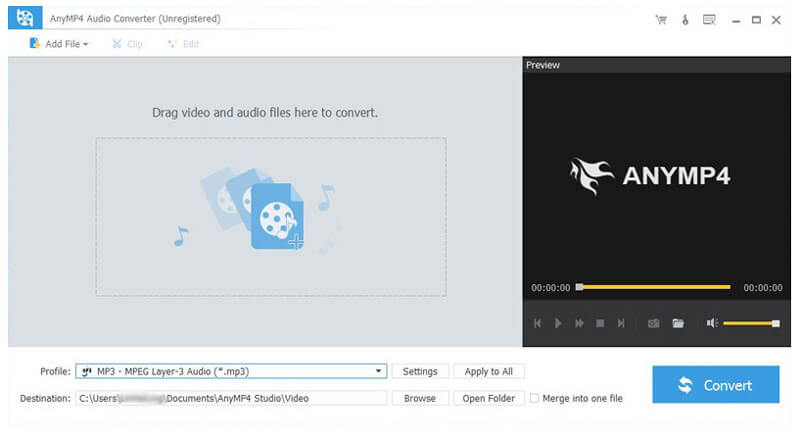
Secondly, you should click "Add Video" button in the main interface to add audio files to be converted. Click "OK" button to add them in the file list.
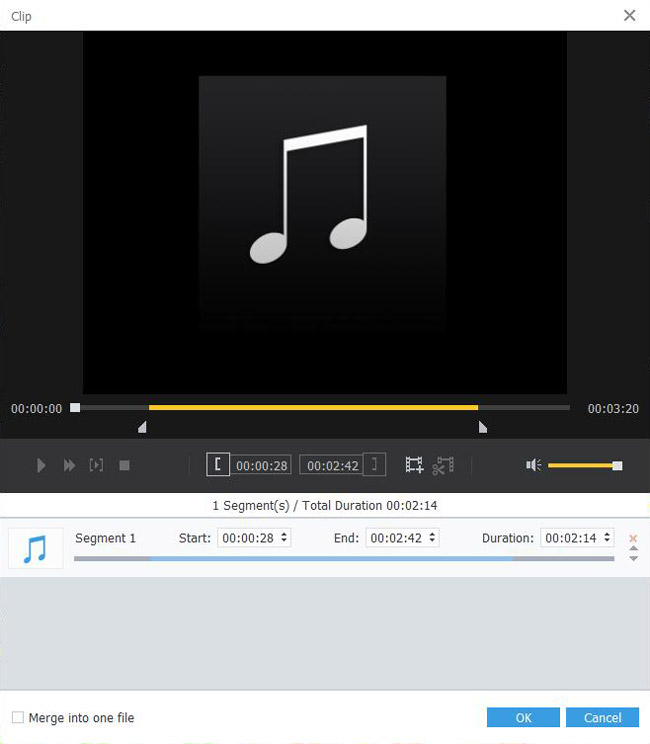
If you are not satisfied with the whole audio file, you can use this software to trim your unwanted part of the audio. After selecting one audio file in the file list, click "Trim" button to edit the audio by setting the start time and the end time.
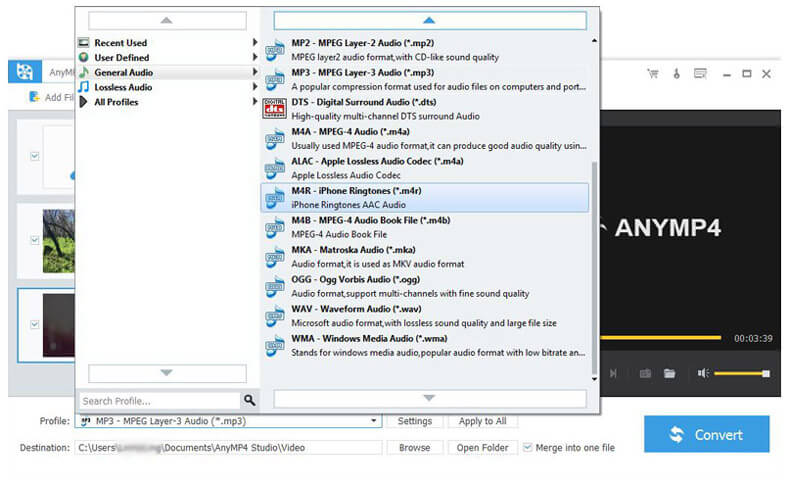
You can click "Profile" drop-down list to set the output format, in the opened list input "WAV" in the search box, and then you can find the format in the right of the list.
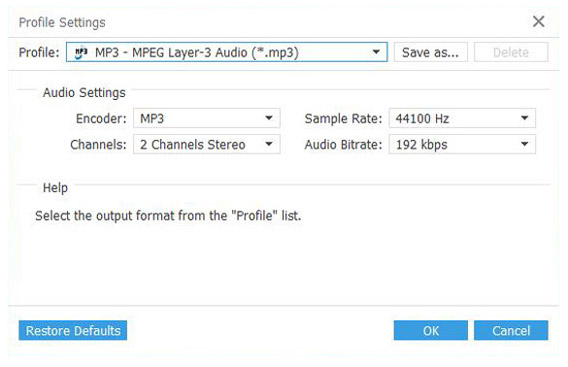
At the last step, you can click "Convert" button to start to convert QCP to WAV. Only a few clicks can you finish the whole converting.
WAV is a Microsoft and IBM audio file format standard for storing an audio bitstream, and it is the main format used on Windows systems for raw and typically uncompressed audio. Because the uncompressed WAV files are large, so file sharing of WAV files over the Internet is uncommon. But it is commonly used to retain first generation archived files of high quality, and also used on a system where disk space is not constraint. Besides, the WAV files are used by some radio broadcasters at times, especially those that have adopted the tapeless system.
 Updated by Joan Aimee to Convert Audio
Related Articles
 Top 10 MP4 to WAV Converters Online and Offline
This article has chosen 10 satisfied tools for you to extract audio format from MP4 files.
 6 Best Audio Joiner software to Combine Audios
Learn more details about the 6 best Audio Joiner software to combine them.
 Top 10 Music Converter Apps to convert music
There are 10 best Music Converters, which is user-friendly and easy to use.
 How to Add Watermark to A Video with Your Brand
You can add watermark to a video with your own brand in 3 methods from the article.
 Add your comments to join the discussion here
