- Convert video, audio, and DVD over 500 formats.
- GPU acceleration to speed up the conversion process at 70X faster.
- More than 16 editor tools in the toolbox (Updating).
- Create videos for TikTok, YouTube, Facebook, etc.

Free Download100% Clear & Secure
Free Download100% Clear & Secure
AAC to WAV
Back to main page
Setting
Custom resolution:
| Core Features | Web Version | Pro Desktop |
| Max File Size | 50MB (Login: 100MB) | No Limit |
| Daily Limit | 2 Files (Login: 10 Files) | Unlimited |
| AI Video Upscaling | No | Yes (Up to 4K/8K) |
| GPU Acceleration | No | Yes (70X Faster) |
| Batch Processing | No | Yes |
Failed to upload media file! Please try again, or use AnyMP4 Video Converter Ultimate for Desktop.(Error code: 20015)

The original video resolution is higher than 1080p. If you want to output the original high resolution, you need to download the Pro Version. Or would you like to output the default 1080p resolution?

Quick Summary:
AAC-to-WAV conversion improves compatibility for editing and playback while preserving audio quality for professional use. AnyMP4 Video Converter Ultimate offers a powerful desktop solution, CloudConvert provides quick online conversion, and FFmpeg delivers advanced command-line control. Together, these tools help you convert AAC to WAV efficiently.
AAC is efficient for streaming and mobile use due to its efficient compression. However, it creates a compatibility paradox in professional environments. This format is incompatible with professional editing tools and legacy hardware, leading to Unsupported Format errors in DAWs and production workflows. This limitation makes WAV the preferred uncompressed standard for universal compatibility, editing, and archival purposes. While conversion cannot restore quality lost in AAC compression, it helps prevent further degradation during processing and ensures stable performance in professional workflows. In this post, we will guide you through AAC to WAV conversion, presenting three efficient methods to achieve it.
AAC, short for Advanced Audio Coding, is a lossy audio compression format that can deliver high sound quality at lower file sizes. It removes audio data that is less noticeable to human hearing, maintaining good quality while reducing storage requirements. Today, it is the standard audio format used in Apple iTunes, YouTube streaming, and many music streaming services.
WAV, or Waveform Audio File Format, is a lossless audio format developed by Microsoft and IBM for Windows. Unlike AAC, WAV stores raw PCM audio data without discarding sound information. This results in excellent audio quality but larger file sizes. It has become the industry standard for professional audio production, music mastering, and studio recording.
| AAC | VS | WAV |
| Apple, YouTube, and major streaming services | Compatibility | All major operating systems, digital audio workstations, and media players |
| Lossy | Compression Type | Lossless |
| 2.5 MB to 6 MB for a 3-minute audio | File Size | 30 MB to 100 MB for a 3-minute audio |
| 16 kbps up to 512 kbps | Bitrate Range | 1,411 kbps to 4,600+ kbps |
| Depending on the container used. .aac files have limited tagging support, while .m4a/.mp4 containers fully support metadata. | Metadata Support | Basic text metadata via the RIFF INFO chunk or BWF chunk. |
Professional Video & Audio Editing:
Adobe Premiere Pro, DaVinci Resolve, and Logic Pro perform better with WAV audio because it contains uncompressed PCM data. Editors can scrub timelines more smoothly, apply effects more accurately, and avoid repeated encoding losses during rendering.
DJing and Live Performance:
Many DJs and live performers convert AAC to WAV to reduce CPU load during performances. Since WAV files do not require real-time decompression, DJ software and hardware controllers can process audio more efficiently. This can improve playback stability during live mixing.
Legacy Hardware Support:
Some older CD players, car stereos, and specialized audio hardware cannot properly recognize AAC files stored in the .m4a container. Converting AAC to WAV improves compatibility with these devices because WAV is one of the most universally recognized audio formats.
AnyMP4 Video Converter Ultimate is a professional desktop solution to convert AAC audio to WAV without losing quality. It is fully compatible with Windows 11/10/8 and macOS 10.12 to 15. It lets you convert AAC audio to WAV and 500+ other formats with ease. Additionally, it supports batch convert AAC to WAV operations, enabling you to process multiple files simultaneously.
Secure Download
Secure Download
Furthermore, you can customize output parameters to optimize playback, editing, or archiving. Notably, it uses hardware acceleration to speed up conversion while maintaining output quality. In addition, the integrated Media Metadata Editor allows you to modify file information for better media organization.
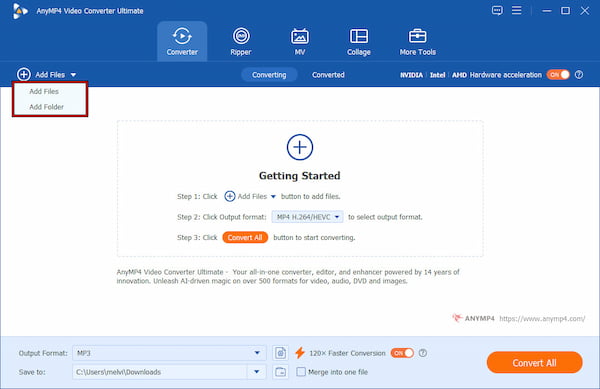
1. Run AnyMP4 Video Converter Ultimate on your system to access the main dashboard. In the Converter tab, click + Add Files to import your AAC audio files. If you need to batch convert AAC files, select Add Folder instead to import multiple files simultaneously
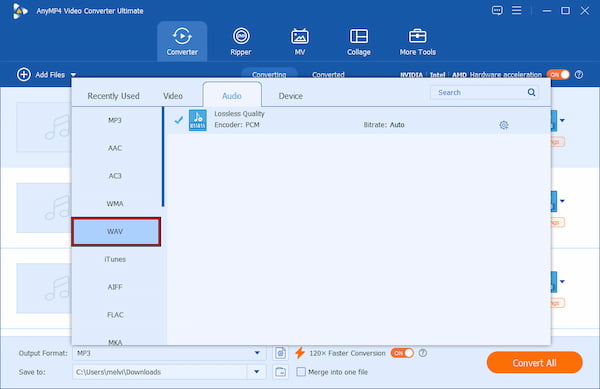
2. Select the Output Format selector, then switch to the Audio category. Select WAV as the output format, then choose a preset. For a high‑quality audio conversion, click Custom Profile to adjust sample rate, encoder, bitrate, and audio channels.
3. In the Save To selector, specify the destination path for your converted file. After that, enable the 120× Faster Conversion feature to speed up conversions. After configuring the settings, click Convert All to convert AAC files to WAV format.
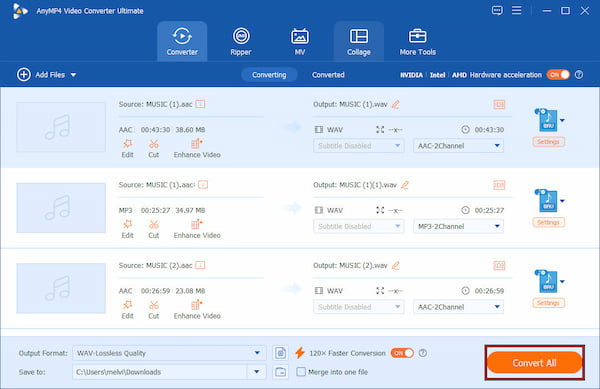
If your goal is to convert iTunes AAC files to WAV without losing quality, always choose a converter that supports customizable output settings. However, you should be aware that converting AAC audio to WAV does not restore the audio data removed during AAC compression.
CloudConvert is one of the best online AAC-to-WAV converters. It allows you to quickly convert AAC to WAV online without installing any software. It is ideal for those who need a fast, lightweight solution for occasional conversions or are working on devices with limited storage.
1. On the CloudConvert homepage, click Select File to upload an AAC file from local storage. Alternatively, click the dropdown arrow to import files from cloud storage or via URL.
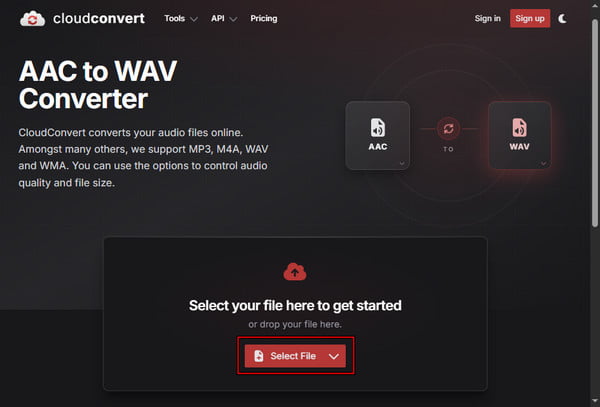
2. Confirm that the output format is set to WAV. Then, click Convert to process your file in the cloud. After conversion is complete, click Download to save your WAV file to your device.
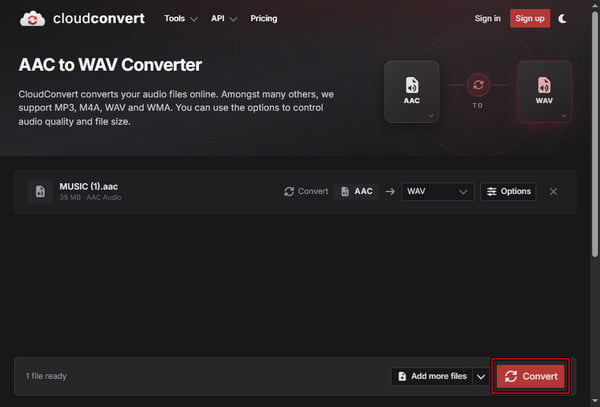
CloudConvert provides a fast, accessible way to convert WAV to AAC (or vice versa). However, using online tools can pose privacy risks when uploading sensitive audio files. It may expose you to third-party storage systems during conversion.
FFmpeg is a powerful command-line tool for precise media processing. It supports nearly every audio and video format and is known for lossless conversions, automation, and batch workflows. It is a free AAC-to-WAV conversion tool that does not rely on a GUI.
Here's a quick command to convert AAC to WAV for free:

ffmpeg -i input.aac output.wav
How It Works:
FFmpeg is a powerful tool for transcoding AAC to WAV. However, it has a steeper learning curve compared to graphical tools. Additionally, incorrect commands or parameters can lead to unintended output settings. So, you should double-check syntax when performing conversions.
File is Too Large:
A common surprise when converting AAC to WAV is the sudden increase in file size. A small 5MB AAC file can grow to 40-60MB WAV, depending on duration and sample rate. It is normal, as WAV prioritizes quality preservation over storage efficiency. Still, if you want to make the file size smaller, you can compress WAV files using a specialized tool.
Clipping or Distortion:
Clipping or distortion usually comes from the original AAC file or improper gain settings, not the conversion itself. WAV lossless audio format conversion preserves existing audio issues. To avoid problems, normalize audio levels before converting and avoid excessive volume boosts.
Missing Metadata:
Metadata may disappear because AAC supports rich tagging, while WAV has limited metadata compatibility. During conversion, tags may not transfer correctly depending on the tool. You should reapply metadata manually using AnyMP4's Media Metadata Editor to preserve organization in music libraries or production files.
Does converting AAC to WAV increase file size?
Yes. Converting AAC to WAV significantly increases file size. AAC uses lossy compression to reduce storage, while WAV stores uncompressed PCM audio data. It means all audio information is fully expanded during conversion.
Is WAV better than MP3?
In terms of data integrity, WAV is better than MP3. WAV is uncompressed and preserves the full original audio signal without discarding detail. However, MP3 is far more efficient for storage and sharing because it uses lossy compression, resulting in much smaller file sizes.
Will I lose the Apple Music protection?
No, you cannot remove or bypass Apple Music protection through conversion. DRM-protected Apple tracks are encrypted and restricted. It means you cannot convert them to WAV or any other format using standard tools. You can only convert non-DRM audio files.
Can I convert WAV back to AAC later?
Yes, you can convert WAV back to AAC, but this introduces generational loss. Since WAV is uncompressed and AAC is lossy, converting WAV to AAC compresses the audio again. Repeated conversions between lossy formats or re-encoding can gradually reduce sound quality.
WAV serves as the essential bridge between mobile convenience and professional audio utility. AAC is efficient for streaming and everyday playback. However, WAV provides the uncompressed stability required for editing, mastering, and long-term archival use across professional software and hardware systems. It ensures smoother workflows and prevents additional quality loss during processing. If you value stability, compatibility, and editability over storage efficiency, WAV is the clear winner. Ready to optimize your audio library? Download AnyMP4 Video Converter Ultimate today and experience seamless, lag-free editing for your AAC-to-WAV conversion needs.
 Updated by Alice Thorne to Convert Audio
More readings
 AAC to MP3 – Convert Audio Files from AAC to MP3 Format in Batch
This article collects top 10 AAC to MP3 converters on multiplatform. Thus, you can convert AAC file to MP3 online and offline based on your need freely.
 10 Best MP4 to WAV Converters for Lossless Audio Extraction
We tested the 10 best MP4 to WAV converters for computers and mobile devices. Get expert tips on PCM and bit rates to extract WAV without losing quality./p>
 5 Best MOV to MP3 Converters (2026): Pro Quality & Speed Tested
Extract 320kbps MP3 from MOV files with our top 5 tested tools. Features detailed reviews, batch guides, and expert tips for lossless audio extraction.
 How to Convert MOV to WAV (Lossless Audio) on Windows & Mac
Easily extract high-quality WAV audio from MOV videos. Get the best 3 converters for batch conversion and 100% original quality.
 Add your comments to join the discussion here