
Summary
To convert MPG to WAV without losing quality, you’ll need a tool that can extract the audio without compression. For large batches or sensitive videos, AnyMP4 Video Converter Ultimate offers 100% offline privacy, GPU-accelerated performance, and lossless WAV output. If you're converting a small, non-sensitive MPG file, FreeConvert provides a convenient alternative.
Many users assume converting MPG to WAV is as simple as uploading a file to an online converter. However, large MPG videos exceed 1 GB, leading to slow uploads, browser crashes, or file size restrictions. Even worse, some tools recompress the audio during extraction. Also, you need to upload videos to cloud servers, raising concerns about quality loss and data security. If you need to extract WAV from MPG with lossless audio, choosing the right tool is essential. A secure video converter that performs conversions locally can also protect sensitive recordings from risk. In this guide, we'll introduce the best tools for extracting audio from MPG files and converting them to WAV. We’ll also demonstrate how to use it, so you can quickly extract high-quality audio with complete privacy.
MP3s use lossy compression to discard unnecessary data, resulting in lower sound quality. Meanwhile, WAV files can retain the full range and original frequency of your source. Extracting a WAV from MPG provides uncompressed, lossless audio. In other words, you’ll get a zero quality loss from the source’s soundtrack. This is why WAV is the preferred format for audio editing in Premiere Pro or Audacity.
How We Test:
To bring you the most accurate recommendations, our team tested each converter on Windows 10 Pro using the same MPG files. We prepared a batch of 50 home videos, totaling 552.50 MB. These include home videos and MPEG-1/MPEG-2 recordings with varying resolutions and bitrates to simulate conversion scenarios.
| Best For | Privacy/Security | Max File Size | Hardware Acceleration | Price | |
|---|---|---|---|---|---|
| AnyMP4 Video Converter Ultimate | Lossless batch conversion and large files | 100% privacy security |  No limit No limit |
 NVIDIA NVENC, Intel QSV, and AMD NVIDIA NVENC, Intel QSV, and AMD |
Plan starts at $18.75 with a 30-day free trial/Free tier is also available |
| FreeConvert | Files under 1 GB | Files are uploaded to servers | 1 GB in the free version |
Server-side conversion only |
Plan starts at $12.99 for 1500 conversion minute/Free tier is also available (1 GB limit) |
| Audacity with FFmpeg | Open-source audio extraction with editing | Offline and open-source | No limit |
CPU-based only |
Free |
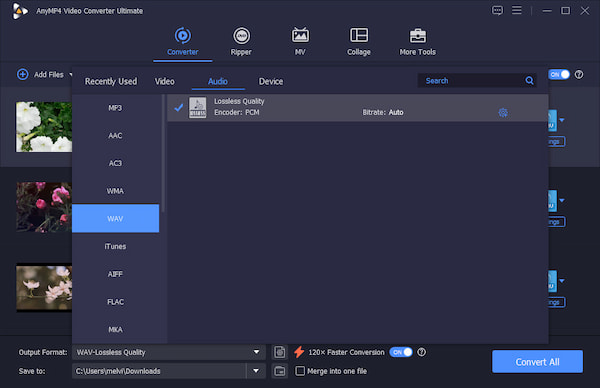
When we extract uncompressed audio from a video file, a standard audio track extraction tool often compresses the output. AnyMP4 Video Converter Ultimate bypasses this entirely while preserving every detail of the source audio. It transcodes MPG to WAV locally, meaning the entire conversion happens on your computer and ensures 100% offline privacy.
Secure Download
Secure Download
Better yet, you can adjust the sample rate (44.1kHz/48kHz), bitrate, channel, and audio encoder. It uses NVIDIA NVENC, Intel QSV, and AMD hardware acceleration media processing to achieve 120× speed. And if you have multiple MPG files, you can import and process hundreds of them simultaneously without lag or crashes.
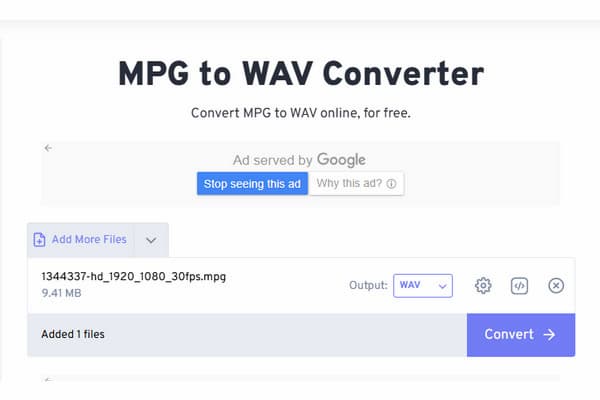
Sometimes you only need to convert one or two files, making software installation unnecessary. As we all know, most online converters limit uploads to 50-100 MB. FreeConvert surpasses these caps by allowing you to import files up to 1 GB in size. However, you still need to upload files to its servers before you can perform lossless MPG audio extraction. Although batch conversion is supported, the upload and conversion times depend on your internet connection. In other words, processing hundreds of megabytes or near-1 GB can take longer than converting the same source with an offline desktop app.
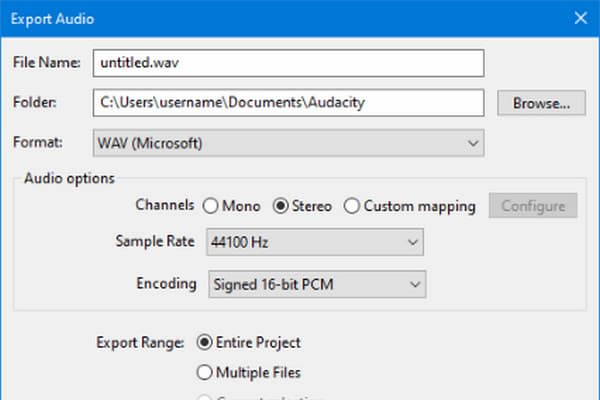
Combining Audacity with FFmpeg is a powerful way to transcode home videos to the WAV format. Like AnyMP4, it converts large MPG to WAV offline, allowing you to extract audio without uploading videos to third-party servers. By default, Audacity cannot import compressed formats, including MPG files. But if you install the FFmpeg library, Audacity will be able to read the audio stream directly from the source. By doing so, you can remove the video component and export the soundtrack as a high-quality WAV file.
To show you how to extract an audio stream from an MPG file and convert it to an uncompressed audio format, we’ll use AnyMP4 Video Converter Ultimate. With it, you can extract sound while preserving the source file's audio quality. Besides, you can batch-convert and customize audio settings for better sound quality.
Here’s how to extract WAV from MPG video:
1.Download AnyMP4 Video Converter Ultimate and complete the installation. Right after the setup, the software will launch automatically on your computer.
Secure Download
Secure Download
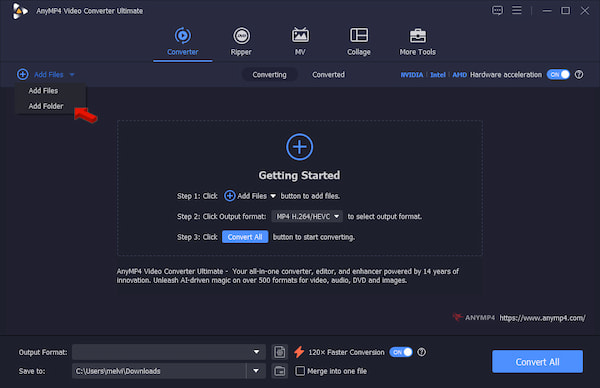
By default, you will enter the Converter tab. Click +Add Files to import the source MPG(s). Remember, there are no file-size limits so you can import one or more video files at a time.
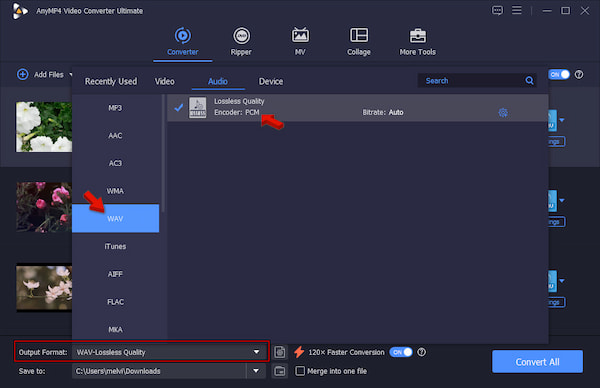
2.Navigate to Output Format, go to Audio category, and select WAV. Next to it, select a quality preset that matches your intended use. However, since WAV is already a lossless format, the only option available is Lossless Quality.
3.Back to the main interface and enable Hardware Acceleration. Also, activate the 120× Faster Conversion button to speed up conversions. Set the output destination, then click Convert All to batch-convert MPG to WAV on Mac/Windows.
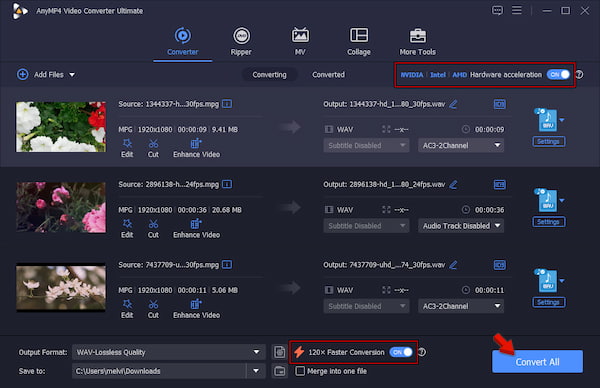
To evaluate the software in real-world use, we put it to the test. We conduct a hands-on test to assess capabilities in terms of output quality, speed, and batch conversion. In our tests, we import 50 1080p Full HD home videos, totaling 552.50 MB. It took only 53 seconds to extract the audio from the MPG files and convert it to WAV. In our audit, we found no distortion, quality degradation, or glitches in the final output.
Can I convert MPG to WAV without losing original audio quality?
Yes, you can convert MPG to WAV without losing the source audio quality. WAV is an uncompressed, lossless format. It is a perfect container that preserves the audio quality exactly as it was stored in the MPG.
Are online MPG-to-WAV converters safe for personal or sensitive videos?
To be real with you, no. Online converters are not safe for processing personal and sensitive videos. Such tools upload files to their server, which can impose data privacy and security risks.
How do I batch convert multiple large MPG files to WAV at the same time?
To batch convert multiple large MPG files simultaneously, get AnyMP4 Video Converter Ultimate. It uses multi-threading and hardware acceleration to process heavy video files into lossless audio formats.
What is the difference between extracting to MP3 versus WAV from a video?
Extracting to MP4 can create a highly compressed, small file. It is ideal for sharing and listening to music, but it slightly drops the quality. Extracting to WAV creates an uncompressed file. It creates an exact copy of the source audio.
Why does my exported WAV file sound distorted or have a lower volume than the original MPG?
The WAV sounds distorted or quiet due to clipping and a bit-depth mismatch. To fix his, you can use a limiter so the audio peaks at roughly -1 dB or -3 dB. Also, ensure the export bit depth matches your project settings. Alternatively, use a dedicated WAV player to test the actual sound quality.
The selection of the ideal MPG to WAV converter depends on the trade-off between the ease of use of cloud-based software and the quality of locally installed software. When you only need to convert MPGs occasionally, you can go with FreeConvert. Nevertheless, if the uncompressed audio, batch conversion, and quickness of conversion are what matter most to you, then the desktop application is the clear winner. In the end, the most important things would be securing your data and maintaining audio quality. Among all the tools we tested, AnyMP4 Video Converter Ultimate delivered the best experience. It extracts lossless WAV audio without recompression, supports GPU-accelerated processing, handles large batches, and performs all operations locally to keep your videos private.
 Posted by Alice Thorne to Convert Video, Convert Audio
More readings
 2 Ways to Convert MPG/MPEG to WMV on Windows/Mac/Online (Reversely)
Read and get 2 easy ways to convert MPG to WMV or WMV to MPG on your Windows and Mac computer. You can get both online and desktop MPG converters in this post.
 3 Ways to Rip DVD to MPG on Windows and Mac [2026 Guide]
Come to learn how to rip DVD to MPG files in three simple ways. Follow our step-by-step guide to convert your DVDs to the MPG format easily and efficiently.
 10 Best MP4 to WAV Converters to Extract Lossless Audio
Convert MP4 to WAV without losing quality. We tested 10 top converters for PC, Mac, and online to extract lossless PCM audio with 44.1/48kHz bitrates.
 5 Best Ways to Convert M4A to WAV (Free, Online & Pro) - 100% Quality
Learn how to convert M4A to WAV on Windows, Mac, and Online by using AnyMP4, iTunes, VLC, and Audacity to ensure lossless audio quality.
 Add your comments to join the discussion here