How to Convert MKV to MP4 Using HandBrake (Troubleshooting & Fixes)
Quick Summary:
To convert MKV to MP4 using HandBrake, drag and drop your MKV file into the software. Under the Summary tab, set the Format to MP4. Go to the Video tab to ensure the video codec matches your needs (e.g., H.264), choose your destination folder, and click Start Encode. For faster, lossless conversions, tools like AnyMP4 Video Converter Ultimate offer hardware acceleration.
Facing playback errors on your iPhone or smart TV is frustrating, especially when you have a high-quality movie trapped in an incompatible container. While MKV is excellent for storing multiple audio tracks and subtitles, its lack of video support makes universal playback challenging for many users. In this tutorial, we will show you how to convert MKV to MP4 using HandBrake so your files work everywhere. Whether you are chasing lossless video quality or a fast format conversion, mastering HandBrake is essential. Furthermore, we will also explore modern alternatives that offer even faster processing for a seamless creative workflow.
Part 1. Why Convert MKV to MP4? (The Compatibility Issue)
MKV is a powerful container for high-quality video, but it lacks universal playback support. Most smart TVs, iPhones, and video editors (like Premiere Pro) struggle to read it. Converting to MP4 resolves these video compatibility issues, making your files playable on almost any device without significant loss of quality.
Part 2. How to Use HandBrake to Convert MKV to MP4 (Step-by-Step)
Step 1: Import Your MKV File
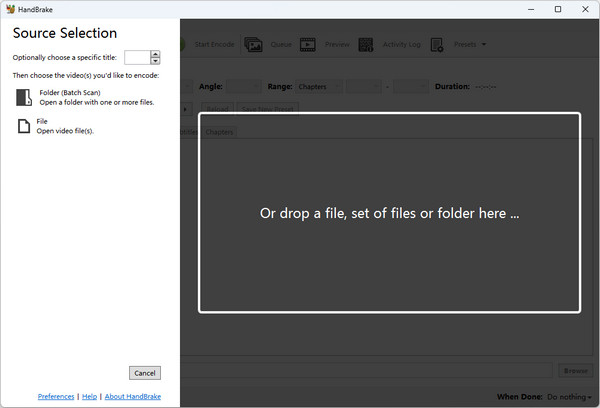
Launch HandBrake and drag your MKV file directly into the main window. Or, click Open Source in the toolbar to browse your computer for the specific MKV file you wish to convert.
Step 2: Set the Output Format to MP4 (and fix the M4V bug)
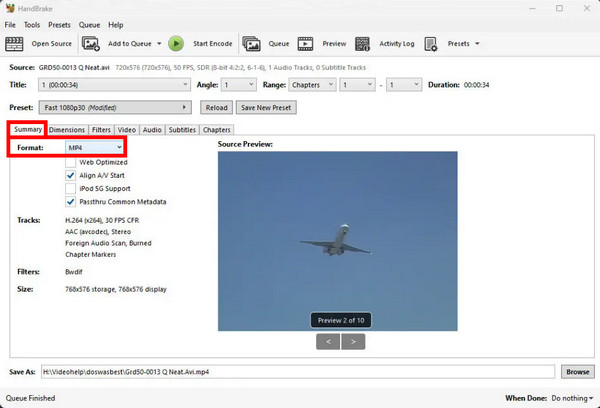
After importing, select MP4 as the output format in the Summary tab > the Format dropdown list.
Note
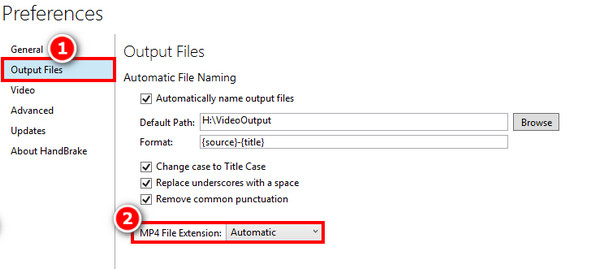
If HandBrake automatically changes the file extension to .m4v, no worries. Go to Preferences > Output Files and set the MP4 File Extension option to Automatic to avoid this Apple-specific default.
Step 3: Adjust Video and Audio Quality Settings
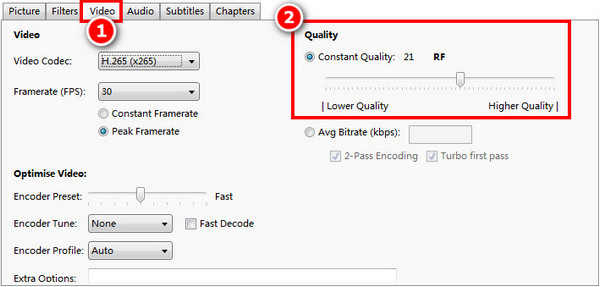
Video Tab: Set the Constant Quality (RF) slider. For 1080p, a value of 20–22 is the best spot for high quality.
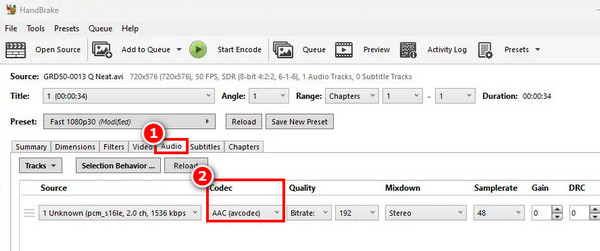
Audio Tab: Ensure your codec is set to AAC (avcodec) for maximum compatibility with mobile devices and TVs.
Step 4: Start the Conversion
Choose your destination folder at the bottom of the screen by clicking Browse. Once you are ready, click the Start Encode button at the top to convert the MKV file.

Part 3. Common HandBrake Troubleshooting (And How to Fix Them)
Problem 1: Audio and Video Out of Sync After Conversion.
The HandBrake fix: Open the Video tab and change the Framerate from Variable Framerate (VFR) to Constant Framerate (CFR).
Problem 2: Extremely Slow Conversion Speeds.
The HandBrake fix: Check that hardware encoders (like NVENC or QuickSync) are properly selected in the Video tab, assuming your computer's drivers are fully up to date and compatible with HandBrake's open-source architecture.
Problem 3: The Output File Size is Still Too Large.
The HandBrake Fix: Manually adjust the Constant Quality (RF) slider. Move it to a higher number (like 22-24) to reduce size, but you risk ruining the video quality if you push it too far.
Part 4. Best HandBrake Alternatives for Faster MKV to MP4 Conversions
While HandBrake is a powerful classic, its steep learning curve and heavy reliance on your CPU can make it feel sluggish and overwhelming. If you are looking for more speed and a cleaner interface, the AnyMP4 alternatives are specifically designed for those weaknesses.
AnyMP4 Video Converter Ultimate (Best for Speed & Lossless Quality)
AnyMP4 Video Converter Ultimate is a powerful all-in-one MKV-to-MP4 converter for Windows/Mac. It uses advanced hardware acceleration to convert videos up to 70x faster. It offers an intuitive UI and a built-in editor to trim, crop, or merge your videos before converting. Moreover, it supports true lossless conversion quality.
1. Download and install this best alternative to HandBrake. Then, click Add Files or drag your MKV directly into the interface.

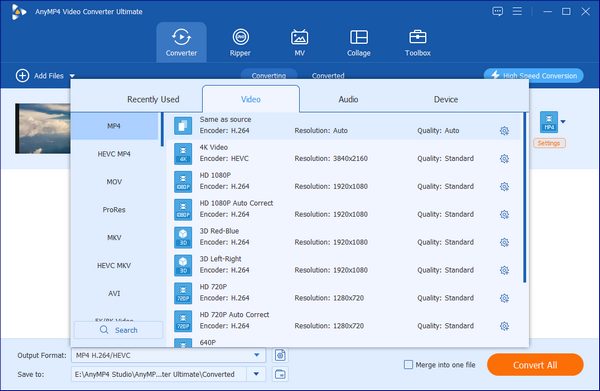
2. Click Output Format and choose MP4 under the Video tab. Then, you can select Same as Source to maintain lossless quality.
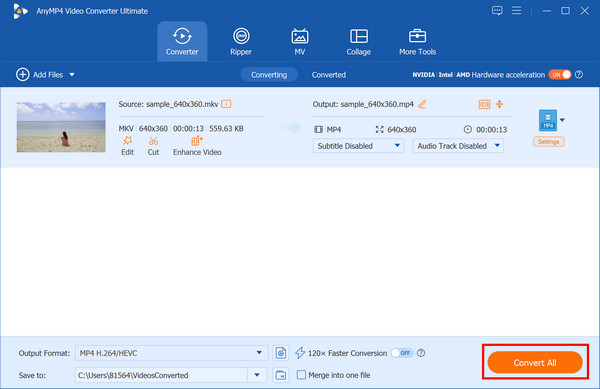
3. Select a path for the converted files. Ensure Hardware acceleration is toggled on, and then click Convert All to start converting MKV to MP4.
AnyMP4 Free Online Video Converter (Best for Quick Web Conversions)
If you only have one or two small files and don't want to install software, AnyMP4 Free Online Video Converter is the perfect solution. Most online converters are slow or add ugly watermarks, but this web tool provides high-speed processing and no watermark on your output.
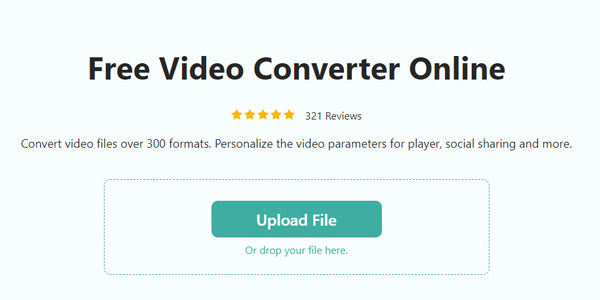
1. Go to the AnyMP4 Free Online Video Converter site and click Upload File to import the MKV file you want to convert.
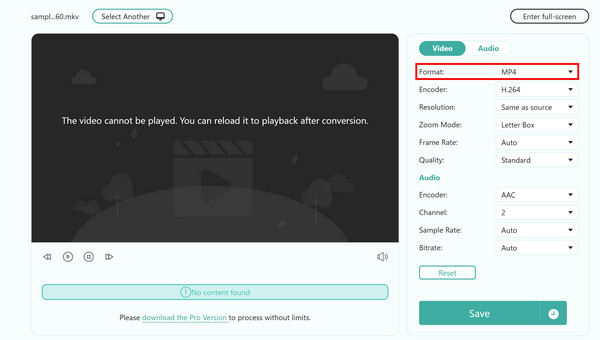
2. Select MP4 from the list of the Format option. You can also set the resolution, encoder, quality, frame rate, and more to your liking.
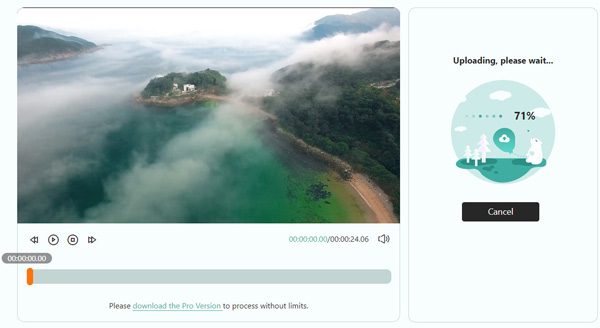
3. Click Save to start converting the MKV video file to MP4. Finally, download it to your computer
Part 5. Tool Comparison: HandBrake vs. AnyMP4
1. Audio/video sync:
- • HandBrake's audio and video sync is general. Synchronization offsets may occur occasionally when lirocessing high-bitrate or variable frame-rate files.
- • AnyMP4 includes built-in locked-clock synchronization, ensuring your audio and video stay highly synchronized.
2. Conversion speed:
- • HandBrake has a moderate conversion speed and relies primarily on the CPU. So, when processing 4K large files is slow.
- • AnyMP4 features built-in hardware acceleration (NVIDIA, AMD, Intel) that reaches up to 70x faster conversion speeds.
3. Output file size:
- • HandBrake can achieve extreme compression while retaining good image quality and keeping file sizes minimal.
- • AnyMP4 has balanced output file sizes with a Lossless profile option that preserves original data.
4. Output quality:
- • HandBrake's quality mainly depends on the settings of various parameters.
- • AnyMP4 supports 1:1 lossless conversion with almost zero loss of image quality.
5. User Interface:
- • HandBrake's interface is complex, cluttered with technical tabs (Dimensions, Filters, Video).
- • AnyMP4' s interface is intuitive. Simple drag-convert-done workflow with clear feature buttons.
6. Extra Features:
- • HandBrake only has basic cropping and filtering.
- • AnyMP4 offers an all-in-one toolbox with AI Enhancer, Video Editor, GIF Maker, Metadata Editor, etc.
Part 6. FAQs
Why does HandBrake output my video as an M4V instead of MP4?
HandBrake has historically defaulted to this format due to its initial focus on Apple devices. It is just trying to support Apple-specific features such as chapters, soft subtitles, and surround sound.
Does converting MKV to MP4 in HandBrake lose quality?
If you use the 'Lossless' preset or set the RF slider appropriately, quality loss is imperceptible to the human eye.
How long does it take HandBrake to convert a 2-hour MKV movie?
Converting a 2-hour MKV movie in HandBrake can take from 15 minutes to over 24 hours, depending primarily on whether you use your computer's CPU/GPU and the quality you want to preserve.
Can I convert MKV to MP4 without third-party software?
While you can't natively convert (re-encode) the video using just the built-in file explorer, you can often re-wrap or rename the file using tools already built into your operating system.
Is it safe to use free online video converters?
The short answer is generally not recommended, especially for files you care about or that contain personal information. The FBI warned that some 'poisoned' websites would steal data or install malware.
Conclusion
Converting MKV to MP4 using HandBrake or other converters, such as AnyMP4, depends on your priorities. Our final verdict: try Handbrake if you want a free, open-source tool and don't mind a learning curve and slower speeds. However, if you need smooth and fast conversion, AnyMP4 is the superior choice. No matter which you choose, both can ensure high-quality results, so choose the one that suits you best!




 Add your comments to join the discussion here