
Quick Summary:
I've often been frustrated by a high-quality MKV video that looks perfect offline, only to find it won't play smoothly on a website. That's why the MKV-to-WebM conversion has become a game-changer for me. By converting MKV files to WebM, you can achieve lossless conversion, reduce file size, and create web-friendly videos that are fully HTML5-compatible. Modern VP9 and AV1 codecs ensure top-quality playback, and with hardware acceleration, even large or 4K files convert quickly without compromising quality. In this post, I'll provide three ways to convert MKV to WebM, ranging from powerful desktop software to free, open-source tools to online options. The aim is simple: to help you optimize videos for high-quality, universal playback with manageable file sizes.

| MKV | Versus | WebM |
|---|---|---|
| Archiving | Primary Use | Web Streaming |
| H.264, H.265 (HEVC) | Video Codecs | VP9, AV1 |
| Requires plugins | Browser Support | Native |
| Large (High Bitrate) | File Size | Small (Optimized for Web) |
When it comes to modern web video, the choice of file format matters. MKV files are known for supporting multiple audio, subtitle, and video streams. It is an ideal format for archiving high-quality content, but less ideal for online streaming due to its large file sizes. Meanwhile, WebM prioritizes web performance. Its use of the VP9 codec ensures efficient file compression without sacrificing quality.
For anyone looking to optimize videos for websites, converting MKV to WebM is often a smart move. The smaller file size of WebM reduces buffering and improves user experience across devices. Though MKV remains popular for offline storage and high-quality video, WebM's efficiency and browser compatibility make it the go-to choice for web distribution.
| MKV | VS | WebM |
| Archiving | Primary Use | Web Streaming |
| H.264, H.265 (HEVC) | Video Codecs | VP9, AV1 |
| Requires plugins | Browser Support | Native |
| Large (High Bitrate) | File Size | Small (Optimized for Web) |
AnyMP4 Video Converter Ultimate is a top-performing media converter that delivers a fast, reliable way to convert MKV to WebM. It supports 70× faster conversion using full hardware acceleration (NVIDIA/Intel/AMD) to handle large 8K/4K MKV files in seconds. Unlike basic converters, it lets you choose VP8, VP9, or AV1 encoding for WebM outputs. Furthermore, it comes with a built-in toolbox featuring 20+ essential editing tools. It includes a video compressor and a metadata editor, both vital for SEO-friendly web videos.
1. To start with, click the free download to get AnyMP4 Video Converter Ultimate. Install the professional media converter, then wait for the installation to complete. After you finish the setup process, open the software to access the main dashboard.
Secure Download
Secure Download
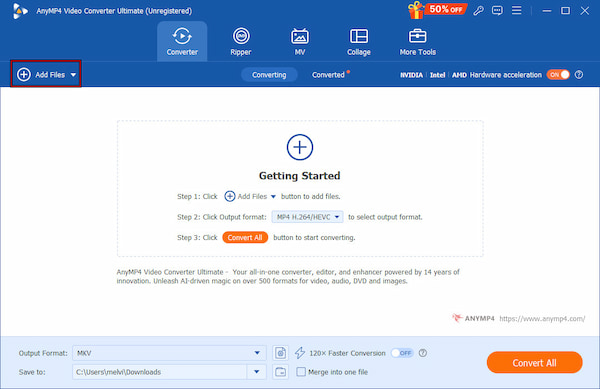
2. As you launch the software, it defaults to the Converter tab. Click + Add Files in the upper-left corner and select the MKV file. For batch conversion, hold Ctrl (Windows) or Command (Mac) while selecting files.
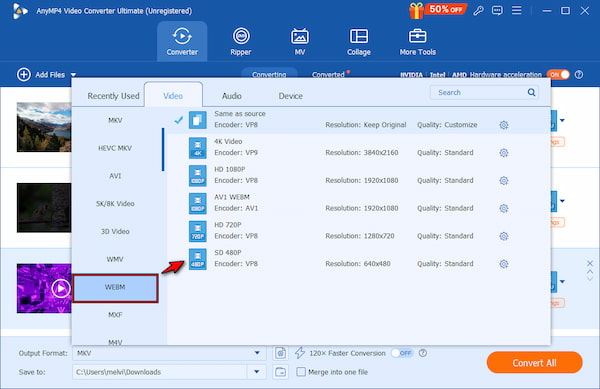
3. In the Output Format selector, select the Video category, then select WEBM. After your format selection, choose your preferred quality and resolution next to it. This format ensures better compatibility for web-based applications.
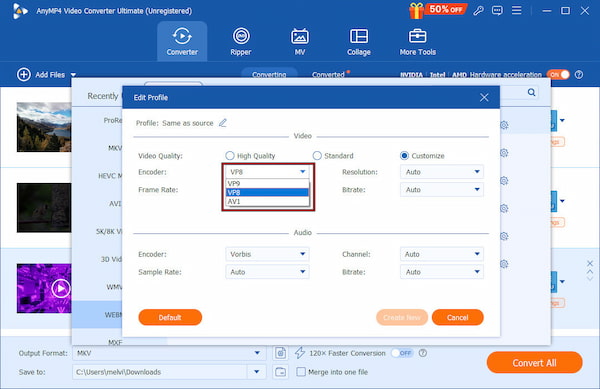
Optionally, click Settings to tweak the encoder. Each has its advantages: VP9 and AV1 offer better compression and quality for the HTML5 video format, while VP8 ensures wider compatibility. You can also do resolution, frame rate, and bitrate adjustment.
4. Use the Save To selector to choose where to save your converted WebM files. Turn on 120× Faster Conversion to activate the hardware acceleration. Next, click Convert All to start the conversion.
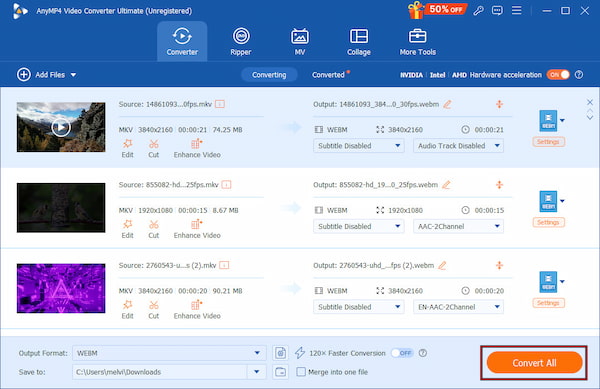
AnyMP4 Video Converter Ultimate offers a quick and easy way to convert media files without sacrificing quality. It preserves high-quality video while dramatically reducing file size, making it ready for smooth playback in any WebM player.
In my testing, AnyMP4 Video Converter Ultimate reduced a 2GB MKV file to 450MB in WebM format without visible artifacting, even in fast-moving scenes. The quality remained remarkably crisp, with colors and motion preserved perfectly.
HandBrake is a free, open-source converter that supports nearly all popular video formats and codecs. It works best for those who want control over video quality without paying for software. However, encoding 4K or high-motion footage can take a long time, especially with higher-quality presets like Super HQ 1080p30 Surround.
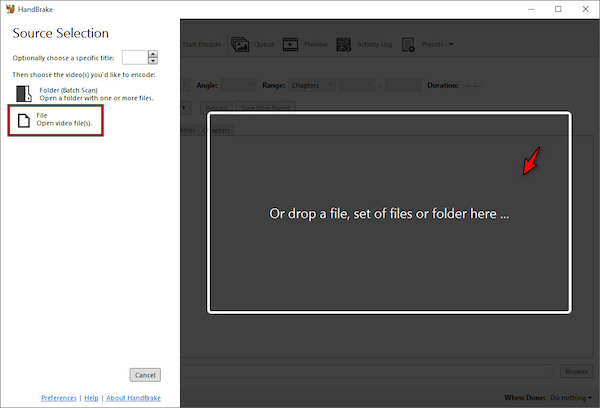
1. In HandBrake, click File, then select the MKV file you want to convert. You can also drag and drop MKV into the designated upload area.
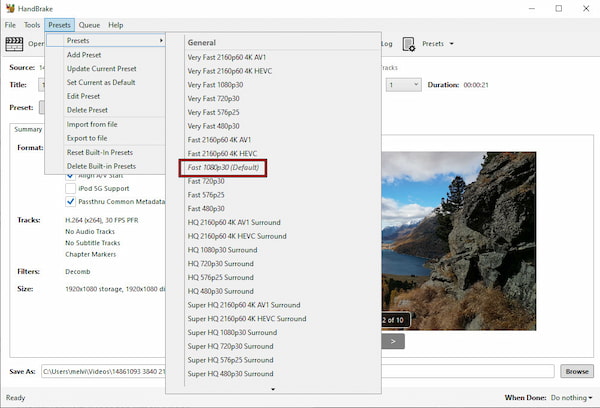
2. In the Preset panel, choose a preset that matches your video resolution. For standard 1080p videos, Fast 1080p30 (Default) provides a good balance between speed and quality.
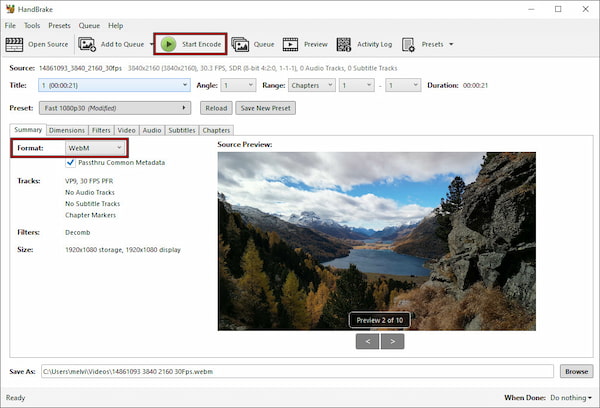
3. Under the Summary tab, navigate to the Format selector and choose WebM. Then click Start Encode to process the video and display a progress bar showing the estimated time remaining.
To get the best results when converting MKV to WebM, navigate to the Video tab in HandBrake. Instead of setting a specific bitrate, use Constant Quality (RF). For VP9, an RF of 25-31 is the sweet spot for high-definition web video.
CloudConvert is an online MKV-to-WebM converter that lets you convert videos without installing any software. It supports over 200 file formats and offers options to adjust video resolution, quality, and file size. Since it works entirely in the cloud, you can access it from any device with an internet connection.
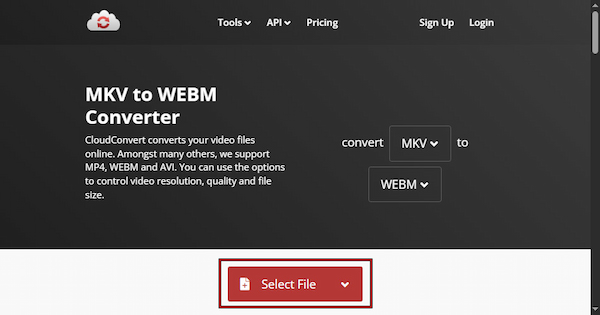
1. On the CloudConvert homepage, click Select File to upload your MKV video. You can also drag and drop files from your local device, Google Drive/Dropbox, or a direct URL.
2. Use the options to set your preferred codec, resolution, aspect ratio, and CFR. You can choose compression levels or tweak bitrate, ensuring a balance between lossy vs. lossless quality.
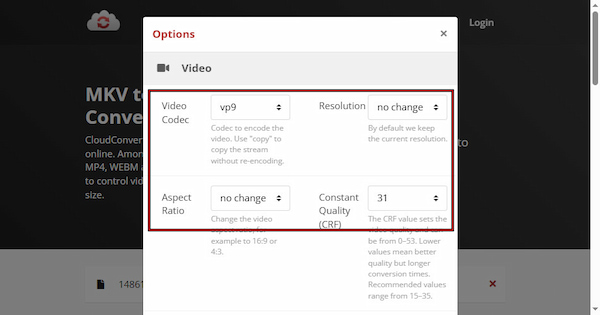
3. Click Convert and wait for CloudConvert to process your file. The progress bar shows the estimated time. Once finished, download your WebM file.
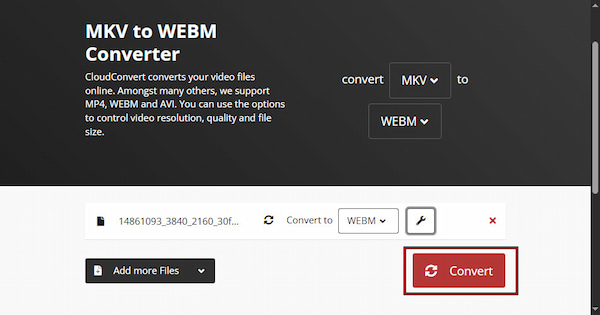
CloudConvert provides a fast, convenient solution for small files. It combines ease of use with advanced settings for file compression and video quality. Its browser-based workflow makes it ideal for quick WebM file conversions on the go.
After converting MKV to WebM, it's important to ensure your videos play smoothly and meet quality expectations. Here's how to troubleshoot and test effectively:
Expert Insight: If you experience audio drift after conversion, it's often due to a Variable Frame Rate (VFR) in the source MKV. When converting, ensure you set your tool to Constant Frame Rate (CFR) to keep the audio perfectly synced for HTML5 playback.
Q: Does WebM support 4K?
A: Yes, WebM supports 4K video, especially when encoded with VP9 or AV1. These codecs efficiently compress high-resolution content while maintaining quality. However, older browsers or devices may struggle with very high-resolution WebM files, so testing across platforms is recommended.
Q: Is WebM better than MP4 for websites?
A: WebM often outperforms MP4 for websites because developers optimized it specifically for HTML5 playback. Additionally, it delivers smaller file sizes without sacrificing quality. VP9 and AV1 encoding enable faster load times and smoother streaming, improving the user experience.
Q: Will I lose my subtitles when converting MKV to WebM?
A: It depends on the converter and settings. MKV files can store embedded subtitles, but many WebM converters don't automatically preserve them. To avoid losing subtitles, use AnyMP4 Video Converter Ultimate to burn them into the video during conversion.
Q: Is converting MKV to WebM safe online?
A: Yes, converting MKV to WebM online can be safe, provided you use reputable services. Avoid unknown or suspicious sites, and never upload sensitive content unless the service guarantees secure handling. For maximum safety, consider offline tools like AnyMP4 Video Converter Ultimate.
Q: How do I make a WebM file play on all browsers?
A: To ensure WebM compatibility across browsers, encode your video with VP8 or VP9 and avoid experimental settings. Provide fallback formats, such as MP4, for browsers that don't support WebM. Embed videos using the HTML5 tag and include proper MIME types (video/webm) to guarantee smooth playback.
No matter which method you choose, converting MKV to WebM for online use ensures smooth playback and faster load times across devices. Among all options, AnyMP4 Video Converter Ultimate delivers unmatched speed, quality, and versatility. Its powerful features let you adjust encoding settings, compress large files, and manage multiple videos simultaneously.
Secure Download
Secure Download
 Updated by Alice Thorne to Convert Video
More readings
 How to Convert MKV to MP4: 2026 Guide (Tested & Lossless)
Can't play MKV files on your iPhone or Premiere Pro? Learn how to convert MKV to MP4 without losing quality using our top tested tools for 2026. Read more!
 Top 7 MKV to MP3 Converters You Should Know - AnyMP4
Want to convert MKV video to MP3 music? Here we list top 7 MKV to MP3 converters to extract MP3 from MKV files free and online on Windows/Mac.
 Top 10 Methods to Convert MP4 to WebM With Ease
These are top 10 best MP4 to WebM Converter programs that you can get HTML5 video easily and safely. Just read and convert MP4 to WebM now.
 Top 4 Methods to Quickly Convert WebM to MP3 on Desktop or Online
How to convert WebM to MP3? This article shares four ways to convert WebM videos to MP3 format for listening to in any media player or portable device anytime.
 Add your comments to join the discussion here