4 Methods to Convert MKV to MP4 on Mac (2026 Guide)
When playing media files in QuickTime on macOS, MKV files pose an inherent obstacle because the default video player on Apple desktops does not support them. As such, using QuickTime-compatible formats is advisable for modern macOS Sequoia/Sonoma devices to ensure your videos play properly. In this article, we will provide a solution to this problem by featuring the best lossless conversion tools for converting MKV to MP4 on Mac. We will feature four methods you can use together, each with detailed step-by-step tutorials.
Part 1. Why MKV Files Won’t Play on Mac Natively
MKV files will not play by default in Mac’s native video player, QuickTime Player. This is because the program does not support MKV. Fortunately, this can be solved by using a third-party player or by converting the video to a supported format, such as MP4.
Although it requires a few more steps, converting MKV to MP4 on macOS is the smarter choice, as MP4 is much more widely supported across devices and players, and its file size is also more compact.
With the reasoning why format conversion is favorable for MKV files, let us now proceed to the tutorial proper, starting with the most versatile solution we have selected.
Method 1: The All-in-One Pro Solution – AnyMP4 Video Converter Ultimate
If you are looking for the best tool to convert MKV to MP4, it is smart to select an exclusive format converter, such as AnyMP4 Video Converter Ultimate. As its name suggests, it was designed to serve as a practical file-type converter, allowing you to modify your media files with a few clicks.
Among the other methods we have selected, it also offers superior conversion speed, converting videos 70x faster than other programs. This was made possible by its hardware acceleration system compatible with NVIDIA, AMD, and Apple’s M-Series chips.
Beyond workflow efficiency, it also performs well in terms of quality preservation, offering lossless conversion so processed videos will have zero quality drop, especially when converting 4K or 8K videos. This is also supported by its built-in editor, which allows minor adjustments such as trimming and adding watermarks before conversion.
Finally, you can also guarantee that your videos’ audio and subtitle systems will be in sync and of high quality, as it can also adjust audio tracks and subtitles embedded into the videos you want to convert.
To learn more about the most notable selling points of AnyMP4 Video Converter Ultimate for Mac users, make sure to read its main features below and refer to our tutorial on using the tool for MKV to MP4 conversion.
Please download the program to make it easier to follow our guide.
Key Selling Points for Mac Users
- • Converted videos are set to MP4 by default.
- • Format conversion does not affect the quality of processed videos.
- • Native support for 4K and 8K UHD videos.
- • High-performance hardware acceleration offering 70x faster conversion speed.
- • Equipped with a beginner-friendly video editing tool.
Step-by-Step: Converting 4K MKV to MP4
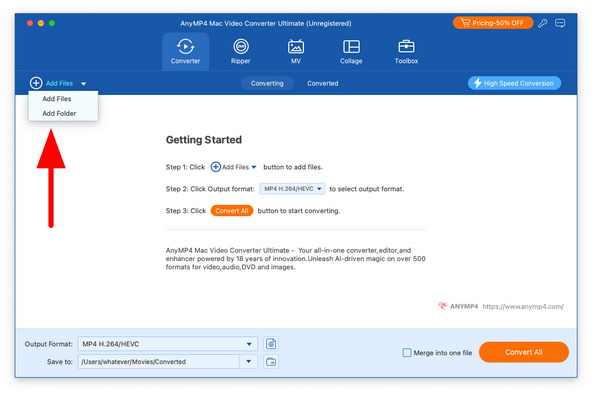
1. Open AnyMP4 Video Converter Ultimate for Mac and go to the Converter tab. Then, click on the Add Files button or drag and drop the files you want to convert.
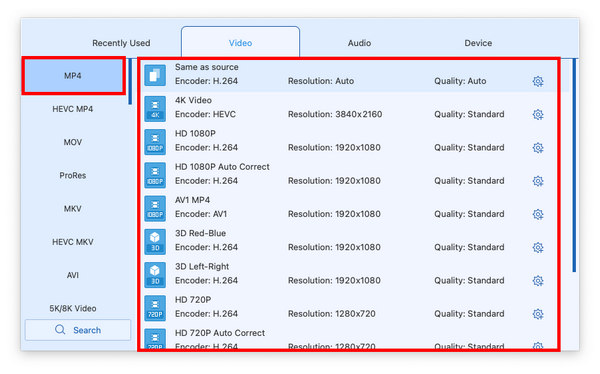
2. Once the video files you want to convert have been added, select Output Format.
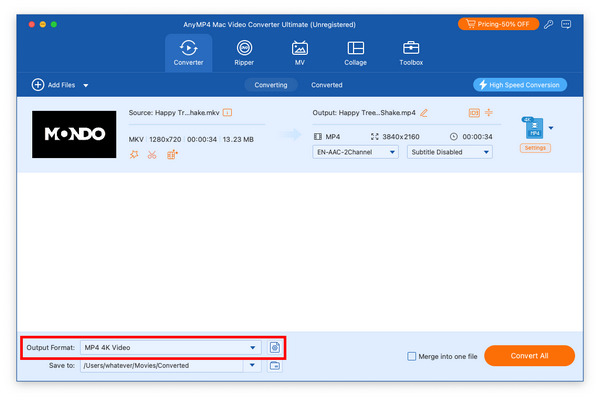
Then, select MP4 and choose the Conversion Profile you want to use.
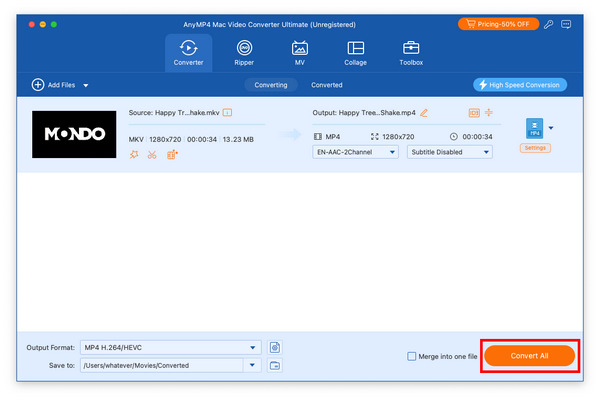
3. Once you are satisfied with the MP4 conversion settings. Simply click on Convert All to begin the conversion process.
Now that we have discussed how to change MKV to MP4 on Mac, we hope this guide is enough to help you learn how to change your video’s file type to a more accessible format, such as MP4.
Method 2: The Open Source Standard – HandBrake
If you are familiar with open-source solutions, HandBrake is a staple option, as it can also convert video formats on macOS computers. Although limited in the conversion option it offers, the software supports converting videos to WebM, MKV, and MP4.
To learn how to use Handbrake as an MKV to MP4 converter for Mac, read our three-step guide below. However, our guide uses the Windows version of HandBrake, but the steps are compatible with the Mac version as well.
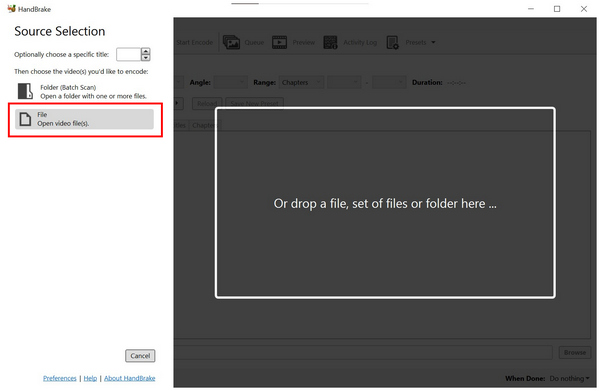
1. Open HandBrake and then select the File button to import the video you want to convert.
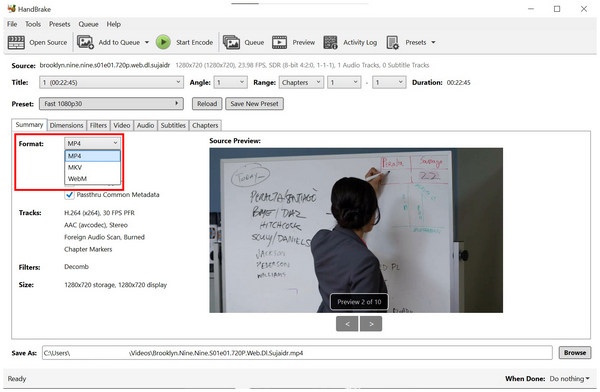
2. Once the MKV video has been added, click Format in the Summary tab, then select MP4.
3. With the format set to MP4, click Start Encode to begin the video conversion.
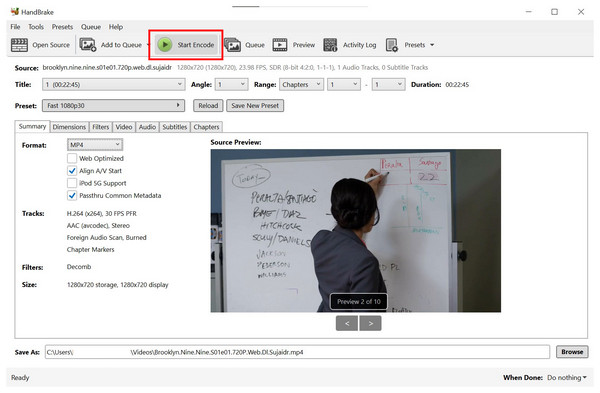
Compared to the previous option, HandBrake is also easy to use. However, its advanced features and technical interface design may look intimidating for beginners. With that in mind, we made sure that our three-step guide is as simple as possible.
Method 3: The ‘No-Install’ Quick Fix – VLC Media Player
The third option we will provide is a media player tool that you can use to convert video formats, an advanced feature in VLC Media Player. Although it is optional to use it as a format converter, since it can play MKV videos without problem, this software can still get the job done when used as a file converter.
To learn how to use it, please read our three-step guide below.
Note: Our guide below uses the Windows version of VLC; however, the steps are also applicable to the macOS version.
1. Open VLC Media Player and go to Media. Then, click on Convert/Save in the Media dropdown menu.
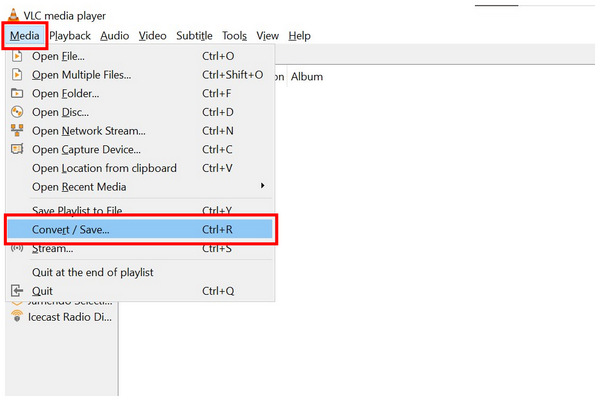
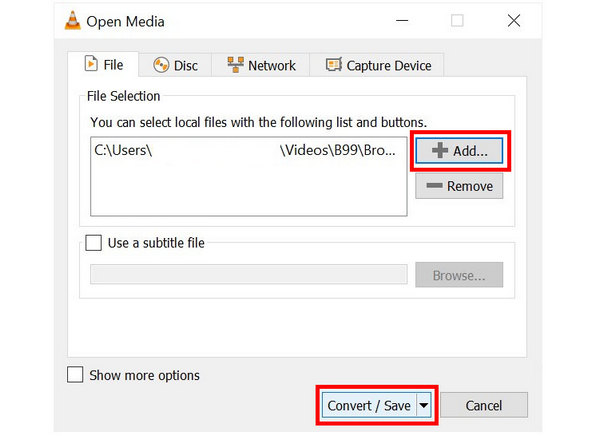
2. In the Open Media settings, select Add to import the video you want to convert. Then, select Convert/Save to proceed.
3. In the Convert menu, select the conversion Profile you want to use. Fortunately, the default profile saves videos as MP4, which should be enough. Simply set the Destination where the converted video will be saved, then click Start to begin converting the video.
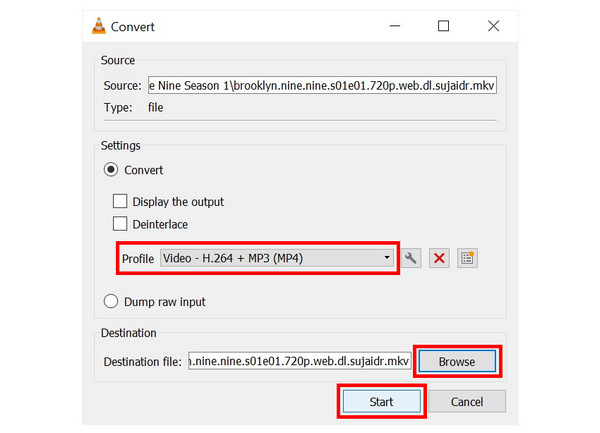
Although VLC supports format conversion, you can also use it as an MKV player for quick playback. However, changing the video format still has advantages, as MP4 files offer much better compatibility.
Method 4: The Tech-Savvy Way – Terminal & FFmpeg (Remuxing)
If you are an advanced multimedia practitioner, using command-based tools such as your computer’s Terminal with FFmpeg is another good option. Although this is not advisable for beginners, it may be a good choice if you are experienced enough with advanced file management.
To learn how to use FFmpeg commands for MKV to MP4 conversion, please read our guide below:
1. Open your computer’s Spotlight using the Command + Spacebar buttons. Then, search for Terminal to open it.

2. In the Terminal app, copy and paste the following command: ffmpeg -i input.mkv -c copy output.mp4.

3. Change the input.mkv to the file name of the MKV video you want to convert. Next, rename the output.mp4 line to the name you want to use for your converted MP4 video. For example, brooklyn.nine.nine.s01e01.720p.web.dl.sujaidr.mkv and brooklyn99.s01e01.mp4.
With the input and output file names now set, press Enter.
Although terminal-based file management could be practical, it requires a steep learning curve to use properly. You have to learn the right commands you need to write, since adding incorrect commands may cause errors in your file or on your computer.
Part 6. Comparison: Which Mac Video Converter Should You Choose
Best for Speed: When speed and workflow efficiency are your priorities, the best video converter is AnyMP4 Video Converter Ultimate. Its hardware-acceleration system is best used for batch conversion, handling format conversion 70x faster than the standard speed.
Best for Quality: Moving forward to quality, HandBrake is a good option because it offers presets for lossless format conversion. However, it comes at a cost of being harder to use since its interface is not the most beginner-friendly.
Easiest to Use: AnyMP4 Video Converter Ultimate is by far the easiest to use. Its Converter tab is very intuitive, and its output settings are easy to customize. On the other hand, FFmpeg is the most complex, and we do not recommend it for beginners.
Part 7. Expert Tips: Testing Quality and Speed
Preview the Video: As a form of quality control, make sure to watch the converted video output. This will make it easier to check whether the file was converted successfully and whether the quality remains acceptable.
Check File Type: Check the properties of your video file to confirm it was saved as MP4. The easiest way to do this is to click the video, then check its full filename to see the format at the end.
Compare to the Original File: Once you have ensured the video has been converted and functions properly, play the video side by side with the original clip. This is the easiest way to check the quality of your original and converted videos.
Part 8. FAQs About MKV Conversion for Mac
Q: Does converting MKV to MP4 lose quality?
A: It depends on what converter you are using. Among the options in this article, AnyMP4 Video Converter Ultimate and HandBrake are two good options for quality preservation. However, it is normal for converted videos to have reduced quality, though it is not very noticeable.
Q: Can I use iMovie to convert?
A: Yes, you can. You can use iMovie as a format converter. You can use the Save As function of the video editor tool.
Q: Is there a free online MKV-to-MP4 converter?
A: Yes, there are. There are online tools that can be used as format converters. However, they are not as reliable as desktop-based tools.
Q: Is it hard to convert video formats?
A: No, it is not. However, choosing the right tool is tricky. Among the options on this list, we recommend AnyMP4 Video Converter Ultimate as the easiest to use.
Q: What is the best video format to use for conversion?
A: MP4 is the safest format for converting videos. It has the best compatibility. It is also compact for storage purposes.
Conclusion
Now that we have provided the best methods for converting MKV to MP4 on Mac computers, we hope this article has helped you choose the one that best suits your file management needs. For beginners and for users looking for practicality, make sure to download and use AnyMP4 Video Converter Ultimate using the link below.






 Add your comments to join the discussion here