
Looking for a flexible tool to capture screenshots and recordings of your computer screen? In this in-depth Snagit review, we will provide a thorough analysis of the tool. This is to help you decide if it’s the perfect fit for your needs. We’ll start by explaining what it can do and how it can benefit you. In addition, we’ll highlight its strengths and discuss potential limitations to consider when making your decision. This will allow you to decide if it is the right tool to elevate your screen capture and recording experience!
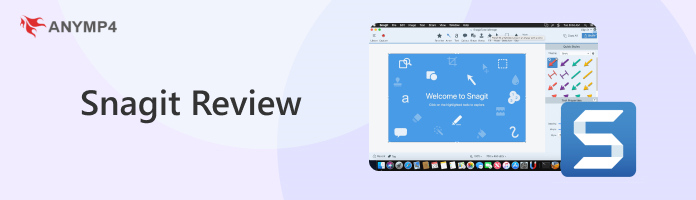
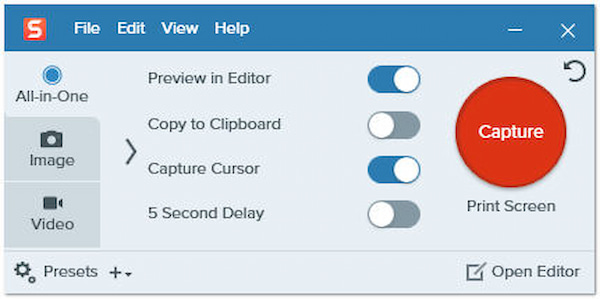
What is Snagit, by TechSmith? Basically, it’s a screen capture and recording software for Windows and Mac. It is designed to capture what you see on your computer screen, be it a still image or a recording. Not to mention, it goes beyond the basic screenshot functionality you might find on the Snagit alternative. It lets you capture still images in over 10+ different modes. In addition, you can record your computer screen in three modes.
What truly sets Snagit apart are its advanced screenshot features, such as Grab Text. It uses OCR technology to extract editable text directly from images. It also includes a Step Tool, which automatically creates numbered, visual step-by-step guides. Besides capturing screenshots and recordings, it includes a built-in editor. It allows you to annotate and edit your captured images and videos. And to top it all off, Snagit makes it easy to share your creations. It integrates with various platforms, including Microsoft products, social media, cloud storage services, and more.
Our testing strategy focuses on the tool’s functionality. We put it through a series of tests focusing on its key functionalities. We meticulously examine if its core features work as intended. This involves capturing screenshots and recordings in various scenarios. We also verify if the editing tools function correctly and ensure smooth sharing.
Our first step is to assess how easy it is to get the tool up and running. We obtain the free download of Snagit and install it on our testing computer. In addition, we check factors like clarity of instructions and compatibility with Windows and macOS. Essentially, we also monitor the time it takes to complete the installation.
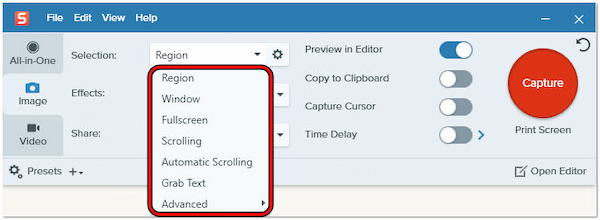
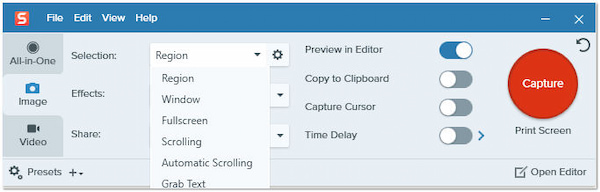
The tool’s core function is capturing screenshots, so let’s delve into its capturing efficiency. We test the various capture modes, such as custom region, specific window, full screen, automatic and manual scrolling screenshot, and text capture. Also, we explore advanced options like objects, multiple areas, menus, clipboards, freehand, and files.
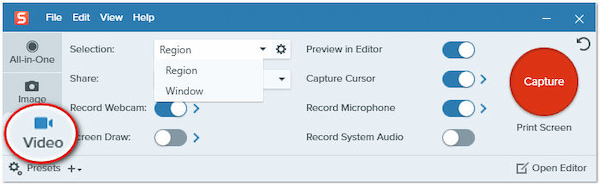
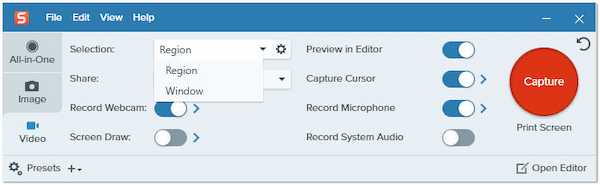
Next, let’s move on to screen recording. We test how well the Snagit app allows recording of specific regions, windows, or the entire screen. We also evaluate recording audio alongside the video and features like webcam inclusion and cursor recording. We also explore customization options for video quality, frame rate, and recording duration.
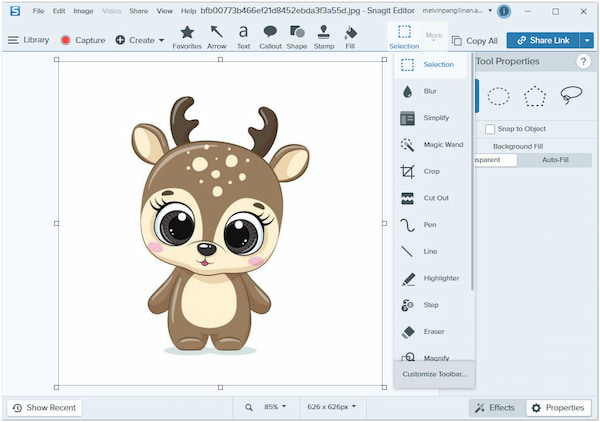
As mentioned, it goes beyond capturing by offering built-in editing tools. We test the editing features for both images and videos. This includes adding annotations like arrows, texts, callouts, shapes, and stamps. We evaluate the ease of use of these editing tools and their responsiveness. Also, we assess the control level for customizing screenshots and recordings.
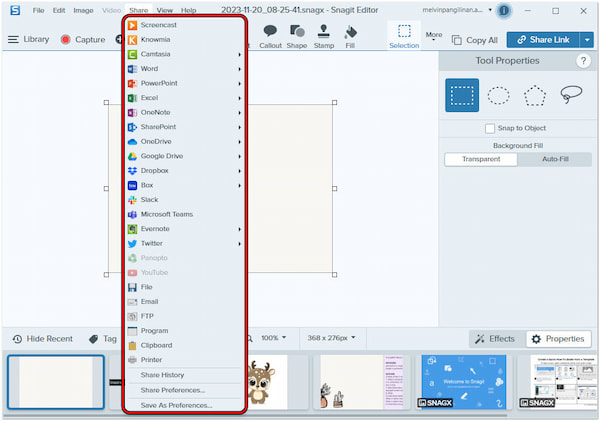
Finally, we explore how the tool facilitates sharing your creations. We test its integration with platforms like Microsoft products like Word, PPT, Excel, and OneNote. We also assess social media platforms and cloud storage services like Dropbox and Google Drive. The ease of sharing directly and the range of supported platforms are all evaluated.
Since Snagit is widely used for instructional content, we specifically evaluate its annotation tools. Our aim is to see how well they support tutorials and technical documentation. During testing, we examined core annotation features such as arrows, callouts, text boxes, shapes, highlights, stamps, and blur effects. These tools make it easy to draw attention to key interface elements and explain steps visually.
At AnyMP4, we understand the value of trust and transparency when it comes to reviews. We don’t just bring up information readily available online. Instead, we believe in putting each tool through thorough testing. This way, we can provide you with accurate data and prevent the spread of misinformation. Our commitment to fact-based information goes beyond simply summarizing product descriptions. We take a hands-on approach, thoroughly testing every aspect of the software. This includes installation, core functionalities, and even additional features. By dedicating time to in-depth testing, we can identify strengths and weaknesses. This ensures our reviews accurately reflect the true power of each product. We believe this approach separates us from other sources and lets you make informed decisions based on reliable data.
Snagit was historically available through a perpetual license with optional annual maintenance fees. However, recent versions have shifted toward a subscription model. Traditionally, users purchased the software once to own that specific version indefinitely, with one year of maintenance included. Renewing that fee granted access to new releases, while skipping it simply meant staying on the current version.
Starting with Snagit 2025, TechSmith moved to a subscription-only model, requiring recurring fees for continued access. This transition marks a significant shift: while older versions allowed for permanent ownership, newer releases now require an active subscription, making Snagit less appealing to users who prefer a one-time upfront cost.
The tool allows you to capture and edit your computer screen with ease. If you need a simple screenshot or a detailed screen recording, it has you covered. In this section, we’ll provide you with a comprehensive guide to get you started.
Here’s how to use Snagit:
1. Beforehand, get the tool’s installer from the official TechSmith website. Install it on your computer and wait for the installation process to complete.
2. Upon launching the tool, you will be presented with the user interface.
Image Screenshot: Navigate to the Image tab and choose your screenshot mode in the Selection field. If desired, choose an effect and where you want it to be shared.
Video Recording: Head over to the Video tab and select your recording mode in the Selection field. Similar to capturing a screenshot, select an effect and platform where you want it to be shared.
3. Click the Capture button or use the Snagit hotkey to access the capture options. After image capturing or screen recording, the built-in editor will be opened.
4. Edit screenshots by adding arrows, texts, callouts, and more effects by exploring the editor toolbar. For videos, you can trim unwanted sections and even merge videos.
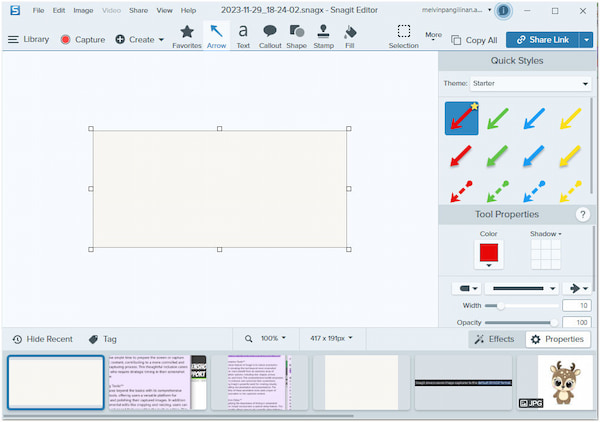
5. Once done, click the Share Link button to generate a link for easy online sharing. If you want to share it with various platforms, click the dropdown menu next to the Share Link button.
The tool offers a library to organize your captures and recordings. This means you can access previously captured screenshots and recordings for future reference or editing.
Overall Ratings:
With its multiple capture modes, screenshot captures exactly what you need on your display. Go beyond basic screen captures and explore options like Snagit’s scrolling capture and text capture. It also includes advanced options like objects, multiple areas, a menu, a clipboard, freehand, and files.
Overall Ratings:
You can choose to record your entire screen, a custom region for focused tutorials, or a single window for application demonstrations. You can also enhance your recordings with features like system or microphone audio recording and webcam inclusion.
Overall Ratings:
Snagit isn’t just about capturing. It allows you to refine your captures as well. The built-in editor offers various tools to transform your screenshots and recordings into polished visuals. It aims to eliminate the need for switching between multiple programs.
Overall Ratings:
The built-in editor features a dedicated Share button. This allows you to share your screenshots or recordings on various platforms. It offers direct integration with popular platforms like Microsoft products. You can also share it on social media platforms or save it to cloud storage services.
Overall Ratings:
Although the tool excels at capturing desktops, it might not be ideal for all recording needs. Gamers and mobile app developers might find it lacking. It doesn’t offer advanced recording modes for capturing Xbox One gameplay or phone screens.
Overall Ratings:
The tool’s built-in editor boasts a good range of annotation and editing tools. However, some users might find it requires a bit of exploration to discover its full potential. Compared to dedicated editing software, its editor has a steeper learning curve for locating specific tools.
Overall Ratings:
The tool is free to download and offers a 15-day trial period. It allows you to test its functionalities before committing. However, after the trial expires requires a paid subscription. Continued use requires purchasing a subscription plan. The cost of Snagit starts at $39.00.
Overall Ratings:
The tool integrates with various platforms for easy sharing. However, its social media integration has a couple of limitations. Although it allows direct sharing to YouTube and Twitter, it lacks integration with other popular social media platforms like Facebook or Instagram.
Snagit is undeniably strong when it comes to screenshots and visual documentation. However, it shows clear limitations in video recording and long-form content creation. Its video recording functionality is relatively basic, offering only simple trimming without advanced editing options. As a result, Snagit is better suited for short instructional clips rather than long, high-quality video recordings. Another drawback is pricing. Though it offers a free trial, continued use requires a paid license with ongoing annual maintenance fees.
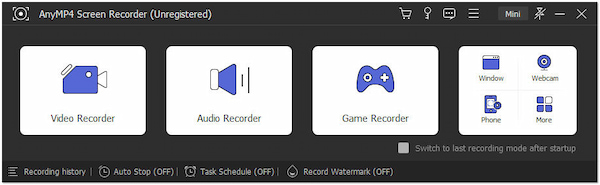
For professional-grade screen recording, Snagit alternatives like AnyMP4 Screen Recorder serves as a more capable tool. Not to mention, it takes screen capturing and recording to a whole new level. It provides wide range of customizable recording modes, including Video, Audio, Webcam, Game, Window, and Phone Recorder. It also allows you to capture your screen in various ways. This includes Screen Capture for capturing a specific portion, a particular window, or even the entire screen. It also features a Scrolling Window for capturing lengthy web pages or chat conversations. What’s more, it has a Popup Menu Capture that can capture fleeting dropdown menus. As a bonus, it includes annotation tools, allowing you to add text, arrows, shapes, callouts, and more. It also supports advanced video editing features, enabling you to refine recordings with greater control over quality, format, and output settings.
Secure Download
Secure Download
Is Snagit freeware?
Unfortunately, NO! It is not entirely free. Though you can download it and try all its features for a 15-day trial period, after that, you’ll need to purchase a subscription to continue using it.
Is Snagit 2024 worth it?
It depends on your needs. If you regularly capture screenshots, edit them, and record your screen, its versatility and built-in editor can be very useful. However, if you only need basic screenshot capture or a more specific screen recording tool, there are Snagit-free alternatives.
Does Snagit have a time limit?
In terms of usability, it offers a 15-day trial period during which you can explore all its functionalities. The maximum time limit for screen recording is 1 hour. Exceeding the time limit may cause your recording not to be saved.
What is the video file format that Snagit records in?
Snagit records in MP4 format, ensuring broad compatibility across most video players, editing software, and online platforms.
Does Snagit offer a free version?
Snagit does not have a permanently free version. However, a 15-day free trial is available to explore all features. Once the trial expires, a paid license or subscription is required for continued use.
Throughout this Snagit review, we’ve explored the tool in detail. We examine its strengths and weaknesses to help you decide if it’s the ideal screen capture and recording tool for you. We also acknowledged some limitations. Snagit’s recording modes might not be ideal for highly specialized tasks like capturing gameplay footage or recording your phone screen. If these limitations outweigh the benefits for your specific needs, worry not! There are other options available. Tools like AnyMP4 Screen Recorder offer a more specialized approach, featuring advanced recording modes.
Secure Download
Secure Download
 Updated by Alice Thorne to Recorder
More readings
 Snagit V.S. Camtasia – Which Should be A Better Screen Recorder
Both Snagit and Camtasia are screen recorders from TechSmith? What are the differences? Which one is better? Just learn more about the information here.
 Snagit Vs. Snipping Tool: Which is Worthwhile Among the Two
This post will highlight the differences between Snagit Vs. Snipping Tool, plus an alternative. Determine the ideal screen capture solution for your tasks.
 Greenshot Vs. Snagit | A Screenshot Capture Tool Review
This post will provide an informational Greenshot Vs Snagit comparison. Here, we will discuss the features they offer, plus an alternative solution as a bonus.
 ActivePresenter Review: Is It the Best Screen Recording Tool
This post is all about a detailed ActivePresenter review. Also, it will explore alternative software options for creating captivating screen recordings.
 Add your comments to join the discussion here