
Quick Answer
When you want to record your screen for a tutorial, you will come across an old name online, Ezvid. It came out in 2011. Back then, it was the go-to starter kit for countless new YouTube creators who needed an easy way to capture their screens. But after more than a decade, is it still worth the download? Or will its missing settings waste your time? Let's break down the facts so you can make the right call from this Ezvid review.
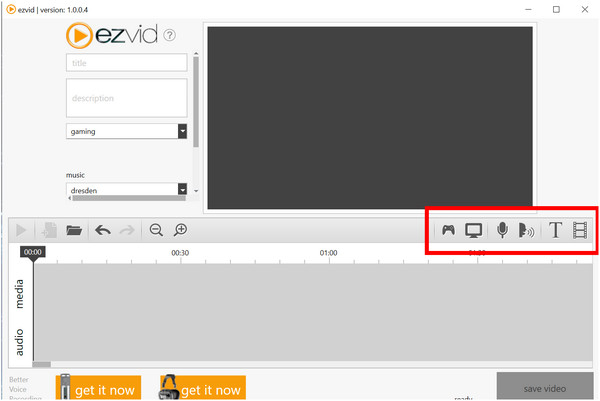
Ezvid is a classic screen recorder and video editor built for Windows. The company behind it, Ezvid Inc. (the same team that runs wiki.ezvid.com), built it as a free, lightweight package for beginners.
In its prime, Ezvid anchored its services as a platform perfect for recording and producing videos easily without prior experience. Gaming content creators loved it because you could record, cut footage, type text for robot voiceovers, and save clips straight to your local computer. But it comes with a twist: Ezvid is slow and outdated to use. When you try to save the recording file, it is slow and eats more CPU in your computer to do the task.
Ezvid at a Glance:
| Feature | Ezvid Test Result |
|---|---|
| Price | Free (no cost for personal or commercial projects) |
| Supported OS | Windows only (runs on Windows 11 in compatibility mode) |
| Installer / Disk Size | <1 MB download / ~2 MB installed footprint |
| Max Recording Time | 45 minutes per take |
| Export Method | Local PC save option directly |
| Watermark | No watermark added to video |
| Built-in Tools | Editor, text-to-speech (TTS), stock music, facecam, screen drawing, speed adjustment |
| Developer | Ezvid Inc. |
We ran Ezvid through a real-world test on a Windows setup to see how it actually performs.
Here is what we found:
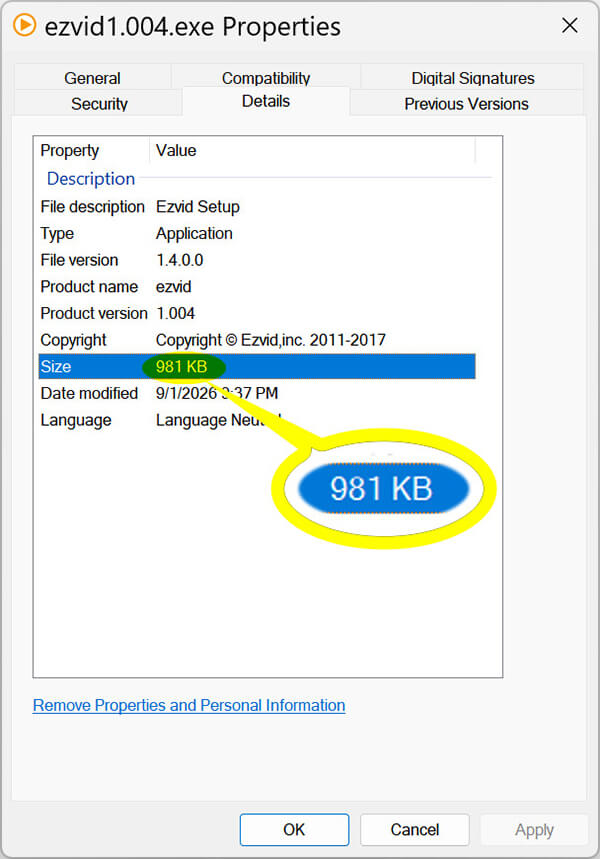
Packed inside a 1MB program size after installation, you might mistake Ezvid for a simple image file or an icon. The download takes less than 10 seconds. If you have an old PC with almost no free storage, this tiny size is a huge plus.
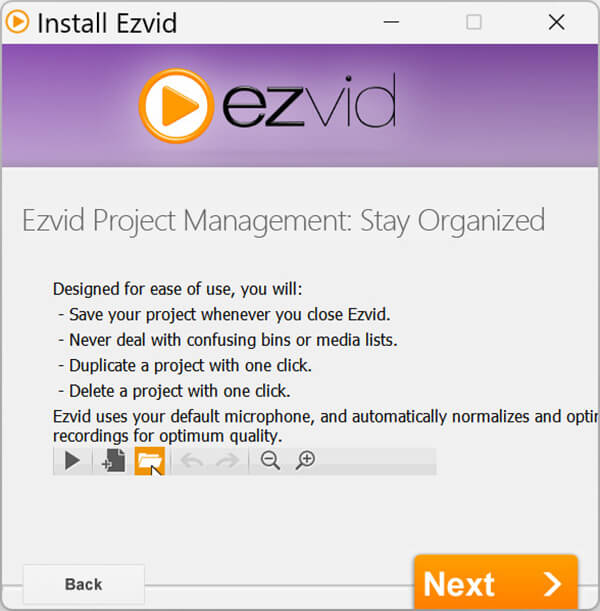
However, you should also notice that, the installation is longer than other files, because it seems that the software file is packed while installing it. But it takes less than 1 minute to complete it.
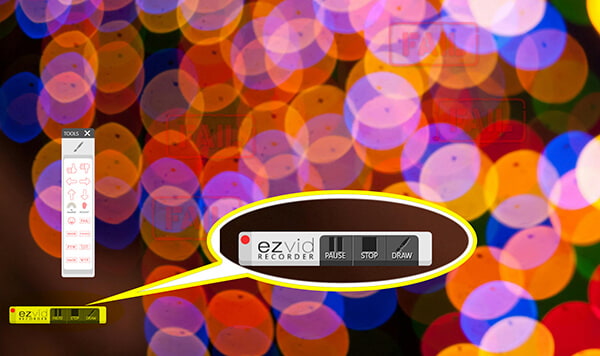
Ezvid's screen recorder enables you to capture your display on Windows, but it is old. The capture options are not on one clean panel, and it may take you some time to find the record button. If you want to record a specific area instead of your full screen, you have to dig into advanced settings to change your Windows display scaling. However, modern tools let you drag a box across your screen in one click, so Ezvid feels awkward here.
While you are recording a screen and want to use the DRAW TOOLS, do not forget to right-click your mouse to cancel the tool selection. Otherwise, you will fail to click the stop button.
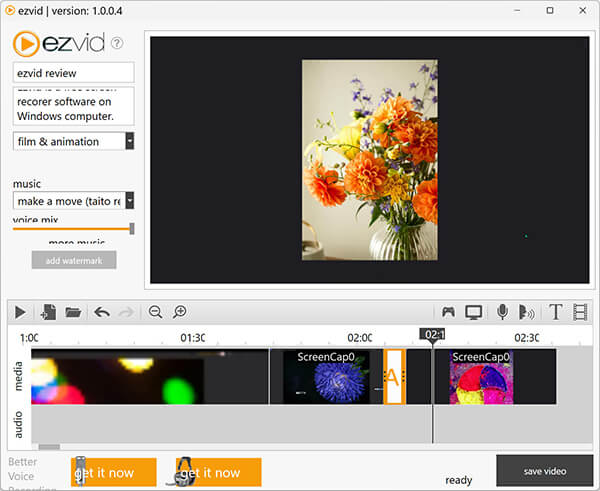
You can add watermarks, drop in background music, and trim clips on the timeline. But it is just a basic single-track editor. No separate audio lanes, no keyframes, and no smooth transition packs. It works for rough cuts, and it comes with a built-in music library to drop background tracks into your recording, but that is about it.
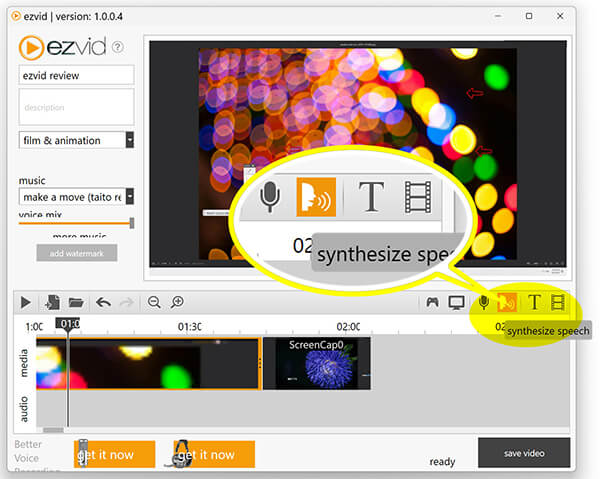
Do you want to narrate a tutorial without using your real voice? Ezvid includes a voice synthesizer. Type your text into the box, and the program speaks it aloud. It helps in a pinch, but the speech sounds mechanical and robotic compared to modern voice tools.
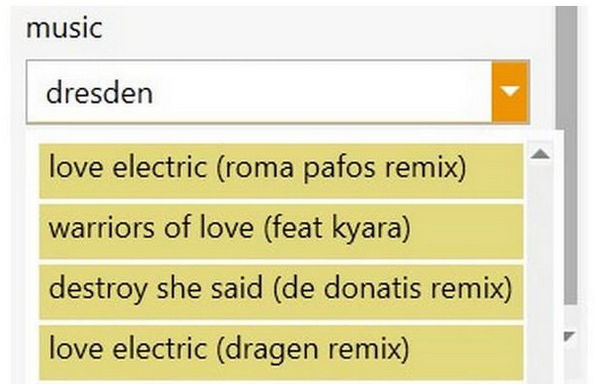
Ezvid includes a built-in library of free background music across multiple genres and moods. You can listen to the music tracks and insert them into your video recording easily. However, when you try to upload the Ezvid recording file to YouTube for monetizing, just check the music copyrights on your channel.
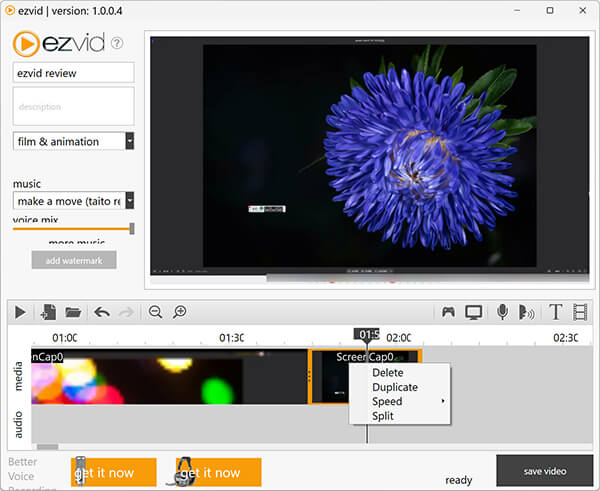
These extra features are handy, but many old reviews overlook them:
Here is our test rating for Ezvid:
Pros
Cons
If you try using Ezvid for daily work, you should not ignore these limitations. The following are what TechRadar and user reviews frequently point out:
Ezvid stops recording at 45 minutes. It will be a big pity when you want to record long classes, meetings, and game sessions.
It lacks Windows 11 optimization. Currently, it only supports up to Windows 10. It does not use modern GPU encoding, so, recording lag and display issues on high-res screens. Check this guide to screen recorder on Windows 11.
The single-track timeline stops you from layering B-roll or splitting mic and game audio. Besides, its interface is not friendly for a high-resolution monitor, and may lead to an UI glitch.
Ezvid includes promo prompts during installation and startup. While it is safe software, these ad screens clutter the user experience. In its interface, you can find buttons where direct you to the ad page.
Here is how you can record your desktop with Ezvid:
1. Download and install the software.
Go to the official Ezvid website, grab the small setup file, and run the quick installation.
2. Set up your mic and camera.
Open Ezvid and click the gear icon to check your audio input. Turn on your webcam or drawing tools if you need them.
3. Start your recording.
Click the Capture Screen button on the bottom toolbar. Wait for the 3-second countdown, then start your demo.
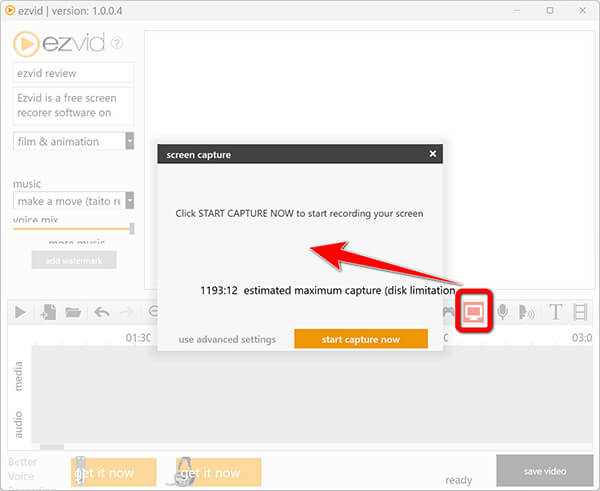
4. Draw and narrate.
Speak into your mic as you work. Use the draw hotkey to circle important items on your screen.
5. Stop recording.
Click the red Stop button. Ezvid drops your recorded clip right onto the bottom timeline.
6. Trim and upload.
Use the scissors icon to cut out mistakes. Enter your video title and tags on the left, pick a background tune, and click Save.
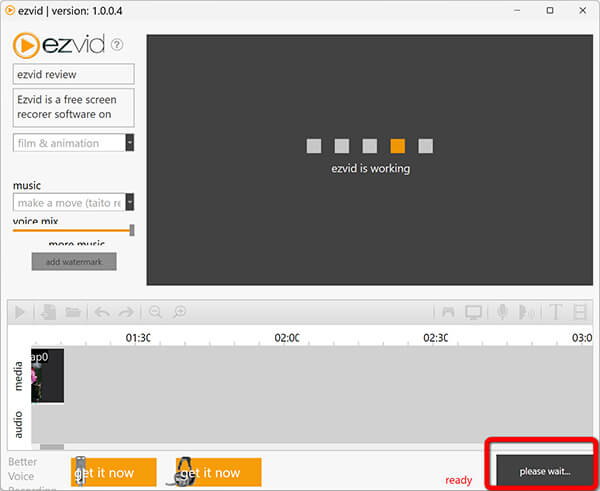
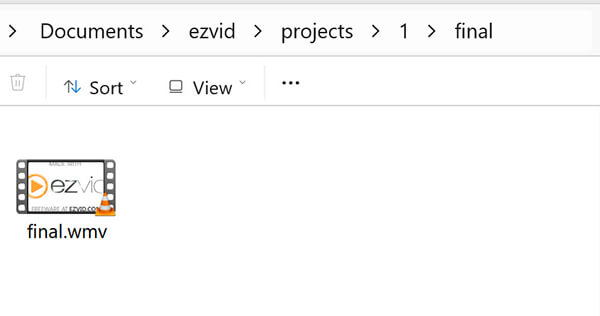
This AVI video recording file will be rendered and saved to your computer locally. Once the process is done, your local recording file folder will be popped up.
If you want an easier screen recorder for beginners without time limits, then AnyMP4 Screen Recorder is the perfect modern successor. It can solve most problems that you encounter with old screen recorders like Ezvid.
Secure Download
Secure Download
First, AnyMP4 removes the annoying 45-minute wall. You can record a two-hour webinar, a long gaming run, or an all-day remote meeting without stopping, only if your computer disk is running up.
Second, it gives you complete file control. Instead of forcing you into an WMV file locally without destination selection, it lets you save clean video files directly to your hard drive in MP4, MOV, WMV, WebM, and MKV. You select location folder to store, and get the raw file right away, so you can share it on Slack, save it to Google Drive, or bring it into your favorite editor.
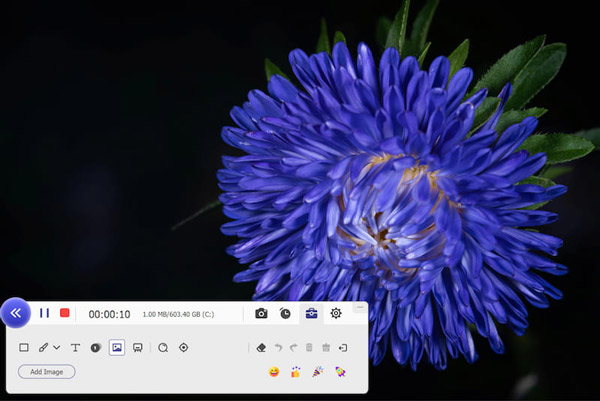
The software also makes tutorial creation effortless with live screen drawing. While recording, you can sketch boxes, point arrows, and add numbered steps directly on your desktop. Even better, it splits your system sound and microphone onto separate audio tracks, making your voice clear and easy to balance.
For gamers, the built-in Game Recorder mode locks onto your specific game window. It records smooth 60fps video at up to 4K resolution without dropping frames or slowing down your PC. And unlike Ezvid, AnyMP4 works natively on both Windows 11 and macOS.
Let's look at how Ezvid measures up against top capture programs:
| Price | Platform | Recording Limit | Local Export | Watermark | Built-in Editor | High FPS / Gaming | Facecam Window | Text-to-Speech | Stock Music | Ad Prompts | Updates | Learning Curve | |
|---|---|---|---|---|---|---|---|---|---|---|---|---|---|
| Ezvid | Free | Windows only | 45 minutes |  YouTube only YouTube only |
No watermark | Basic single-track | Weak |  Facecam Facecam |
Built-in |
Built-in |
|
Inactive | Very easy |
| AnyMP4 Screen Recorder | Free trial / Paid license | Windows & macOS | Unlimited | MP4, MOV, MKV, etc. |
On free trial only | Real-time draw & trimmer | Dedicated Game Mode |
Webcam + Mobile mirror |
(Record real mic) |
Limited media packs | None | Regular updates | Low |
| OBS Studio | Free and open source | Win, Mac, Linux | Unlimited | MP4, MKV, FLV |
No watermark | Needs external editor |
Best-in-class (60fps+) |
Fully custom |
|
|
None | Very active | Medium to High |
| Snagit | Paid license (30-day trial) | Windows & macOS | Unlimited | MP4, GIF |
No watermark | Advanced markup tools | Weak | |
|
|
None | Regular updates | Medium |
Quick pick by scenario:
Is Ezvid free?
Yes. Ezvid is a free-to-use software that you can download directly from its official site. You do not have to pay for a subscription to unlock basic recording.
Is Ezvid safe?
Yes. Ezvid is safe and free of malware or viruses as long as you get it from the official site. The installed program size is only around 2MB.
Is Ezvid legit?
Yes. Ezvid is a legitimate screen recorder and video editor developed by Ezvid Inc. It was widely used by early YouTube creators in the 2010s.
Does Ezvid have a watermark?
No, Ezvid is completely watermark-free. Both screen captures and processed videos come out without any logo overlays.
Is Ezvid good?
It works for simple captures on older computers. But its lack of local file exports and its rigid 45-minute limit make modern alternatives a better choice for most people today.
Is Ezvid compatible with Windows 11?
Yes, it installs on Windows 11, but the software has not been updated for modern hardware. You might run into display scaling problems on high-resolution screens.
How long can you record with Ezvid?
You can record for up to 45 minutes per take. The recording automatically stops when you hit that mark.
Can I save Ezvid recordings to my PC?
Yes, you can save Ezvid recordings directly to your PC as WMV files.
Does Ezvid work on Mac?
No, Ezvid is only available for Windows systems. It does not work on macOS.
What is the best free alternative to Ezvid?
OBS Studio is the top free, open-source pick without limits. If you want something lightweight for quick captures on Windows, the built-in Snipping Tool is also a great free option.
How do I remove the Ezvid 45-minute recording limit?
You cannot remove the 45-minute limit inside Ezvid. To record longer sessions without interruption, you need to use an alternative like AnyMP4 Screen Recorder or OBS Studio.
Ezvid is a free and simple screen recorder software that can still handle quick screen captures on low-spec PCs. If you only want to record a short demo and save it directly on your computer, Ezvid can get the job done. But its 45-minute limit, slow rendering speed, and outdated interface hold it back. If you want to keep your files locally, record high-frame-rate games, or work on a Mac, modern Ezvid alternatives like AnyMP4 Screen Recorder can be a better option.
 Updated by Riley Mitchell to Recorder
More readings
 Canva Screen Recorder: Capture and Edit Your Recording Easily
Discover Canva Screen Recorder, a built-in tool for recording your screen, camera, or both. Learn how to use it, its features, benefits, and shortcomings.
 Screenflick Review & Best Alternative for Mac and Windows
Looking for a high-quality screen recorder for your Mac? Check our Screenflick review to see if it truly delivers the best screen recording quality for Mac.
 An In-depth Icecream Screen Recorder Review
In this Icecream Screen Recorder review, we will explore and analyze all aspects of this tool, including price, compatibility, and usability.
 An In-depth Vocarro Audio Recorder Review (2026)
In this Vocarro review, we will explore the main features and the steps to use Vocarro for voice recording, as well as an excellent alternative.
 Add your comments to join the discussion here