
Summary:
If you want to add visuals to audio or meet Apple’s strict requirements, you’ll need to convert M4A to MOV. Our top-recommended tool is AnyMP4 Video Converter Ultimate, which offers 120× hardware acceleration and is fast and secure. CloudConvert is still a good web-based option for one-off small files.
Total Tools Tested: 15 | Best for Batch: AnyMP4 | Best Free: VLC Media Player.
Need to convert M4A to MOV for video‑only platforms or QuickTime Player compatibility? M4A is an audio‑only format, meaning it isn't compatible with platforms that require video uploads. Converting it to MOV lets you package your audio with a static image or video background, creating a playable video file. In this post, we'll introduce the best tools for desktop and online. We will show you each conversion process and explain how to maintain the best audio quality.

How We Test:
To identify the best way to convert M4A to MOV with high quality, we put each tool to the test. We use 200 M4As, totaling 5.8 GB, on Windows 10 Pro (64-bit). We evaluate each tool’s conversion speed, audio quality at 320 kbps AAC, ability to incorporate still images, and output compatibility.
M4A is an audio format that stores audio only using the AAC codec. It offers excellent sound quality at a small file size. Meanwhile, the MOV file is a multimedia container format developed by Apple for compatibility with QuickTime Player. It can store H.264/H.265 (HEVC) video, AAC audio, subtitles, and images in a single file. It is also used for metadata preservation.
AnyMP4 Video Converter Ultimate is a multimedia conversion software that goes beyond video‑to‑video conversion. You can also use it as an M4A‑to‑MOV converter for PC/Mac. It uses Hardware Acceleration (NVIDIA/AMD/Intel) media processing to achieve a 120× conversion speed. It also supports 1:1 preservation of the M4A AAC codec, ensuring audio remains transparent within the MOV container. Better yet, you can use the MV Maker to sync the M4A file with a still image or dynamic background.
Secure Download
Secure Download
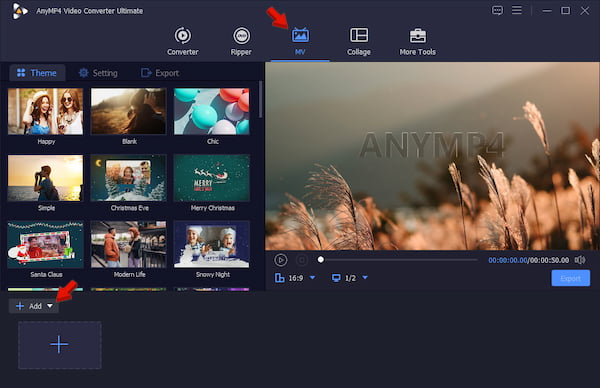
1. Download AnyMP4 Video Converter Ultimate and complete the installation. After setting it up, the software will launch automatically. Navigate to MV, then click +Add to upload the image you want to incorporate into M4A.
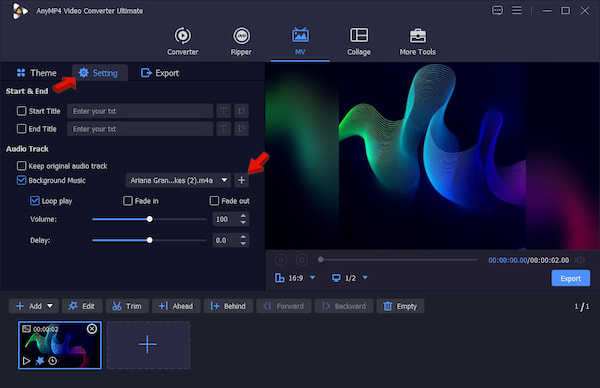
2. Switch to Settings and uncheck Keep original audio track to prevent audio overlap. Then enable Background Music, click +, and import the M4A.
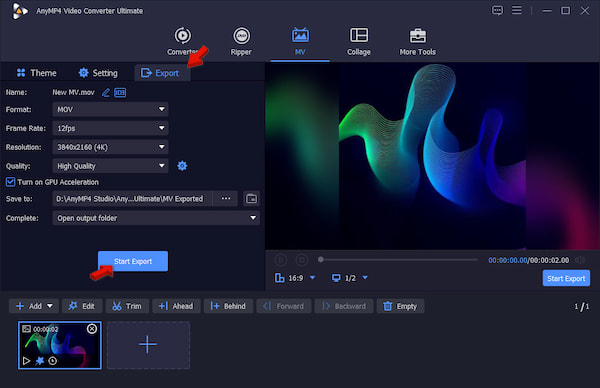
3. Go to Export and set MOV as your target format in the Format picker. Click Start Export to convert m4a to mov with an image for YouTube or other social platforms.
To be clear, the MV method is only applicable to a single conversion. If you upload multiple M4A files, they will be merged into a single song. Besides, you also need to adjust the duration of the still image or dynamic background to match the duration of the entire song.
If you need to batch convert 100+ M4A files without merging them, use the Converter tool instead. To give you an idea, we convert 200 Lossless M4As, totaling 5.8 GB, in 3 minutes and 40 seconds. Be sure to activate the Hardware Acceleration to speed up the conversion.
VLC Media Player isn’t just an M4A player for listening to high‑quality audio. Many aren’t aware that it has a secret Convert/Save tool that can convert M4A to MOV. However, VLC is only for file‑to‑file conversion, meaning it can’t attach an image to an audio file to create a MOV video.
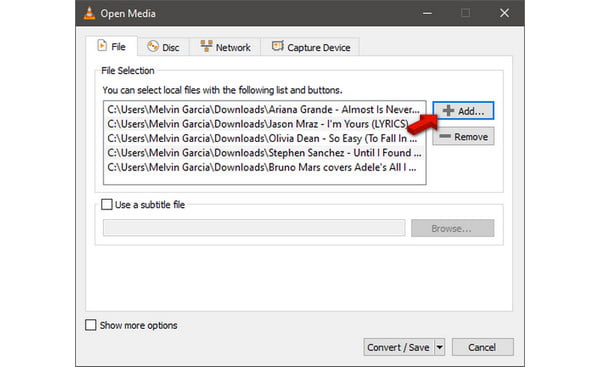
1. Open VLC Media Player and press Ctrl+R to open the Open Media window. Click + Add to import the M4A source and click Convert/Save to proceed.
2. In the Convert window, go to the Profile picker and choose Video - H.264/HEVC + AAC (MOV). After setting the new profile, click Start to convert.
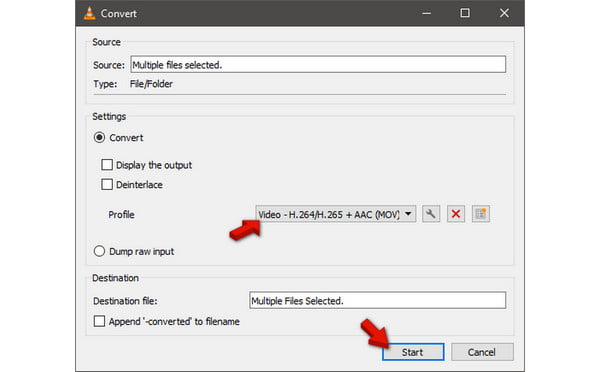
By default, VLC does not offer the MOV profile. So what you need to do is to create a new profile. In our testing, we use the same 5.8 GB M4As, but VLC crashed suddenly when we were on the 8th queue.
FreeConvert is an internet‑based conversion service that supports 500+ media types. You can use it as an online M4A‑to‑MOV converter without installing anything. Before you convert M4A to a video format, consider which format to choose: MOV, M4V, or MP4.
To convert: On the FreeConvert homepage, click Choose File to add the M4A files from your computer. To import files in other ways, click the dropdown and select From [Cloud] or From URL. In the Output picker, select MOV as your output and click Convert to start the conversion.
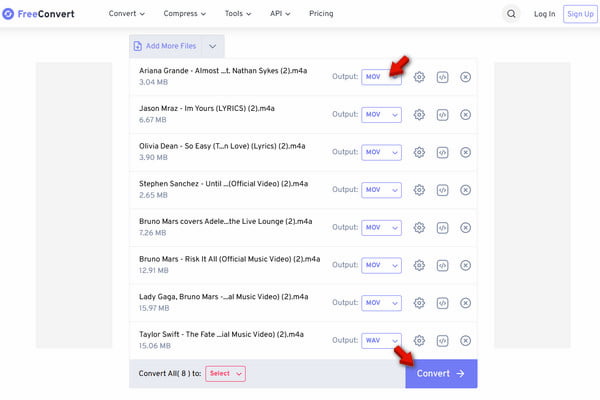
To evaluate FreeConvert fairly, we tested it using the same files. However, we found out there’s a 20‑minute conversion cap in the free version. Also, the maximum file size allowed for upload is 1 GB.
Before converting any audio file to MOV, it’s better to understand how these formats compare. Check M4A vs MP3 here to see which is more suitable for converting to MOV.
Does converting M4A to MOV increase the file size?
Yes, it slightly increase the file size. It is because MOV is designed for multimedia. It includes container structures for video tracks.
Can I convert M4A to MOV on Mac without software?
Yes, using iMovie or the Export As function in QuickTime. However, these methods lack batch processing and granular bitrate control.
Is online M4A‑to‑MOV conversion tool safe?
Yes, it is safe for non‑sensitive files. However, for private recordings, desktop software such as AnyMP4 is recommended to keep data on your local drive.
Will I lose the song title and artist name after conversion?
Most online tools strip metadata. Professional converters like AnyMP4 preserve ID3 tags, ensuring the MOV file retains artist and album information.
There are multiple ways to convert M4A to MOV. But the method you choose will depend on what you need. This includes speed, privacy, and output quality. If you are looking for a professional‑grade, high‑speed tool that can handle batch processing and basic video editing, AnyMP4 Video Converter Ultimate is the tool we recommend in 2026. Don’t forget to select the right bitrate settings to preserve the integrity of your audio during the conversion process.
 Updated by Alice Thorne to Convert Video, Convert Audio
More readings
 How to Convert MOV to WAV (Lossless Audio) on Windows & Mac
Easily extract high-quality WAV audio from MOV videos. Get the best 3 converters for batch conversion and 100% original quality.
 MOV to WebM: 4 Ways to Preserve Transparency & AV1 Quality
Convert MOV to WebM while preserving Alpha Channel transparency. We compare AnyMP4, HandBrake, FFmpeg, and CloudConvert for speed, AV1 support, and 4K quality.
 MP4 to M4A: 7 Lossless Ways to Extract Audio from Video
Need to extract M4A audio from MP4 without losing quality? We tested 10+ tools to find the best MP4-to-M4A converters for Mac, Windows, and online use.
 How to Convert MP3 to M4A: 4 Fast & Free Ways (2026 Guide)
Need to change MP3 to M4A? Discover 4 easy ways to convert MP3 to M4A on Windows, Mac, and online for high-quality, fast, and free audio conversion.
 Add your comments to join the discussion here