
Summary
For efficient M4A-toOpus conversion, AnyMP4 Video Converter Ultimate is a top-performing software for fast processing and batch conversion. For small files, Convertio is among the most used tools online. However, online tools require uploading personal files to the server, which might not be ideal if you prioritize your privacy and security.
If you need smaller audio files for messaging, streaming, or storage, convert M4A to Opus for efficient high-quality audio compression and low-latency performance. It is useful when M4A files are too large to share through WhatsApp or Telegram. However, choosing the right conversion method matters. Free online converters are convenient, but they have file-size and daily usage limits. In this post, we'll show you several ways to convert M4A to Opus, including professional desktop software, FFmpeg, and online tools. This way, you can choose the best method that matches your skill.
When comparing M4A vs Opus in terms of modernity, Opus is a more modern audio codec. It delivers high-quality sound at lower bitrates than AAC. It efficiently handles both speech and music, making it ideal for streaming, voice calls, podcasts, and bandwidth-limited applications.
Opus is used in VoIP and WebRTC communication. It is also supported in YouTube web playback. Converting to Opus can yield a smaller file size while retaining good audio quality. But if your M4A is already lossy AAC, converting to Opus may reduce quality, so keep the original file.
How We Test
| Conversion Speed | Batch Processing | Audio Editing | Privacy/Security | Ease of Use | |
|---|---|---|---|---|---|
| AnyMP4 Video Converter Ultimate | 120× |  |
Trim, merge, sound booster, nose remover, and more | Local processing | Beginner Friendly |
| FFmpeg | Fast | |
Basic | Local processing | Expert only |
| Online Converters | Depends on the server |  10 concurrent conversions 10 concurrent conversions |
|
Server upload | Easy |
AnyMP4 Video Converter Ultimate is a professional desktop software that goes beyond video-to-video conversion. It can also convert M4A to Opus and 500+ other codecs and container formats. With it, you can process hundreds of media files simultaneously without experiencing lag or crashes. It uses the most advanced hardware-accelerated media processing to achieve a 120× conversion speed. You can adjust the OGG container encoder, audio bitrate, sample rate, and channel count to achieve better sound quality.
1. Download AnyMP4 Video Converter Ultimate and complete the installation. After setup, the software will open to the Converter tab.
Secure Download
Secure Download
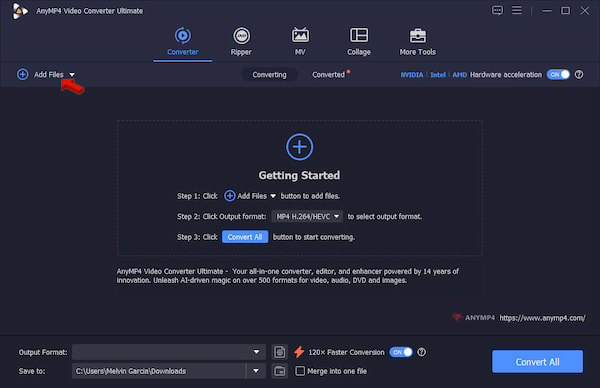
Click +Add Files to import M4A sources from your computer. If you need to batch-convert multiple M4A files, use the Add Folder instead.
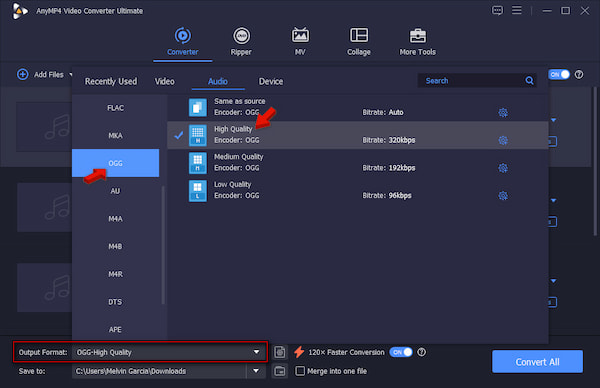
2. Go to the Output Format picker and select OGG under the Audio category. Select High Quality as your quality preset and target 128 kbps audio bitrate.
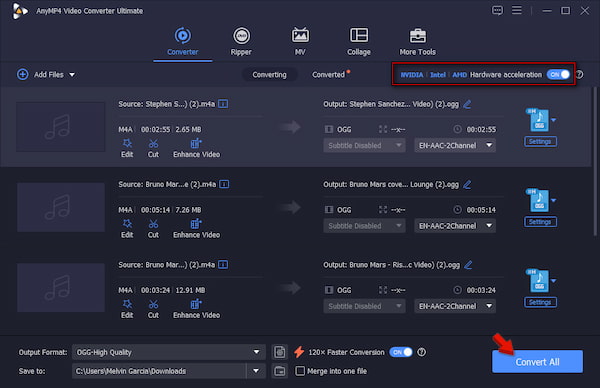
3. Go back to the main interface and activate Hardware Acceleration to speed up the conversion. Set the output destination, then click Convert All to batch-convert M4A to Opus lossless.
Before we put AnyMP4 to the test, we play our files first on an M4A player to ensure they are not corrupted. After testing each one, we import 60 M4A files, totaling 480 MB, into the software. It took only 45 seconds to complete the batch processing, with no lag.
FFmpeg is an established multimedia framework that can decode, encode, and even transcode media files through only commands. It decodes the compressed M4A audio into raw uncompressed PCM data, then encodes it using the new Opus codec.
To transcode M4A to Opus: Open a terminal or command prompt, then run ffmpeg -i input.m4a -c:a libopus output.opus. Set your target bitrate for better size control, use ffmpeg -i input.m4a -c:a libopus -b:a 128k output.opus.
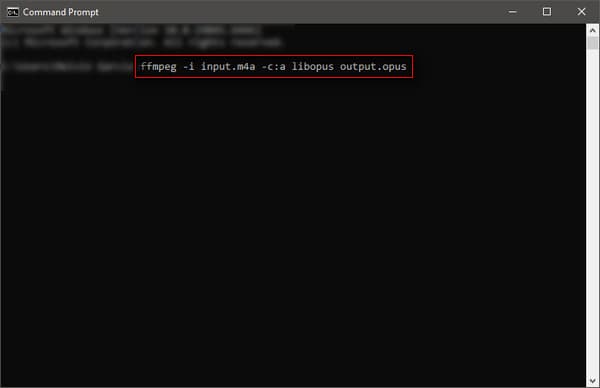
Both M4A files and Opus are lossy, meaning decoding the original codec and re-encoding it again will result in quality loss. Also, increasing the Opus bitrate won’t restore the discarded information from the original encoding.
Convertio is a cloud service that lets you convert media files to a different format or codec. It is the best FFmpeg alternative for M4A to Opus, especially if you only need to convert a single small file. This tooladj also supports usting the bitrate per channel, the frequency response, and the volume.
To convert: Go to Convertio and click Choose Files to load M4As from your computer. Select OPUS as your target output, then click Convert to start the batch processing. After converting the files, download each one to your computer.
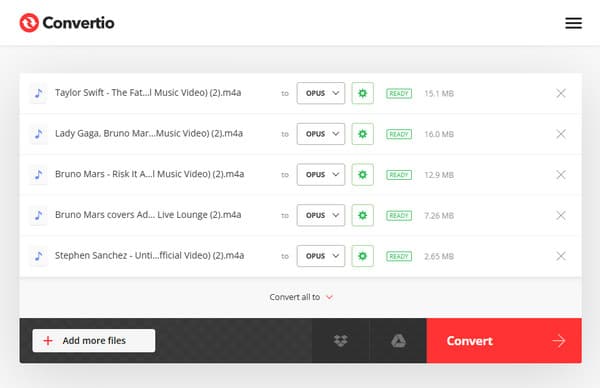
Convertio is convenient, but it is not the best option for large conversions. Free users are allowed to import up to 100 MB per file. Also, there is a 10-conversion credit restriction per 24 hours, with a concurrent conversion cap of 10. Convertio also supports Opus-to-MP3 conversion.
| M4A | VS | Opus |
| Heavy artifacts, muffled high frequencies, and severe distortion. | 6-32 kbps | Highly optimized for speech; intelligible and clean using SILK mode down to 12. |
| Swishing or high-frequency cutoff. | 48-96 kbps | Near-transparent quality for speech and acceptable transparency for complex music via CELT. |
| Good quality for general streaming; minor high-frequency losses on complex transients. | 128 kbps | Fully transparent for most music; outperforms 160-256 kbps AAC. |
| Standard transparent for music archives and Apple ecosystem distribution. | 160-256+ kbps | Overkill for standard audio; indistinguishable from lossless. |
Is Opus really better than M4A?
Yes, Opus is far more efficient and provides better audio quality than M4A. You will notice it when you compare the AAC codec stored in an M4A container at low-to-medium bitrates.
Can I convert M4A to Opus without losing quality?
No, both are lossy formats, meaning you cannot convert without even minimal quality loss. However, by using a high-quality encoder such as AnyMP4, you can ensure that the generation loss is inaudible to the human ear.
Will Opus files play on my iPhone?
No, Opus files won’t play on iPhones using default apps. However, you can use third-party media players, like VLC, to play them on your iPhone.
Is there a file size limit for online converters?
Yes, all online converters limit users to 50-100 MB per file. If you want to upload files of unlimited size, it is recommended to use offline tools like AnyMP4 or FFmpeg.
Online tools are convenient for converting small M4A to Opus. However, if you find them limited in terms of file size and batch conversion, AnyMP4 Video Converter Ultimate is a more reliable choice. It can process multiple files without repeatedly uploading your files to a cloud service.
 Posted by Alice Thorne to Convert Audio
More readings
 Simplest Solution | Convert AVI to M4A Online & Offline
How to convert video to audio? Sometimes you may need to convert AVI files to M4A. Don’t worry. We will tell you the simplest solution to convert AVI to M4A.
 How to Convert M4A to WMV File in 2026
How do I open a M4A file on Windows? This post shares 3 easy ways to help you convert M4A to WMV or WMA for playback.
 MP4 to M4A: 7 Lossless Ways to Extract Audio from Video
Need to extract M4A audio from MP4 without losing quality? We tested 10+ tools to find the best MP4-to-M4A converters for Mac, Windows, and online use.
 4 Best Ways to Convert FLAC to MP3, WAV & ALAC (2026 Guide)
Convert FLAC audio to MP3, WAV, or ALAC with original audio tags and cover art intact with top desktop, CLI, and free conversion tools.

