How to Convert M4A to MP3: 6 Best Ways to Keep Original Quality (2026 Guide)
"It seems that I cannot play M4A files on my MP3 Player. What is more, I cannot convert the M4A files to MP3 correctly. Is there any trick to turn M4A to MP3? I am looking for an answer for this A.S.A.P. I just want to use the M4A for other devices."
M4A audio format is supported by Apple device likes iPhone, iPad, iPod, and even iTunes, thus it becomes more and more popular in our music world. Songs that are in this format will open inside the iTunes program and are compatible with all iPods. However, a variety of different audio devices, MP3 Players and other Player devices can't easily import and play M4A file. How to play your M4A audio files on your much loved media player or portable device freely? As for the case, it is highly recommended to convert M4A to MP3.
Different from the other audio format, the previous released M4A files only work with iTunes and iPod, which means you cannot use them for non-Apple devices. In order to transcode M4A to MP3, you should also remove the encryption. The article lists top 6 solutions to convert M4A file to MP3 audio on Mac, Windows, online, and mobile phone. Read on to get the solution.

Pre-Reading: M4A VS MP3
What is M4A?
M4A stands for MPEG 4 Audio and is a filename extension used to represent audio files. The existence of two different filename extensions, .mp4 and .m4a, for naming audio-only MP4 files have been a source of confusion among users and multimedia playback software. Apple Inc. started using and popularizing the .m4a filename extension, which is used for MP4 containers with audio data in the lossy Advanced Audio Coding (AAC) or its own Apple Lossless (ALAC) formats.
What is MP3?
MP3 is a digital music format, which allows CD tracks to be reduced to around a tenth of their normal size without a significant loss of quality. MP3 gets rid of a lot of the information recorded in a song that our ears are not able to hear and then uses complex algorithms to reduce the file size. The MP3 format is a lossy format. It means that it removes the information that your ear doesn't notice thereby making the file smaller. The reason lossy formats are used over raw is that raw audio files are too large to travel over the Internet at any great speed. By using lossy formats it enables even dial up users to download MP3 files at a reasonable speed.
Why Convert M4A to MP3
When people want to convert M4A to MP3, there are plenty of reasons, and most of them come down to practicality rather than preference.
• Device compatibility
Older car stereos, legacy MP3 players, and some editing programs simply don’t recognize Apple’s M4A format. Converting to MP3 ensures the file will play almost anywhere without hassle.
• Balancing sound quality and file size
Many users want to know how much audio quality they’ll lose when switching to MP3, and what settings they should use to keep the sound as close to the original as possible. Finding that 'sounds the same to me' sweet spot is a common goal.
• Keeping metadata intact
People often worry that converting formats will strip out album art, lyrics, artist names, or other ID3 tag information. A good converter needs to preserve all that data so the music library stays organized.
• Handling large music collections
Some users aren’t just converting a few songs - they’re migrating entire iTunes libraries with thousands of tracks. In those cases, batch processing and automation become essential.
The table below gives a simple, realistic reference for how MP3 bitrates affect file size and perceived audio quality.
| MP3 Bitrate |
Approx. File Size |
Perceived Sound Quality |
|---|
| 128 kbps |
~2.8–3 MB |
Noticeable compression; acceptable for speech or casual listening |
| 256 kbps |
~5–6 MB |
Good quality; minor artifacts, but often fine for everyday use |
| 320 kbps |
~7–8 MB |
Near transparent for most listeners; the best MP3 can offer |
Tips
M4A (AAC) is already a lossy format. Converting it to MP3 means you’re doing lossy-to-lossy transcoding, which always introduces some additional quality loss - even if it’s small. Avoid frequent switching to prevent digital noise.
Method 1: How to Transcode M4A to MP3 Online For Free
When you are using Windows or other devices, you can turn M4A into MP3 online AnyMP4 Audio Converter Online. It is the freeware to change .m4a to .mp3 online without downloading any software or plug-in.
1. Open this free M4A to MP3 converter online via your browser. Click "Upload File" to upload the M4A file.
2. Select the MP3 from the output profile next to Profile. Besides, you can adjust the audio encorder, channel, bitrate, and sample rate.
3. Finally, you just need to click the "Save" button to start chaning M4A to MP3 online. Once the conversion is done, and you can download it directly to your computer. 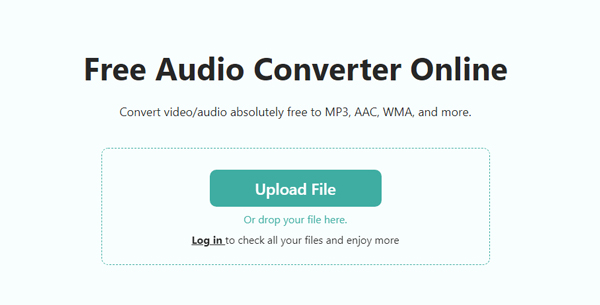
This online tool is easy to access and use. But its limitations are also obvious: it is too dependent on network speed, and the functions are simple.
Method 2: Convert Between M4A and MP3 on Mac and Windows
AnyMP4 Video Converter Ultimate is a powerful video converter that has the capability to convert M4A to MP3 on Mac and Windows. With the GPU acceleration, you can convert audio files at a 70X faster speed. Moreover, it edits your audio files, and even you can even choose output settings to optimize your audio effect. Free tools often lose lyrics, cover art, and ID3 information after conversion. But this tool can fully preserve them and allows you to edit ID3 tags. What is more, it is able to remove the encryption for the M4A format when converting M4A files. If you need, this software alos includes Volume Booster, Noise Reduction, and other tools for you to use.
Recommendation
- Convert almost all audio formats and video formats, including M4A to MP3, WAV and most of the audio files.
- Adjust the different parameters according to devices as well as the presets with the optimal parameters for conversion.
- Enhance the video quality in multiple methods automatically, advanced optimization technology for the video and audio formats.
- Support high quality video and audio files, Convert 4K/1080p HD video to MP4, AVI, MOV, M4V, MKV, FLV, MP3 and more than 200 formats.
- Over 20 tools under the toolbox to edit audio, video and images like a pro.
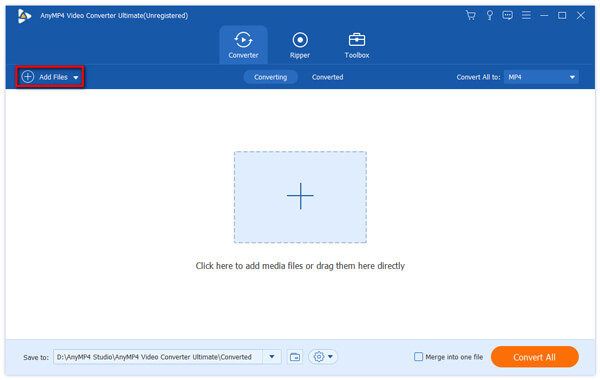
1. Free download and install the program
Here you can free download AnyMP4 Video Converter Ultimate and install it on your Mac or Windows computer, then you can launch the program on your computer to run the program. Here is the main interface of this software.
2. Add M4A audio and choose profile
Click "Add Files" button to select M4A audio file to the program, or you can click "File" item at menu column to select "Add Files" to add M4A to the program. In order to convert M4A to MP3 in batch, you can load all the files to the program or drag the whole folder to the program instead. If you want to convert MP3 to M4A, you need to add MP3 files first.
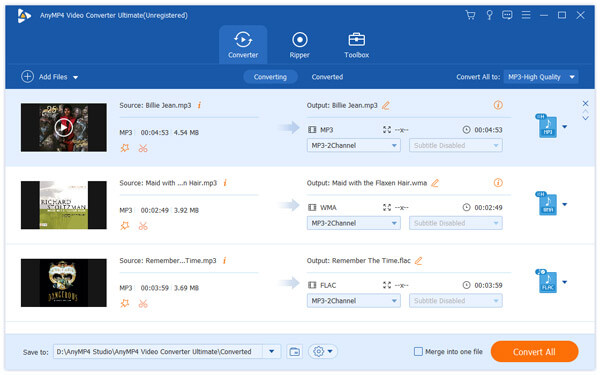
3. Choose output format "MP3"
Then click "Profile" drop-down arrow to open the "Profile" list, and choose "MP3" as output format. Of course, you can also choose the MP3 device directly, such as Samsung tablets or other Android devices. If you want to convert MP3 to M4A, you should choose "M4A - MPEG-4 Audio" as the output format.
Note: To get that near-lossless sound, go with 320kbps at 44,100Hz. This is the 'sweet spot' for high-quality audio, providing a clean, crisp sound that’s virtually indistinguishable from the master track.
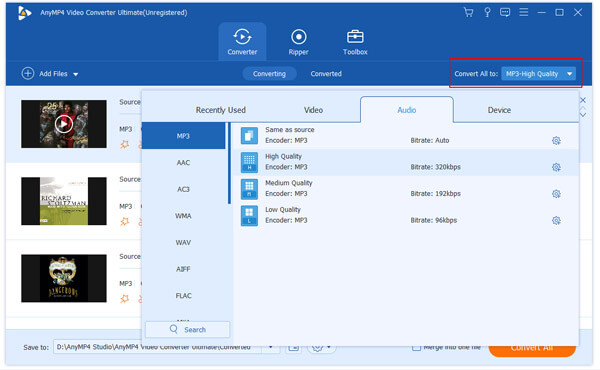
4. Define output settings
In addition, you can change the audio bitrate according to your player device, click "Settings" button and open the "Settings" window, you can change the audio bitrate here to get the perfect audio quality.
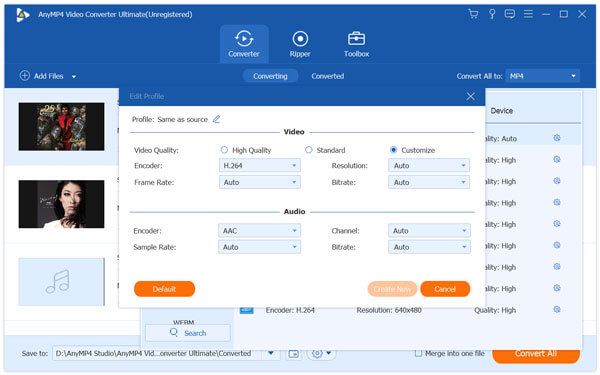
5. Convert M4A to MP3
After setting the audio, you can start to click "Convert" button and enter the conversion process to convert M4A to MP3 or convert MP3 to M4A, thus you can enjoy your M4A or MP3 file on any portable device and media player. It takes few seconds to convert the files in high quality.
Method 3: How to Convert M4A to MP3 with iTunes
Since M4A is the file format for iTunes, you can also use iTunes to convert M4A to MP3. But there is one major restriction for using iTunes for conversion; you can only turn M4A into limited audio formats, such as MP3, WAV and AIFF formats. Just check out the detailed process as below.
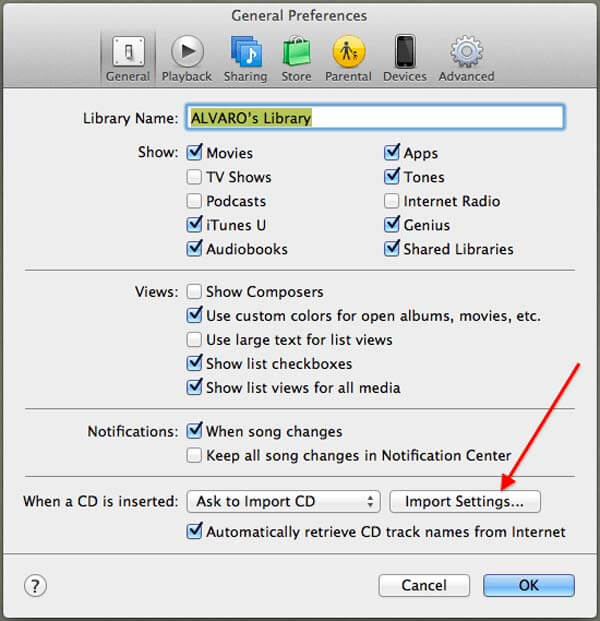
1.Open iTunes, go to "General Preferences" > "General", then click the "Import Settings…" tab to choose settings for converting M4A to MP3. Now click Import Setting "OK" button.
Note: If M4A is copyrighted (M4P format), standard converters cannot handle it.
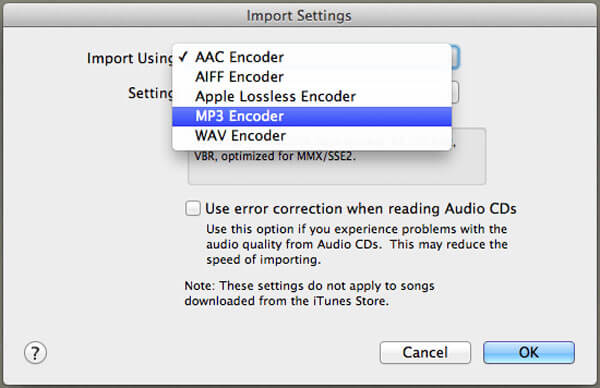
2.Click on the "Import Using" drop down menu to choose "MP3 Encoder". Then confirm the option in the main preferences panel. Choose the bitrate you think best; higher rates mean higher quality, but larger file sizes. If space is tight, we'd recommend you go with 128kpbs encoding.
If you want to convert M4A to M4R ringtone for iPhone, just select AAC Encoder here.
3.If you have multiple M4A files, it is recommended to convert M4A to MP3 in batch with one folder. Of course, you can also select the files and right click the M4A files and select "Create MP3 Version".
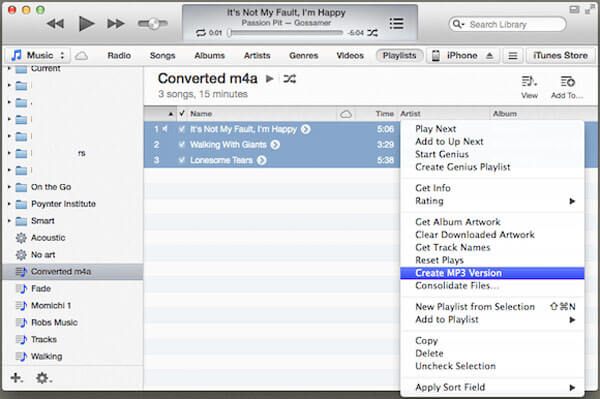
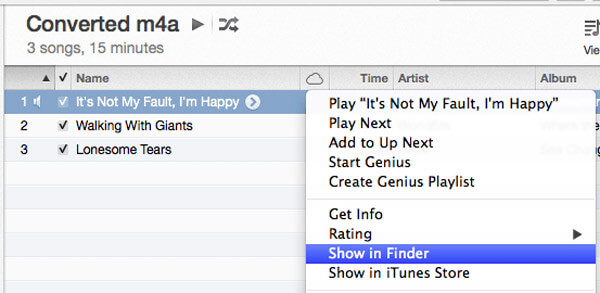
4.After that you can right click the M4A flies again, choose the "Show in Finder" option to locate the converted MP3 files in your computer. Now you can use the M4A files for other MP3 players now.
Method 4: How to Convert M4A to MP3 on Android Devices
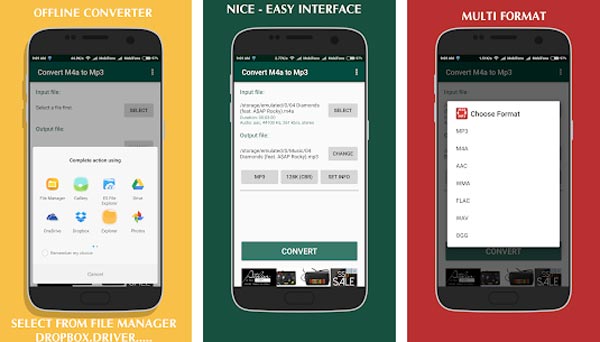
What should you do if you just get the M4A files on Android from your friends? As for the case, you do not have to turn to another device for help. You can just download Convert m4a to mp3 APK from Google Play to transcode M4A to MP3 on Android phone or devices directly.
1. Download Convert m4a to mp3 APK from Google Play, make sure you install the program on Android successfully. It is a versatile audio converter to enjoy music in Android with ease.
2. Choose the M4A files from multiple channels, such as gallery, even DropBox, GoogleDrive, OneDriver and more other channels. Besides M4A files, you can also add MP4 or AVI files.
3. In order to convert M4A to MP3, you can choose the "Output file" as MP3. Actually the default audio format is "MP3". Just click "CHANGE" to convert M4A to WAV, WMA or other formats.
4. Choose the "Bitrate" and other settings, name the files before click the "Convert" button to turn M4A files into MP3. Once you convert the files, you can enjoy the music files in M4A on your Android phone directly.
Surely, you can also open M4A files directly on Android devices directly with M4A player, and no need of changing M4A to MP3.
Method 5: How to Convert M4A to MP3 on iOS Devices
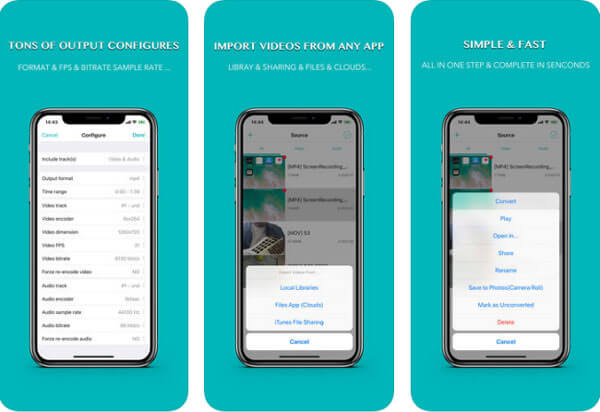
Even if you are using iOS devices to sync M4A files, you can also find some useful applications to convert M4A to MP3. iConv is the application you should take into consideration. Just learn the detailed process to convert M4A to MP3 with the following process now.
1. Download and install iConv from App Store. Launch the Application from the home screen of your iPhone to convert M4A to MP3.
2. Import the video from Dropbox, Local Libraries or even iTunes File Sharing. In order to convert M4A files purchased from iTunes, you can click iTunes File Sharing option to load files for conversion.
3. Once you load the file to the program, you can click the Edit button to choose the first "Convert" option. Of course, you can rename, delete or use other options for the M4A files directly.
4. Choose the output format as audio MP3, after that iConv will convert M4A to MP3 directly. Of course, after the conversion, you can send the file to other devices via AirDrop or email.
FAQs of Converting M4A to MP3
Is Zamzar safe to convert M4A to MP3?
Yes. Zamzar, as the free online video converter has worked for over 400 million users from 245 countries. There is no ads or virus and it is safe to use. To change M4A to MP3 on Zamzar, you should
1. Add the M4A files from your computer or enter the URL of the M4A files into the online M4A to MP3 converter.
2. Choose the output format as MP3 by clicking the Convert files to:, and then select the MP3 from the Music formats.
3. Enter your email address to receive the converted files, once M4A to MP3 conversion finishes, you can get the MP3 from the entered email address.
4. Click the Convert button to turn M4A files into MP3, it might take a period of time to receive the files from your email address.
What is the difference between M4A and M4R?
M4A is the file extension for the audio coding, AAC, which is used by iTunes to store music. M4R is the file extension of the iTunes ringtone file. They can be created and transferred to iPhone as the ringtones. You can change the extension from M4A created by iTunes to M4R directly by renaming it.
Is M4A smaller than MP3?
Yes. The size is directly related with the sample rate or bitrate. M4A is encoded with the lossy AAC or ALAC code, which are generally about half or 1/10 of the original file. While you use the same sample rate or bitrate for the same file, the M4A file is smaller than MP3 file.
Will converting M4A to MP3 lose quality?
Yes, since both are lossy formats. However, by setting the bitrate to 320kbps in AnyMP4, the quality loss is imperceptible to the human ear.
How do I convert M4A to MP3 on Mac for free?
You can use the built-in Apple Music app: Go to Settings > Files > Import Settings, select MP3 Encoder, then use the 'Create MP3 Version' feature.
Why can't I play M4A files on my device?
M4A is primarily an Apple format. Older car stereos and some Android devices require MP3 format for universal compatibility.
Conclusion
Actually convert M4A to MP3 might not as easy as the other format as your imagination. When you have M4A files on PC or Mac, you can use the powerful AnyMP4 Video Converter Ultimate to transcode M4A to MP3 files. iTunes should be another option to turn the M4A codec to MP3. A simple way is to convert M4A to MP3 in Windows Media Player. As for the other devices, you can choose the online solution to change the audio format with AnyMP4 Free Audio Converter Online. Of course, even if you are using the Android phone, you can also find the suitable resolution as Converte M4A to MP3. As for iPhone users, you can also find iConv as a nice option to convert M4A audio files to MP3 with ease.
If you still have any query about M4A to MP3 conversion, you can share more information in the comments.
What do you think of this post?
Excellent
Rating: 4.9 / 5 (based on 573 ratings)



 Add your comments to join the discussion here