
Free Download100% Clear & Secure
Free Download100% Clear & Secure
Have you ever tried importing a newly downloaded playlist into your car audio system only to suddenly encounter a silent "unsupported format" message? This issue typically stems from problems with container metadata or codec tags. Although M4A files usually use AAC audio encoding, certain older software engines and embedded hardware chipsets require strict adherence to the original [AAC] audio stream format to play them correctly.
Converting M4A to AAC does not compromise audio quality. The key is to eliminate the format barriers, enabling your music to play smoothly on any device. The following section provides a comprehensive step-by-step guide showing you how to complete this conversion process effortlessly using dedicated desktop tools, free media players, and convenient online conversion tools.
Understanding audio formats makes it easier to choose the right conversion settings:
| Metric | M4A File Format | Raw AAC Format |
|---|---|---|
| Technical Nature | MPEG-4 Container holding audio data | Raw ADTS stream / Encoded audio stream |
| Codec Compatibility | Can hold AAC or ALAC (Lossless) | Strictly AAC lossy compression |
| Best Used For | iTunes libraries, iOS devices, local playback | Legacy car stereos, web streaming, broad hardware compatibility |
To determine the most reliable M4A to AAC conversion methods, we built a controlled test benchmark in our lab. We evaluated every tool on a Windows 11 workstation (Intel Core i7, 32GB RAM) using a test batch of 30 M4A files. This sample set included 256kbps variable-bitrate (VBR) tracks, 320kbps constant-bitrate (CBR) files, and ALAC (Apple Lossless) audio files.
| Solution | Best For | Platform | Batch Processing | Price | Speed |
|---|---|---|---|---|---|
| AnyMP4 Audio Converter | High-volume batch conversion & editing | Windows, macOS | Yes (Unlimited) | Free Trial / Paid | Instant |
| VLC Media Player | Quick free conversion without installing new apps | Windows, macOS, Linux | Limited | Free & Open Source | Moderate |
| CloudConvert | One-off conversions on mobile or web | Web Browser | No | Free times each day | Upload/Download speed dependent |
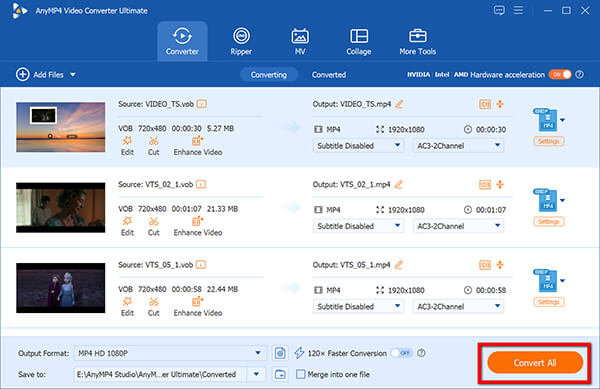
AnyMP4 Video Converter Ultimate is a powerful video converter that supports a wide range of input and output formats. It can easily convert M4A files to the AAC format with manual customization of output parameters, such as encoder, channel, bitrate, and others. After loading the M4A files, their full information will be scanned, and you can see and select the audio tracks you want to convert.
Leveraging offline multi-core acceleration technology, AnyMP4 Video Converter Ultimate can convert multiple M4A audio tracks into raw AAC audio streams in just a few seconds. Bonusly, the software excels at preserving both the original audio fidelity and metadata labels. Users can even utilize the built-in metadata editor for further customization. For audiophiles seeking high-speed processing, exceptional reliability, and full customizability of their audio files, this software is undoubtedly the preferred desktop solution.
1. Download & Install the Tool
Click the button below to download and install AnyMP4 Video Converter Ultimate on your computer. After that, launch the software, and you will see a clear and intuitive interface.
Secure Download
Secure Download
2. Add Your M4A Files
Click the Add Files button on the upper-left toolbar to select and import the .m4a files, or you can directly drag the files to the main interface.

3. Set AAC as Output Format
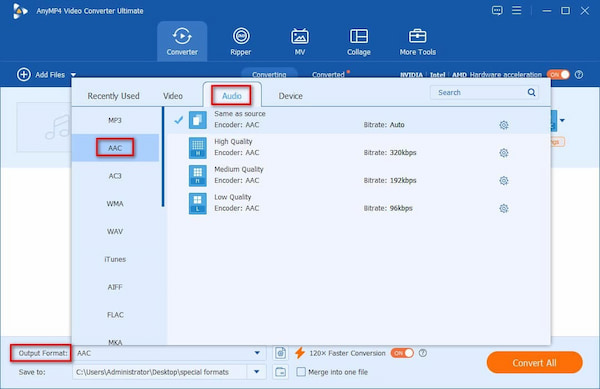
Click the Output Format button at the bottom to open its drop-down menu. Choose Audio and select AAC, Same as source option.
If you want to fine-tune your output, click the Settings (gear) icon next to the format profile. Here, you can match your source file's original bitrate (e.g., 256 kbps or 320 kbps) and sample rate (44.1 kHz) so you don't introduce unnecessary compression artifacts.
4. Convert M4A to AAC
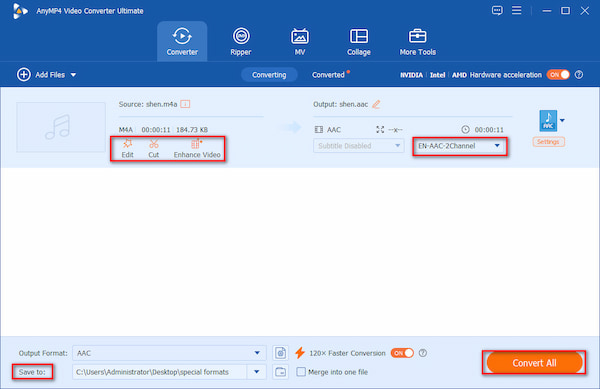
Set your destination folder by clicking Save to at the bottom of the interface. Once you're ready, click the large Convert All button in the lower-right corner. The software processes files concurrently, taking just seconds for standard audio tracks.
You can choose the Edit or Cut icon to adjust the audio volume, length, and do other things.
If you need to organize and convert large music libraries, AnyMP4 Video Converter Ultimate is a huge time-saver. In our real test, it takes no more than 10 seconds to process a 30-track M4A album, successfully preserving the full bitrate and tag metadata for you to manage them. Its features are limited, and you need to get the pro version to unlock the full features.
For users seeking a completely free path to convert M4A to AAC without downloading new software, VLC Media Player serves as an ideal Swiss Army knife. Known as a free media player to handle almost all video/audio files, it has a powerful built-in transcoding framework for you to convert M4A to AAC. It offers a zero-cost way to transcode files on Windows, Mac, and Linux systems. Though some people think its UI is a little outdated, its open-source versatility makes it a reliable solution for quick, lightweight audio tasks on any computer.
So, how to use VLC to extract AAC from M4A files?
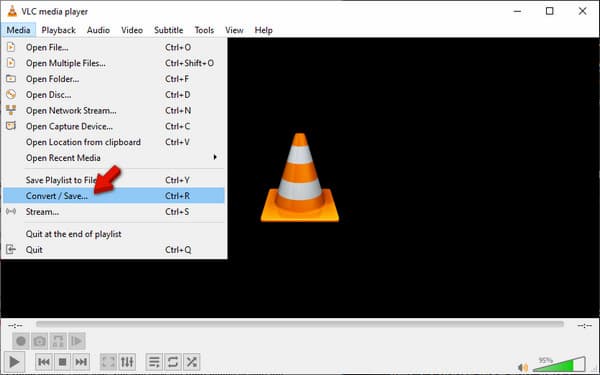
1. Open VLC Media Player and click Media > Convert / Save to open its convert window.
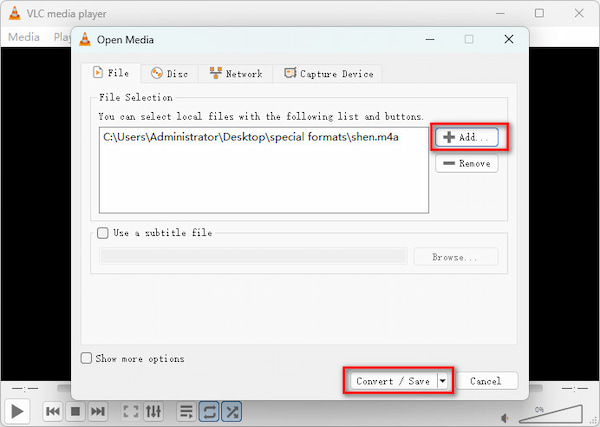
2. In the pop-up Open Media window, click Add under the File section to load your M4A file, then click Convert / Save at the bottom to go on.
You are allowed to add more than one M4A file to the tool.
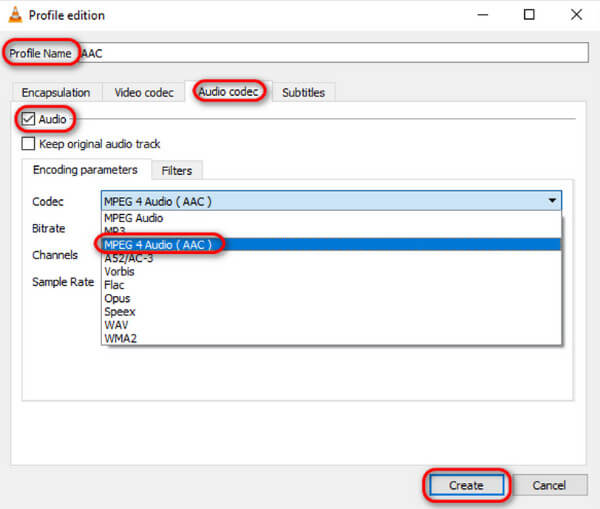
3. In the Profile section, choose Audio - AAC from the Codec drop-down list under the Audio codec section.
Choose a destination path via the Browse button and click Start.
If you have installed VLC on your computer, it is the best choice for converting a few files for free. However, some people hesitate because of the tool's outdated interface and prefer using dedicated, modern format conversion tools.
When you need a quick conversion on a computer, Chromebook, or even a mobile device, online tools are the most convenient way. Among various tools, CloudConvert offers a seamless audio conversion performance for turning M4A into AAC. As a cloud platform, it eliminates software installations entirely while maintaining high-quality output. One of the features is that it supports direct file uploads from Google Drive, Dropbox, and local storage, offering convenience for file uploading. Moreover, it includes basic parameters like bitrate tweaking and track trimming for you to adjust files.
Let's see how to use this free online way to convert M4A to AAC.
1. Head to the official website of CloudConvert in any modern web browser.
Click Select File to upload your .m4a track from your computer, Google Drive, or Dropbox.
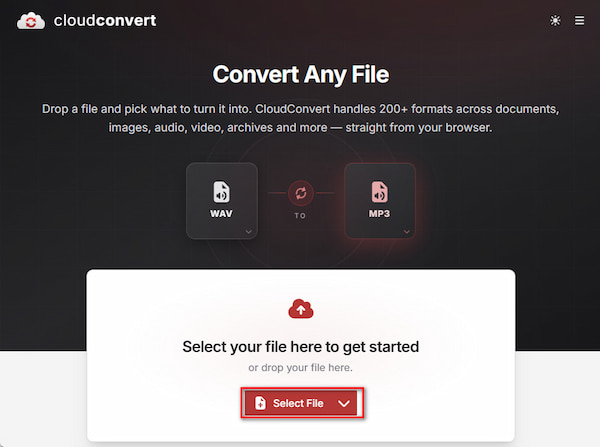
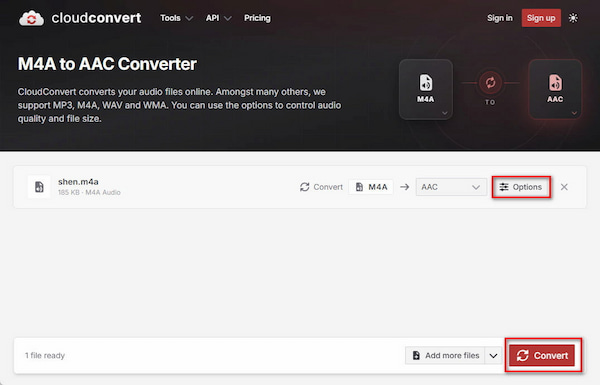
2. Click the Select Format option to choose AAC as the output format. Click the wrench icon if you need to adjust bitrates or trim start times.
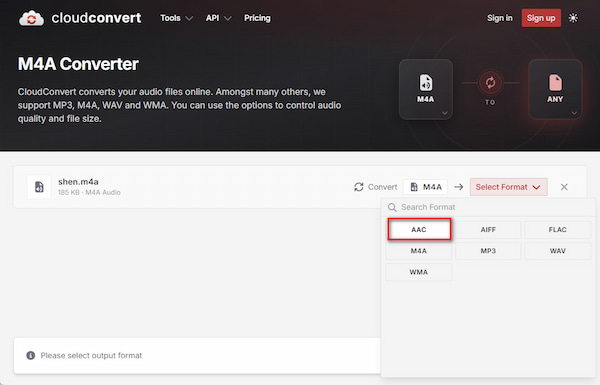
3. Click the bottom Convert button to start the conversion and wait for it to finish, then hit Download to save the AAC file to your device.
CloudConvert is an ideal choice for occasional M4A file conversion on mobile devices. In our tests with smaller audio files, its performance was exceptionally smooth. However, users should note that free plans have a daily limit on conversion attempts, and the functionality's operation depends on fast network upload speeds.
Does converting M4A to AAC reduce audio quality?
If your original M4A file already contains an AAC audio stream, simply extract or copy it to the AAC file; the original audio quality will be fully preserved. Reencoding the file may result in minimal and imperceptible quality loss.
Can I batch-convert M4A to AAC for free?
Yes. Tools like VLC Media Player offer batch functionality, though they often lack custom profile presets.
Why won't my car stereo play M4A files if they use AAC?
Many older or basic car audio systems can only read raw audio streams or specific container formats. Although the internal chip of this stereo system supports AAC decoding, its software indexer may fail to recognize the AAC format inside the m4a container packaging format. Converting the audio to raw AAC format can effectively resolve this compatibility issue.
This article introduces several ways for you to losslessly convert M4A to AAC. With these 3 easy ways, you can batch process M4A files, convert files for free, and convert M4A files to AAC anytime and anywhere. After conversion, you can enjoy the high-quality audio files on many devices.
 Posted by Alice Thorne to Convert Audio
More readings
 3 Best Ways to Convert M4A to MP3 Without Quality Loss
Learn how to convert M4A to MP4 without losing audio quality. Discover the fastest free online tools and pro desktop methods to add custom podcast images.
 4 Ways to Convert HEVC to MP3 (Online & Offline Tools)
Get into this post and master how to convert HEVC to MP3 using free online tools or desktop software. Follow our step-by-step guide for smooth audio extraction.
 4 Best Ways to Convert DAT to MP3 Without Quality Loss
Look for the fastest FLAC to MP3 converter? Get AnyMP4, VLC, and an online tool to batch-convert while keeping 320 kbps quality and ID3 tags on Windows/Mac.
 5 Best MOV to MP3 Converters (2026): Pro Quality & Speed Tested
Extract 320kbps MP3 from MOV files with our top 5 tested tools. Features detailed reviews, batch guides, and expert tips for lossless audio extraction.
 Add your comments to join the discussion here