- Convert video, audio, and DVD over 500 formats.
- GPU acceleration to speed up the conversion process at 70X faster.
- More than 16 editor tools in the toolbox (Updating).
- Create videos for TikTok, YouTube, Facebook, etc.

Free Download100% Clear & Secure
Free Download100% Clear & Secure
WAV to MOV
Back to main page
Setting
Custom resolution:
| Core Features | Web Version | Pro Desktop |
| Max File Size | 50MB (Login: 100MB) | No Limit |
| Daily Limit | 2 Files (Login: 10 Files) | Unlimited |
| AI Video Upscaling | No | Yes (Up to 4K/8K) |
| GPU Acceleration | No | Yes (70X Faster) |
| Batch Processing | No | Yes |
Failed to upload media file! Please try again, or use AnyMP4 Video Converter Ultimate for Desktop.(Error code: 20015)

The original video resolution is higher than 1080p. If you want to output the original high resolution, you need to download the Pro Version. Or would you like to output the default 1080p resolution?

SUMMARY:
To convert a WAV file to a MOV video file, you need to include a static image, since WAV is an audio file and MOV is a video file.
1. Click +Add File to import WAV.
2. Select MOV under the Video category in the Output Format picker.
3. Click Convert to begin the conversion.
1. Open your static image file in QuickTime.
2. Select and drag your WAV file directly into the QuickTime window, holding the image.
3. Go to File > Export and choose QuickTime Movie (*.mov) as the output.
WAV is among the best formats for storing uncompressed, high-quality audio. However, sometimes the WAV format is not the most convenient for sharing or editing. Many social media platforms, editors, and streaming sites support only video formats. Converting WAV to MOV can fix this problem by combining audio with a static image or video, preserving audio quality. If you want to publish a podcast or any musical piece, or upload videos to YouTube and similar platforms, a good converter will come in handy. This post tells how to do it using built-in apps and third-party tools conveniently and efficiently.

Compatibility Hurdles
There are many social networking sites and video-sharing websites, like YouTube, that accept video but not audio files. Changing your file format from WAV to MOV lets you combine audio with a static picture or visual into a single bundle for compatibility.
Preservation of Studio-Level Audio
The MOV format can store uncompressed PCM (Pulse Code Modulation) audio, which is identical to that in WAV files. In this way, you can retain high audio quality while also enjoying versatility.
Visual Branding
Once you convert WAV to MOV, you can add an image or an album cover to the audio. This is not only useful for making the video more interesting but also helps build your brand when posting such videos online.
AnyMP4 Video Converter Ultimate is the standard of professionals when it comes to WAV to MOV conversion. It can re-encode audio files to MOV and 500+ other media formats. It uses the most advanced hardware-accelerated media processing to convert at 120× speed without quality loss. It also supports bulk conversion, enabling you to process hundreds of files simultaneously without lag and crashes. The best deal? You can incorporate a background image or album artwork using the Metadata Editor. Also, you can alter the default sample rate and bitrate to ensure compatibility and avoid playback sync issues.
Secure Download
Secure Download
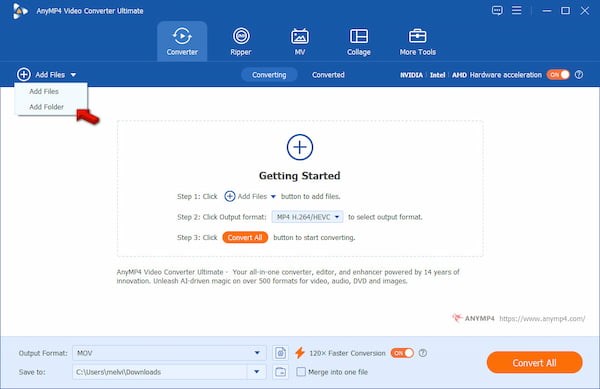
1. Download AnyMP4 Video Converter Ultimate and complete the setup procedure. After successful installation, it will run automatically. Click +Add Files to upload the WAV sources from your computer. If all your files are saved in a single folder, click Add Folder instead.
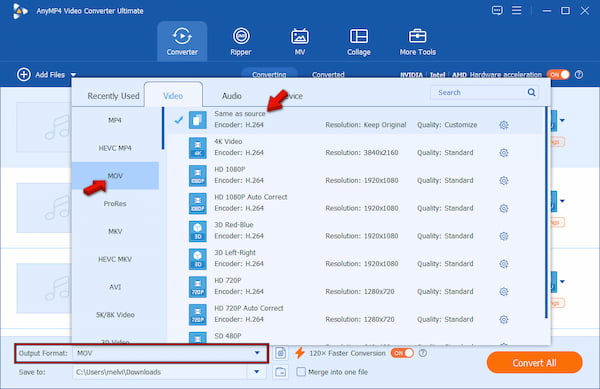
2. Click the Output Format picker, go to the Audio category, and select MOV. Remember, the preset quality should match the source file's quality. However, since you’re converting an audio to a video format, select Same as Source instead to prevent playback errors.
3. Back to the main interface, toggle Hardware Acceleration, and enable the 120× Faster Conversion button to speed up the conversion. In Save To, set the output path, then click Convert All to convert WAV to MOV.
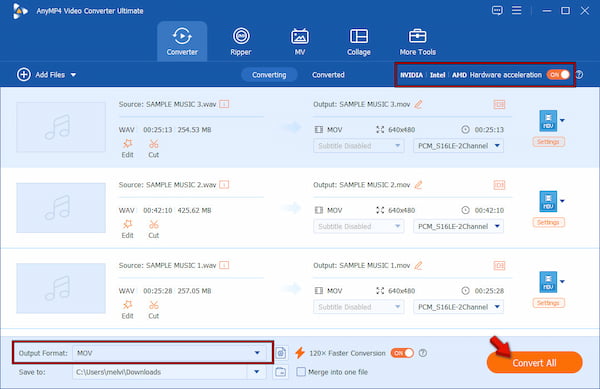
To assess the effectiveness of AnyMP4, we put it to the test. The file size that we used in our test is 1.92 GB, totaling 50 WAV files. To sum it up, it is equivalent to 23 hours and 35 minutes of WAV files. We converted it in just 3 minutes and 24 seconds only with the Same as Source preset. Upon audit, there were no distortions or reductions in the quality of MOV files.
QuickTime is not just a WAV player; you can also use it to convert WAV files to the Apple QuickTime format. But let’s be clear: QuicTime doesn’t convert on its own directly. Instead, it combines the WAV file with a still image and exports the project as an MOV video.
Here’s how to convert WAV to MOV in QuickTime
1. In QuickTime, import your image file to work with it as a video. Import the source WAV file, select all the audio files with Cmd+A, and then paste them with Cmd+V.
2. Go to your image window, place the playhead at the beginning, and press Cmd+V to paste the audio. Navigate to File, click Export As, and select a resolution to save it as MOV.
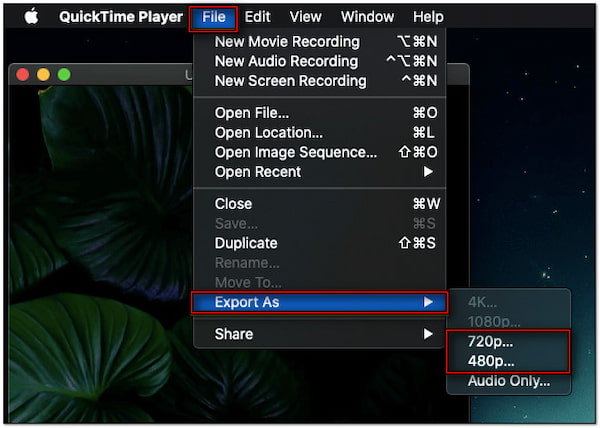
At first, you might be confused with the process because QuickTime Player alone cannot convert files. To make things easier, think of the still image as your artwork for the WAV, then you’re just saving it in a video format. However, in terms of output settings configuration, dedicated converters are far more flexible than QuickTime.
No Video Stream Found
Some media players and platforms may not recognize the MOV file with only an audio stream. To make the MOV export as compatible as possible, include at least one still image or logo.
Video and Audio Out of Sync
When video and audio are out of sync, the main cause is a varying frame rate during export. It is best to use Constant Frame Rate (CFR) to ensure your frames play evenly over time.
File Too Large
A high-resolution picture or uncompressed video might result in an unnecessarily large file. Using the H.264 video codec provides a good compromise between file size and picture quality while preserving your original WAV audio.
Match Audio Settings
To keep the same sound quality as the source, you should always choose the same sample rate and bitrate as your WAV file. In this way, you will avoid additional audio compression.
Batch Processing for Conversion of Several Files
When converting several WAV files to MOV, batch processing can save considerable time. Tools like AnyMP4 Video Converter Ultimate can process hundreds of files at once.
Does converting WAV to MOV reduce audio quality?
No, WAV to MOV conversion does not decrease audio quality, given that you apply appropriate settings. In order to retain lossless quality, you need to set the audio codec to AAC or Linear PCM, sample rate to 48kHz, bit rate to 320 kbps, and the video codec to H.264.
Can I upload a WAV file directly to YouTube?
By default, you cannot upload WAVs directly to YouTube. It is because YouTube is strictly a video hosting platform that requires a video or still image to accompany the audio.
What is the difference between MOV and MP4 for audio?
MOV is a format that is native to QuickTime and is usually favored by professionals who use macOS. Meanwhile, MP4 is widely accepted on many older Android phones. Both of these formats can contain quality audio.
Converting WAV to MOV is an efficient way to ensure high audio quality when using video editors, social media sites, or streaming services. When looking for an easy solution, QuickTime is a good choice. However, specialized programs will ensure the process is much faster and offer more features. When looking for the perfect solution, AnyMP4 Video Converter Ultimate offers an efficient combination of speed, quality, and convenience through hardware acceleration and editing tools.
Secure Download
Secure Download
 Updated by Alice Thorne to Convert Audio, Convert Video
Related Articles
 How to Convert MOV Videos to AVI File Format on Windows and Mac
This is a comprehensive guide of 3 100% working methods to convert your MOV video files to AVI format, so that you can watch them on Windows 10/8/7 smoothly.
 How to Convert MOV to WAV (Lossless Audio) on Windows & Mac
Easily extract high-quality WAV audio from MOV videos. Get the best 3 converters for batch conversion and 100% original quality.
 MOV to WebM: 4 Ways to Preserve Transparency & AV1 Quality
Convert MOV to WebM while preserving Alpha Channel transparency. We compare AnyMP4, HandBrake, FFmpeg, and CloudConvert for speed, AV1 support, and 4K quality.
 5 Best MOV to MP3 Converters (2026): Pro Quality & Speed Tested
Extract 320kbps MP3 from MOV files with our top 5 tested tools. Features detailed reviews, batch guides, and expert tips for lossless audio extraction.
 Add your comments to join the discussion here