4 Ways to Convert WebM to MOV Videos: A Complete Tutorial
WebM is one of the best video formats for web-based players and video sharing sites; unfortunately, playing it is a huge headache for Mac users since these videos cannot be processed on most editors for Apple, such as Final Cut. Fortunately, there are reliable tools that you can use to convert WebM to MOV videos to enhance your file’s native Apple compatibility and QuickTime playback. These format conversion software are all selected to provide lossless conversion, alpha channel transparency, and encode using a reliable HEVC/H.264 codec.

| Video Format Converters |
Conversion Speed |
Batch Conversion |
Alpha Channel |
Max File Size |
| AnyMP4 Video Converter Ultimate |
70x faster than standard speed with GPU acceleration. |
 |
Apple ProRes |
No limit. |
| FFmpeg |
Standard conversion speed. |
|
No alpha-channel workflow. |
No limit. |
| Online Video Converters |
Reliant on the quality of the internet connection. |
 |
No alpha-channel support. |
50MB - 100MB |
Part 1. Why WebM to MOV? Understanding the Compatibility Gap
Format conversion on Apple devices is a convenient way to ensure that your video files will meet the compatibility gap of a file designed for general use and for formats exclusive to the Apple ecosystem. One of the best examples is video files saved in WebM format, which will work best when converted to Apple’s native MOV.
With that in mind, the three methods we have featured below are all solid options if you want to convert from WebM to MOV. The options featured below involve multiple options from the best professional tool, two options for open-source fans, and a browser-based solution for more variety.
Method 1: The Best Professional Way - AnyMP4 Video Converter Ultimate
We will start this guide by featuring the best format converter software for both Windows and macOS with AnyMP4 Video Converter Ultimate, a versatile multimedia tool exclusively designed for video and media format conversion.
Since the program was designed primarily for format conversion, it was optimized to function way more efficiently than other tools in this article. To start, it processes file conversion up to 70x faster than standard speed thanks to its GPU acceleration system for NVIDIA, AMD, and Intel hardware.
For more advanced users, it is also one of the few tools that can preserve WebM alpha channels when converting videos to MOV. This made converted videos retain their transparency in certain parts of the playback.
To greatly improve the practicality of the software, it is equipped with an all-in-one toolbox of practical multimedia tools. These include video enhancement options such as Video Enhancer, Video Compressor, Noise Remover, Audio Sync, and other impressive practical options.
As a cherry on top, all the features we have mentioned that AnyMP4 Video Converter Ultimate provides are all capable of batch conversion of up to a hundred files at once. Unlike most tools, which are commonly limited to only a single or two files at a time.
To learn how to use the program for format conversion, make sure to read our three-step guide below. Do not forget to download it as well for an easier time learning how to use the program.
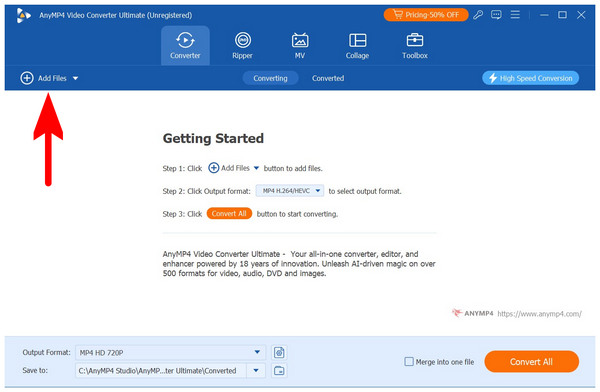
1. Open AnyMP4 Video Converter Ultimate and select the Add Files button on the Converter tab of the program.
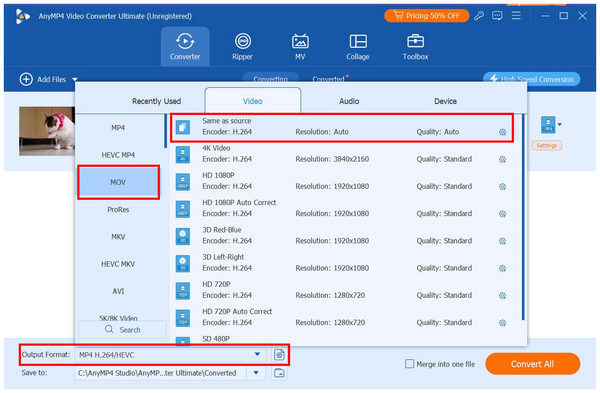
2. Once the WebM video has been imported, select Output Format and then choose MOV among the available options. Then, select the conversion profile for your WebM file. By default, Same as source is the set profile.
3. After setting the output format, you will return to the converter tab. Simply click on Convert All to begin the format conversion process.
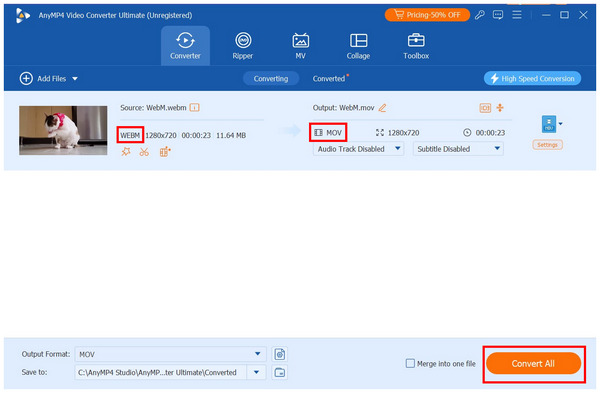
Using three simple steps, you can now ensure that your web-optimized video will work properly on your macOS device. This is the practicality of an exclusive format converter software.
Method 2: The Free Open-Source Route - FFmpeg
Moving forward, let us now review the open-source solution we found online that can all be used for basic video format conversion. Although this is not the easiest to use, FFmpeg offers the best solution when converting WebM videos to MOV format.
Originally developed as a command-line tool for multimedia handling, FFmpeg is a practical solution for users who want to ensure that their digital files are easy to manage. Since it is purely a command-line-based solution, using it as a WebM to MOV converter tool requires its users to learn the proper command-line to write.
Unfortunately, command lines are very tricky to use since they require their users to have prior knowledge of using them. With this in mind, we will provide our readers with the basic command-line for video format conversion using our three-step guide.
To learn how to use FFmpeg as a video format converter tool, make sure to read our three-step guide below:
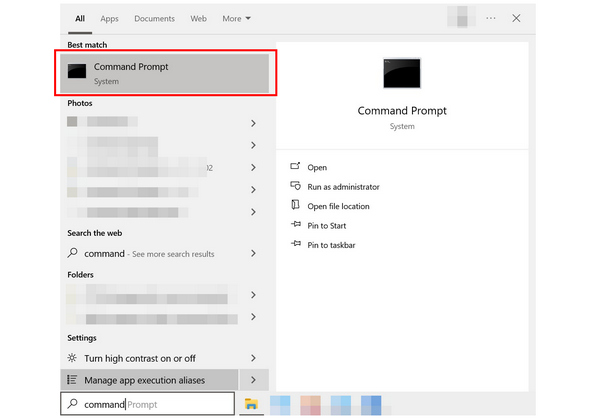
1. Open Command Prompt or Terminal on your computer.
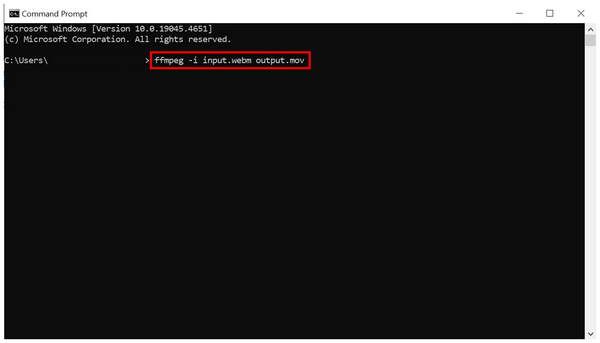
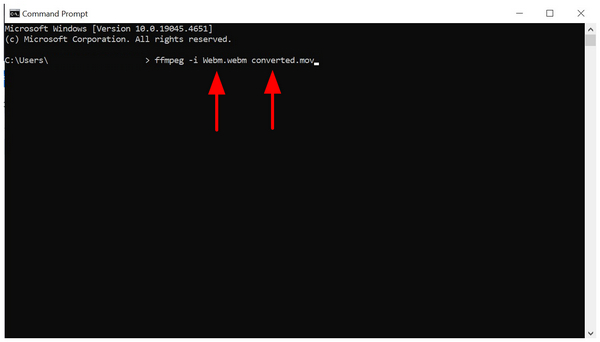
2. Copy the following command line: “ffmpeg -i input.webm output.mov”. Make sure to change the input to the file name of your WebM video and the output to your desired name of the converted MOV file.
3. With the command-line template now adjusted, simply press Enter on your keyboard to begin the format conversion.
Although FFmpeg is the hardest open-source software to use for format conversion, it might be considered the most functional, provided that you know what you are doing. Unfortunately, the steep requirement of learning how to use it is very limiting and intimidating.
Regardless of that, it still gets the job done, especially since most open-source format converters like HandBrake and VLC Media Player do not support file conversion to MOV.
Method 3: Quick Online Converters for Small Files
For maximum practicality, you can use less reliable online tools for WebM to MOV conversion. Although they are not as stable as desktop-based tools, these programs are valuable options if you have access to a stable internet connection and a powerful device.
In this article, we decided to feature 123Apps Video Converter as the online tool of our choice. To learn how to use it, make sure to read the guide below.
1. Go to 123Apps Video Converter’s website, then select Choose File. Import the WebM video you want to convert.
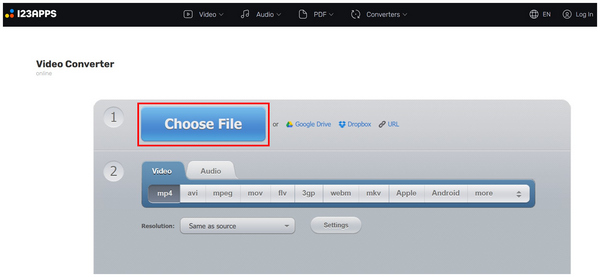
2. Select MOV among the available video formats. Then, click on Convert to begin the process in the online tool.
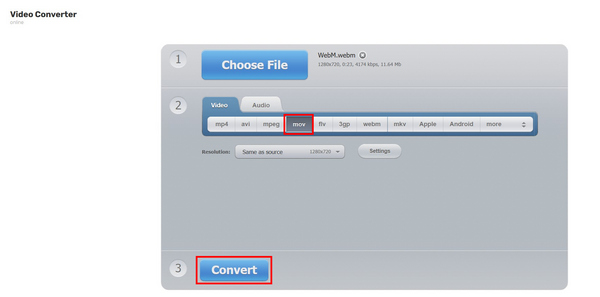
Although this tutorial only features 123Apps, most online format converter tools are designed to work similarly. All you need to do is upload, choose, and select the convert button. This smooth workflow is another perk of online-based services.
Part 5. Expert Tips: Preserving Transparency (Alpha Channel) in MOV
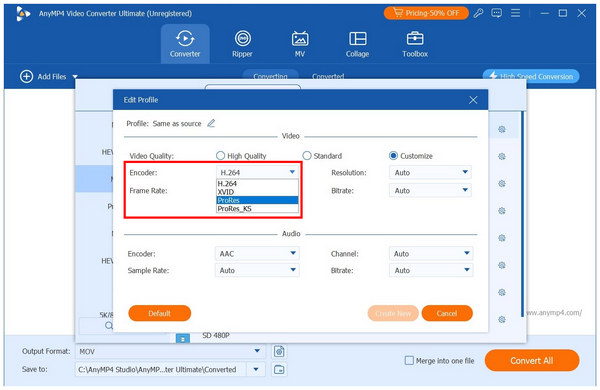
When converting WebM to MOV, users who are concerned with video quality and playback transparency need to learn the concept of Alpha Channel to make sure that their web-optimized video will play the same way once you watch it in a MOV player.
With that in mind, you have to consider the codec you will use before proceeding to MOV format conversion. In this case, make sure that the codec you will use will be one of the following options: Apple ProRes 4444, Apple ProRes 4444 XQ, Animation Codec (RLE), and HEVC with Alpha.
Fortunately, AnyMP4 Video Converter Ultimate offers ProRes as an encoder type on its Video Converter feature.
Part 6. FAQs About Converting WebM to MOV
Why should I convert WebM to MOV?
WebM is not as supported as MOV files. Moreover, most Apple video editors, such as Final Cut, cannot process WebM videos. Ultimately, MOV files are way more compatible with other platforms, media players, and devices than WebM.
What is WebM primarily used for?
WebM is best used if you want to upload your video online. It is an excellent choice if you want to stream high-quality videos on HTML5 and WebM players. It is also more compact than other formats, making it friendly for online content.
What is the native video format of Apple devices?
Apple devices use two native video formats. They use MOV and MP4. MOV is the native format of QuickTime Player, while MP4 is the most widely supported format across different platforms.
Will video format conversion affect quality?
Yes, it will. Format conversion generally reduces the quality of your video file. However, exclusive converter tools such as AnyMP4 Video Converter Ultimate were designed to preserve video quality.
Is it hard to convert video formats?
No, it is not. There are different options that you can use for format conversion. Most of them are beginner-friendly, such as AnyMp4 Video Converter Ultimate, HandBrake, and online tools.
Conclusion
With the best video format converter tools now discussed for handling WebM to MOV conversion, we hope that this article has proved useful in your pursuit of the best converter tools today. The information we have provided in this article should be enough to help you decide which among them best suits your needs. If you are looking for balance and practicality, we highly recommend using AnyMP4 Video Converter Ultimate, which you can download with the link below.





 Add your comments to join the discussion here