How to Convert Video to MOV File with Maintained Quality
Quick Answer:
- To convert a video to an MOV file losslessly, you need a reliable video converter. For large files, batch processing, and editing, desktop software like AnyMP4 Video Converter Ultimate or HandBrake is best. For quick, one-off conversions without installation, a web-based tool like AnyMP4 Free Online Video Converter is the fastest solution. Below, we review the top 5 methods based on speed, quality, and ease of use.
To ensure native compatibility with the Apple ecosystem (including QuickTime and Final Cut Pro), choosing the right video container and codecs, such as H.264, HEVC, or ProRes, is essential. Our tested and verified solutions prioritize lossless conversion to maintain your original quality. By leveraging hardware acceleration, you can transform your library in minutes. This post will share five methods to convert video to a MOV file using desktop software, online tools, and built-in Mac options. By the end of this guide, you'll know the best approach for lossless conversion, batch processing, and quick one-off tasks.

Quick Summary: Best Video to MOV Converters
How We Tested:
We conducted hands-on testing using a 2GB, 4K MP4 (H.264) test video. We evaluated each tool based on conversion speed (with and without hardware acceleration), output file size, visual quality (pixelation or frame drops), and user interface friendliness.
AnyMP4 Video Converter Ultimate: The best all-around choice for lossless quality, fast GPU conversion, and editing features.
HandBrake: The top choice for open-source enthusiasts who want deep control over technical video settings.
AnyMP4 Free Online Video Converter: The most convenient, safe, and immediate web tool for quick conversions.
CloudConvert: A solid online alternative with cloud drive integration.
QuickTime: The go-to, native solution for users already on a Mac.
Why Convert Your Videos to MOV?
Converting videos to MOV ensures optimal compatibility with Apple applications. MOV is a versatile container that supports high-quality codecs such as H.264, HEVC, and Apple ProRes. This format makes it ideal for lossless video conversion and professional editing workflows. Using MOV preserves the original resolution, frame rate, and color fidelity, which is especially important for high-definition or 4K footage. Additionally, MOV files are more flexible for post-production tasks, enabling basic editing without compromising quality.
Method 1: The Best Desktop Solution for Lossless Conversion
Why AnyMP4 Video Converter Ultimate Stands Out
AnyMP4 Video Converter Ultimate is a professional-grade video converter to MOV with maximum speed and zero quality loss. It leverages advanced GPU hardware acceleration for 120× faster conversion speeds while preserving original quality. This software supports resolutions up to 8K/5K/4K, making it ideal for high-resolution content. For advanced workflows, it supports Apple ProRes, ensuring compatibility with Final Cut Pro and other editing tools. It also includes a built-in editor for trimming, cropping, adding watermarks, and enhancing videos.
Step-by-Step Guide
Here's how to convert video to MOV:
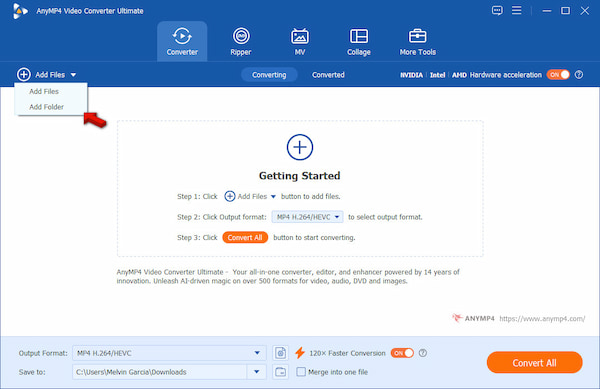
1. Upon opening AnyMP4 Video Converter Ultimate, the Converter tab opens by default. Click the + Add Files button and select Add Files to import individual videos. Alternatively, choose the Add Folder option for batch video conversion.
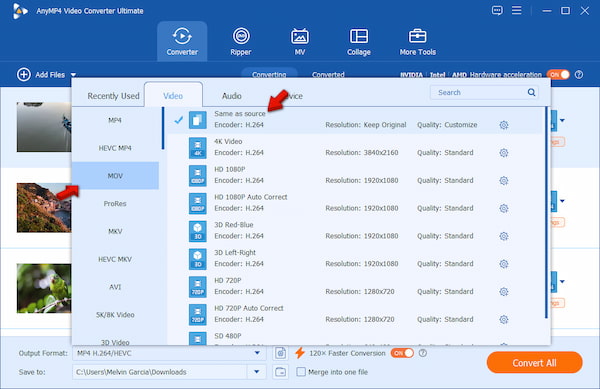
2. In the Output Format selector, navigate to the Video category. Select the MOV file as your output and choose your desired video quality. If needed, click Profile Settings to adjust video bit rate, frame rate, resolution, encoder, and quality.
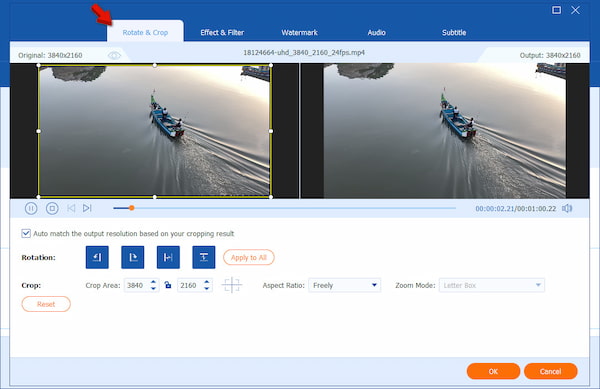
Creative Tip:
Click the Edit (magic wand) button next to the video thumbnail to open the built-in editor. Here, you can trim clips, crop frames, add watermarks, or enhance video quality before exporting.
3. Use the Save To selector to choose the destination for your converted file. Then toggle the 120× Faster Conversion switch for quick, lossless video conversion. After setting up everything, click Convert All to export your video to QuickTime format.
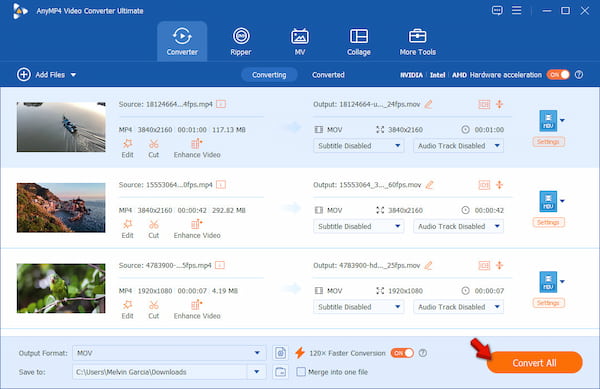
In our testing, this method consistently delivered the best performance, especially for large 4K files. The GPU acceleration dramatically reduced conversion time, while maintaining excellent video quality with no compression.
Method 2: Best Open-Source Alternative
HandBrake is an open-source media transcoding program that also operates as a video-to-MOV converter. It can transcode video files to MOV format or encode them in MP4, MKV, or WebM. It allows customization of video parameters, such as bit rate, frame rate, and resolution.
1. Open HandBrake and click Open Source to load the file. Under the Summary tab, click Format and select MOV as your new output.
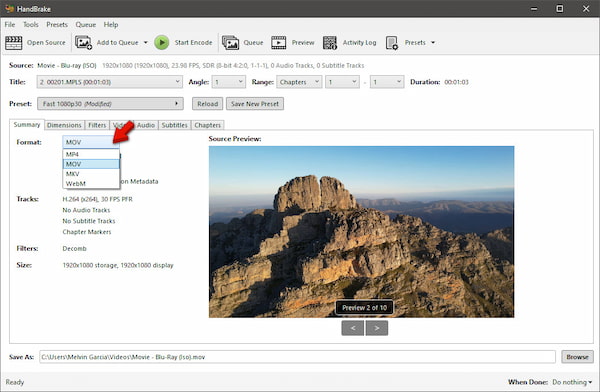
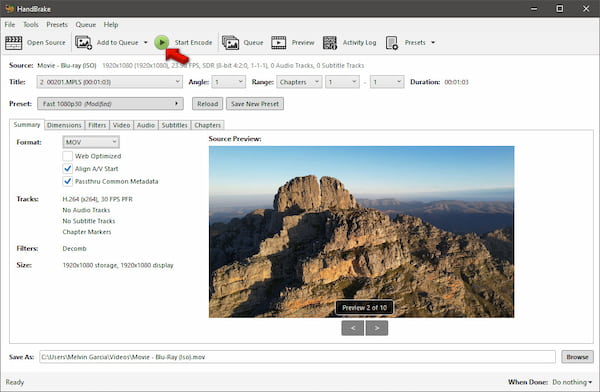
2. Click Preset, then select Fast 1080p30 quality for general use. Rename the file in the Save As field and click the circular, green Start Encode button to begin encoding your video.
HandBrake allows precise control over encoding settings, but it has a steeper learning curve. In testing, it produced high-quality output with minimal increase in file size. However, it cannot simply wrap an existing video stream into a new MOV container. It must re-encode every single frame.
Method 3: Free Online Method to Convert Video to MOV
AnyMP4 Free Online Video Converter is an excellent web-based video-to-MOV converter. As an online tool, it doesn't require any software installation or download; only an internet connection is required. It is 100% free and doesn't add a watermark to the output. It ensures file security by automatically deleting uploaded videos from its servers. It also supports batch conversion, allowing you to process multiple videos simultaneously.
1. Reach the official AnyMP4 Free Online Video Converter site by clicking the link provided. On the homepage, click + Upload File to select the video files you want to convert. You can also drag the video from the local folder and drop it directly to the page.
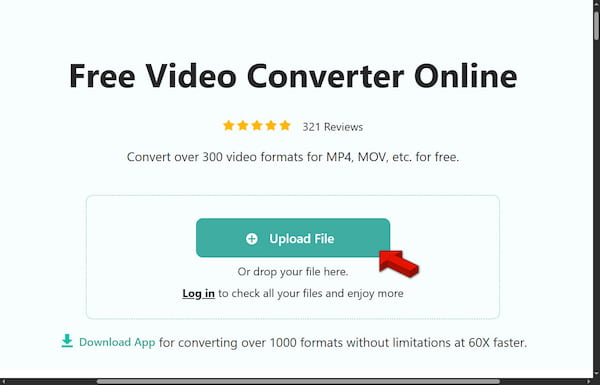
2. In the Format selector, choose MOV from the output format options. You can also adjust the encoder, resolution, zoom mode, frame rate, and quality. Click Save to process your videos and automatically download them to your local drive.

In real-world use, AnyMP4 Free Online Video Converter is extremely convenient for quick conversion tasks. It processes uploaded files and converts them without loss of visual quality. Notably, the security feature ensures that your files are safe.
Method 4: Best Cloud-Based Option for Small Files
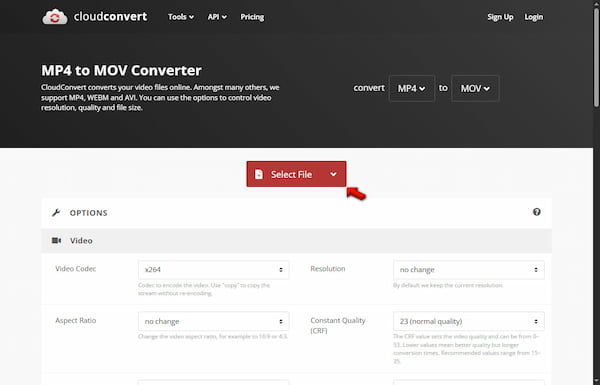
CloudConvert is a cloud-based solution that can convert video to a MOV file. It allows you to convert small video files directly in your browser without installing any software. In addition to MOV, it supports MP4, WEBM, AVI, and other common video formats.
1. On the CloudConvert homepage, click Select File and choose From my computer to add videos from your local drive. You can also import from cloud services or by URL.
2. Be sure that the default selected format in the Convert To selector is MOV. Click Convert to process your video, then download it afterward.
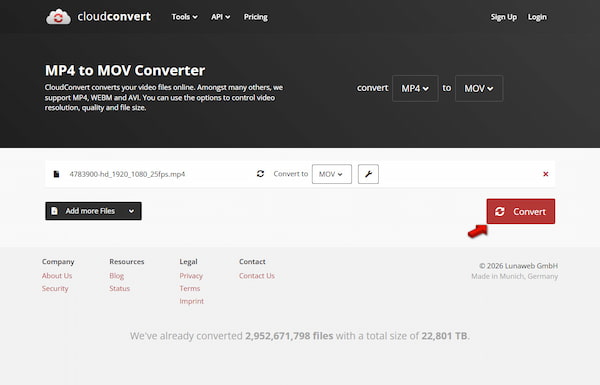
CloudConvert is highly reliable for small to medium files and offers high-quality conversions. Its flexibility and cloud integration make it a convenient solution for users who occasionally need MOV files. However, it has a daily limit of 25 file conversions.
Method 5: The Built-In Way for Mac Users
QuickTime Player is a dedicated MOV player on Mac that goes beyond media playback. It allows you to change the video format to MOV by simply exporting it. It is a convenient choice for users who want fast and hassle-free conversions with minimal effort.
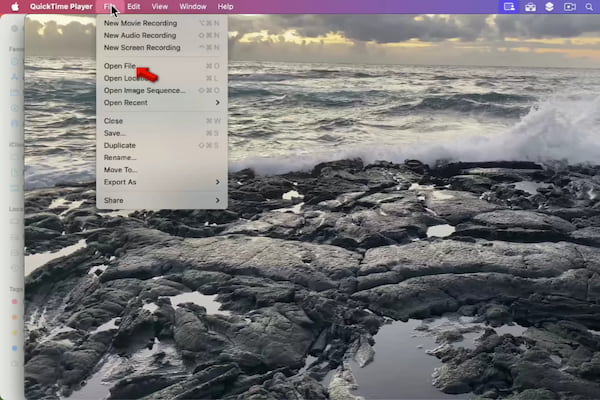
1. In QuickTime, click File, then choose Open File to load the video. Alternatively, locate the video file on your Mac and double-click it to open it in QuickTime.
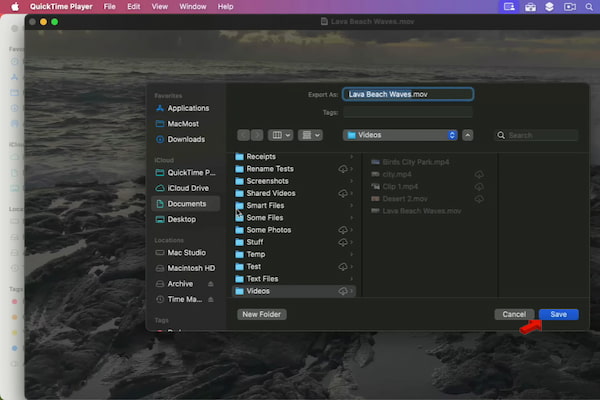
2. Click the File option again, then choose Export As and select a video resolution. Click Save to process the file and save it as a MOV format.
QuickTime Player is straightforward and dependable for Mac users, providing excellent output quality without extra configuration. However, it lacks batch processing and detailed codec settings. It only works best for occasional conversions.
FAQs about Converting Video to MOV File
Does converting a video to MOV lose quality?
No, provided you use the right settings and tools. AnyMP4 Video Converter Ultimate can perform lossless video conversion, preserving the original resolution, bit rate, and frame rate. Choosing H.264 for the MOV container ensures the output retains the same clarity as the source.
Can I convert video to MOV on a Windows PC?
Yes, you can change a video to MOV using desktop software and online tools. Applications like AnyMP4 Video Converter Ultimate run natively on Windows and allow fast conversions. For smaller tasks, web-based options like AnyMP4 Free Online Video Converter also work on Windows without installation.
Why is my converted MOV file so large?
MOV files can become large because the container stores high-quality codecs, uncompressed video streams, or Apple ProRes. These measures prioritize quality over file size. Please note that this format is intended for editing and playback fidelity, especially in professional workflows.
What is the best free video-to-MOV converter?
The best free options depend on your workflow. HandBrake is ideal for open-source enthusiasts who want control over encoding parameters. Meanwhile, AnyMP4 Free Online Video Converter is perfect for quick, hassle-free conversions without software installation.
Is MP4 better than MOV?
MP4 and MOV serve different purposes. If you prioritize professional editing and Apple device compatibility, the MOV format is better. However, if you need universal playback and smaller file sizes, MP4 is the preferred choice. Learn more about MOV, M4V, and MP4 formats here.
CONCLUSION
Our final verdict is clear: the best method to convert video to a MOV file depends on your specific video editing workflow. Based on our testing, if you need smooth playback on Apple devices and the fastest turnaround, AnyMP4 Video Converter Ultimate is the top performer. Ready to see the difference? Download a free trial today and experience the speed for yourself.
What do you think of this post?
Excellent
Rating: 4.9 / 5 (based on 522 ratings)