How to Convert M4A to FLAC With Optimized Settings Tips
QUICK SUMMARY:
Converting M4A to FLAC helps preserve audio quality in a lossless format for long-term storage and high-end playback. Tools like AnyMP4 Video Converter Ultimate offer fast batch conversion. On the other hand, Convertio provides simple online processing for quick tasks. Ultimately, FFmpeg delivers powerful command-line control for advanced users and automation workflows.
If you've spent years building an iTunes library, you might now feel your setup is holding you back. Even with high-end speakers or an audiophile Digital Audio Player, M4A can sometimes feel limiting because it prioritizes compression and storage efficiency over archival performance. While M4A is convenient for everyday listening, FLAC is widely regarded as the standard for bit-perfect, lossless preservation. A proper M4A-to-FLAC workflow ensures your music library is future-proof, editable, and compatible with high-end systems. In this guide, we explore how to move beyond good-enough audio and convert your collection to a stable, high-fidelity FLAC format designed for long-term listening satisfaction.
Part 1. Understanding the Combatants: M4A vs. FLAC
M4A (The Modern Standard)
M4A is an audio container format commonly associated with Apple devices and services such as iTunes and Apple Music. It uses AAC compression, which reduces file size while maintaining reasonable sound quality. However, M4A files are lossy, meaning they permanently remove some of the original audio data during compression.
FLAC (The Audiophile's Choice)
FLAC, or Free Lossless Audio Codec, preserves every detail from the original recording without sacrificing quality. Unlike lossy formats, it compresses audio without removing data, similar to a ZIP archive for music files. Audiophiles favor FLAC for high-resolution playback, archival purposes, and compatibility with premium audio systems and software.
Why Convert M4A to FLAC?
Universal Compatibility with Hi-Fi Systems
Many high-end network streamers and DACs prioritize FLAC because of its true lossless audio quality. Many users convert M4A to FLAC to enjoy broader compatibility with premium audio hardware. This format ensures smoother playback and preserves detailed audio performance.
Future-Proofing Your Library
FLAC's open-source format makes it a reliable long-term choice for preserving music collections. Unlike proprietary formats, FLAC remains accessible on various platforms and software. Choosing a lossless M4A to FLAC ensures your audio library stays accessible, editable, and compatible with future playback technologies and devices.
Superior Metadata Support
FLAC offers excellent metadata handling. It allows you to embed album artwork, artist details, lyrics, and track information efficiently. Many media players recognize FLAC tags more consistently than compressed formats, making library organization easier.
Method 1. The Gold Standard on Desktop: AnyMP4 Video Converter Ultimate
AnyMP4 Video Converter Ultimate is professional media conversion software that converts M4A to FLAC on Mac OS X 10.12-15 and Windows 8-11. It can convert M4A files to more than 500+ audio and video formats, including FLAC. Many free tools distort audio, but this software is engineered to preserve the original sound integrity.
Not to mention, it can batch-import and convert entire music libraries efficiently while maintaining fast conversion performance through hardware acceleration. It includes a built-in Media Metadata Editor for customizing album artwork, artist names, genres, and release years. You can also configure output parameters for better control over audio quality.
What to Expect with AnyMP4 Video Converter Ultimate:
- • Process entire discographies in seconds.
- • Zero data degradation during the transcode.
- • Keep album art, artist tags, and release years intact.
- • Customizable bitrate, encoder, sample rate, and channel settings.
Here's how to convert M4A to FLAC:
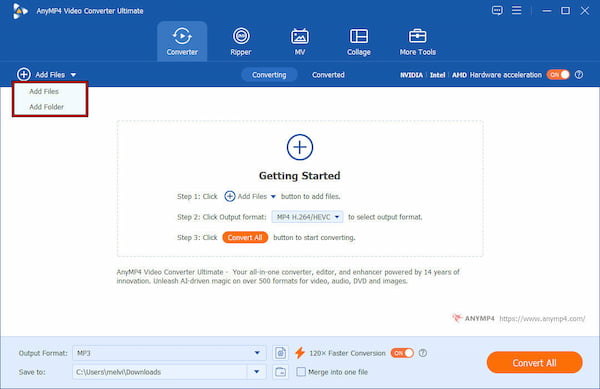
1. Open AnyMP4 Video Converter Ultimate on your computer to access the main interface. From the Converter tab, click + Add Files to import your M4A audio files individually. You can also drag and drop multiple M4A tracks directly into the software.
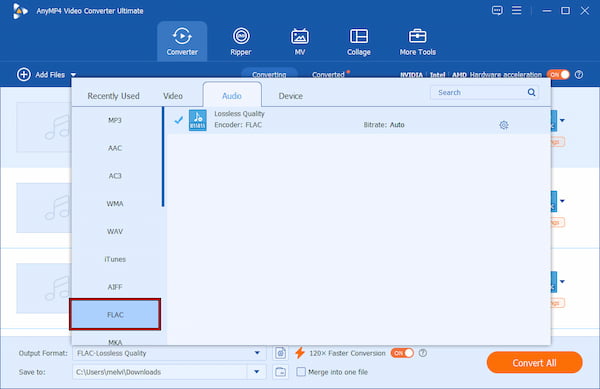
2. Proceed to the Output Format selector and switch to the Audio category. Select FLAC-Lossless Quality as your output format and choose a preset profile. Click Custom Profile to configure encoder type, bitrate, sample rate, and channel settings.
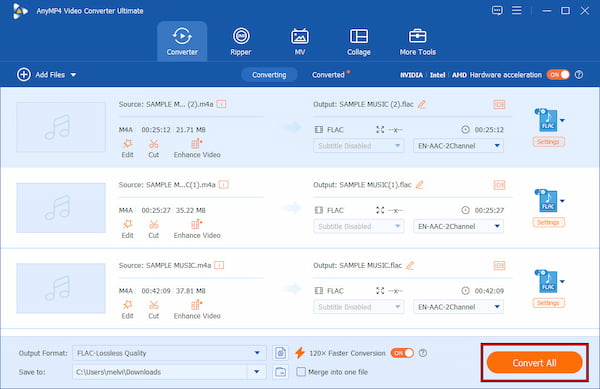
3. In the Save To selector, set the output directory for your converted file. To accelerate the process, enable the 120× Faster Conversion option. After finalizing the settings, click Convert All to convert M4A to FLAC without losing quality.
AnyMP4 Video Converter Ultimate provides a reliable, high-quality audio conversion without complicated setup. It is perfect for audiophiles and music collectors managing large libraries. If maintaining sound integrity during M4A-to-FLAC conversion is your priority, this software delivers fast conversion speeds and high audio quality.
Method 2. Great for One-off Files: Convertio
Convertio is an online M4A-to-FLAC converter for quick, convenient audio format conversions. It supports cloud-based processing and allows you to upload files directly from local storage, Google Drive, or Dropbox.
Here's how to convert M4A to FLAC on Windows:
1. On the Convertio homepage, click Choose Files to upload your M4A audio file from your computer. You can also import files from Google Drive or Dropbox.
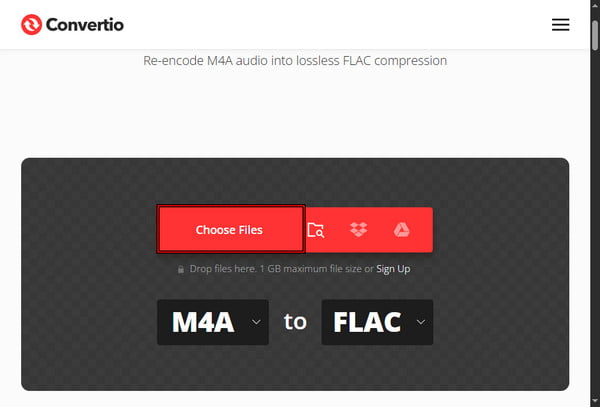
2. In the Format selector, choose FLAC as your output format. Then, click Convert to begin processing your file. After the conversion finishes, click Download to save the file.
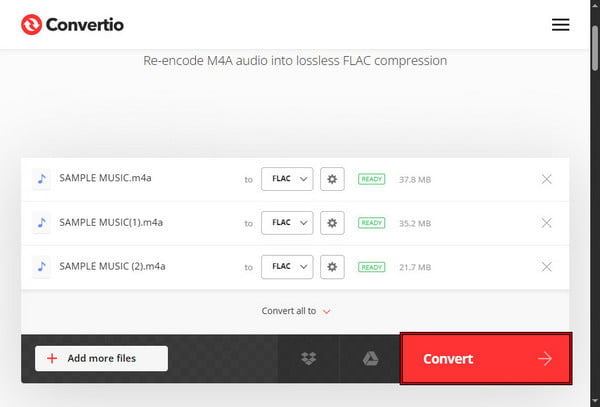
Convertio is best for fast, occasional audio conversion without installing desktop software. However, it has a 100 MB file size limit and a slower processing speed. Additionally, online tools raise privacy concerns because files are processed on remote servers.
Method 3. For Advanced Users/Batch Processing: FFmpeg
FFmpeg is a powerful multimedia framework you can use as a free M4A-to-FLAC conversion tool. supports nearly every codec and format, making it a flexible tool for tasks such as M4A-to-FLAC conversion. It is especially valued for automation, precision, and scalability.
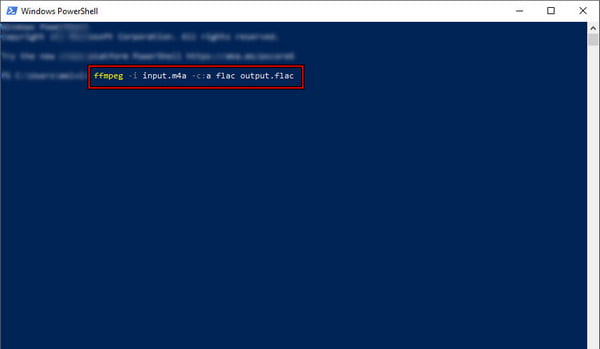
1. Open your Command Prompt (Windows) or Terminal (macOS/Linux), then run ffmpeg -i input.m4a -c:a flac output.flac. The -c:a flac flag ensures FLAC encoding is used.
2. For a M4A to FLAC batch conversion, navigate to the folder containing your M4A files. Then, run for i in *.m4a; do ffmpeg -i "$i" -c:a flac "${i%.m4a}.flac"; done.
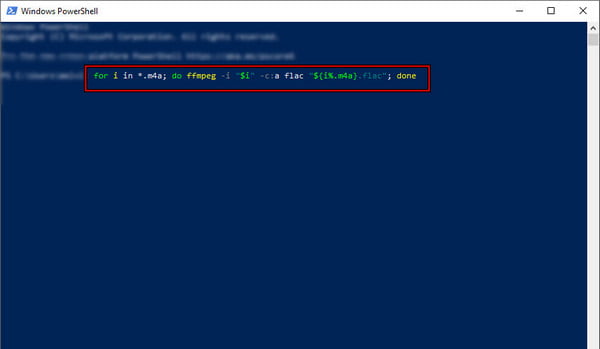
FFmpeg provides full control over audio conversion parameters, but incorrect command usage can affect output results. Advanced users can further optimize quality by adjusting bitrate, sample rate, or metadata handling depending on their workflow needs.
Part 5. Technical Deep Dive: Sampling Rates & Bit Depth
The Upsampling Myth
A common misconception about audio conversion is that converting M4A to FLAC automatically improves sound quality. In reality, this is not true. Lossy M4A files like AAC already lose audio data during compression. FLAC only preserves existing quality without further degradation.
Ideal Settings
For standard music, 16-bit and 44.1 kHz are ideal. This setting matches most M4A sources and avoids unnecessary increases in file size. Use 24-bit only for true high-resolution audio files. Using the best settings for M4A-to-FLAC conversion ensures efficient storage while maintaining original sound quality without artificial upscaling.
Part 6. FAQs about M4A to FLAC Conversion
Does converting M4A to FLAC improve sound quality?
No, converting M4A to FLAC does not improve sound quality because M4A is already a lossy format. The conversion only preserves the existing audio in a lossless container. It cannot restore details that were already removed during the original compression.
Will I lose my album art?
No, you will not lose album art if the converter properly supports metadata. Tools like AnyMP4 copy embedded artwork, artist names, and tags from M4A to FLAC. However, some basic or online converters may strip metadata.
Why is my FLAC file so much larger than the M4A?
FLAC files are larger because they use lossless compression. It means they store all available audio data without removing any of it. M4A reduces file size by discarding less noticeable sound details. FLAC prioritizes quality preservation, which naturally results in bigger file sizes.
Can I play FLAC on my iPhone?
Yes, but not directly in the default Apple Music app for older iOS setups. Modern iPhones running updated iOS versions support FLAC playback through Files, Apple Music, or third-party FLAC players.
Conclusion
Transitioning from M4A to FLAC is the first step toward a high-fidelity lifestyle. Whether you are archiving a rare collection or prepping tracks for a high-end audio system, using the right conversion strategy ensures you never lose a single decibel of data. Ready to upgrade your library? Download AnyMP4 Video Converter Ultimate today to batch convert your M4A collection to FLAC in seconds without compromising quality.




 Add your comments to join the discussion here