- Convert video, audio, and DVD over 500 formats.
- GPU acceleration to speed up the conversion process at 70X faster.
- More than 16 editor tools in the toolbox (Updating).
- Create videos for TikTok, YouTube, Facebook, etc.

Free Download100% Clear & Secure
Free Download100% Clear & Secure
Convert HEVC to MOV Online
Back to main page
Setting
Custom resolution:
| Core Features | Web Version | Pro Desktop |
| Max File Size | 50MB (Login: 100MB) | No Limit |
| Daily Limit | 2 Files (Login: 10 Files) | Unlimited |
| AI Video Upscaling | No | Yes (Up to 4K/8K) |
| GPU Acceleration | No | Yes (70X Faster) |
| Batch Processing | No | Yes |
Failed to upload media file! Please try again, or use AnyMP4 Video Converter Ultimate for Desktop.(Error code: 20015)


The original video resolution is higher than 1080p. If you want to output the original high resolution, you need to download the Pro Version. Or would you like to output the default 1080p resolution?

Quick Answer:
Converting HEVC to MOV solves compatibility issues across legacy editing software and Windows environments. By using professional tools like AnyMP4 Video Converter Ultimate or free options like HandBrake, users can transcode H.265 streams into highly compatible H.264 MOV files without losing 4K visual fidelity. Key selection factors include GPU acceleration and batch processing capabilities.
HEVC (also known as H.265) offers superior compression compared to the older H.264, but it often encounters the 'codec missing' error on older systems. So, to ensure seamless compatibility, many professionals will convert HEVC to MOV, the native QuickTime format for Apple ecosystem workflows. Before converting, what we need to understand is that HEVC is the codec and MOV is the container (wrapper). In this guide, we will explore the top three HEVC-to-MOV solutions, including tools that use hardware acceleration for fast conversion and one that ensures high-quality video files through lossless transcoding. If you are interested, keep reading.

The primary reason to convert HEVC to MOV is to resolve the frustrating 'Codec Missing' or 'Unsupported Format' errors that plague both Windows and Mac users. While HEVC (High Efficiency Video Coding) is the modern standard for 4K video, older operating systems and editing software often lack the built-in decoders to play or process it.
HEVC is the codec (the compression technology used to shrink data), whereas MOV is the container (the 'wrapper' that holds video, audio, and metadata). Wrapping HEVC data into a QuickTime-standard MOV container can significantly improve compatibility with professional tools like Premiere Pro and native Apple applications, ensuring your footage is both high-quality and highly accessible.
AnyMP4 Video Converter Ultimate is a powerful all-in-one video converter for Windows and Mac. Thanks to hardware acceleration technology (NVIDIA, AMD, and Intel), it is 70x faster. This makes it the ideal choice for 4K/8K batch conversions where time is money. Furthermore, it stands out as a comprehensive professional editing program rather than a simple converter, offering a built-in toolbox for metadata editing, AI upscaling, color grading, and more.
Secure Download
Secure Download
1. Download and install this HEVC-to-MOV converter on your computer. After installing, it will launch automatically. Click Add Files, or directly drag and drop to import your HEVC videos.

2. Click the Output Format option to choose MOV under the Video tab from the drop-down list. Select Same as source or 4K to ensure lossless quality.
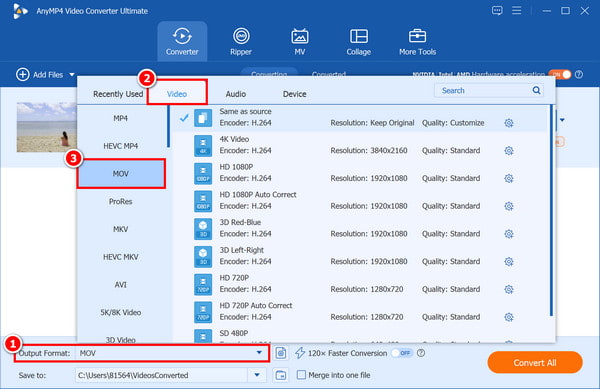
3. Select a path for the converted files. And then click Convert All to process your HEVC files to MOV at ultra-high speed.
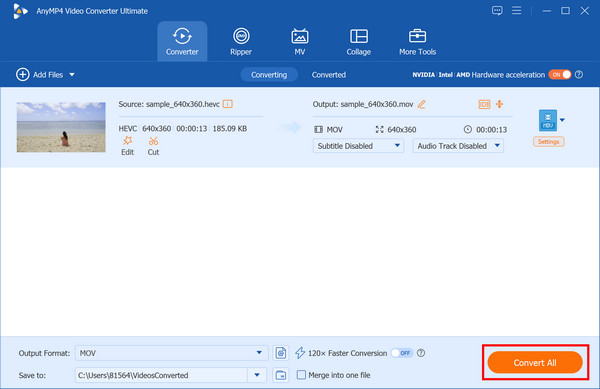
In general, AnyMP4 Video Converter Ultimate, as a HEVC-to-MOV converter, can be called the gold standard for users who prioritize efficiency and output quality.
For one-off tasks, AnyMP4 Free Online Video Converter offers ultimate convenience: no installation and No Watermark. It is specifically designed for quick one-off conversions of files under 100 MB. In addition, this online tool maintains a transparent privacy policy under which all uploaded files are automatically deleted from its servers within 24 hours.
Here are the simple steps to convert with it:
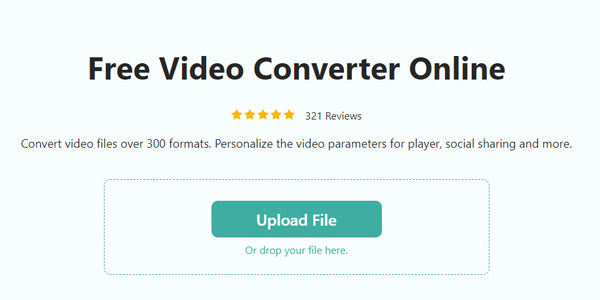
1. Click the link above to visit the website. Click Upload File or drop the HEVC file to add the video file you want to convert.
2. Select MOV as the output format from the Format list. You can also set the encoder, resolution, frame rate, quality, and more as you like.
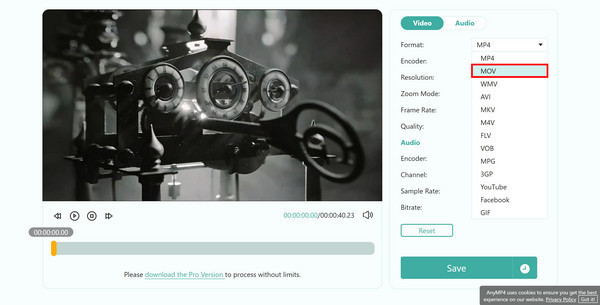
3. Click Save to start converting the HEVC video to MOV. When finished, click Download to save it to your computer.
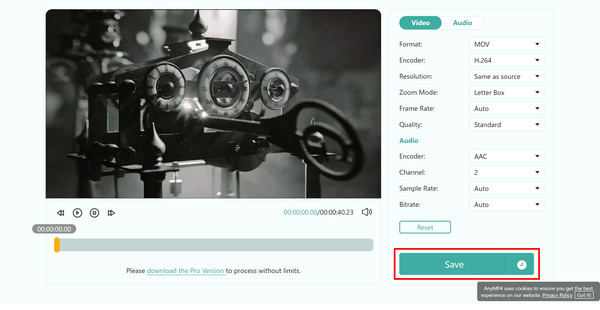
AnyMP4 Free Online Video Converter is the most convenient choice for one-off tasks and small files, though internet speeds and file size caps limit it.
HandBrake is an open-source transcoder that offers a free experience. Its granular control over encoding settings allows tech-savvy users to manually tweak bitrates and frame rates. Besides, HandBrake's long-standing reputation and frequent community updates ensure it remains compatible with the latest video standards, such as HEVC (H.265). By the way, understanding the technical nuances of H.265 vs H.264 lets you better use HandBrake's settings to maintain high visual fidelity during conversion.
Below are the steps to use it for conversion:
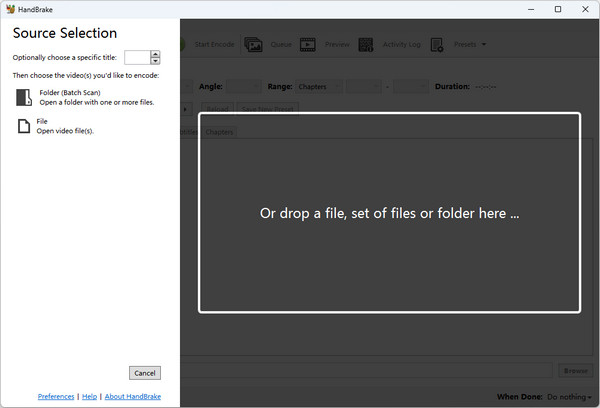
1. Open HandBrake and drag your HEVC file/folder into the window to import it.
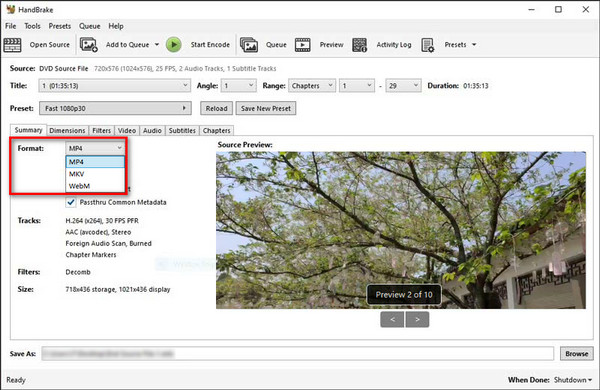
2. Select MP4 as the format on the Summary tab (you may need to change the file extension to .mov manually).
3. Go to the Video tab to set Video Encoder to H.264 (x264) for maximum compatibility. Click Browse at the bottom to set the save name and location. Then, click Start Encode to convert.
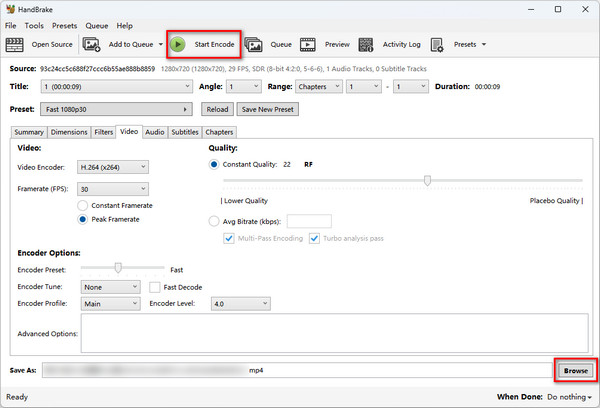
HandBrake is an open-source, free option for transcoding, though its complex interface and lack of dedicated support can be daunting for beginners.
| Feature | Speed | Batch Mode | Max Quality | Price | Best For |
|---|---|---|---|---|---|
| AnyMP4 Video Converter Ultimate | Ultra-Fast (GPU) | Yes | 8K/Lossless | Paid/Trial | Professional Editors |
| AnyMP4 Free Online Video Converter | Internet Dependent | Limited | 1080p | Free | Casual Users |
| HandBrake | Moderate (CPU-heavy) | Yes | 4K | Free (Open-Source) | Tech-savvy users |
To ensure professional results, you can perform these three tests below:
Is MOV better than HEVC?
In fact, MOV and HEVC usually do not compare: they are partners and play completely different roles in video files.
Can VLC convert HEVC to MOV?
Yes, VLC Media Player can definitely convert HEVC to MOV. While most people see it as just a player, it has a robust built-in transcoding engine.
Why is my HEVC file only playing audio?
If you can hear the audio but cannot see the picture when playing the HEVC file, it means your computer lacks the key required to unlock the video track (HEVC/H.265).
Does converting HEVC to MOV lose quality?
It depends entirely on how you perform the conversion. HEVC is a codec (compression), and MOV is a container (wrapper), so it depends on whether you are transcoding (changing the data) or remuxing (changing the box).
Is HEVC to MOV conversion free?
Whether converting HEVC to MOV is free or not depends on whether you use open-source software, online tools, or specialized HEVC to MOV programs.
Whether you give priority to the unparalleled speed and AI enhancement of AnyMP4 Video Converter Ultimate or the zero-cost convenience of online tools, with the help of these tools, it is easy to convert HEVC to MOV. Hope that through this article, you can find a reliable method to ensure your material meets your creative needs wherever you need it.
Secure Download
Secure Download
 Updated by Alice Thorne to Convert Video
More readings
 How to Convert MOV to WAV (Lossless Audio) on Windows & Mac
Easily extract high-quality WAV audio from MOV videos. Get the best 3 converters for batch conversion and 100% original quality.
 MOV to WebM: 4 Ways to Preserve Transparency & AV1 Quality
Convert MOV to WebM while preserving Alpha Channel transparency. We compare AnyMP4, HandBrake, FFmpeg, and CloudConvert for speed, AV1 support, and 4K quality.
 MOV Video Converter - Top 5 MOV Converters for Mac and PC
What video format is MOV? How do I convert MOV to MP4? This post makes a list of 5 best MOV video converters including free online converters for you to choose.
 How to Play MOV Files on Windows 10/11 with 3 Easy Ways
Wondering how to play MOV files on Windows 10/11? This post shares 3 easy ways with the best MOV viewers to help you open MOV files on your Windows 10/11 PC.
 Add your comments to join the discussion here