
Summary
When you convert MPEG to MOV, you can ensure your files will play on iDevices and QuickTime Player. For maximum security and no quality loss, AnyMP4 Video Converter Ultimate is recommended. For one-off file conversions under 1GB, FreeConvert provides an accessible alternative.
If MPEG videos fail to play on Apple devices and apps, converting MPEG to MOV improves compatibility. Older MPEG files result in playback failures or unsupported-format messages in Apple’s modern ecosystem. It can be especially frustrating when the footage contains important recordings. In this post, we will show you three proven ways to convert your old files to modern formats. With the right tool, you can preserve high video quality and create a format compatible with modern devices and apps.

The reason why you need to convert MPEG to MOV is to ensure compatibility with QuickTime Player and Apple ecosystem. MOV file is the standard container format for QuickTime. It makes your video files ready for playback on Mac, iPhone, and iPad.
The MOV container packages video, audio, metadata, and other media information. Meanwhile, the video codec (H.264 or HEVC/H.265) determines how the actual video is compressed. The H.264 is for broad compatibility, while HEVC/H.265 provides better compression efficiency.
AnyMP4 Video Converter Ultimate is the best tool for high-quality MPEG-to-MOV conversion. It guarantees absolute data privacy/local processing, ensuring your files won’t leave your desktop. It uses advanced encoding technology to wrap MPEG streams into MOV containers. With it, you can simultaneously batch convert multiple files at 120× speed without lag or crashes. Beyond MOV, it can also output MP4, MKV, AVI, and 500+ other formats.
1. Download AnyMP4 Video Converter Ultimate and complete the installation. After setup, the software will open to the Converter tab.
Secure Download
Secure Download
2. Click +Add Files to load the MPEG files from your computer. Remember, you can import more than one file, allowing you to process multiple files simultaneously.
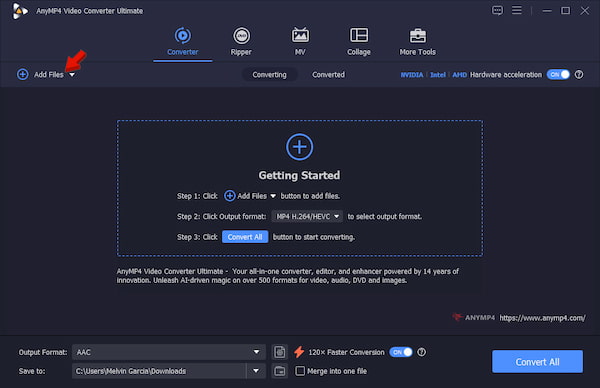
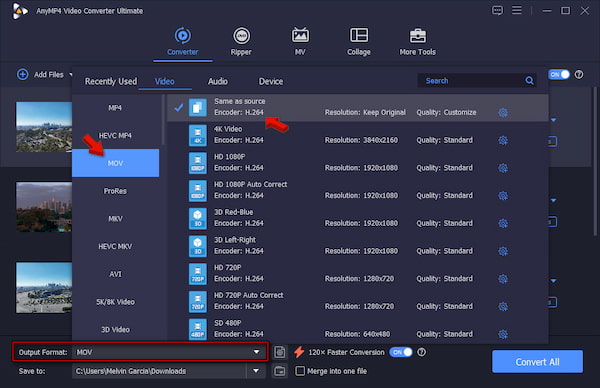
3. Head to the Output Format picker and select MOV under the Video category. Select Same as Source as your quality preset to match the original resolution of your source.
4. Go back to the main interface and activate Hardware Acceleration to speed up the conversion. Set the destination folder, then click Convert All to batch-convert MPEG to MOV without quality loss.
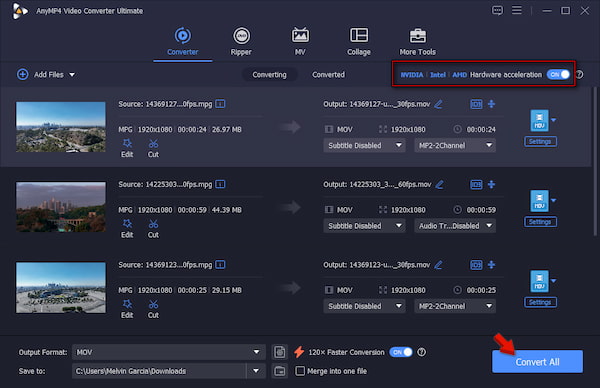
Before the conversion, we QA-checked all 50 source files in an MPEG player. After verifying playback for all 50 files, totaling 1.3 GB, we ran the batch conversion using AnyMP4 Video Converter Ultimate, which finished in 2:26.
| Privacy Level | Batch Processing Support | UI Friendliness | Recommended OS | |
|---|---|---|---|---|
| AnyMP4 Video Converter Ultimate | Offline |  No limit No limit |
Beginner-friendly | Windows and Mac |
| FreeConvert | Online | 5 concurrent conversions |
Easy | Web |
| HandBrake | Offline | No limit |
Advanced users only | Windows, Mac, and Linux |
FreeConvert is an online service that lets you change MPEG to MOV format. It supports more than 1,500 media and file types, including video, audio, image, documents, and even eBooks. It also comes with a built-in file compression tool that can shrink the size of large files.
To convert: Go to the FreeConvert site and click Choose Files to import the MPEG source from your computer. Click the Output picker and select MOV in the Video category. Then, click Convert to process the conversion, then download each right after.
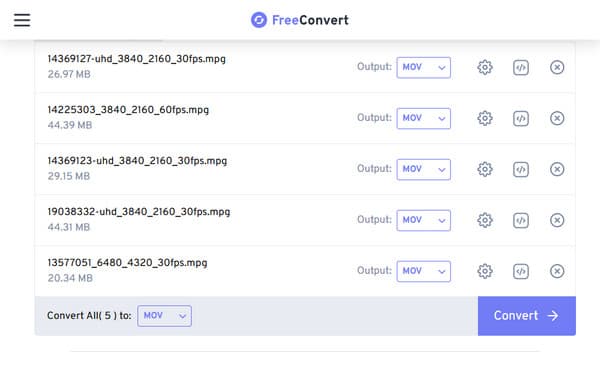
FreeConvert, as the name suggests, allows you to convert files for free. However, being free comes with its limitations. As a free user, you are limited to a maximum file size of 1 GB and 20 free minutes of conversion per day.
HandBrake is an established open-source video transcoder that has been around for years. It is one of the best software to change MPEG to MOV securely. You can also use it as an MPEG-to-MP4 converter, with the option to customize advanced video parameters.
To convert: Drop the MPEG sources directly to HandBrake. Head to the Summary tab and select MOV in the Format picker. Then, click the Start Encode button in the top menu to begin the conversion.
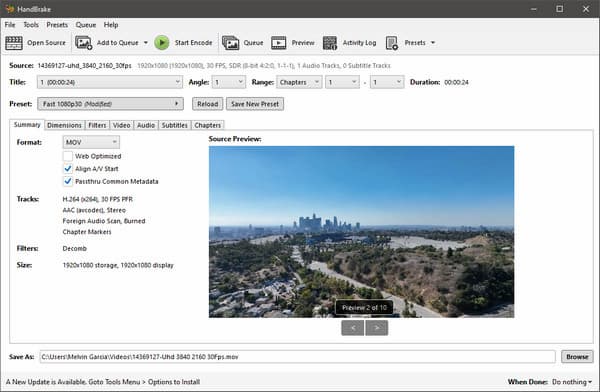
HandBrake is a strong option for users who want advanced customization of video parameters before export. However, the output formats it offers are limited to MOV, MP4, MKV, and WebM. If you want more formatting options, this tool is definitely not a good option.
Desktop-based MPEG-to-MOV converters keep your files on the computer during conversion. It means you don’t need to upload them online, ensuring your sensitive recording is safe. Also, the conversion does not depend on the internet connection, making the entire process faster.
Online converters, on the other hand, are convenient because they require no software installation. However, using an online tool requires you to upload your files to third-party sites with no control. Also, there are file-size restrictions and a batch-conversion limit.
| Desktop Converter | VS | Online Converter |
|---|---|---|
 |
Internet required | |
|
Source stays local | |
| Better choice | Sensitive footage | Use with caution |
|
Installation | |
| High | Privacy control | No control |
Does converting from MPEG to MOV reduce the video quality?
No, it does not reduce video quality. Both formats are containers, meaning they only wrap the actual video and audio data. If you copy the media without re-encoding, the quality stays the same.
Why is my Mac unable to open standard MPEG video files?
Mac cannot open standard MPEG video files because QuickTime lacks support for older encoding formats. It dropped its native support for MPEG-2 to focus on modern video codecs.
Is it safe to upload personal MPEG videos to online converters?
No, it is not safe or recommended to upload personal MPEG videos to online converters. You may not know that your files are transmitted to and stored on third-party servers.
Can the conversion process from MPEG to MOV be batch-automated offline?
Yes, you can batch-automate the conversion from MPEG to MOV using AnyMP4. It lets you queue hundreds of files simultaneously and wait until the conversion finishes.
The best way to convert MPEG to MOV depends on the type and quantity of video being processed. Use online tools, like FreeConvert, if you’re processing non-sensitive video clips. However, switch to offline converters when processing private home videos or confidential footage. To ensure the privacy and security of your files, use AnyMP4 Video Converter Ultimate. It guarantees your files won’t leave your computer. It also supports batch conversion at ultra-fast processing speed.
 Posted by Alice Thorne to Convert Video
More readings
 4 Best Methods to Convert MP4 to MPEG in 2026
Want to convert MP4 to MPEG for DVD burning or legacy equipment? Here are the 4 best methods for high-speed, high-quality conversion.
 AVI to MPEG/MPEG to AVI – Top 5 Free and Professional Video Converters
Which AVI to MPEG converter does a good job? If you are looking for the best AVI to MPEG or MPEG to AVI file converter, you can check this review.
 AVI File – Everything You Need to Know about Video File Format
AVI is a computer file format that contains audio and video data and plays back the audio and video data simultaneously. Get more info from this post.
 What Is An MKV File and How to Play It without Quality Loss
Do you have a video in MKV file and want to learn more information about it? You are at the right place since this concrete guide will tell you everything.

