
Summary
The safest and fastest way to convert MPG to MOV is using AnyMP4 Video Converter Ultimate. It guarantees 100% offline privacy, leverages hardware acceleration (NVENC/QSV) for 120x faster speeds, and bypasses the file-size limits common to online tools like FreeConvert. For a quick, small-file conversion, web tools are viable, but desktop software remains essential for high-res batch processing.
Many users discover that older MPG videos don't play smoothly in QuickTime Player or Apple editing software on modern Macs. Although online converters may seem convenient, they often have 1 GB file-size limits, slow upload speeds, and privacy concerns. That's why converting MPG to MOV is a more reliable solution for better compatibility within the Apple ecosystem. In this post, we'll show you three effective ways to convert MPG files to QuickTime format. We’ll help you achieve lossless quality, 100% offline privacy, and fast batch processing while choosing the method that best fits your workflow.

The MPG file, interchangeable with MPEG, is a video format for distributing movies and videos online and on physical discs. The format compresses high-definition audio and video data into manageable file sizes. Unfortunately, the format does not work with Apple products. In contrast, the MOV file format supports H.264 and HEVC, which offer better compression and video quality. Therefore, it will be beneficial to convert MPG to MOV.
To provide reliable recommendations instead of generic feature lists, we evaluated each converter through hands-on testing. We conduct our conversion testing on Windows 10, converting 50 MPG home videos, totaling 552.50 MB. We compared each tool based on its output quality, speed, CPU/GPU utilization, and video bitrate consistency.
| Best For | Offline Privacy | Hardware Acceleration | Max File Size | |
|---|---|---|---|---|
| AnyMP4 Video Converter Ultimate | High-speed batch conversion and 100% offline privacy |  |
NVIDIA NVENC, Intel QSV, and AMD |  No limit No limit |
| HandBrake | Advanced tech users | |
Limited | No limit |
| FreeConvert | Quick, small files | |
Depends on the server | 1 GB |
Many professionals turn to AnyMP4 Video Converter Ultimate when dealing with large home footage or video archives. It can convert MPG to MOV and 500+ other formats optimized for editing and sharing. You can input hundreds of video files and process them simultaneously without experiencing lag or crashes. Also, it lets you wrap files into MOV container using H.264, XVID, and ProRes (422, 422 HQ, 422 LT, or 422 Proxy). It uses the most advanced hardware-accelerated media processing to achieve 120× conversion speed. Since it processes the files 100% locally, your videos never leave your hard drive.
Secure Download
Secure Download
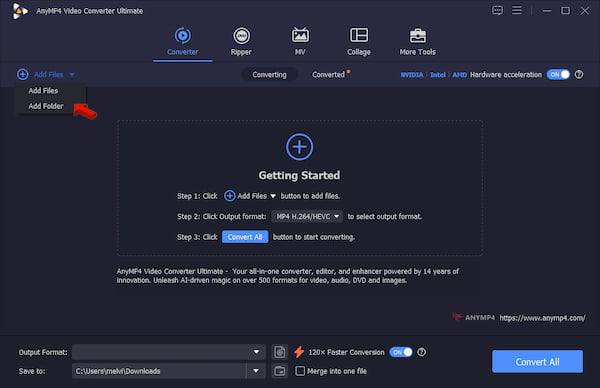
1.Download AnyMP4 Video Converter Ultimate and complete the setup. After installation, it will launch automatically. In the Converter tab, click +Add Files to upload the MPG sources, or use Add Folder for batch upload.
2.Go to the Output Format picker and select MOV under the Video Category. Then, choose a quality preset that matches your intended use. For the best results, select Same as Source to match the source’s original resolution.
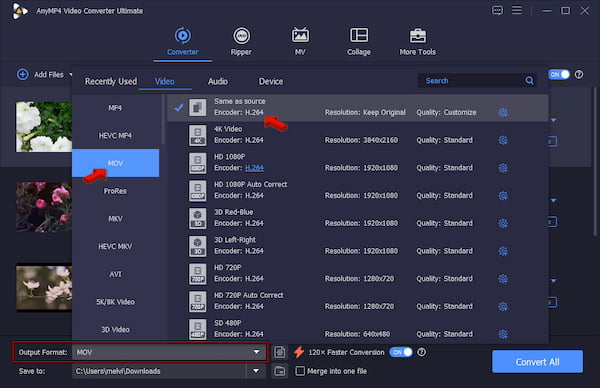
Avoid using 4K, HD 1080p, or HD 720p unless you’re upscaling or downscaling the video.
3.Go back to the main interface, then enable Hardware Acceleration and 120× Faster Conversion to speed up conversions. Right after that, set the destination path, then click Convert All to batch-convert MPG to MOV offline.
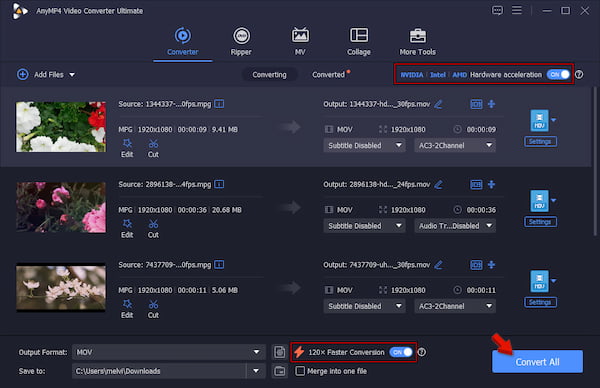
To assess the credibility of AnyMP4’s output quality, batch conversion, and fast processing, we put it to the test using Windows 10. In our test, we use 50 MPG home videos, totaling 552.50 MB. It took only 1 minute and 44 seconds to convert them to MOV format with hardware acceleration enabled. We use the Same s Source preset to guarantee a 1:1 copy of the source.
Among the most established video transcoders for converting media, especially for advanced users, is HandBrake. It has long been established and is still actively updated by its community. Today, you can convert MPG file to MOV encoded in H.264/HEVC/AV1 codecs. This allows you to improve QuickTime player compatibility and reduce MPG file size.
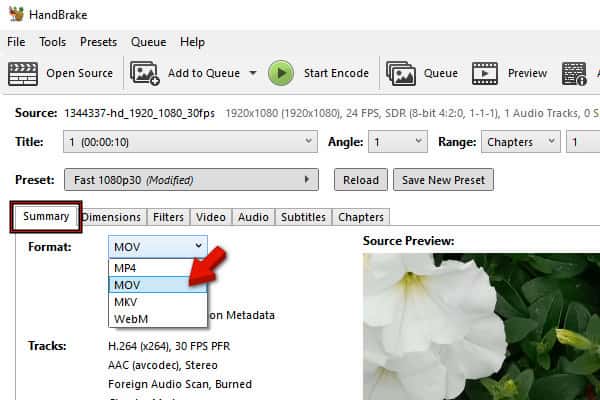
1.Open HandBrake and drop the source MPG directly into the uploading box. Right after, it will scan the video(s). Go to Summary, click the Format picker, and select MOV.
2.Head to the Video tab and choose H.264 (×264) for optimal video quality and high compression. After setup, click Start Encode to begin converting your MPG file.
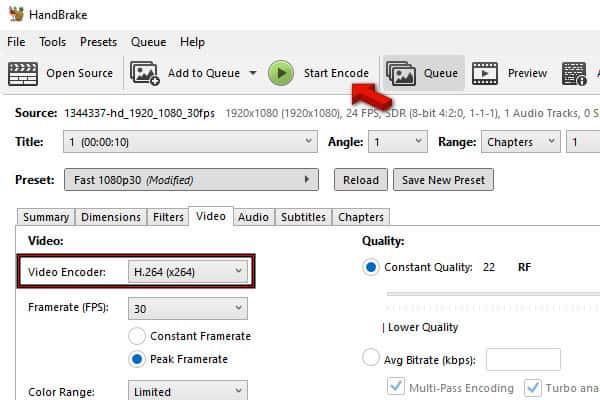
Indeed, HandBrake is a powerful tool for transcoding media files. Due to its high level of control, advanced users consider it the most suitable tool for their conversion needs. However, if you need a faster tool with native MOV support, you'd be better off switching to AnyMP4.
For a single small file conversion, you can use an online MPG-to-MOV converter. At FreeConvert, you can import your MPG files from a computer, through the cloud, or via URL. With it, you don’t need to download or install any software, as it runs entirely online. Most online tools cap files at 50 MB, but FreeConvert is generous, allowing file sizes up to 1 GB.
To convert: Head to the FreeConvert page and click Choose Files to upload the MPG video from your computer. Click the arrow dropdown and select a service to import videos from the cloud. In the Output picker, go to the Video category and select 3GP. After choosing a format, click Convert to initiate the conversion, then download the file to your computer.
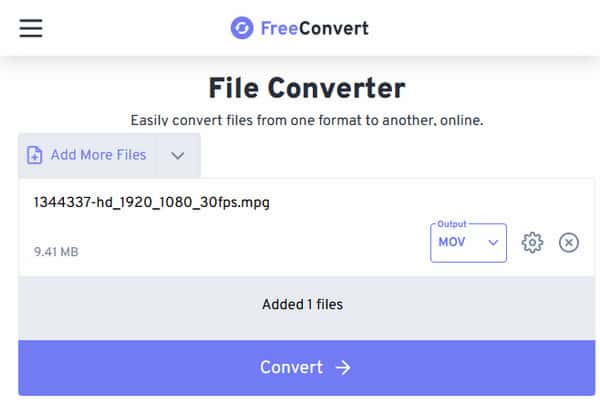
FreeConvert is a convenient option to convert MPG to MOV QuickTime format. But as a free tool, you should expect that there are limitations integrated with it. As a free user, you are limited to 25 conversion minutes per day. Also, processing speed heavily depends on your internet.
Selecting the codec type when converting MPG files to QuickTime format is crucial. It ensures high compatibility and a small file size. Use H.264 for compatibility with desktops, iOS devices, QuickTime player, and editing apps. But if you’re working with 4K or 8K files and trying to reduce file size without necessarily compromising quality, you need to use HEVC (H.265).
Why is my MPG file playing without sound in QuickTime?
Your MPG file plays without sound on QuickTime Player because it uses an unsupported audio codec. Another reason is that your video might be encoded in the older MPEG-2 format. To ensure smooth playback, use a dedicated MPG player instead.
Is it safe to use online converters for my private home videos?
To be real with you, it is not safe to use online converters for converting private home videos. By uploading sensitive or personal videos, you expose your privacy to unknown sites. To ensure your file’s security, use offline tools such as AnyMP4.
Does converting MPG to MOV reduce the video quality?
Yes, it results in minimal quality loss. MPG is compressed using MPEG-1 and MPEG-2. Therefore, when you encode it into another file format, you compress it twice. However, a high video bit rate can be set to avoid any quality loss.
Can I batch-convert multiple MPG files to MOV on a Mac?
Yes, you can batch convert multiple MPG files at once on a Mac. For this, you can use AnyMP4 Video Converter Ultimate, which allows you to import hundreds of files and process them simultaneously without lag or crashes.
Which video codec should I choose (H.264 or HEVC) when exporting to MOV?
Use the H.264 video codec for compatibility with older devices, web browsers, or social media sites. On the other hand, choose H.265 to retain high-quality visuals while reducing file size.
For small MPG-to-MOV conversions, FreeConvert is a convenient choice. However, for unlimited batch conversion, 100% offline privacy, and faster performance, we recommend AnyMP4 Video Converter Ultimate. You can also explore our guides on What Is an AV1 Codec? and How to Compress MOV Files for more optimization tips. No need to wait for cloud uploads. Grab yourself AnyMP4 Video Converter Ultimate free of charge and convert your MPG files right away. Please comment below about your PC or Mac configuration and conversion speeds.
 Posted by Alice Thorne to Convert Video
More readings
 How to Rip Blu-ray Discs to MPG for Easy Playback
This post focuses on ripping Blu-ray discs to MPG format. So, if you have no idea how to perform it, don’t hesitate to click on this post.
 3 Ways to Rip DVD to MPG on Windows and Mac [2026 Guide]
Come to learn how to rip DVD to MPG files in three simple ways. Follow our step-by-step guide to convert your DVDs to the MPG format easily and efficiently.
 Top 3 Methods to Convert MOV Video Files to AVI Format in 2026
This is a comprehensive guide of 3 100% working methods to convert your MOV video files to AVI format, so that you can watch them on Windows 10/8/7 smoothly.
 AVI to MOV for Mac/PC: 3 Ways to Keep Original Quality
Need to play AVI on QuickTime or iMovie? Learn how to convert AVI to MOV on Mac/Windows without losing quality. Try for free!
 Add your comments to join the discussion here