
At a Glance Summary:
The fastest and most secure way to convert M4A to OGG is to use a dedicated desktop program like AnyMP4 Video Converter Ultimate. Unlike online tools, software with hardware acceleration tech can ensure zero quality loss and 100% privacy and security during transcoding. For users seeking open-source tools, Audacity and FFmpeg are also good options.
Are you looking for a tool to convert M4A to OGG but are confused or frustrated in the process? After all, many free online converters limit file size or the number of files you can upload, are full of pop-up ads, and lack customizable audio settings, which can lead to a loss of sound quality. Worse still, uploading private voice memos or unreleased podcast audio to cloud servers may carry risks of privacy and data security leaks. To avoid these issues, you need a professional and reliable M4A-to-OGG converter. This guide will show you three top-recommended methods, including both desktop and online options.
While M4A (using Apple's proprietary AAC/ALAC) offers excellent compatibility with the premium ecosystem, industry standards favor OGG for workflows. OGG uses the advanced, royalty-free codecs (Vorbis/Opus). Thanks to its zero licensing fees, seamless playback with lower latency, and excellent data compression efficiency at low bitrates, it performs better in HTML5 web streaming and indie game development.
When it comes to handling high-fidelity audio like M4A, relying on browser-based tools often means compromising on speed and security. After testing over a dozen solutions, AnyMP4 Video Converter Ultimate stands out as the most robust choice for both casual users and audio professionals in 2026. Rather than just a basic file swapper, it acts as a comprehensive audio workstation that puts you in full control of the output quality.
Secure Download
Secure Download
Key Benefits:
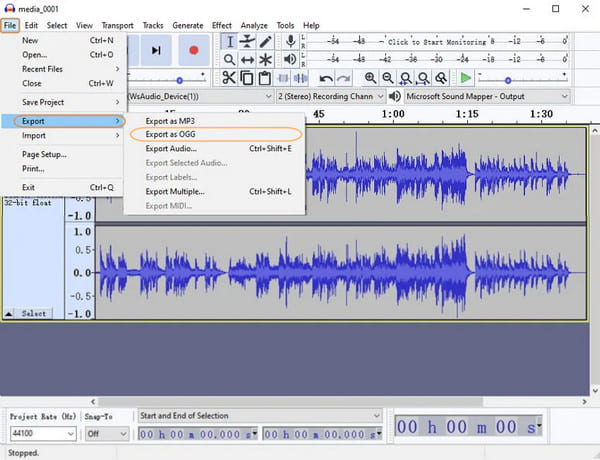
Audacity is a powerful, free, open-source audio editor suitable for converting local M4A files to OGG. Because it processes data on your hard drive, it can guarantee your data privacy and requires no network connection. By installing the optional FFmpeg library, Audacity enables seamless multitrack editing, precise bitrate settings, and custom audio channels and other parameters. This ensures that the converted OGG files remain clear and high-fidelity, preventing the loss of audio quality. It is also a good choice for users.
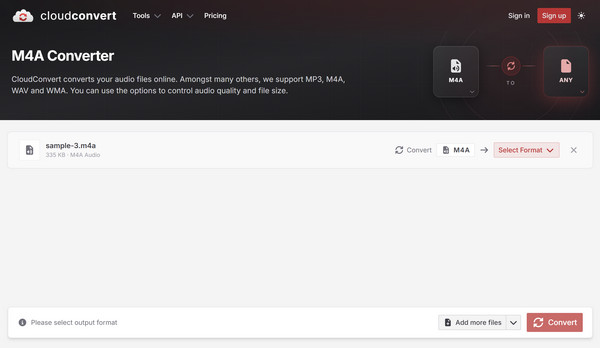
CloudConvert is a highly efficient, web-based file converter ideal for handling casual and small M4A-to-OGG conversions. As an online tool, it requires no installation and offers 25 free minutes of conversion per day. Unlike more basic web engines, CloudConvert offers advanced customization options, allowing users to adjust audio codecs, bitrates, and volume levels within its interface.
It serves as a convenient, fast tool for cross-platform, one-off audio tasks, but it would not be used for sensitive or unreleased M4A audio files due to its cloud-upload feature.
| Tool Name | Best For | Batch Conversion | Custom Audio Parameters | Privacy Level | Price |
|---|---|---|---|---|---|
| AnyMP4 Video Converter Ultimate | High-speed, heavy-duty desktop encoding | Yes | Yes (Precise codec, bitrate, & channels) | High (100% Local processing) | Free trial; Paid license |
| Audacity | Open-source precision and deep multi-track edits | Yes | Yes (Full VBR/CBR quality sliders) | High (100% Local processing) | Free (Open-source) |
| CloudConvert | Quick, one-off transcodes without installation | Yes | Yes (Basic bitrate & volume tweaks) | Medium to Low (Cloud upload) | Free (25 mins/day); Paid tiers |
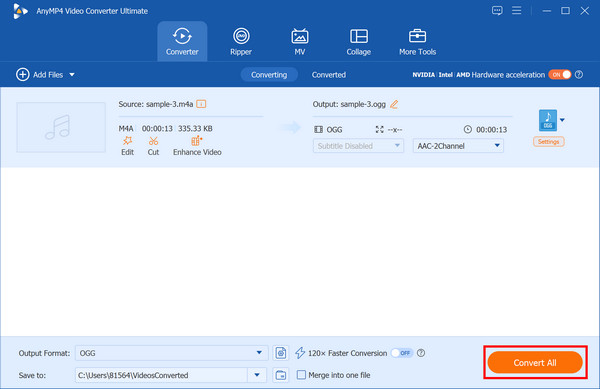
Next, we will show you the detailed steps to convert M4A to OGG using AnyMP4 Video Converter Ultimate:
1. Download and install AnyMP4 on your Windows/Mac computer. After installation, it will run on your computer automatically.
Secure Download
Secure Download
Click Add Files/Add Folders, or drag your M4A files/folders directly into the program.

2. Click the Output Format option on the bottom left to select Audio > OGG from the dropdown list. Then, you can also adjust the audio parameters like encoder, channel, sample rate, and bitrate by clicking the gear-shaped button.
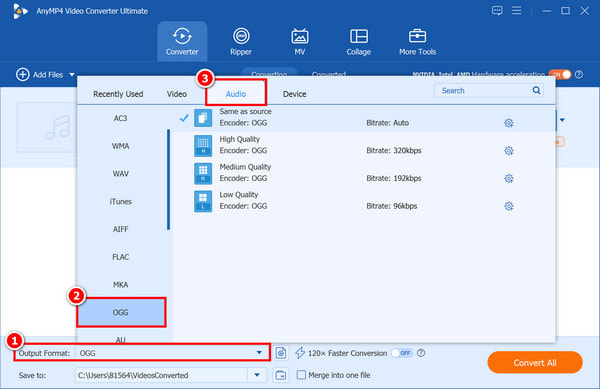
3. Finally, choose the path for the converted file. Click Convert All in the lower-right corner to start changing M4A to OGG.
1. Does converting M4A to OGG reduce audio quality?
If you use a high-quality converter that allows you to match the original bitrate and sample rate, the loss of quality is practically imperceptible to the human ear. However, using poorly optimized online tools can result in compressed, muddy audio.
2. What is the best bitrate for OGG files?
For spoken word or podcasts, 96 kbps to 128 kbps is usually sufficient. For high-fidelity music, we recommend setting your converter (like AnyMP4) to 192 kbps or 320 kbps to maintain excellent clarity.
3. Is OGG better than MP3?
Yes, generally speaking. The OGG Vorbis format provides better sound quality at the same file size compared to MP3, making it the preferred choice for streaming platforms like Spotify and game developers.
4. Can I convert DRM-protected M4A files?
Most standard converters cannot bypass Digital Rights Management (DRM) encryption found on older iTunes purchases. Ensure your M4A files are DRM-free before attempting to convert them to OGG.
Converting M4A to OGG can significantly improve web compatibility, optimize the streaming experience, and save server storage space without sacrificing audio quality. While online tools can occasionally handle small files, reliable local software is required for creators who prioritize audio quality, privacy, and efficiency. AnyMP4 Video Converter Ultimate stands out as the best solution. Download the free trial today to experience lossless audio/video conversion!
 Updated by Alice Thorne to Convert Audio
 More readings
 5 Best Ways to Convert M4A to WAV (Free, Online & Pro) - 100% Quality
Learn how to convert M4A to WAV on Windows, Mac, and Online by using AnyMP4, iTunes, VLC, and Audacity to ensure lossless audio quality.
 Top 6 Methods on How to Convert WAV to M4A
Convert your favorite music in WAV format to M4A? We will tell you several methods to convert WAV to M4A for playback on any devices with high quality.
 5 Best MOV to MP3 Converters (2026): Pro Quality & Speed Tested
Extract 320kbps MP3 from MOV files with our top 5 tested tools. Features detailed reviews, batch guides, and expert tips for lossless audio extraction.
 How to Convert MOV to WAV (Lossless Audio) on Windows & Mac
Easily extract high-quality WAV audio from MOV videos. Get the best 3 converters for batch conversion and 100% original quality.
 Add your comments to join the discussion here