
Quick Summary
Converting TikTok videos to MOV is essential for high-end editing in Final Cut Pro or playback on macOS/iOS devices. This guide covers the fastest lossless conversion methods for both desktop and mobile devices.
Imagine you've just downloaded a trending TikTok video, but as soon as you import it into professional video editing software, you encounter issues like a drop in frame rate, audio-video desynchronization, or the software failing to recognize the format. This is because TikTok uses a highly compressed H.264/HEVC (MP4) container, which is optimized for mobile streaming rather than high-end production.
To maintain clear 1080p video quality on Apple devices or professional timelines, you need a stable MOV (QuickTime) wrapper. This is why your TikTok videos may appear blurry or even fail to play after editing. This guide will provide you with a definitive guide to converting TikTok to MOV format while preserving every pixel of data.

Although MP4 is a widely used format on mobile platforms, converting TikTok video files to MOV format can offer broader compatibility and greater stability, especially for users of desktop or Apple systems.
• Compatibility with Apple ecosystem.
While MP4 is universal, MOV is the native format of macOS and iOS. Converting to MOV ensures seamless integration with iMovie and Final Cut Pro.
• Editing stability & metadata.
MOV containers handle linear PCM audio and timecode data better than standard mobile MP4s, preventing the dreaded out-of-sync audio issues during long editing sessions.
• Bypassing playback errors.
Older versions of QuickTime or specialized presentation software often struggle with variable frame rates (VFR) found in TikTok downloads. A dedicated conversion to MOV standardizes the constant frame rate (CFR).
For users batch handling multiple TikTok clips or requiring 4K upscaling, professional-grade software is a necessity. Compatible with Windows 11/10/8 and macOS 10.12+, AnyMP4 Video Converter Ultimate can convert TikTok MP4 videos to MOV up to 70x faster with its hardware acceleration technology. Beyond basic conversion, you can customize parameters like encoder, resolution, and bitrate. You can also utilize built-in tools to crop, rotate, apply effects/filters, and adjust subtitles/audio tracks. Or, modify file information with the Media Metadata Editor.
Secure Download
Secure Download
Step-by-Step lossless conversion with AnyMP4:
1. Import: Click Add Files or drag and drop your downloaded TikTok MP4s into the interface.

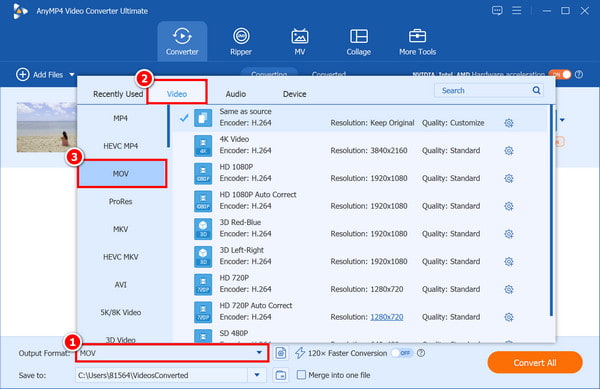
2. Output Selection: Navigate to the Video tab and select MOV. Choose Same as Source to keep the original resolution or HD 1080P for optimization.
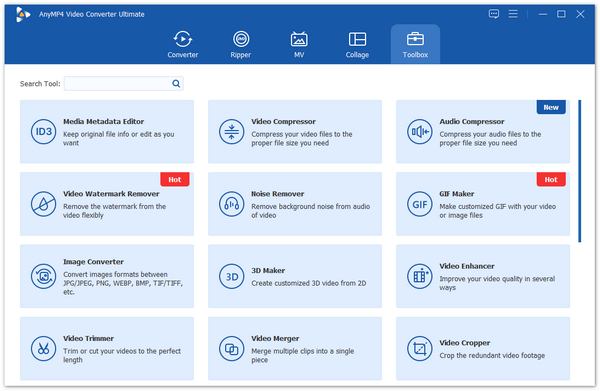
Enhancement (Optional): Use the Video Enhancer tool under the More Tools tab to reduce video shaking or remove brightness noise, perfect for low-light TikToks.
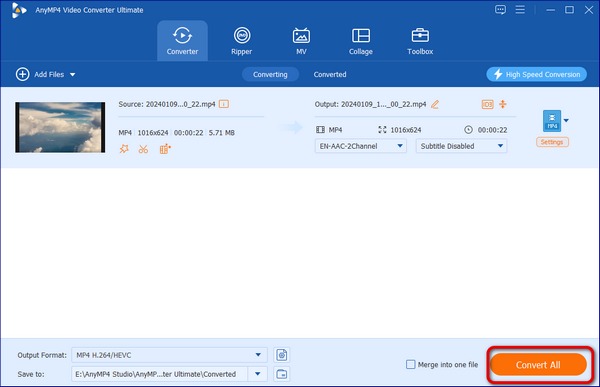
3. Convert: Click Convert All in the lower-right corner to process your files in seconds.
Summary
For creators handling large volumes of files and seeking lossless quality, AnyMP4 Video Converter Ultimate stands out as the most powerful and efficient desktop solution to batch-convert TikTok clips into MOV files.
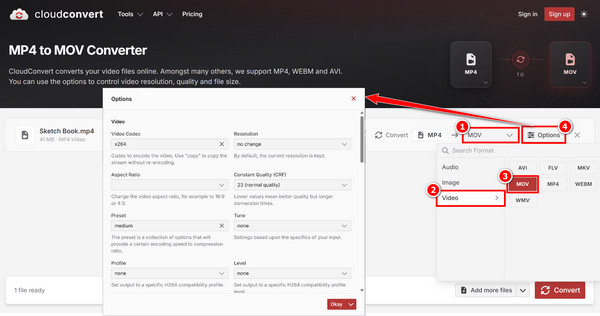
If you do not want to install heavy desktop software, you can use a web-based tool like CloudConvert. CloudConvert lets you convert TikTok MP4 files to MOV directly in your browser. It also offers flexible options that let you freely adjust codecs, resolution, and frame rate.
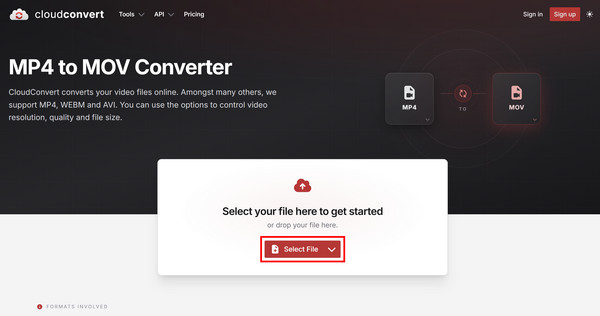
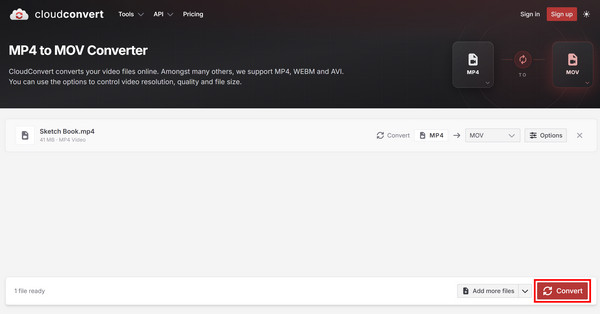
1. Go to the CloudConvert MP4 to MOV Converter page and click Select File to upload your downloaded TikTok video.
2. Ensure the output format is set to MOV. Then, click the Options button to adjust other settings like video codec, frame rate, and resolution of the TikTok video.
3. Click Convert in the lower-right corner, and then download your converted file once processing completes.
Summary
CloudConvert is ideal for one-off tasks, but it relies heavily on internet speed and has privacy concerns when handling sensitive content.
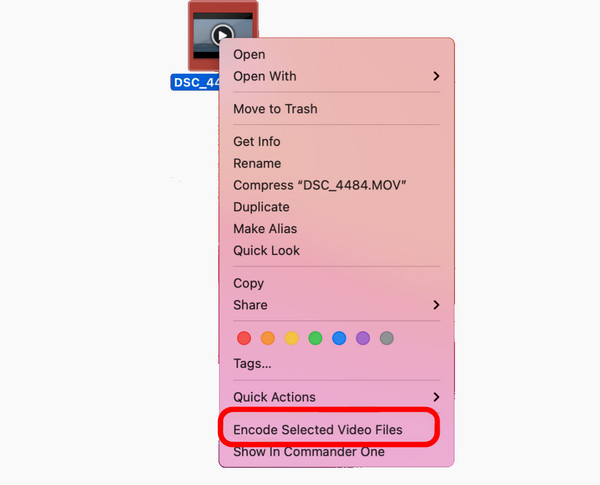
Mac users can convert TikTok files directly to MOV format without downloading any third-party software. This is because macOS includes a built-in media encoder that allows you to quickly repackage or transcode MP4 files into the Apple-compatible MOV container.
If you are on a Mac, you can right-click a file > Encode Selected Video Files > Select 1080p. This wraps the file in an MOV container natively.
Summary
For Apple users seeking privacy and speed, macOS native transcoding provides a seamless, zero-cost workflow.
1. Fixing the no audio glitch.
Sometimes converting to MOV results in a TikTok video with no sound. This usually happens if the original TikTok uses a rare AAC profile. Ensure your converter is set to AAC or AC3 audio encoding within the MOV settings.
2. Dealing with watermarks.
Before converting, use a TikTok Downloader that captures the clean stream. Converting a watermarked video to MOV will not remove the logo; it will only make it a high-quality watermark.
3. Optimal settings for MOV exports:
Q: Does converting MP4 to MOV reduce quality?
A: Not if you use a lossless converter like AnyMP4. Since both containers often use the H.264 codec, the 'conversion' is frequently just a 'remuxing' of the data into a new container.
Q: Can I play MOV files on Windows?
A: Yes, using VLC Media Player or by installing the latest HEVC extensions, though MOV is primarily optimized for Apple environments.
Q: Why is my MOV file so much larger than the original TikTok?
A: If you choose an uncompressed codec (like Apple ProRes) during conversion, the file size will balloon. Stick to H.264 MOV for a balance of size and quality.
Do not let format restrictions bottleneck your creativity. Whether you are archiving your best performances or prepping a mashup for a professional portfolio, converting TikTok to MOV is the first step toward a high-quality workflow.
Ready to upgrade your video library?
Download AnyMP4 Video Converter Ultimate today and experience lossless, lightning-fast batch conversion.
Secure Download
Secure Download
 Posted by Alice Thorne to Convert Video
More readings
 10 Best AVI to MP4 Converters to Convert AVI
All best AVI to MP4 Converters are here in the post. And you can get one to use.
 Convert MP4 to MOV (Lossless & Fast) - 4 Best Ways [2026]
How to convert MP4 to MOV without quality loss? Follow our guide to convert formats in seconds with desktop or free online tools. Secure, fast, and 4K included.
 3 Easy Ways to Convert MP3 to MOV in 2026 [Batch & Fast]
Need to upload audio to video platforms? Learn how to convert MP3 to MOV effortlessly. Compare the best desktop and online tools and keep 100% original quality.
 How to Make a Sound Loop on TikTok with Fantastic Effects
Whether you need to make a music file longer or create a special audio effect, here are the methods to make a sound loop on TikTok.
 Add your comments to join the discussion here