
At a Glance
You’re finalizing the audio assets for an indie game, or maybe you're packing up a massive 2-hour podcast master file. You have a folder crammed with MP3s, but your engine or platform specifically demands OGG Vorbis for better looping and efficiency. So, you drag that 500MB folder into the first free online converter you find on Google. What happens next? You stare at a frozen progress bar for twenty minutes, the browser tab crashes, and you're right back to square one.
Online tools are fine if you just need to convert MP3 to OGG for a quick 5-second phone alert. But when you are dealing with strict project deadlines, confidential voice recordings, or the need to lock in a high bitrate, browser-based tools fall completely flat. They throttle your speed and almost always compress your audio into mud. To get this done right with absolutely no quality loss, you must skip the cloud and use a dedicated offline converter built for heavy-duty batch conversion.
Keep reading to see the exact three tools I actually rely on to swap audio formats quickly, safely, and entirely on a local hard drive.
How We Test
| Platform | Batch Conversion Support | Max File Size | Privacy Security | Price | |
|---|---|---|---|---|---|
| AnyMP4 Video Converter Ultimate | Desktop (Win/Mac) | Yes (Unlimited) | Unlimited | Local (High) | Freemium |
| FreeConvert | Web Browser | Yes (Limited) | 1GB (Free tier) | Cloud (Medium) | Free / Paid |
| VLC Media Player | Desktop (Win/Mac/Linux) | Yes (Clunky) | Unlimited | Local (High) | 100% Free |
MP3 vs OGG: Which one actually sounds better?
You might be wondering if making this switch is even worth the effort. MP3 is practically synonymous with digital audio, so why abandon it? The short answer: MP3 is famous, but it is ancient. OGG (specifically using the Vorbis codec) is fundamentally more efficient.
Transforming MP3 to the OGG Vorbis codec gives you three massive advantages. First, you get a noticeably smaller file size at the same bitrate. Second, the sound quality is mathematically superior—it handles high frequencies better during audio compression. Third, it is completely open source. You don't have to worry about licensing fees, which makes it the absolute standard gaming audio format for engines like Unity and RPG Maker, and it's even the core Spotify audio format for their streaming architecture.
| Features | MP3 | OGG (Vorbis) |
|---|---|---|
| Release Year | 1993 | 2000 |
| Compression | Lossy (Older algorithm) | Lossy (More efficient algorithm) |
| Licensing | Formerly patented | 100% Free & Open Source |
| Bitrate Handling | Constant (CBR) or Variable | Variable (VBR) by default |
| Best Used For | Universal playback on old devices | Game engines, Spotify, web streaming |
Trying to push a 100-track audio library through a web browser is a joke. That’s exactly why AnyMP4 Video Converter Ultimate is my default for the actual heavy lifting.
It directly solves the three biggest headaches with modern audio workflows. First, it bypasses the cloud entirely. With data compliance becoming stricter every year, I absolutely refuse to upload proprietary NDA recordings to random web servers. AnyMP4 processes everything locally on your own hard drive, guaranteeing 100% data privacy. Second, it handles ridiculous batch sizes without crashing. You can drag in gigabytes of files, and its local hardware acceleration crunches them in minutes rather than hours. But the real game-changer is how it handles the conversion itself. Instead of locking you into a generic preset that degrades your sound, it gives you absolute parameter control. You can force the Vorbis codec to match your original 320kbps bitrate perfectly, and uses its AI-driven enhancement tools to clean up background noise during the conversion. You get a fully optimized, high-fidelity OGG file that actually sounds better than the original MP3.
Secure Download
Secure Download
1. Add Your Audio Files
Open the software, click the big + button in the center, and load your MP3 files or drag the entire folder directly into the interface.

2. Select OGG as the Output
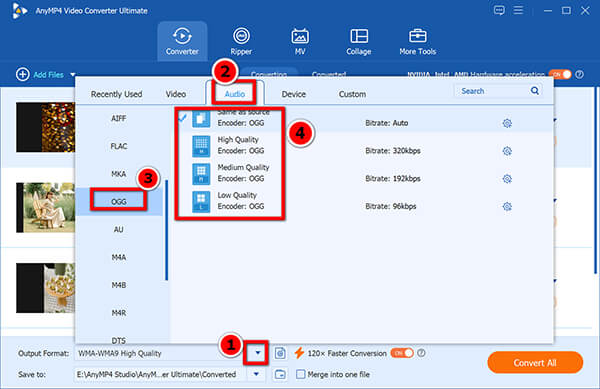
Click the Output Format dropdown menu in the bottom left. Go to the Audio tab, select OGG, and pick your desired quality level (keep the original sample rate).
3. Start the Batch MP3 to OGG Conversion
Set your save folder at the bottom, then click the orange Convert All button. To speed up the audio conversion, do not forget to enable GPU acceleration in the top-right corner.
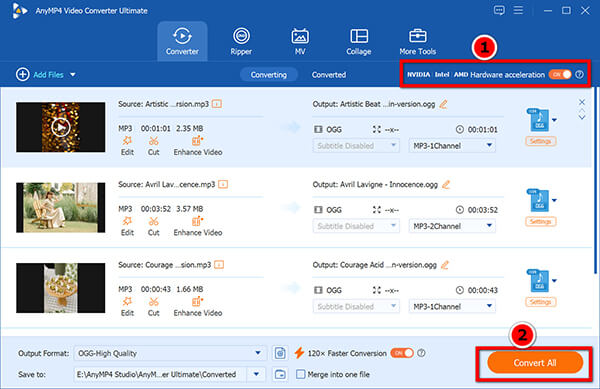
My personal warning: Create a brand new OGG Output folder on your desktop before you hit convert. I once accidentally set the output to my original source folder. I ended up dumping 150 converted files right next to the 150 original MP3s and spent half an hour manually sorting them out.
What I Love:
Downsides:
Sometimes you are on a borrowed laptop and just need to change an MP3 to OGG fast. FreeConvert is a web-based tool that requires zero installation. You just open the site, drop your file, tweak the settings if you want, and hit download. It actually gives you access to advanced audio parameters, unlike most generic online converters that just compress your file into garbage.
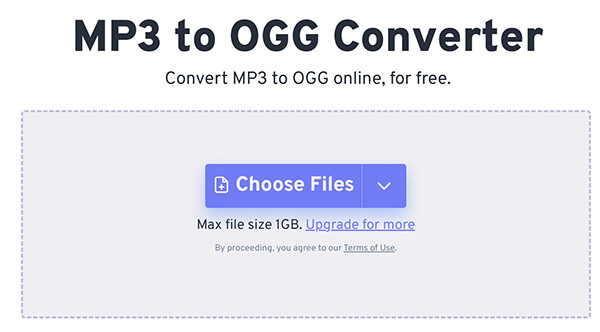
1. Upload your MP3
Open this online MP3 to OGG converter from your device, Google Drive, or Dropbox.
2. Adjust Advanced Settings
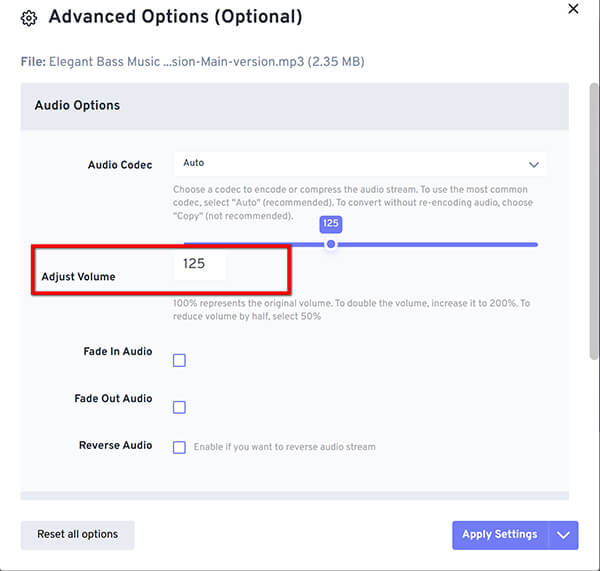
Click the gear icon. If your original MP3 sounds a bit quiet, don't ignore this step. Use their Volume slider to boost it to 125% before converting. It saves you from having to edit the audio later.
3. Convert and Download
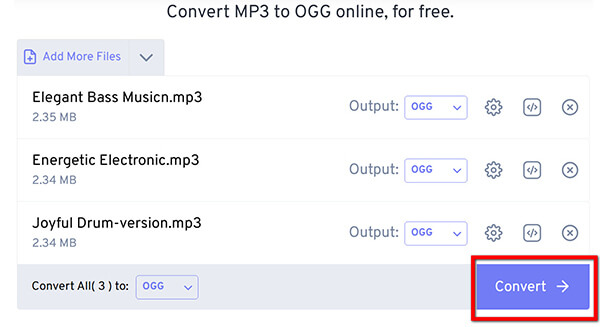
Click Convert All and start your MP3 to OGG file conversion. Once it completes the conversion, you can download the converted OGG files and open them in your OGG player.
Don't make this mistake: Do not switch tabs or let your laptop go to sleep while it's processing. Modern browsers aggressively pause background tabs to save RAM. I completely lost a 30-minute upload progress just because I tabbed out to check a Slack message. Keep the window active.
What I Love:
Downsides:
Nothing is worse than realizing you need to convert an audio file right as you are about to board a flight with no Wi-Fi. If you already have VLC Media Player installed for watching movies, you already own a totally free MP3 to OGG converter. It has a hidden conversion feature buried in its menus.
The first time I used VLC for this, the progress bar froze for 40 minutes and didn't move an inch. I later found out it was a weird glitch with how it handles certain metadata tags—the kind of frustrating nonsense official tutorials never warn you about. If you are on a Mac, you might need to mess with your permissions before VLC lets you save to your desktop.
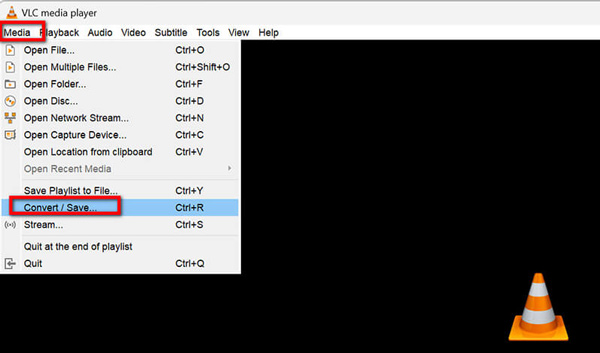
1. Go to Media > Convert/Save.
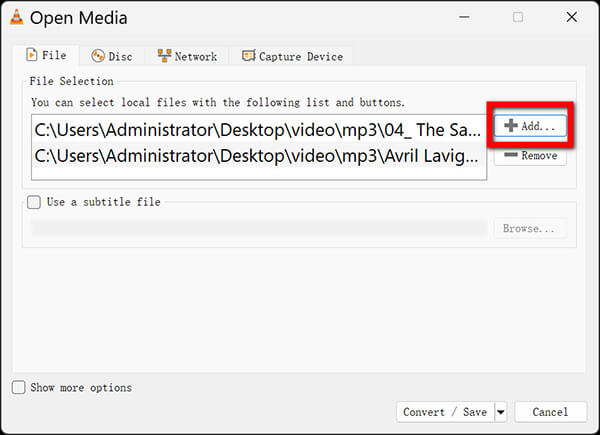
2. Click Add to select your MP3 file, then click Convert / Save at the bottom.
3. In the Profile dropdown, choose Audio - Vorbis (OGG).
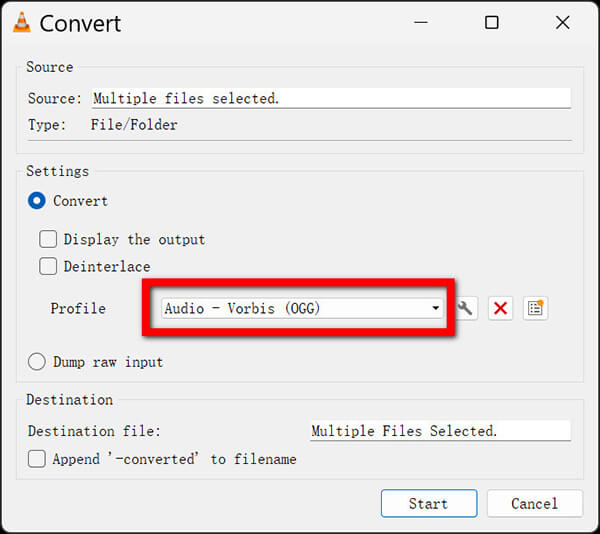
4. Pick a destination file name and click Start.
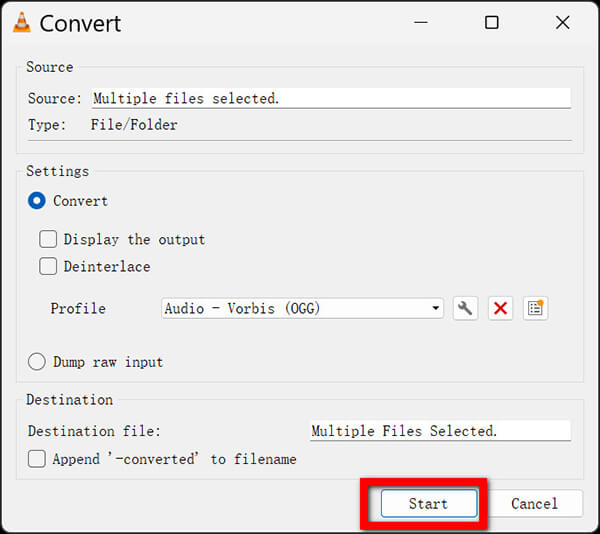
Crucial step: VLC is notorious for forgetting to add the actual file extension. When you type your file name, you must manually type .ogg at the end (e.g., background_music.ogg). If you don't, it spits out a blank white file icon, and your computer won't know how to open it. I stared at a broken file for an hour before realizing I just needed to rename it.
What I Love:
Downsides:
Does converting an MP3 to OGG improve its audio quality?
No. Because both formats are lossy (meaning data is removed to save space), you cannot magically add quality back that was already lost in the original MP3. However, a high-quality converter ensures things don't sound worse after the swap.
Why do many game developers prefer the OGG format over MP3?
OGG Vorbis provides a smaller file footprint without sacrificing sound clarity. More importantly, it is patent-free. Game developers don't have to worry about licensing fees when they distribute their games, which makes it the native choice for modern game engines.
How can I batch convert MP3 files to OGG without an internet connection?
The best offline MP3 to OGG converter for Windows/Mac is a dedicated desktop program like AnyMP4 Video Converter Ultimate. You just load your folder, select the target format once, and the software uses your computer's CPU to process hundreds of files simultaneously without needing Wi-Fi.
Is it safe to use free online audio converters for private recordings?
It depends entirely on the site's privacy policy. Most reputable sites delete files after a few hours. But if you are working with unreleased music, private corporate meetings, or NDA-protected game assets, you should never upload them to a cloud server. Stick to local desktop software.
What is the best bitrate to choose when converting to OGG Vorbis?
For speech and podcasts, 96 kbps to 128 kbps is usually plenty. For music or high-quality sound effects where fidelity matters, set your bitrate to 192 kbps or 320 kbps.
If you just need to swap a format quickly to set a custom ringtone on your phone, FreeConvert is more than enough. If you are a fan of open-source software, already have it installed, and don't mind a clunky interface, VLC Media Player is a solid fallback. But if you are dealing with a serious workflow, massive folders of audio, or demand absolute data security, AnyMP4 Video Converter Ultimate is hands down the most efficient choice you can make.
We never recommend tools with shady privacy policies. Your files are your business.
Stop waiting in online queues and hoping your browser doesn't crash. Download the free trial of AnyMP4 today and experience actual offline conversion speed. Ultimately, finding the right offline MP3 to OGG converter depends on your specific workflow, your patience for slow uploads, and how much you value your privacy. Pick the tool that matches your project scope and get back to creating.
 Updated by Alice Thorne to Convert Audio
More readings
 5 Ways to Convert MP4 to OGG (2026 Tested: High Quality)
Looking for a fast way to convert MP4 to OGG? Learn how to extract high-quality OGG audio from your MP4 videos using the best tools without quality loss.
 How to Convert FLAC to OGG in 4 Easy Ways
Discover 4 reliable ways to convert FLAC to OGG while keeping audio quality. Follow our guide using desktop software, online tools, and free solutions.
 5 Best MOV to MP3 Converters (2026): Pro Quality & Speed Tested
Extract 320kbps MP3 from MOV files with our top 5 tested tools. Features detailed reviews, batch guides, and expert tips for lossless audio extraction.
 3 Ways to Edit MP3 Metadata to Organize Your Music Library
How to edit MP3 metadata and modify MP3 tags? Learn 3 easy ways to change metadata on MP3 using AnyMP4, MP3Tag, and VLC. Batch edit MP3 files like a pro today!
 Add your comments to join the discussion here