
At A Glance: Executive Summary
The fastest way to convert MP3 to MPEG is using dedicated desktop software like AnyMP4 Video Converter Ultimate for secure, batch processing. Alternatively, VLC Media Player offers a free open-source solution, while FreeConvert is the best choice for quick, small-file browser conversions.
When it comes to handling modern media files, MP3 and MPEG are two of the most recognizable formats, as they are popular options for audio and video. However, the popularity of MPEG has grown over time, as it is one of the most preferred formats on video-sharing social media sites. In this article, we will provide a detailed guide for MP3-to-MPEG conversion using three popular methods today. We will also provide the best solution for slow uploads, privacy concerns, and the size limits of online conversion tools. This article will directly help you make MP3s work on video players by converting your file to an MPEG container format.
How We Tested & Our Setup
| Conversion Tools | Batch Conversion Support | Max Input File Size | Internet Required | Processing Speed | Privacy |
|---|---|---|---|---|---|
| AnyMP4 Video Converter Ultimate | Yes |  Unlimited Unlimited |
No |
Very Fast (Hardware Accelerated) | High |
| VLC Media Player | Yes | Unlimited |
No |
Slow to Moderate | High |
| FreeConvert | Yes |  1GB 1GB |
Yes |
Slow to Fast (Internet Dependent) | Low (Upload files to server) |
At first glance, MP3 and MPEG seem completely different: MP3s are audio files, while MPEG is a popular video container format. However, converting to MPEG has some purpose, since most video-sharing social media platforms only support video uploads, such as TikTok and YouTube. This is usually the most common reason users convert MP3 audio files to MPEG video.
Moreover, MPEG files generally have higher-quality audio at a lower bitrate, and their AAC audio codec is the native audio format for both Android and iOS devices. This makes these files much better suited for low-bitrate quality and mobile compatibility.
When dealing with media conversion, especially converting audio-only MP3s to a versatile MPEG container format, relying on web-based tools often leads to subpar and frustrating experiences, such as slow upload speeds and file size limitations. This is where desktop solutions like AnyMP4 Video Converter Ultimate shine as the superior conversion option.
As a premium desktop solution, AnyMP4 Video Converter Ultimate leverages high-end GPU acceleration to process files locally, up to 70x faster than normal. Since it was processed on your device, your data remains strictly on your hard drive, ensuring 100% privacy while allowing you to process massive folders of MP3s in seconds without eating up your bandwidth.
Although it is an exclusive conversion software, it is also extremely easy to use, practical, and versatile. It can perform essential editing on your MP3 file before conversion, including trimming, cutting, and other basic adjustments.
To learn how to use the program, make sure to read our three-step guide on how to use AnyMP4 Video Converter Ultimate down below.
Before proceeding to the tutorial, make sure to download it first for an easier time learning how to convert files.
Secure Download
Secure Download
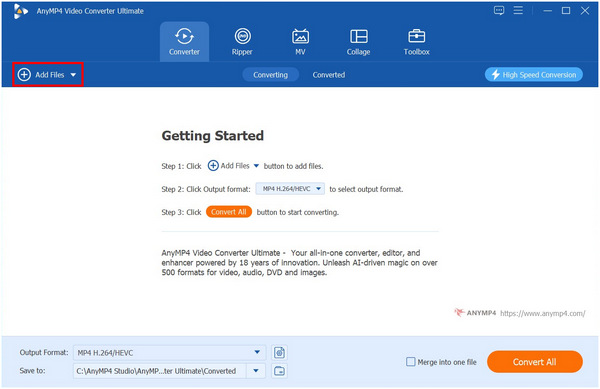
1. Open AnyMP4 Video Converter Ultimate and select the Add Files button in the Converter menu to import the MP3 file you want to convert.
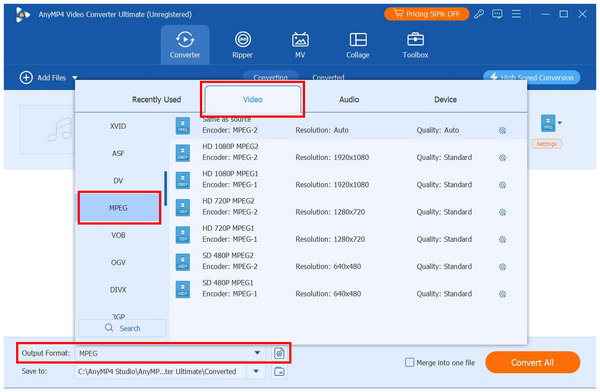
2. Once the MP3 media has been imported, select Output Format, then Video, and choose MPEG. Then, choose the conversion profile you want to use.
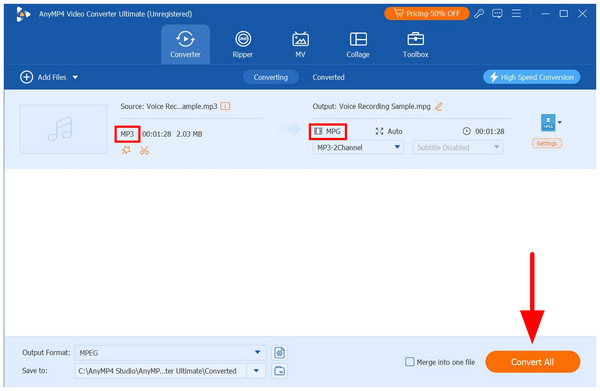
3. Now that you have set your selected conversion profile, return to the Converter menu. There, select the Convert All option to start the MP3-to-MPEG conversion.
To learn more about why we selected AnyMP4 Video Converter Ultimate as our recommended desktop converter tool, make sure to read what we love the most about the software as well as its limitations.
Unrestricted Batch Processing
You can convert hundreds of high-quality audio files simultaneously, a lifesaver for extensive media libraries. The program’s batch processing capability fully leverages its hardware acceleration system.
Ironclad Data Privacy
Since everything is handled locally on your CPU/GPU, there’s zero risk of your personal or proprietary audio being stored on a remote cloud server. This makes the program an excellent choice for users who prioritize security.
Blazing Fast Speeds
Hardware acceleration technology makes it significantly faster than waiting for browser-based uploads and downloads. Among its desktop-based peers, the software’s hardware-acceleration feature is among the best.
Advanced Output Control
Allows meticulous tweaking of codecs, bitrates, and channels, giving you studio-level control over the final file. These are solid additions from the basic editing tools available in the program.
Premium Software
While there is a free trial, unlocking the full, unthrottled batch processing power requires a paid license. Fortunately, the free version of the software can handle file conversion for up to 5 minutes, which is more than enough for modern MP3 files.
Requires Installation
Unlike web-based tools, you need to download and install the software, taking up local disk space. This is the initial requirement you must meet if you want to use the stability of desktop-based options.
Moving on to open-source solutions, we have VLC Media Player, which offers an advanced Convert/Save feature. Although best known as a video player, VLC includes an advanced format converter in its Media settings.
To learn how to use VLC for converting your MP3 audio to MPEG, make sure to read our guide below. In this guide, we will use the TS format since it is the only MPEG container file type available in VLC’s conversion profiles.
1. Open VLC Media Player, select Media, then click Convert/Save in the drop-down menu.
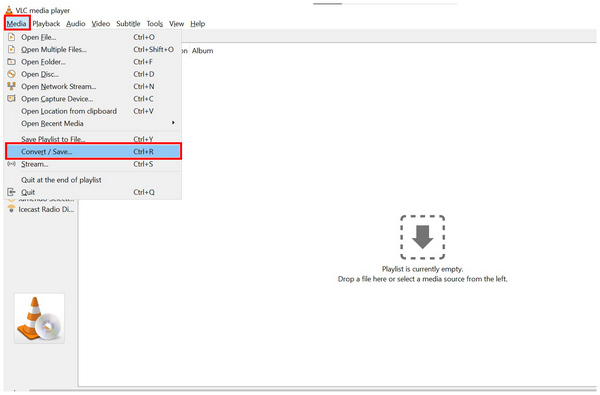
2. In the Open Media settings, select Add to import the MP3 file for conversion. Then, select Convert/Save to continue the conversion process.
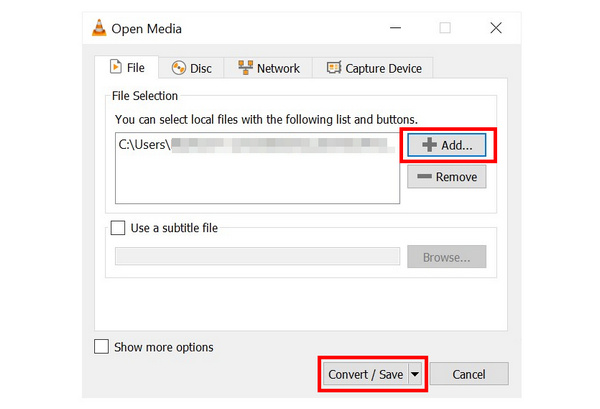
3. In the Convert menu, set the Profile to Video - H.264 + MP3 (TS). Select Browse, then set the save destination for your file. Finally, click Start to begin the conversion.
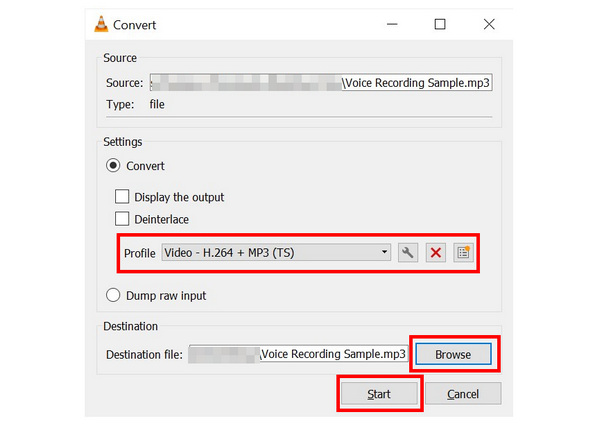
By following this guide, you can now convert your MP3 audio to MPEG-2 formats such as the TS container. This makes VLC a good choice for users who want to easily upload their MP3 music files to their social media sites. Using its settings, you can also use VLC to compress MPEG files.
What I Love
Downsides
Now that we have reviewed and recommended two desktop-based options for MP3-to-MPEG conversion, let us proceed to the cleanest browser-based choice when you are looking to convert only a single small file and don’t care about upload times. In this case, FreeConvert online is best for you.
Although its reliance on the internet limits this, FreeConvert has a major advantage over other online tools because it supports file uploads of up to 1 GB. However, it is still a solid choice for handling smaller MP3 files.
1.Search for FreeConvert online and go to their website. Then, select Choose Files to upload the MP3 audio you want to convert.
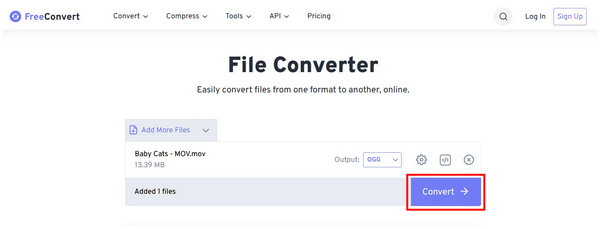
2.Once your video file has been uploaded, select Output > Video, and choose MP4.
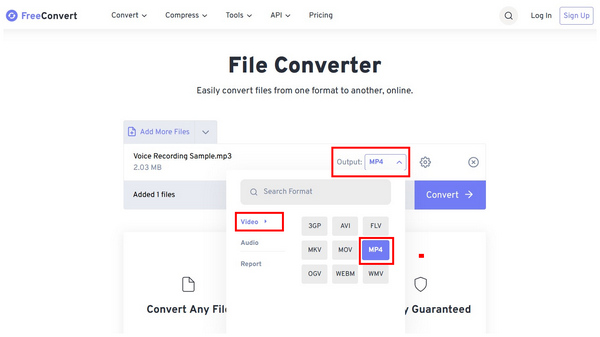
3.Now that you have set the Output to MP4, select Convert to begin processing your MP3 to MPEG-4.
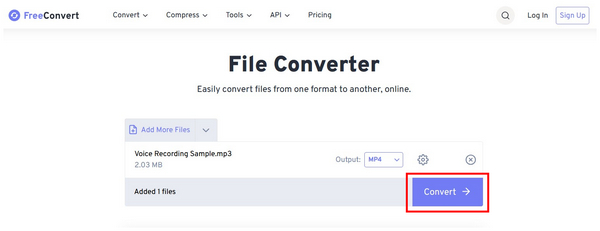
Although there is no MPG format in FreeConvert, the MP4 option is a container file that can contain MPEG-4 video. This means you can use the online tool to convert MP3 to MPEG-4 video or audio files.
What I Love:
Downsides:
When handling file format conversions, you need to learn the basics of codecs and bitrates. Without overcomplicating things, the codec is the compression option you use on your file that dictates how its file size is reduced. On the other hand, bitrate is the amount of data processed per second, which affects the audio quality of your media.
As such, matching the bitrate of your MP3 file to the conversion settings of your MPEG is optimal for preserving the quality of your media. If your MP3 is saved at 320 kbps, the conversion setting for your MPEG file should also be 320 kbps.
Is there a difference between MPEG and MP3?
Yes, there are. MPEG files are video container formats. Meanwhile, MP3 is an audio format.
Can I convert MP3 to MPEG for free without watermarks?
Yes, you can. Converting MP3 to MPEG may remove watermarks. However, you need to use a good converter software such as the ones featured in this guide.
Will converting an MP3 to an MPEG format improve audio quality?
No, it will not. The settings you will use may only preserve the quality. It may also be used to reduce the file size.
How do I batch convert multiple MP3 files to MPEG offline?
You can use exclusive converter options in this case. A good example is AnyMP4 Video Converter Ultimate. However, the other option in this guide, with VLC, cannot handle batch conversions.
Why is my online converter failing to upload my large MP3 file?
Your chosen web-based software may have a low file size limit. Most online converters limit the size of uploaded files. If your MP3 file fails to upload, your selected converter may have a tiny file size limit.
Now that we have reviewed three best ways to convert MP3 to MPEG, we can conclude that choosing a program should be based on your personal needs. If it’s just a temporary, single small file, FreeConvert is sufficient. Still, for professional workflows with strict requirements for conversion speed, batch processing, and data privacy, AnyMP4 Video Converter Ultimate is the undisputed top choice. You may download the program using the link below to enjoy the efficiency of hardware acceleration and performance.
 Posted by Alice Thorne to Convert Video, Convert Audio
More readings
 5 Ways to Encode/Convert MP3 to 320kbps (2026)
Easily explore the top 5 tools to convert MP3 from 128kbps to 320kbps for better compatibility and audio output with step-by-step guides.
 2026 Latest: Top 5 MP3 to M4R Converters (Batch & Lossless)
Still struggling with making iPhone ringtones? This post tests and compares the top MP3-to-M4R converters in 2026. Learn how to complete the conversion easily.
 AVI to MPEG/MPEG to AVI – Top 5 Free and Professional Video Converters
Which AVI to MPEG converter does a good job? If you are looking for the best AVI to MPEG or MPEG to AVI file converter, you can check this review.
 The Best MKV to MPEG Converter to Transcode MKV to MPEG Files
When you want to convert MKV to MPEG for DVDs, you can learn more about the most efficient method to transcode the MKV files with ease from the article.
 Add your comments to join the discussion here