- Convert video, audio, and DVD over 500 formats.
- GPU acceleration to speed up the conversion process at 70X faster.
- More than 16 editor tools in the toolbox (Updating).
- Create videos for TikTok, YouTube, Facebook, etc.

Free Download100% Clear & Secure
Free Download100% Clear & Secure
MP3 to FLAC
Back to main page
Setting
Custom resolution:
| Core Features | Web Version | Pro Desktop |
| Max File Size | 50MB (Login: 100MB) | No Limit |
| Daily Limit | 2 Files (Login: 10 Files) | Unlimited |
| AI Video Upscaling | No | Yes (Up to 4K/8K) |
| GPU Acceleration | No | Yes (70X Faster) |
| Batch Processing | No | Yes |
Failed to upload media file! Please try again, or use AnyMP4 Video Converter Ultimate for Desktop.(Error code: 20015)

The original video resolution is higher than 1080p. If you want to output the original high resolution, you need to download the Pro Version. Or would you like to output the default 1080p resolution?

At a Glance:
If you are trying to unify your music library for a DJ set or prep audio for a video timeline, converting from a lossy format (MP3) to a lossless one (FLAC) is a standard workflow. However, there is a lot of misinformation out there about what this conversion actually does. Plus, if you try to dump your entire music folder into a random web converter, you will likely end up with stripped metadata (goodbye, album covers) and a frozen browser tab. Below, we are going to share 4 methods convert MP3 to FLAC without effort. Continue reading to get the details now.
How We Test
To give you practical advice, I bypassed the marketing fluff and stress-tested these tools on my own machine.
| Max File Size | Batch Conversion Support | Local Hardware Acceleration? | ID3 Tag & Album Art Preservation | Needs Internet? | Best For | |
|---|---|---|---|---|---|---|
| AnyMP4 Video Converter Ultimate | Unlimited | Yes (Flawless) | Yes (GPU/CPU Multi-threading) | ⭐⭐⭐⭐⭐ Perfect (Automated) | No | Serious music collectors & professionals running massive offline libraries |
| FreeConvert | 1GB Limit | Limited (Free Tier) | No (Cloud Server Dependent) | ⭐⭐ Unreliable (Often Stripped) | Yes | Casual users with single, non-sensitive audio tracks |
| VLC Media Player | Unlimited | Clunky (Requires Scripting) | No (Basic Software Trimming) | ⭐⭐⭐ Basic (Text tags only) | No | Open-source enthusiasts who only convert one file at a time |
| FFmpeg | Unlimited | Manual (Requires Loop Code) | Yes (Deep System Level) | ⭐⭐⭐⭐⭐ Perfect (If using -map 0) | No | Advanced tech geeks and developers who love command-line control |
Let’s kill the biggest myth in digital audio right now: Converting an MP3 to a FLAC will not magically make it sound better.
Here is the physical reality. MP3 is a "lossy" format. When the studio or software originally compressed the track into an MP3, it permanently deleted extreme frequencies and subtle acoustic details to keep the file size tiny.
FLAC is a "lossless" container. When you convert an MP3 to FLAC, you are simply taking that compressed audio and placing it into a larger, uncompressed box. This process is called "upsampling." You cannot restore audio data that was destroyed years ago. It is exactly like taking a low-resolution, blurry JPEG and saving it as a massive 4K PNG—it will just be a massive, blurry picture.
So, why do we do it?
1. To Prevent Generation Loss: Every time you open an MP3 in an editor (like Audacity or Premiere), tweak the EQ, and save it as an MP3 again, it compresses the file a second time. Doing this repeatedly ruins the track. Converting it to a lossless FLAC first gives you a stable, uncompressed workspace that won't degrade further.
2. Hardware Compatibility: Many high-end audio receivers, media servers, and dedicated FLAC players require a unified lossless format to trigger specific playback features.
When you need to handle hundreds of tracks, web tools are a nightmare. You hit file size limits, wait hours for uploads, and risk exposing personal audio to third-party servers. I rely on AnyMP4 Video Converter Ultimate for this because it uses local hardware acceleration to blitz through massive folders offline.
AnyMP4 Video Converter Ultimate operates entirely locally, utilizing AMD APP, NVIDIA CUDA, and Intel Quick Sync hardware acceleration. This means it lifts the processing load off your basic CPU threads and hands it to your graphics card, rendering audio upsampling up to 70x faster than traditional software transcoding. It reads, maps, and embeds full ID3 data blocks simultaneously across hundreds of files in a single click, filling the metadata gaps that plague almost every other conversion method.
Secure Download
Secure Download
1. Load your audio files
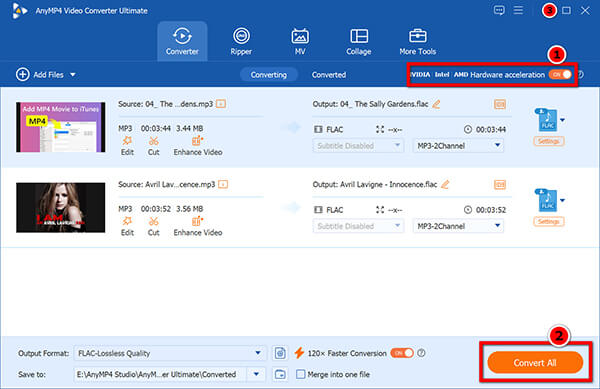
Boot up the software. You can click the "Add Files" button, but it is much faster to simply drag and drop your entire music folder directly into the main interface. To batch convert MP3 to FLAC, you can import multiple MP3 audio files here.

2. Select the FLAC format
Look at the bottom-left corner for the "Output Format" menu. Click the Audio tab, select FLAC, and click on the "Lossless Quality" profile.
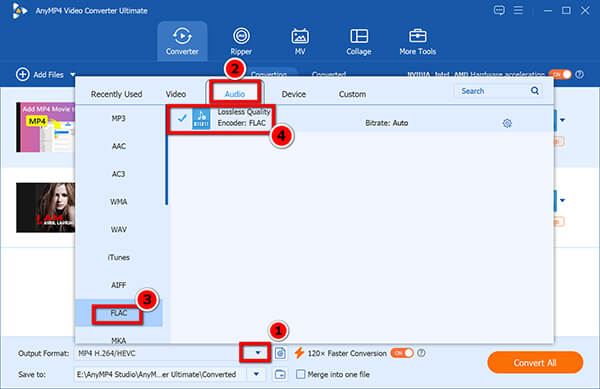
Click the gear icon next to the profile to open your custom settings. Make sure the Sample Rate is set to 44100 Hz.
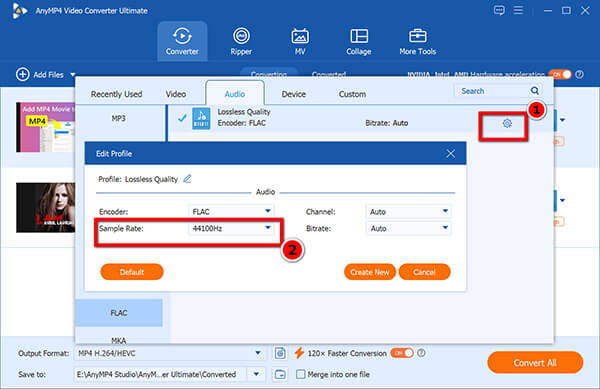
Do not be tempted to crank the sample rate up to 96000 Hz just because you can. Remember, we are upsampling an MP3. Artificially inflating the sample rate will only result in an astronomically large file size with zero audible benefit.
3. Convert MP3 to FLAC batch
Set your output destination folder at the bottom of the screen, then hit the Convert All button. Do not forget to enable your CPU acceleration at the top-right corner to speed up the conversion.
Summary of My Experience:
Throwing my 3.2GB test folder of 500 MP3s at AnyMP4 was a breeze. Because it utilizes local GPU/CPU power, it chewed through the entire directory in just a few minutes. The absolute best part for me was the metadata handling. Every single FLAC file came out with its original album artwork and track names perfectly intact, meaning I didn't have to waste my afternoon trying to manually edit MP3 metadata after the fact. The only real downside is that it requires a software installation, which might feel like overkill if you just want to convert a single 3MB voice memo. But for bulk, it is unmatched.
If you are on a work laptop, using a Chromebook, or just absolutely refuse to install desktop software for a quick one-off task, web-based tools are your fallback. FreeConvert is currently one of the more stable browser options for audio.
1. Upload the MP3
Navigate to the FreeConvert MP3 to FLAC converter website. Click the Choose Files button to upload your track from your hard drive, or import it directly from Google Drive.
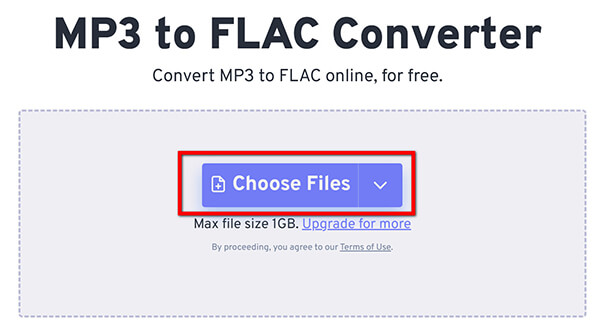
The maximum file size is 1GB. Besides, if you are trying to convert an entire album, upload the tracks in batches of 3 or 4. If you queue up 20 songs at once, the browser tab will likely freeze during the upload phase.
2. Target the lossless profile
The output dropdown is firmly locked to FLAC.
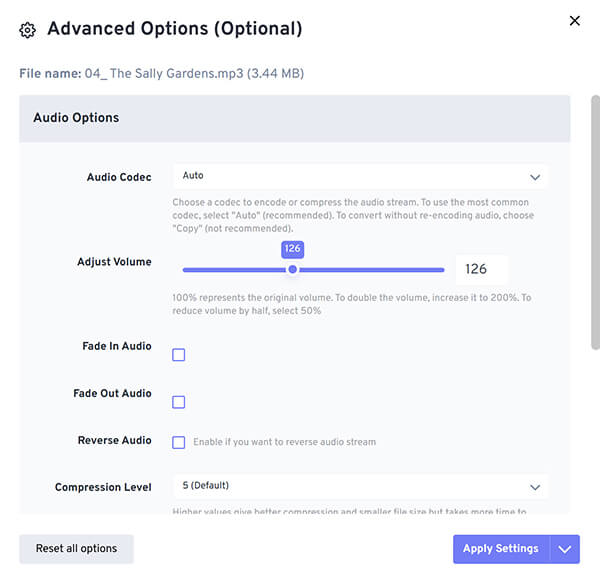
FreeConvert has a "Gear" icon for advanced audio settings like volume leveling. I highly recommend leaving these alone. Web-based volume normalization often introduces nasty digital clipping and artifacts to the final file.
3. Process and download
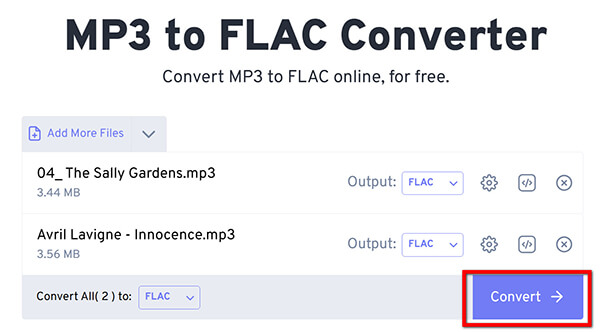
Click the blue Convert button. Wait for the cloud server to process the file, then click Download to save the FLAC to your computer.
Summary of My Experience:
For a quick, single-track job, FreeConvert is incredibly convenient since you can access it from any device. However, when I tried to process a larger chunk of my test library, the cracks showed quickly. I hit their 1GB free tier limit almost instantly. Furthermore, the privacy aspect always makes me nervous—I would never upload personal recordings or unreleased client audio to a free cloud server. I also noticed that several tracks lost their album covers during the web conversion.
VLC Media Player is a staple on almost everyone's computer for playing weird video formats, but it actually has a hidden, localized format conversion engine built right into it. It is entirely free and happens completely offline.
1. Access the convert menu
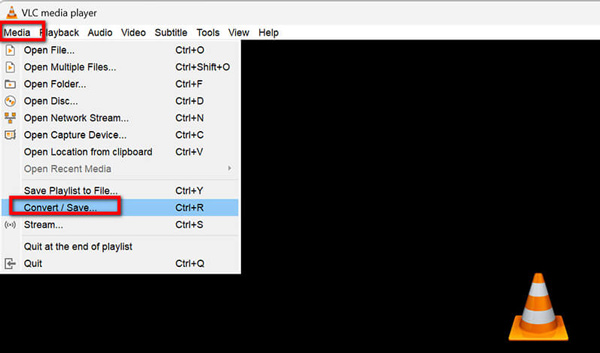
Open VLC. Click on Media in the top left corner and select Convert / Save from the dropdown list.
To speed this up and bypass the menus, just press Ctrl + R (or Cmd + R on a Mac) while VLC is open to jump straight into the conversion dashboard.
2. Import the track
Click the Add button, find your MP3 file, and select it. Then, click the Convert / Save button at the bottom of the window.
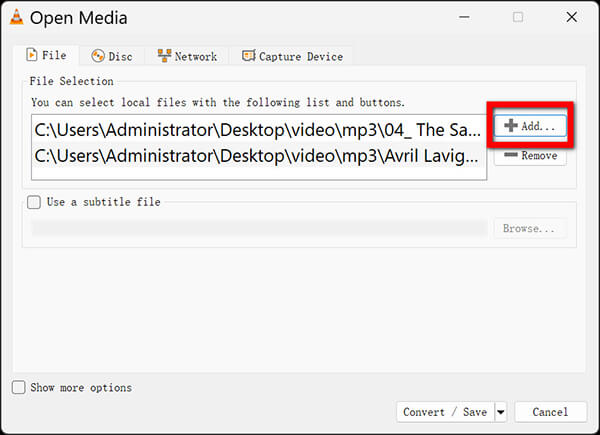
Do not try to highlight and add a folder of 50 songs here. VLC's converter is notoriously clunky and will usually crash or merge them incorrectly if you try to force a large batch without scripting. Stick to one file at a time.
3. Build the FLAC codec profile
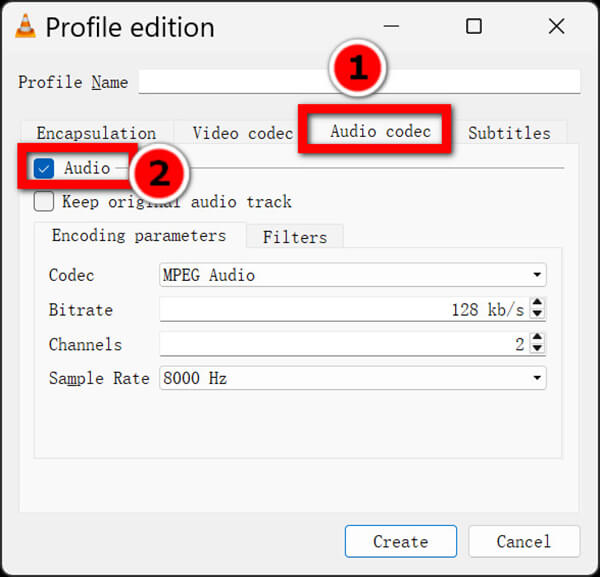
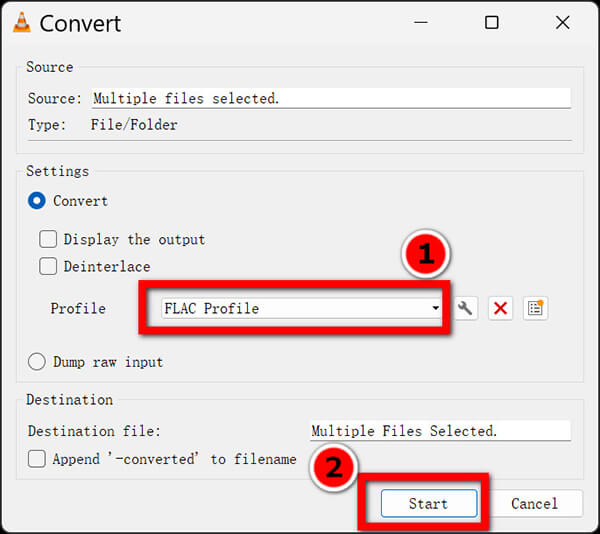
In the Profile dropdown menu, you won't see FLAC listed by default. You need to click the Wrench icon to create a custom profile. Name it "FLAC Profile". Set the Encapsulation to FLAC, click over to the Audio Codec tab, check the "Audio" box, and set the codec dropdown to FLAC. Click Create.
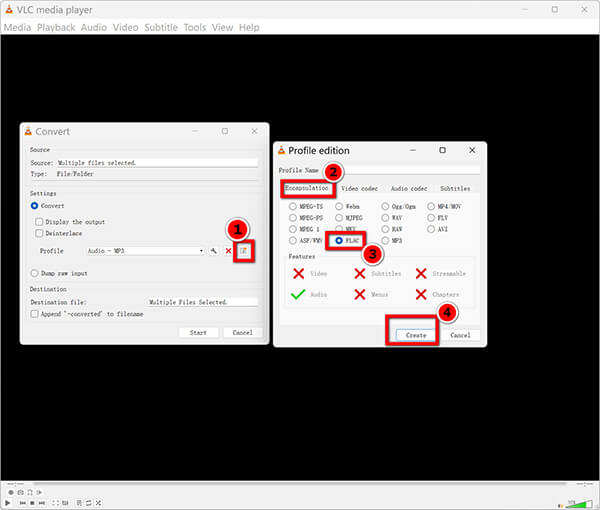
Forgetting to check the small "Audio" box in the Codec tab is the most common mistake. If you leave it unchecked, VLC will export a completely dead, silent file.
4. Export the FLAC audio
Select your newly created FLAC profile, browse to pick a destination folder, and hit Start.
Summary of My Experience:
VLC is a fantastic option if you are a tech-savvy user who wants strict offline privacy without paying for premium software. The conversion quality was solid, and the file sounded exactly like the original. However, the user interface for converting is a massive headache. Manually building the codec profile feels overly complicated, and the complete lack of a straightforward batch-processing interface makes it totally unviable for converting a full music library.
If you hang around developer forums like StackOverflow or Reddit’s r/audiophile, you will constantly see purists recommending FFmpeg. It is a powerful, free, command-line utility that handles almost every multimedia format on earth.
However, there is a massive trap here: if you use a basic FFmpeg command to convert your MP3, it will strip your album artwork. Why? Because FFmpeg reads embedded album covers as a "video stream." A standard audio conversion command drops the video stream entirely. To keep your ID3 tags and album art perfectly intact, you have to tell the software to map all streams into the new file.
1. Install the FFmpeg framework
Download the FFmpeg package for your specific OS (Windows, macOS, or Linux) and add it to your system's Environment Variables. Open your Command Prompt (Windows) or Terminal (Mac).
If setting up Environment Variables sounds like reading ancient Greek to you, stop right here and use AnyMP4 Video Converter Ultimate instead. FFmpeg has absolutely zero graphical interface.
2. Target the audio directory
Use the cd (change directory) command to navigate your terminal directly to the folder on your hard drive where your target MP3 files are stored.
Here is a small tip:
You can find the MP3 folder, right-click to copy the folder path. Then return to Command Prompt (Windows) or Terminal (Mac), input cd+space, and right-click your mouse, you can find the MP3 folder path is pasted here directly.

3. Convert MP3 to FLAC in FFmpeg
Type the following exact command and hit Enter to convert a single or multiple MP3 files while perfectly preserving the album cover and text metadata:
• Convert a single track:
ffmpeg -i input.mp3 -map 0 -c:a flac -c:v copy output.flac

The name input.mp3 in that code is just a placeholder! You must replace it with your actual file name. If your song is named track01.mp3, your code must be ffmpeg -i track01.mp3.... If your file name contains spaces (e.g., my favorite song.mp3), you must wrap the name in quotes like this: "my favorite song.mp3".
• Automate the batch conversion:
Typing that command manually for 500 songs is impossible. Instead, you can use a "loop" command that tells your computer to automatically find every MP3 in the folder and convert them one by one. Copy and paste the appropriate code for your operating system into your terminal and hit Enter:
For Windows (CMD) Users:
for %i in (*.mp3) do ffmpeg -i "%i" -map 0 -c:a flac -c:v copy "%~ni.flac"
For Mac/Linux Users:
for f in *.mp3; do ffmpeg -i "$f" -map 0 -c:a flac -c:v copy "${f%.mp3}.flac"; done
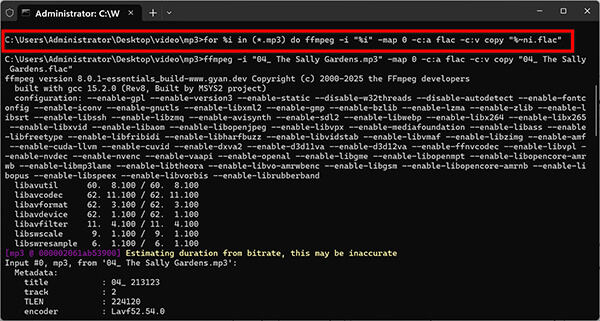
Geek Breakdown: What does this Windows loop actually do?
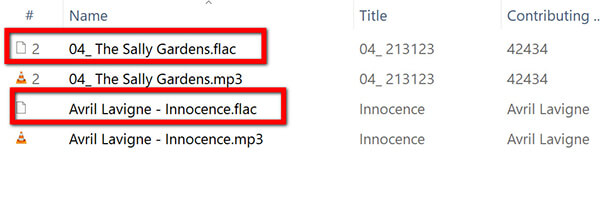
Now, you are done to complete the MP3 to FLAC conversion in FFmpeg, and the converted FLAC files will be stored in the same folder as the MP3 files with the same names.
Summary of My Experience:
Using FFmpeg feels incredibly empowering once you get the hang of the syntax. When I ran the proper -map 0 command, the resulting FLAC file sounded identical to the source, and the album cover popped up perfectly in my media player. It is undeniably the most robust, lightweight tool for advanced users (you can even use FFmpeg to convert MP3 to WAV just as easily).
However, the lack of a graphical UI is brutal. Writing loops to batch-convert my 500-song folder required building a custom .bat script. If you make a single typo in the command line, the whole process fails.
Understanding the technical gap between audio formats is crucial for managing your hard drive space and setting the right expectations for playback quality. If you want a deeper look into how these stack up against raw audio, check out our comp our comprehensive breakdown of rehensive breakdown of FLAC vs MP3 vs WAV.
MP3 is built entirely around convenience. It utilizes a psychoacoustic algorithm to strip out frequencies that the human ear struggles to hear, aggressively compressing the data. This allows you to fit thousands of tracks onto your smartphone or a standard portable player. However, its absolute quality ceiling is a 320 kbps bitrate, which can sound flat on high-end audio gear.
FLAC, on the other hand, operates like a secure ZIP file for your music. It compresses the audio data to save space compared to a raw studio master, but it does so without throwing a single piece of acoustic data away. This precision data retention is exactly why FLAC files are so big compared to lossy files. A standard FLAC file runs at a massive 1411 kbps bitrate (CD quality), giving you incredible depth, separating the instruments perfectly, and preserving wide dynamic ranges.
| Feature | MP3 | FLAC |
|---|---|---|
| Compression Type | Lossy (Destroys data) | Lossless (Retains all data) |
| Max Bitrate | 320 kbps | ~1411 kbps (16-bit) up to 9000+ kbps (24-bit) |
| Average File Size | 3MB - 8MB per song | 25MB - 60MB per song |
| Best Used For | Everyday listening, streaming, saving space | Professional editing, archiving, audiophile playback |
Q: Does converting an MP3 to FLAC magically make it sound better?
A: No. MP3 is a lossy format, meaning permanent data destruction occurred when it was created. Upsampling it to FLAC simply places that compressed audio into an uncompressed container. It prevents future quality loss but does not restore missing acoustic details.
Q: How can I safely batch convert a massive MP3 library to FLAC offline?
A: The safest method is using dedicated desktop software like AnyMP4 Video Converter Ultimate. It uses your local computer hardware to process hundreds of files simultaneously, bypassing the cloud upload limits and timeouts associated with browser-based converters.
Q: Why does my album art disappear when converting MP3 to FLAC via command line tools?
A: This happens because multimedia frameworks (like FFmpeg) categorize embedded album covers as a "video stream." When you run a standard audio conversion command, the engine drops the image file. To preserve the artwork, you must append -map 0 and -c:v copy to your command-line arguments to force the image stream into the new FLAC container.
Q: Are there any free MP3 to FLAC converters without file size limits?
A: Yes. VLC Media Player is a completely free, open-source tool that operates offline with zero file size limits. However, it requires a manual setup and is not optimized for batch processing multiple files at once.
Let's wrap this up. The true value of converting MP3 to FLAC isn't about chasing a magical upgrade in sound quality—it is strictly about preventing secondary degradation when importing files into a DAW, or unifying your tracks to meet strict hardware requirements.
 Updated by Alice Thorne to Convert Audio
More readings
 4 Best Ways to Convert FLAC to MP3 (2026: Lossless Quality & Batch)
Looking for the fastest FLAC to MP3 converter? Get AnyMP4, VLC, and online tool to batch convert while keeping 320kbps quality and ID3 tags on Windows/Mac.
 10 Best MP4 to WAV Converters for Lossless Audio Extraction
We tested the 10 best MP4 to WAV converters for computers and mobile devices. Get expert tips on PCM and bit rates to extract WAV without losing quality.
 5 Best MOV to MP3 Converters (2026): Pro Quality & Speed Tested
Extract 320kbps MP3 from MOV files with our top 5 tested tools. Features detailed reviews, batch guides, and expert tips for lossless audio extraction.
 5 Best Ways to Convert FLV to MP3 Without Quality Loss
How to extract audio from FLV? Get the top 5 FLV to MP3 converters (free, online, and desktop) for batch processing and 320kbps high-quality extraction.
 Add your comments to join the discussion here