
At a Glance:
To convert MP3 to Opus efficiently, use a professional desktop tool like AnyMP4 Video Converter Ultimate for secure, offline batch processing. Alternatively, use FreeConvert for occasional, small-file conversions. Desktop software ensures your private audio is not uploaded to third-party servers while processing files up to 50x faster.
Are you still struggling with slow upload speeds, annoying pop-up ads, and privacy risks when using online tools to convert MP3 to Opus? If so, a professional batch audio converter or offline converter might be exactly what you need! They are typically more efficient and protect your privacy, making them the ultimate solution. The true lossless audio conversion between two lossy formats is nearly impossible. However, with the right tools, you can maximize sound quality while reducing file size by up to 80%. So, let's keep reading.
How We Tested
| Platform (Desktop/Web) | Batch Processing | Max File Size | Privacy/Offline Mode | Conversion Speed | |
|---|---|---|---|---|---|
| AnyMP4 Video Converter Ultimate | Desktop (Windows / macOS) | Excellent. Supports multi-threaded batch imports and simultaneous file processing. | Unlimited. Restricted only by your computer's local hard drive capacity. | 100% Secure & Offline. Operates completely locally and requires no Internet upload. | Ultra-Fast. Utilizes full GPU/Hardware Acceleration (NVIDIA, AMD, Apple Silicon). |
| FreeConvert | Web (Browser-based) | Limited. Up to 25 files at once on the free tier, and heavily restricted by network speed. | Strictly limited. The free tier has a 1 GB limit. | Cloud-dependent. Files must be uploaded to third-party cloud servers. | Slow to Moderate. Restricted by your home internet upload/download speeds. |
| FFmpeg | Desktop CLI (Windows, macOS, Linux) | Infinite. Handle thousands of files via basic loop commands without limitation. | Unlimited. Restricted only by your storage and system file limits. | 100% Private & Offline. Runs entirely locally. | Fast. Consumes low system resources, highly optimized CPU/GPU processing. |
When dealing with gigabytes of music libraries, meeting recordings, or podcast episodes, uploading MP3 files to a cloud server is not only painfully slow but also a major privacy risk. This is where professional desktop software outshines online web tools.
AnyMP4 Video Converter Ultimate stands out as the premier offline solution for converting MP3 to Opus. Built for processing speed and data security, it handles heavy conversion workloads locally on your machine, ensuring your files remain strictly yours.
1. Download and install AnyMP4 Video Converter Ultimate on your computer. After installation, it will launch automatically.
Secure Download
Secure Download
Click Add Files/Folders to upload your MP3 file, or directly drag it into this MP3-to-Opus converter.

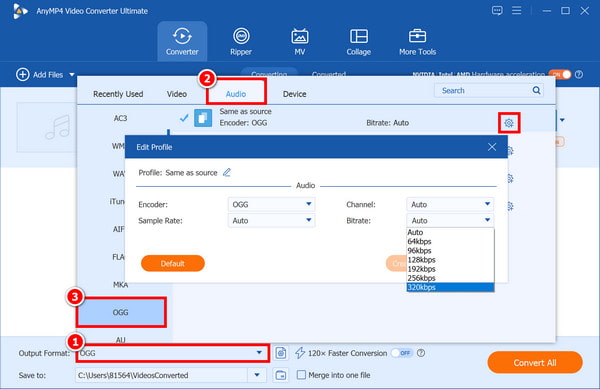
2. Click Output Format, navigate to the Audio tab, and choose OGG in the dropdown list. (As an audio codec, Opus is typically stored in the .opus, .ogg, or .webm extensions.) Or, adjust the bitrate to 96–128 kbps via the gear-shaped Custom Profile button.
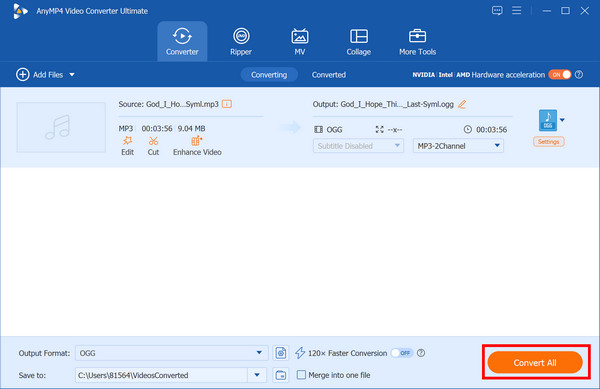
3. Set the local destination for your converted file, then click Convert All to start the conversion.
What I Love:
Downsides:
Choose AnyMP4 Video Converter Ultimate if you want high-speed local processing, offline security, and unlimited file capacity of a desktop program, and prefer a visual drag-and-drop user interface over a command-line interface.
FreeConvert is a streamlined, browser-based cloud conversion engine. It serves as an excellent lightweight alternative for ordinary users who simply want to convert small, single files, do not want to install software, and are not restricted by strict data privacy concerns or slow upload speeds.
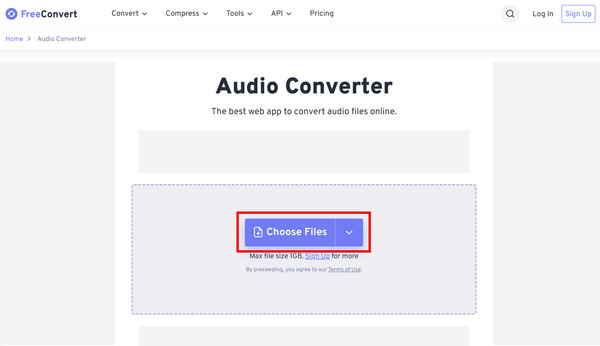
1. Go to the FreeConvert Audio Converter website and click Choose Files to upload an MP3 (up to 1 GB on the free tier).
2. Click Output to select Audio > OGG from the dropdown list. Adjust audio parameters, such as the audio codec, volume, and more, via the gear-shaped Advanced settings button if necessary.
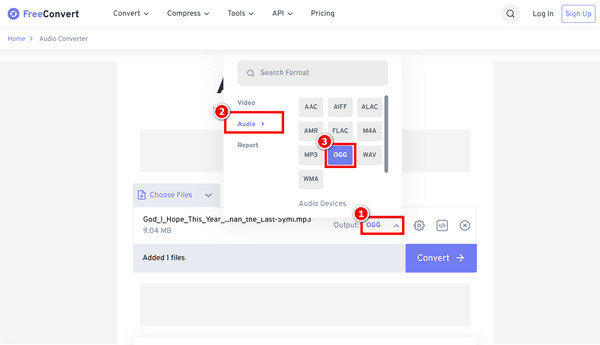
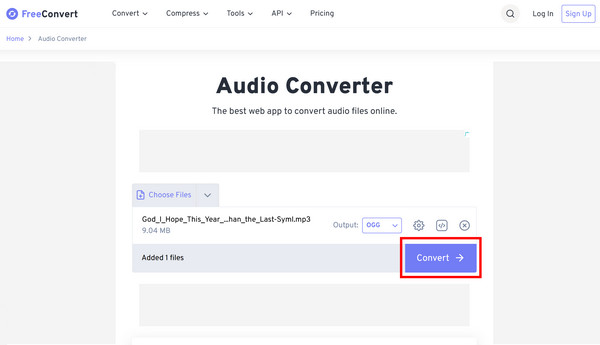
3. Click Convert. Once the conversion is complete, click Download to save your converted file.
Choose FreeConvert when you are on a guest device or have a single, small audio file, and there is no need to set up or open a desktop converter.
FFmpeg is an open-source command-line framework that processes files locally with fast processing speed, absolute privacy, and zero system overhead. It is the ideal tool for precise automated workflows.
1. Launch Command Prompt or PowerShell on Windows, then change directory (cd) to your MP3 folder.
2. Run the following single command to perform the conversion automatically.

3. Run the Batch Command to process an entire directory instantly using a native loop sequence.

Choose FFmpeg if you are comfortable with command lines or want automated, completely free folder conversions with absolute control over metadata and audio parameters.
In 2026, many podcast creators and game developers will prefer Opus, primarily due to its dynamic adaptability at extremely low bitrates. Unlike the traditional MP3 format, Opus incorporates both SILK (an engine optimized for clear vocals) and CELT (designed specifically for high-fidelity music) within a single container.
The combination of these two modes ensures that background music sounds pristine and voices remain sharp, while also guaranteeing smooth, lag-free in-game chat even during network congestion. It is undoubtedly a very useful feature for podcasters and game developers. If you are dealing with high-fidelity music, check out our guide on converting MP3 to AAC.
Does converting MP3 to Opus actually improve the audio quality?
The short answer is no: it does not improve the audio quality. In fact, technically speaking, the quality will slightly decrease.
What is the recommended bitrate for Opus when converting from a 320kbps MP3?
For a 320 kbps MP3, the recommended target bitrate for Opus is 96-128 kbps for stereo music.
Will Opus files play natively on iOS and Android devices?
Only newer Android devices can play Opus. The iPhone operating system does not natively support it and requires external apps such as VLC.
How much file size can be saved by converting MP3 podcasts to Opus?
Converting MP3 podcasts to Opus is expected to reduce your file sizes by 70% to 80%.
Is it possible to convert MP3 to Opus via the command line on Windows?
Yes, it is entirely possible and highly efficient to convert MP3 to Opus via the Windows Command Line (CMD).
For converting MP3 to Opus, web-based tools like FreeConvert offer quick access and one-off conversions, but powerful desktop software like AnyMP4 provides privacy protection and more stable, faster local processing. All of these are unmatched by web-based tools. Download it now and try it for free, you will not be disappointed!
Secure Download
Secure Download
 Updated by Alice Thorne to Convert Audio
More readings
 2026 Latest: Top 5 MP3 to M4R Converters (Batch & Lossless)
Still struggling with making iPhone ringtones? This post tests and compares the top MP3-to-M4R converters in 2026. Learn how to complete the conversion easily.
 3 Easy Ways to Convert MP3 to MOV in 2026 [Batch & Fast]
Need to upload audio to video platforms? Learn how to convert MP3 to MOV effortlessly. Compare the best desktop and online tools and keep 100% original quality.
 Step-by-step Guide to Add MP3 to iPhone with or without iTunes
If you want a to listen to or use a song on your iPhone, learn how to put MP3 to iPhone with iTunes manually or automatically achieve it without iTunes.
 4 Fast Ways to Convert WebM to MP3 (Lossless)
Struggling with large MKV files? Learn how to convert WebM to MP3 losslessly in seconds to extract pristine 320kbps audio offline today.
 Add your comments to join the discussion here