
When you just invested in a pair of premium headphones, and sit down, press play on your favorite track, and... it sounds surprisingly flat. The cymbals lack crispness, and the bass feels muffled. The culprit? Your MP3 files. While the MP3 format revolutionized digital music by saving storage space, it actively strips away audio frequencies to achieve those tiny file sizes. Lossless audio formats like FLAC, ALAC, and WAV preserve the full depth of a studio recording. This guide explains the real differences between lossy and lossless audio, and shares 3 methods to fix MP3 files by converting MP3 to lossless audio for editing, noise reduction, and high-end playback.
When you just invested in a pair of premium headphones, and sit down, press play on your favorite track, and... it sounds surprisingly flat. The cymbals lack crispness, and the bass feels muffled. The culprit? Your MP3 files. While the MP3 format revolutionized digital music by saving storage space, it actively strips away audio frequencies to achieve those tiny file sizes.
However, lossless audio formats like FLAC, ALAC, and WAV preserve the full depth of a studio recording. This guide explains the real differences between lossy and lossless audio, and shares 3 methods to fix MP3 files by converting MP3 to lossless audio for editing, noise reduction, and high-end playback.

If you are in a hurry to understand how these formats stack up against each other, check out this quick comparison table before moving on to the conversion steps.
| Format | Type | Audio Quality | File Size | Best Used For |
|---|---|---|---|---|
| MP3 | Lossy Compression | Fair to Good | Very Small (~3-5MB) | General listening, saving phone storage, podcasts. |
| FLAC | Lossless Compression | Studio Quality | Large (~25-40MB) | High-res playback on Android, Windows, and digital audio players. |
| ALAC | Lossless Compression | Studio Quality | Large (~25-40MB) | Audiophiles strictly using the Apple ecosystem (Mac, iPhone). |
| WAV | Uncompressed | Purest Original | Massive (~40-70MB+) | Professional audio editing, mixing, and video production. |
MP3 files became the dominant digital audio format simply because they were small. Back in the early 2000s, fitting 1,000 songs onto a tiny MP3 player required aggressive file compression. The MP3 encoder achieves this by completely deleting audio frequencies that the human ear allegedly has trouble hearing. This permanent removal of data is why it is called a "lossy" format.
Where massive terabyte hard drives and 5G internet are the norm, compressing your music is completely unnecessary for most people. Think of MP3s like a highly compressed JPEG image-sure, you can see the picture, but if you zoom in, the fine details are permanently smeared.
Lossless audio, on the other hand, is like a raw RAW or TIFF file. Formats like FLAC, ALAC, and WAV retain every single bit of data from the original studio recording. They offer wider dynamic range, punchier bass, and crystal-clear highs, allowing you to finally unlock the full potential of your audio peripherals.
Converting an MP3 to a lossless format like FLAC or WAV will not restore the audio data that was lost when the MP3 was originally created. You cannot recreate missing high-frequency sounds.
So, why would you convert an MP3 to a lossless format at all? It actually serves three very critical technical purposes:
Best for: Beginners and users who want high-quality, batch conversions without hassle.
If you want a straightforward, one-click solution to upscale your MP3's container and optimize the bitrate, AnyMP4 Video Converter Ultimate is the most efficient choice. While its name highlights video, this software houses a powerful, professional-grade audio engine. Unlike free tools that require manual codec installations or confusing interfaces, This software comes pre-loaded with FLAC, ALAC, and WAV presets. It allows you to batch-convert entire MP3 music libraries locally without relying on slow internet connections.
Secure Download
Secure Download
1. Launch AnyMP4 Video Converter Ultimate. Click Add Files in the Converter tab to import the MP3 file(s) you wish to process.

2. Click on the Output Format dropdown menu on the right. Navigate to the Audio tab, and choose your preferred lossless file type, like FLAC or WAV. The software automatically optimizes the bitrate and encoding for high-fidelity playback.
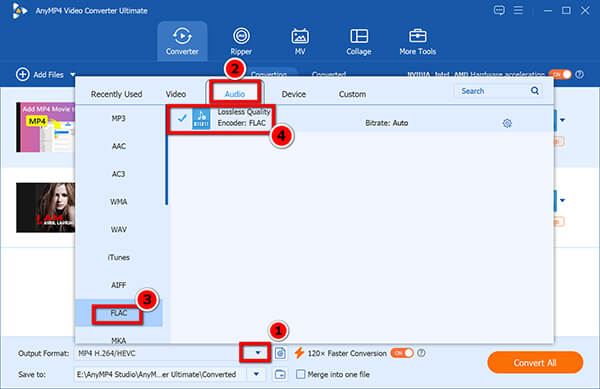
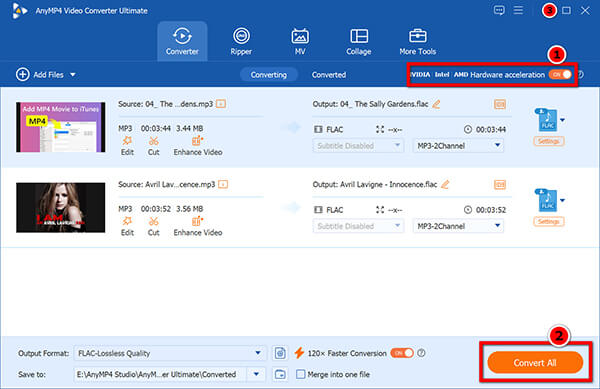
3. Choose your destination folder and click Convert All. In seconds, your MP3s will be safely housed in a lossless container.
If your original MP3 file suffers from background static, wind noise, or low-level hiss (common in old recordings or interviews), simply converting the format won't fix the sound. You need to strip the noise out first.
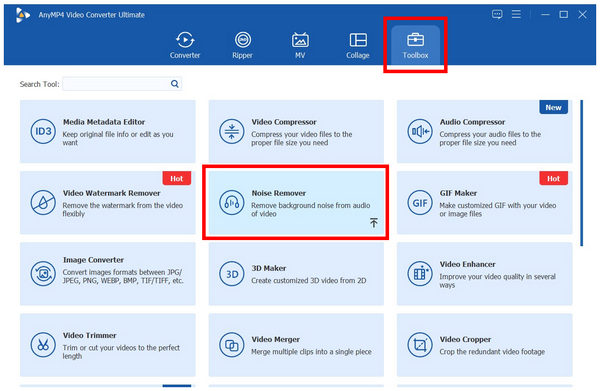
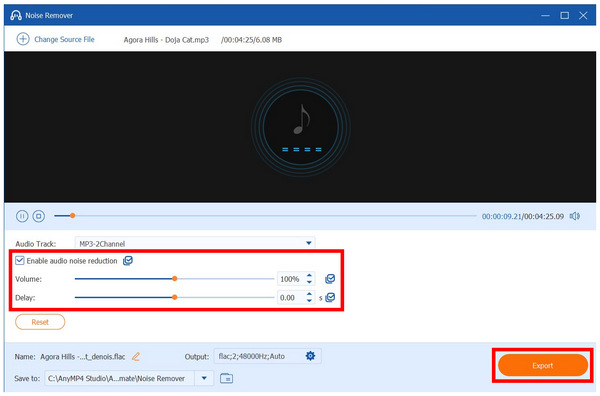
1. Open the software and navigate to the Toolbox tab at the top. Select the Noise Remover tool and import your noisy MP3 file.
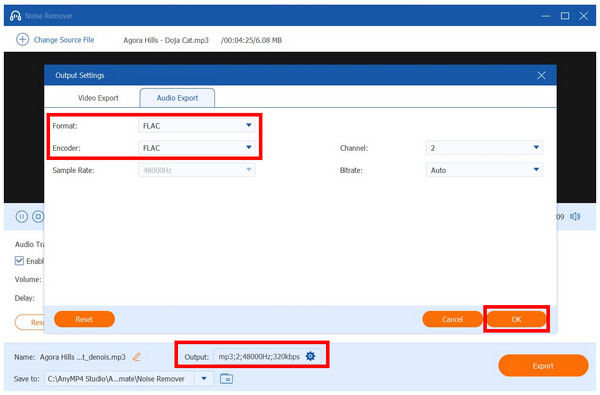
2. Click on the Output Settings gear icon. Change the Format to a lossless option like FLAC or WAV to ensure you don't lose any further quality during the cleanup process. Click OK.
3. Make sure the Enable Audio Noise Reduction box is checked. You can tweak the Volume and Delay sliders if needed. Click Export to save your freshly cleaned, lossless audio file.
Best for: Tech-savvy users with zero budget.
For those users who are looking for open-source tools, Audacity and FFmpeg offer completely free ways to convert MP3 to WAV or FLAC on your computer.
Audacity provides a visual interface where you can drag and drop your MP3, click File, select Export Audio, and select WAV. However, its interface is notoriously cluttered with audio engineering tools, making it feel overwhelmingly complex if all you want to do is convert a file.
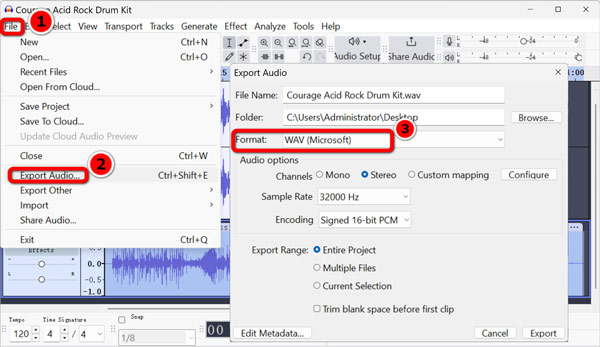
If your MP3 file quality is low because of the noise, you can rely on Audacity to remove the background noise to fix that.
FFmpeg, on the other hand, operates entirely via command-line prompts. You open your terminal and type a command like: ffmpeg -i input.mp3 output.flac

Both of these free tools are not easy to operate. They lack user-friendly batch processing presets, and with FFmpeg, one mistyped character will instantly return a frustrating error code rather than your converted music.
Best for: One-time, small file conversions.
Websites like FreeConvert, CloudConvert or AnyMP4 Free Online Audio Converter allow you to change an MP3 to a lossless format directly inside your web browser. This is convenient if you are using a borrowed computer, working on a Chromebook, or just need to process a single, short song without downloading desktop software. The conversion steps are pretty easy. Here, we take AnyMP4 Free Online Audio Converter as an example to show you how to convert MP3 to lossless ALAC, FLAC, and WAV.
Just click the Upload File button to import the MP3 into this software, then select the lossless FLAC, WAV or ALAC format. Once the conversion process is done, you can download the converted file to your computer.
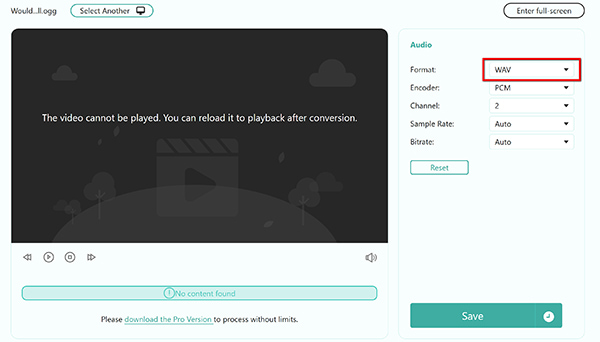
However, the drawbacks are significant and often frustrating. It only handles the single MP3 file without batch conversion. For processing entire music libraries or handling sensitive audio, a local tool like AnyMP4 Video Converter Ultimate is a much safer bet.
Once you've decided to move away from MP3 and utilize a lossless container, you'll need to select the right specific format. Here is a quick guide to help you decide:
Can MP3 files be converted to lossless quality?
Yes, you can easily convert the format container from an MP3 to a lossless format like FLAC or WAV using desktop software. However, keep in mind that the conversion will only preserve the current audio quality and prevent it from getting worse; it cannot recover the original frequencies that were permanently deleted when the MP3 was first created.
Does converting MP3 to FLAC actually improve sound quality?
Not directly. Converting a low-quality MP3 to FLAC will not magically make it sound like a studio master tape. However, if you use a tool to apply noise reduction or equalization settings during the conversion process to FLAC, the resulting file will sound noticeably cleaner without suffering from any additional compression artifacts.
What is the best lossless audio format?
For the vast majority of users, FLAC is considered the best overall lossless format. It offers an excellent balance of file size compression (cutting raw file sizes in half) while maintaining 100% of the audio data, and it is universally compatible with most modern playback devices.
Is AnyMP4 Video Converter Ultimate good for MP3 to lossless conversion?
Yes. It handles batch audio conversions exceptionally well, allows for deep bitrate customization, and includes dedicated audio tools like a Noise Remover to clean up messy MP3 recordings before packaging them into a flawless FLAC or WAV container.
Upgrading and fixing your lossy MP3s to lossless formats like FLAC, WAV or ALAC ensures that your music is preserved flawlessly, preventing further degradation when editing or transferring files. Which method is your favorite one? Tell us your option or other recommendations in the comments below, and start getting the absolute most out of your high-end listening equipment.
Secure Download
Secure Download
 Posted by Alice Thorne to Convert Audio
More readings
 Top 5 Audio Enhancers to Convert MP3 to 320kbps from 128kbps
Want to get the best audio quality of your MP3 files? It is easy to produce MP3 320kbps from a 128kbps, 256kbps, etc., in FLAC, AAC, etc., with the MP3 bitrate converter.
 How to Convert M3U8 to MP4
If you have downloaded a M3U8 file and you want to share this video with your friends. You may need to convert M3U8 to MP4 or other popular formats.
 4 Verified Methods to Make a Video Louder with Volume Booster
How to increase the volume on an MP4 file? Here we will share 4 ways to make a video louder with video volume booster in the step-by-step guide.
 3 Best MP3 Volume Normalizer Apps You Will Need
This tutorial will show you how to normalize your MP3 files with the best MP3 volume normalizer for enjoying your favorite songs in the same sound volume.
 Add your comments to join the discussion here