- Convert video, audio, and DVD over 500 formats.
- GPU acceleration to speed up the conversion process at 70X faster.
- More than 16 editor tools in the toolbox (Updating).
- Create videos for TikTok, YouTube, Facebook, etc.

Free Download100% Clear & Secure
Free Download100% Clear & Secure
MPEG4 to MP3
Back to main page
Setting
Custom resolution:
| Core Features | Web Version | Pro Desktop |
| Max File Size | 50MB (Login: 100MB) | No Limit |
| Daily Limit | 2 Files (Login: 10 Files) | Unlimited |
| AI Video Upscaling | No | Yes (Up to 4K/8K) |
| GPU Acceleration | No | Yes (70X Faster) |
| Batch Processing | No | Yes |
Failed to upload media file! Please try again, or use AnyMP4 Video Converter Ultimate for Desktop.(Error code: 20015)

The original video resolution is higher than 1080p. If you want to output the original high resolution, you need to download the Pro Version. Or would you like to output the default 1080p resolution?

Quick Summary at a Glance:
Converting MPEG-4 to MP3 requires extracting the audio track without re-compressing the original sound quality. For maximum data privacy and batch processing speed, local desktop software such as AnyMP4 Video Converter Ultimate is recommended. For quick, one-off small files, secure web-based tools like FreeConvert offer browser-side processing. The optimal audio extraction setting is a bitrate of 320 kbps to ensure studio-grade sound.
Converting an MPEG-4 to an MP3 file seems easy with desktop and online tools. However, free online tools will incur serious hidden costs: uploading private clips to cloud servers exposes you to significant risks of privacy and data leakage. In addition, network latency often causes file uploads to fail. To make matters worse, when the conversion is finally completed, you are usually left with heavily compressed audio quality and hidden advertisements. But no worries, this guide will show how to safely extract audio from your MPEG-4 video and ensure 100% safe, stable, and lossless conversion.
For users prioritizing data privacy and lossless audio extraction, desktop-level processing remains the industry standard. AnyMP4 Video Converter Ultimate bypasses the risks associated with cloud uploads by utilizing local hardware capabilities to extract MP3 tracks directly from MPEG-4 files. Thanks to hardware acceleration, it runs up to 70x faster than traditional tools, providing a 1:1 lossless conversion without sacrificing audio quality. It is the gold standard for batch-extracting 320 kbps MP3s from MPEG-4 video files.
Key Benefits:
The following are the steps to convert MPEG-4 to MP3 with AnyMP4:
1. Download and install AnyMP4 Video Converter Ultimate. After installing, it will automatically launch on your computer.
Secure Download
Secure Download
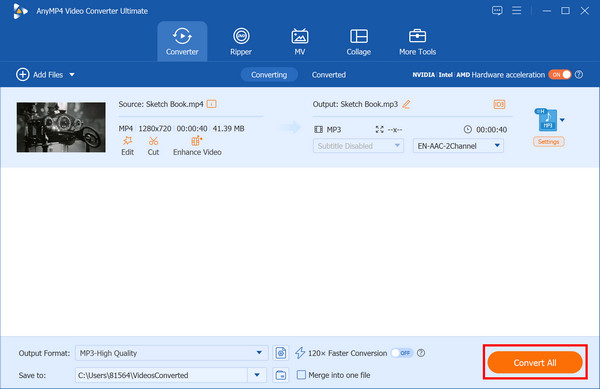
Click Add Files/Add Folders, or directly drag your MPEG-4 video files/folders into this MPEG-4 to MP3 converter.

2. Click the Output Format option, go to the Audio tab, and select MP3 > High Quality from the drop-down list.
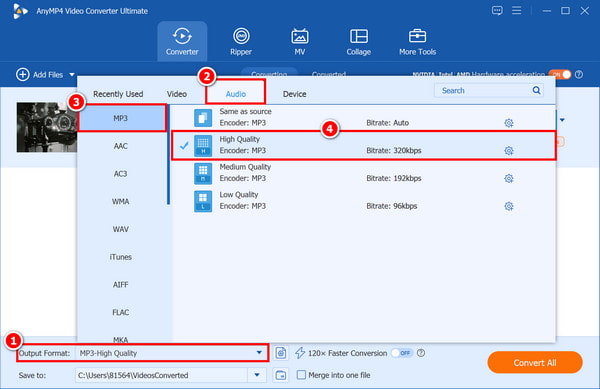
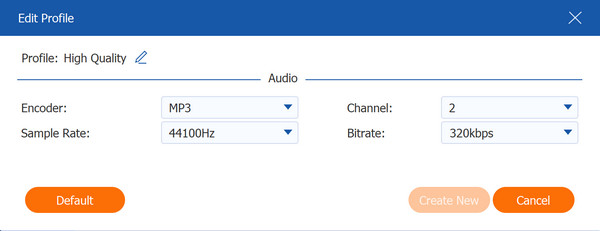
The bit rate of the High Quality MP3 option is locked at 320 kbps, and other audio parameters, such as sample rate and channel, are set to ensure maximum sound fidelity.
3. Select a path for the converted files. Then click Convert All to convert MPEG-4 to MP3 on your computer instantly.
Objective Evaluation (Pros & Cons):
Pros:
Cons:
AnyMP4 Video Converter Ultimate offers the fastest, most secure local batch processing with maximum audio fidelity.
If you only need to process a small file and do not want to install any software, cloud tools offer quick, convenient access. However, to bypass aggressive ad networks and data tracking, we recommend FreeConvert. It stands out for its strong security standards, including 256-bit SSL encryption for all data transmission and the deletion of files from the cloud servers within 8 hours. It also allows you to strip metadata during processing, keeping your location and device private.
Here are the steps to extract audio from MPEG-4 with FreeConvert:
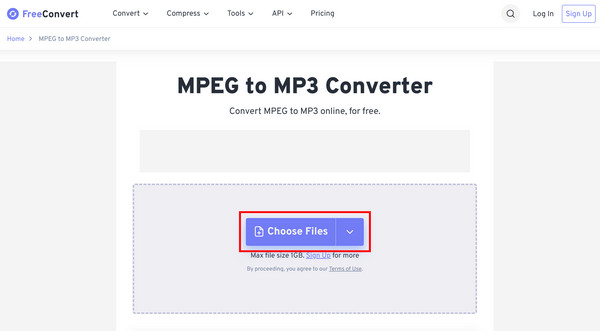
1. Go to FreeConvert's MP4 to MP3 Converter and click the Choose Files button to upload an MPEG-4 file (max 1GB file size) from your local storage.
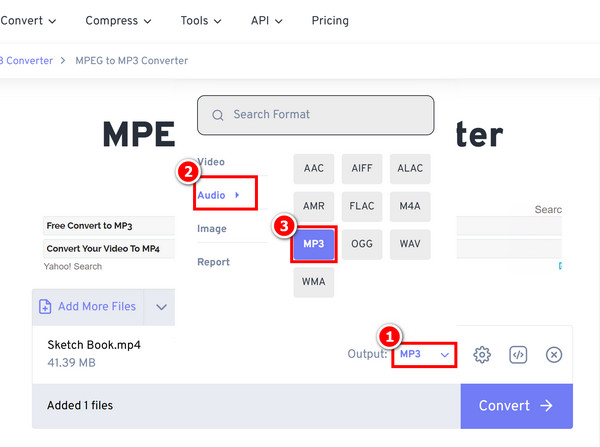
2. Click the Output option, then select MP3 as the output format in the Audio tab from the drop-down list.
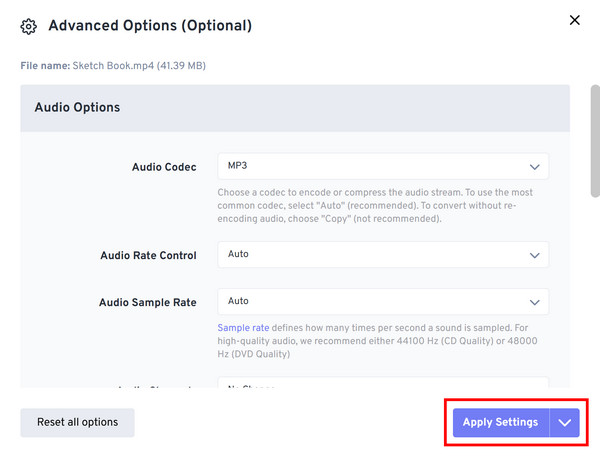
Additionally, you can click the gear button to adjust parameters such as the audio codec, bitrate, sample rate, channel, etc. After setting, click Apply Settings.
3. Finally, click Convert in the lower-right corner to save your new MP3 file.
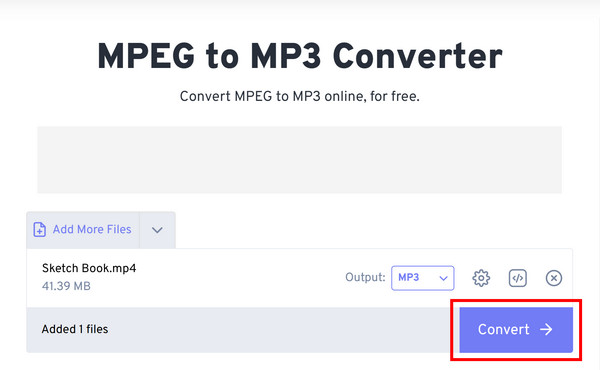
FreeConvert is a secure, metadata-stripping cloud service for converting small MPEG-4 files to MP3. But sometimes it has annoying advertisements!
VLC Media Player is a suitable choice for skilled users looking for a completely free, local, open-source alternative. Although it is primarily a media player, VLC includes a native transcoding engine that processes audio without uploading a single byte to the web. Nevertheless, VLC's user interface is notoriously clumsy, hidden behind nested menus, and it lacks automated naming features for batch outputs, making managing complex multimedia projects tedious.
Follow the steps to convert the MPEG-4 video to MP3 with VLC:
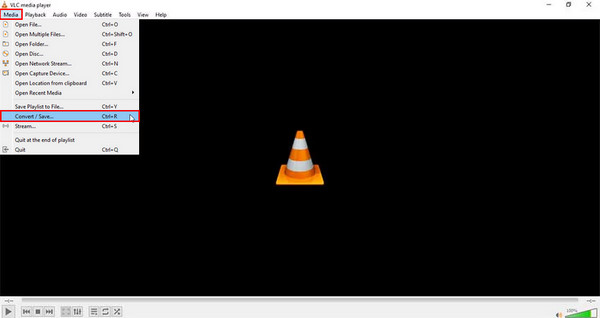
1. Open VLC, click on Media in the top menu, and select Convert / Save... (or press Ctrl + R).
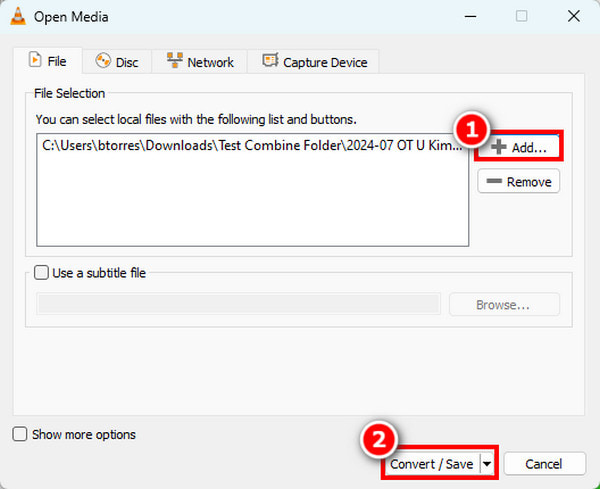
2. Click the + Add... button under the File tab to select your MPEG-4 files, then click the Convert / Save button at the bottom.
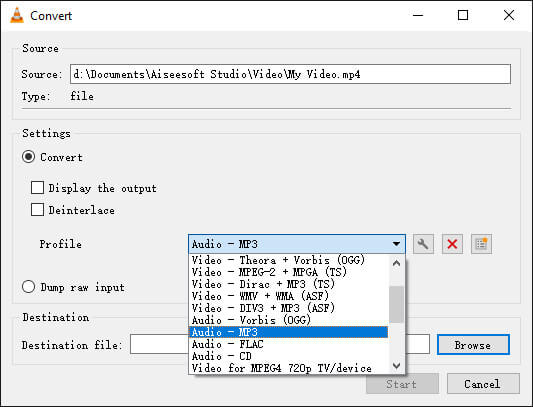
3. Scroll down and choose Audio - MP3 from the Profile drop-down menu. Click the wrench button to check that the bitrate is set to a high value.
Click Browse to set the destination folder, manually name the incoming .mp3 extension, and click Start to run the conversion.
VLC Media Player acts as a completely free and open-source alternative for offline tech enthusiasts.
The evaluation process involved a rigorous 50-hour laboratory testing project across multiple digital platforms, specifically Windows 11 and macOS Sequoia. Metrics tracked included conversion speed under hardware acceleration, output bitrate fidelity (analyzed via audio spectrum tools), and CPU resource consumption.
| Processing Environment | Max Bitrate Supported | Batch Conversion | Privacy Risk Level | Hardware Acceleration | |
|---|---|---|---|---|---|
| AnyMP4 Video Converter Ultimate | Local | 320 kbps | Yes (Unlimited parallel queues) | Zero (Complete data isolation) | Yes (Full NVENC, AMD, Intel GPU integration) |
| FreeConvert | Cloud | 320 kbps | Limited (Max 1GB file restrictions free) | Medium (256-bit SSL, 8-hour auto-wipe) | No (Dependent on remote server loads) |
| VLC Media Player | Local | 320 kbps | Yes (Manual batch configuration) | Zero (Local execution) | Limited (Basic CPU multi-threading) |
Does extracting MP3 from an MPEG-4 video degrade the original audio quality?
The short answer is yes, theoretically, because MP3 is a lossy audio format, the extraction process can introduce quality degradation. But it depends on the method and settings you choose.
What are the privacy risks associated with uploading MPEG-4 files to online converters?
When you upload a file to a free online utility, you are essentially sending your data to a third-party-owned remote server, which poses risks such as privacy and metadata leakage.
How can a folder of multiple MPEG-4 files be converted to MP3 simultaneously?
To convert an entire folder of MPEG-4 files to MP3 simultaneously, you need a method that supports batch processing, such as AnyMP4 and VLC mentioned above.
What is the recommended audio bitrate setting when converting video to MP3?
When converting video files to MP3, the recommended audio bitrate depends entirely on the videos' original audio quality and your intended use case.
• If you want the highest possible audio fidelity and maximum device compatibility, 320 kbps is the recommended setting.
• If you want to save storage space while preserving near-flawless quality, use VBR V0 (which averages around 220–245 kbps).
• If you are converting spoken-word content, 128 kbps is the baseline standard.
Choosing which tool to convert MPEG-4 to MP3 files depends entirely on your project. For converting a minor clip, an online tool like FreeConvert offers a quick and convenient service. However, if you are handling private family footage, lengthy podcast recordings, or requiring true lossless conversion, local desktop processing via AnyMP4 Video Converter Ultimate is the best solution. Now, download it to experience safe conversion locally!
Secure Download
Secure Download
 Updated by Alice Thorne to Convert Video, Convert Audio
 More readings
 AVI to MPEG/MPEG to AVI – Top 5 Free and Professional Video Converters
Which AVI to MPEG converter does a good job? If you are looking for the best AVI to MPEG or MPEG to AVI file converter, you can check this review.
 The Best MKV to MPEG Converter to Transcode MKV to MPEG Files
When you want to convert MKV to MPEG for DVDs, you can learn more about the most efficient method to transcode the MKV files with ease from the article.
 Top 4 Methods to Quickly Convert WebM to MP3 on Desktop or Online
How to convert WebM to MP3? This article shares four ways to convert WebM videos to MP3 format for listening to in any media player or portable device anytime.
 Top 6 AVI to MP3 Converter Applications Available to Windows and Mac
The best AVI to MP3 converters are simple to use, and can turn AVI videos into MP3 format without losing much quality. Here we identify and share a top list.
 Add your comments to join the discussion here