How to Convert MPEG to GIF: Format Conversion Guide in 2026
Quick Answer:
Converting MPEG to GIF requires balancing animation quality with file size. For absolute data privacy and high-speed batch processing, offline desktop software such as AnyMP4 Video Converter Ultimate is the most secure option. For quick, single-file conversions without software installation, Ezgif provides a reliable web-based alternative. The optimal GIF settings typically involve a frame rate of 15-24 FPS and a scaled-down resolution to ensure fast web loading.
Standard MPEG videos have been among the most widely used compression options and formats, from the first version of MPEG-1 to the latest, MPEG-4. Although these files are highly practical and offer superb compression, they are still not as portable as animated GIFs. In this article, we will bridge this gap by providing three excellent options to convert MPEG to GIF. These conversion options vary from multimedia conversion tools, online solutions, and traditional photo editing software.
Part 1. AnyMP4 Video Converter Ultimate (Best for Privacy & Quality) (Recommended Product Deep-Dive)
AnyMP4 Video Converter Ultimate emerges as the premier solution for converting MPEG files to GIF formats, specifically engineered for users who prioritize data security and output precision. Unlike web-based platforms, this software utilizes localized hardware processing to handle media.
With these features, GIF conversion is way faster, more efficient, and highly effective in AnyMP4 multimedia converter software. This is a huge step compared to a web-based solution, since the performance of online tools heavily depends on the quality of your internet connection.
To learn more about what makes AnyMP4 Video Converter Ultimate a solid choice for MPEG video to GIF conversion, make sure to read some of the key benefits of using this program, together with its most unique selling points, alongside basic format conversion.
Continue reading our step-by-step guide to also learn the basics of GIF conversion in the software.
To enjoy all these features, make sure to download the software using the link provided below.
Key Benefits & USPs
Absolute Data Privacy
Because the conversion process happens entirely offline on the local desktop, sensitive or proprietary MPEG videos are never uploaded to third-party servers. This guarantees complete protection against data breaches.
Uncompromised Quality Control
Users gain granular control over the final GIF. The software allows precise adjustments to frame rates and animation loops, ensuring the resulting GIF is both fluid and optimised for web performance.
Accelerated Batch Processing
Using hardware acceleration, the software processes multiple large MPEG files simultaneously without crashing or throttling, unlike online converters.
Streamlined UI/UX
The clean, grid-based layout ensures that both novice users and technical editors can navigate the tool without a steep learning curve.
Step-by-Step Conversion Guide
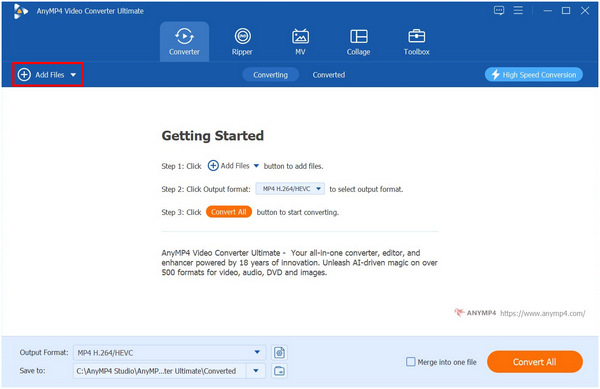
1. Open AnyMP4 Video Converter Ultimate and select Add Files to import the MPEG video you want to convert.
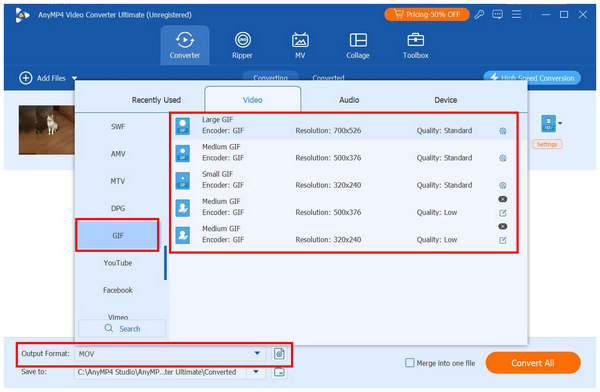
2. Once the MPEG clip has been added, select Output Format and choose GIF. Then, choose among the conversion profiles; we recommend using Large GIF.
3. With the conversion profile now set, you will be redirected back to the Converter tab. Select Convert All to begin the conversion process.
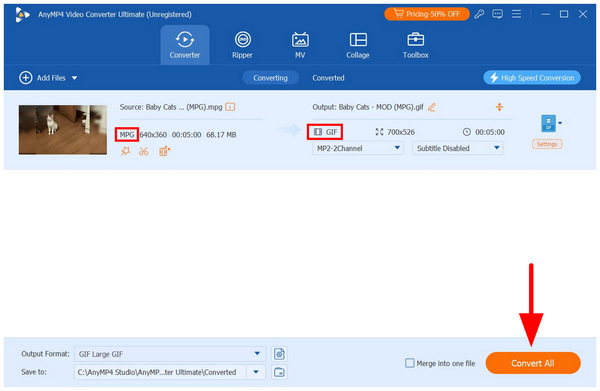
Since format conversion in AnyMP4 Video Converter Ultimate also takes three simple steps, its ease of use is close to and almost on par with other popular web-based options. As such, if you plan to regularly convert MPEG to GIFs or create GIFs, this is a much better choice due to its stability and faster performance.
Part 2. Ezgif (Best Online Alternative)
If you are handling one-off conversions or want to avoid a complex installation, browser-based solutions should be your go-to option, and Ezgif is one of the most reliable options.
Made exclusively for handling video conversions to GIFs, this online tool also includes a general video-to-GIF converter. You may also convert GIFs into video if you wish to do so. Fortunately, since it is an online program, video conversion is easy to do in the software.
Here are the simple steps to convert with it:
1. Open Ezgif and select the Video to GIF option.
2. In the online tool’s video-to-GIF conversion menu, select Browse and click on it to upload the MPEG video you want to convert. You may also click and drag it to the upload box. Wait a few minutes during the upload process, since Ezgif’s process can take a long time, even for an online tool.
3. Once the GIF has been uploaded, you can now adjust the Start Time, End Time, Frame Rate and other advanced GIF settings on your MPEG file. Once you're satisfied with your adjustments, select Convert to GIF to start producing the GIF.
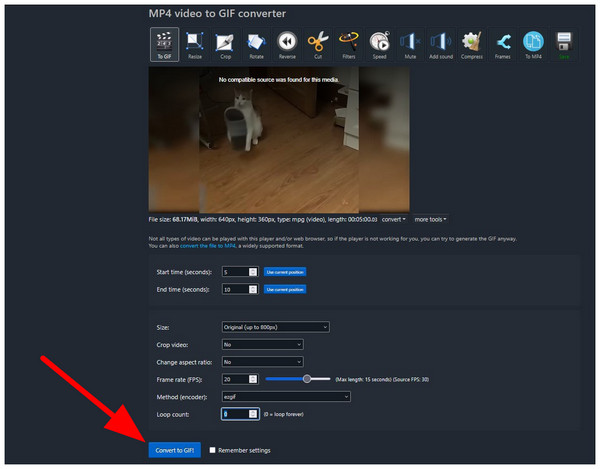
Although web-based options offer the best accessibility for their users, it is only advisable for one-off GIF conversions. Since these files are fully reliant on the internet, opening, converting, and uploading files is 100% dependent on your connection. They are advisable only for casual users and for quick, one-time use.
Part 3. Adobe Photoshop (Best for Professional Frame Editing)
With the two options we have provided for creating animated GIFs from regular MPEG videos, let us now move on to the unconventional solution for converting flat images into a flat GIF. This guide will feature the “Save As” option in the traditional image-editing tool Adobe Photoshop.
To learn how to create flat images in GIF format using Adobe Photoshop, make sure to read our quick guide below.
1. Open Photoshop and select File, then click on Open to locate the image you want to convert to GIF.
2. Once the image has been imported into Photoshop, select File again and click Save As.
3. In the Save As menu, set the Save As Type to GIF by selecting the format from the available file types.
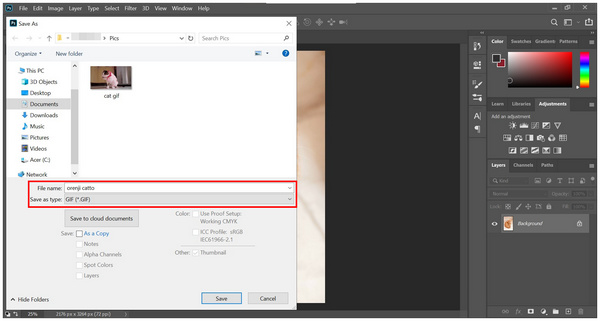
Although a flat-image GIF may sound off and seem very unconventional, it has several practical uses for creating animation and logos. GIF images could fit quickly on these projects, although saving them in PNG format is actually better.
Part 4. Head-to-Head Comparison: Finding the Right Tool
For a quick comparison of the three GIF maker programs we have highlighted, we have provided a detailed comparison table that you can use to easily differentiate each option based on key metrics such as processing type, privacy, support for batch conversion, frame rate options, and pricing.
| Feature/Tools |
Processing Type |
Data Privacy Level |
Batch Conversion |
Custom Frame Rate |
Pricing Plans |
| AnyMP4 Video Converter Ultimate |
Offline/Desktop |
High (No Upload) |
Yes |
Customizable |
Free - $18.75 |
| Ezgif |
Online |
Moderate (File Upload and Automatic Delete) |
No |
15 - 24 FPS |
Free |
| Adobe Photoshop |
Offline/Desktop |
High (No Upload) |
Yes |
N/A |
$9.99/Month - $54.99/Month |
Part 5. Expert Tips: How to Optimise GIF Size and Quality
Adjusting Frame Rates (FPS)
To further enhance the quality of your GIFs, one of the most important settings to adjust is their frame rate. Since GIFs are usually saved at 15-24 FPS, maximizing to the standard 24 FPS is your best bet to ensure your GIF looks smooth rather than choppy.
Aspect Ratio and Resolution Scaling
Since most videos converted to GIFs are usually saved in SD or HD resolution, you have to use the proper aspect ratio and resolution to make sure that your GIF’s quality will still look okay once converted. To ensure this result, it is best to use 480p resolution: 480x480 for square GIFs and 640x480 for horizontal images.
Part 6. FAQs About MPEG to GIF Conversion
What is the optimal frame rate for converting an MPEG video to a GIF?
Good frame rate options for video-to-GIF conversion range from 15 to 24 FPS. These ranges will ensure your GIF looks smooth. However, you can use a higher frame rate if you wish.
How can the file size of a GIF be reduced without losing visual quality during conversion?
You can use GIF compression options. These compression solutions will only tweak your media's file size without affecting its quality. AnyMP4 Video Converter Ultimate has a video compression feature.
Are online MPEG-to-GIF converters safe for processing sensitive videos?
No, they are not. Avoid editing sensitive media on online tools. These files will be uploaded to their servers and are prone to breaches. Online use of offline tools for such media files.
Can multiple MPEG files be batch-converted to GIFs simultaneously on Windows or Mac?
Yes, there is software that can handle batch video-to-GIF conversion. AnyMP4 Video Converter Ultimate is a good choice. Its Converter tab can support multiple videos at once, and it is available on both Windows and Mac.
Why does a GIF look pixelated compared to the original MPEG video?
GIFs have naturally lower video resolution. They are also extremely compressed versions of higher resolution videos. As such, they will naturally look slightly pixelated.
Conclusion
Now that we have discussed some of the best options for converting MPEG video to GIF, we can recommend which of these three programs is best suited to each purpose. For users seeking security, quality, and batch processing, local desktop tools like AnyMP4 Video Converter Ultimate are the best. For quick and one-time conversions, Ezgif and other web-based programs are recommended. However, for consistency and overall value, desktop-based solutions are way better options, so going with AnyMP4 is our top recommendation. You may download the program using the link below.




 Add your comments to join the discussion here