
Summary
MPEG-to-OGG conversion involves extracting an audio stream from a video file. AnyMP4 Video Converter Ultimate is a highly recommended tool for processing sensitive and private files. It can process multiple files in batches and guarantees 100% data privacy. If you only need to convert non-sensitive files under 1 GB, FreeConvert is a convenient alternative.
MPEG is a good format for storing video and audio. However, the video portion isn’t needed when you are only preparing music tracks, game assets, or web audio. In this case, you can convert MPEG to OGG to extract the audio into an OGG container, using the Vorbis codec. However, poor conversion settings may affect audio quality or cause synchronization issues. Adjusting bitrate and sample rate can also be confusing for beginners. In this post, we will show you how to extract audio from an MPEG file and save it as an OGG file. We will help you convert MPEG video into OGG audio efficiently, securely, and with appropriate quality settings.
OGG is a media container format that usually uses the Vorbis codec. It allows soundtracks to repeat in a loop without gaps. At comparable bitrates, Vorbis provides competitive quality at lower and moderate bitrates than MP3s. When you convert MPEG to OGG, you remove the video component and create an audio-only file. This allows you to easily organize, distribute, edit, and use it in various applications.
AnyMP4 Video Converter Ultimate is a premier video-to-video conversion software that supports audio extraction. It supports lossless audio extraction from MPEG files and exports them to OGG and 500+ other formats. It allows simultaneous conversion of hundreds of files at 120× speed. You can also adjust audio bitrate (kbps) and sample rate to balance sound quality with file size and device compatibility. It guarantees absolute data privacy, as all conversions are performed through local processing.
Here’s how to extract high-quality OGG audio from MPEG video:
1. Download AnyMP4 Video Converter Ultimate and complete the installation. After setting up the software, it will open to the Converter tab.
Secure Download
Secure Download
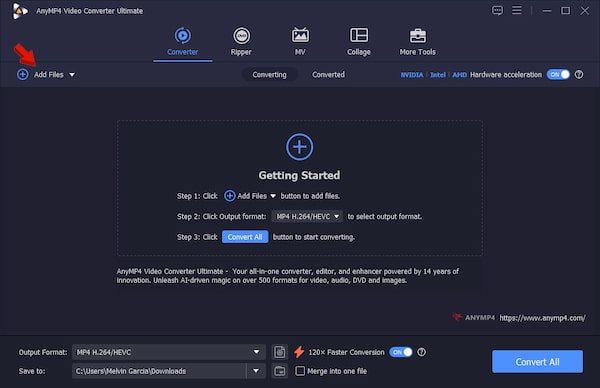
Click +Add Files to import the MPEG files from your computer. If your files are in a single folder, use the Add Folder instead.
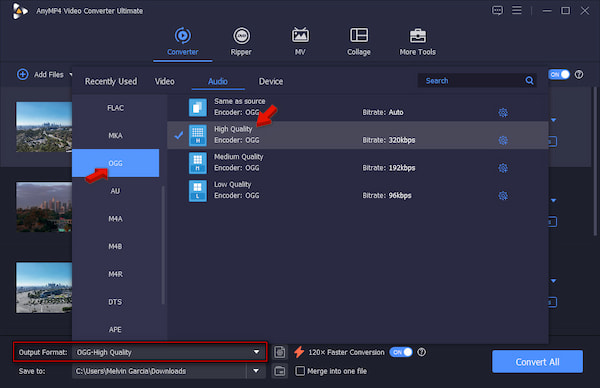
2. Click the Output Format picker, then go to the Audio category and select OGG. Set the quality preset to High Quality, which is equivalent to a Vorbis quality setting of q5 to q6, or about 160-192 kbps.
3. Return to the main interface and enable Hardware Acceleration to speed up the conversion. Set the output folder, then click Convert All to batch convert MPEG to OGG on Windows 11/macOS.
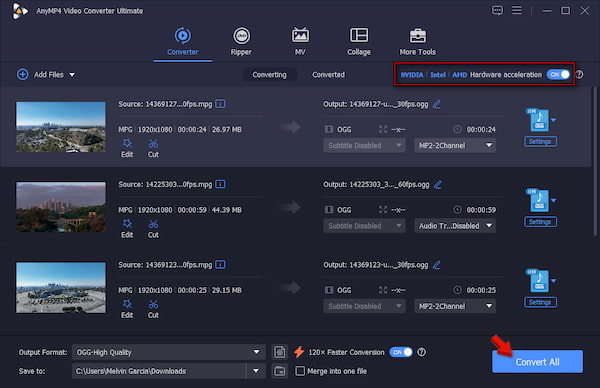
Before converting, we verified all 50 source files, totaling 1.4 GB, in an MPEG player to ensure they played back correctly. Then, we batch-processed the files using AnyMP4 Video Converter Ultimate. It took only 1 minute and 25 seconds to complete the entire conversion.
FFmpeg is a proven open-source command-line tool for managing digital media files. It can extract the soundtrack from a video file and save it as a separate audio file. This tool can read the input MPEG file, find the audio stream, and decode it instantly.
To convert: On a Command Prompt or Terminal, run the basic command: ffmpeg -i input.mpg -vn -c:a libvorbis output.ogg. This command will tell FFmpeg to read the input and create an OGG output.
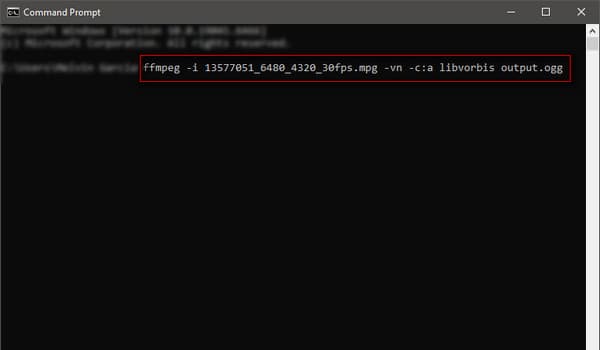
FFmpeg is the best offline software to convert MPEG to OGG for advanced users. You can also use the same command to convert MP4 to OGG. Just be sure to change -i input.mpg to -i input.mp4, and include -vn to disable the video stream and process only the audio.
FreeConvert is an online service that supports extracting audio from video. It supports thousands of media and file types, including video, image, audio, eBooks, and documents. As a browser-based tool, there’s no need to install anything on your computer.
To convert: Navigate to the FreeConvert site and click Choose Files to add the MPEG files from your computer. Click the Output picker and select OGG in the Audio category. Then, click Convert to begin the conversion, then download each right after.
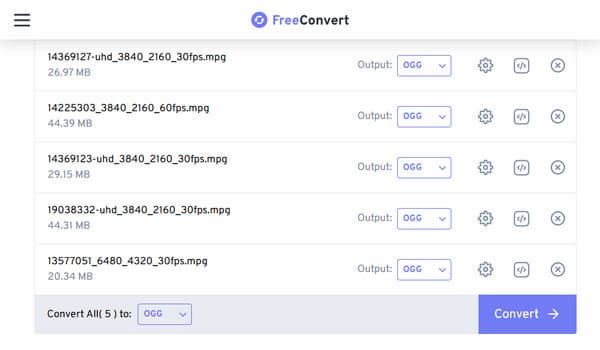
You can also use FreeConvert as an MPEG to MP4 converter. However, as a free user, you are limited to a maximum file size of 1 GB. If you want unlimited MPEG-to-OGG conversion without a file size limit, use offline tools like AnyMP4 instead.
| Processing Type | File Size Limit | Data Privacy Security | Batch Processing | Hardware Acceleration Support | Custom Bitrate Control | |
|---|---|---|---|---|---|---|
| AnyMP4 Video Converter Ultimate | Local | No file size limit |  |
|
|
|
| FFmpeg | Local | No file size limit | |
|
|
|
| FreeConvert | Cloud | 1 GB for free users |  |
5 concurrent conversions |
|
|
Simply choosing OGG as the output format does not guarantee the best audio. Your output parameters also should match the intended use.
Sample Rate
Going higher to 96 kHz doubles the file size with no noticeable improvement for web listeners. Meanwhile, lower rates like 22 kHz sound muffled, so stick to 44.1 kHz or 48 kHz.
Bitrate
Always use Variable Bitrate (VBR) if your OGG encoder offers it. VBR gives more data to loud or complex parts and less data to quiet parts.
Does extracting audio from an MPEG video result in a loss of sound quality?
Yes, because the audio should be re-encoded. You cannot just copy the sound data over. The converter must translate the source audio into the new format.
Are there strict file size limits when using online MPEG-to-OGG converters?
Yes, most online MPEG-to-OGG converters implement strict file size limits, ranging from 50 MB to 1 GB. That’s why it is recommended to use offline tools for converting large files.
What is the optimal sample rate for an OGG file extracted for game audio looping?
The optimal sample rate for an OGG file used in game audio looping is 44.1 kHz or 48.0 kHz. 44.1 kHz is fully compatible with all game engines, while 48.0 kHz prevents the engine from having to resample the audio.
When converting MPEG to OGG, the best way depends on the file and the intended use. To ensure data privacy, AnyMP4 Video Converter Ultimate processes files locally. It ensures unlimited local batch processing and control over audio output settings. If you’re an advanced user wanting more control over settings, use FFmpeg. Meanwhile, FreeConvert is recommended for small, non-sensitive files.
 Posted by Alice Thorne to Convert Video, Convert Audio
More readings
 [Detailed Steps] How to Compress MPEG Video Files Online for Free
If you have downloaded many movies in MPEG format, you can learn here to compress large MPEG files into smaller ones and save the space here.
 [Tutorial] MPEG Joiner - How to Merge Multiple MPEG Files into One
When you have some MPEG files from DVDs or camcorders, you can learn more about the 3 efficient methods to merge MPEG files into a single video here.
 How to Convert OGG to MP3 Fast & Without Loss
OGG files won't play on your iPhone or car stereo? Here is how to batch convert OGG to MP3 online and on a desktop in 5 converters with hands-on notes.
 Best 4 Ways to Convert OGG to WAV (Zero Quality Loss)
Need a reliable OGG to WAV converter? Learn how to convert OGG to WAV for CD burning, DAWs, or archiving using desktop tools, online converters, and FFmpeg.

