
Quick Summary
When choosing a reliable tool to convert AVI to WMV, the programs we have provided have their own niches. To help our readers choose which program works best for them, we provided the best aspects of using each program in this quick summary.
WMV remains a practical format for older versions of Windows Media Player, PowerPoint presentations, and low-bandwidth streaming environments. Due to this niche, converting to the said format is still a common solution to make presentations with interactive videos. In this article, we will review three of the best solutions you can use to convert AVI video to WMV; these programs will provide you with practical options to help our readers choose what's best for their video files.

| Tool | Conversion Speed | Quality Loss | File Size Limit | Batch Processing | Watermark | Best For |
|---|---|---|---|---|---|---|
| AnyMP4 Video Converter Ultimate | Very Fast (GPU Acceleration with NVIDIA, AMD, Intel) | Minimal | Unlimited |  |
 |
Users who want to preserve video quality using professional converter software. |
| Movavi Video Converter | Fast (Hardware Acceleration) | Low | Unlimited | |
|
Beginners who want a simple conversion solution. |
| CloudConvert | Moderate - Fast (Based on connection) | Low - Moderate | 1GB | |
|
One-time conversion and casual multimedia file handling. |
If you need a professional-level video converter, we recommend AnyMP4 Video Converter Ultimate, because it is designed to preserve the quality of media files converted in it. It is also designed for batch conversion, and its performance is supported by the software’s GPU-acceleration system.
On top of these features, the program is also equipped with modern AI technology such as its AI-powered video enhancer, which can remove noise and improve the overall quality of old AVI footage during conversion.
Moving on to its GPU acceleration system, it supports most modern GPU options, including NVIDIA CUDA, AMD, and Intel. This will ensure that your software will be able to work as efficiently as possible regardless of your hardware’s GPU.
With that in mind, all these features make the program a solid option compared to other tools, especially online options with fixed upload limits.
To learn more about the program, download it using the link below. You may also check its main features and a quick tutorial on using the program to convert AVI to WMV.
Secure Download
Secure Download
Main Features:
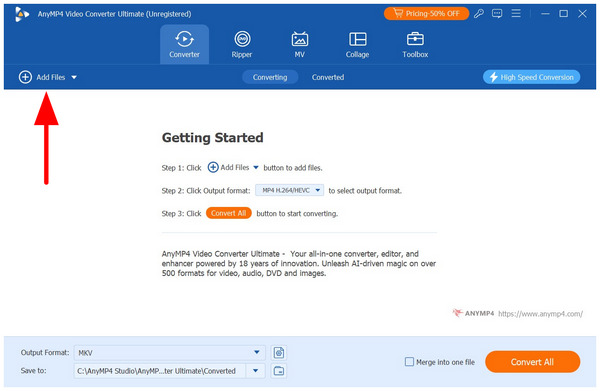
1. Open AnyMP4 Video Converter Ultimate and select the Add Files option in the Converter tab.
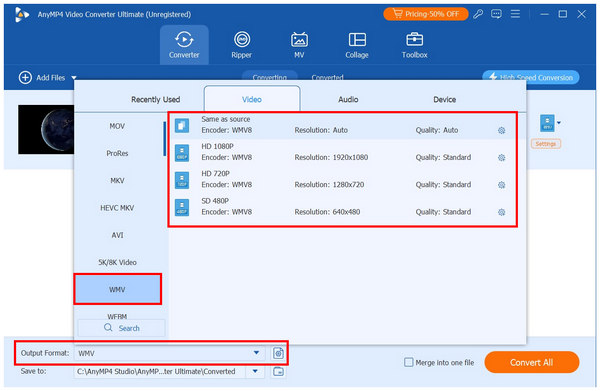
2. Once the AVI file is uploaded, select Output Format, go to Video, and click on WMV. Then, choose the conversion profile you want to use.
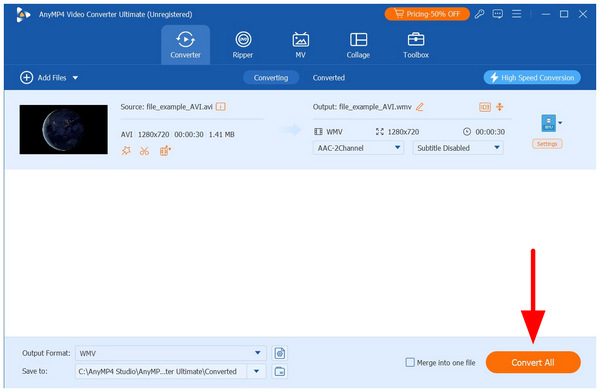
3. With the WMV format now set, select Convert All back in the Converter tab to begin the format conversion.
Speed Test and Results: During our conversion process, AnyMP4 Video Converter Ultimate converted a 1GB AVI file to WMV in a few seconds.
Expert Verdict: Although it is a professional-grade tool, AnyMP4 Video Converter Ultimate is surprisingly easy to use. This makes it still a good option for users of all skill levels.
If you are looking for a simple interface and basic editing tools, Movavi Video Converter’s desktop version is a good choice. This software was designed to operate through a practical drag-and-drop workflow, making it easier to add files.
The software also has built-in editing options to make applying basic adjustments easy before conversion. To ensure the quality of your file, you can use the preview feature of the software to access the quick before-and-after preview window.
To convert AVI to WMV for free in an easy yet professional way, you can use Movavi Video Converter. Both Windows and Mac users can enjoy lightning-fast conversion without quality loss.
1. To convert AVI to WMV for free, in an easy yet professional way, use Movavi Video Converter. Both Windows and Mac users can enjoy lightning-fast conversion without quality loss.
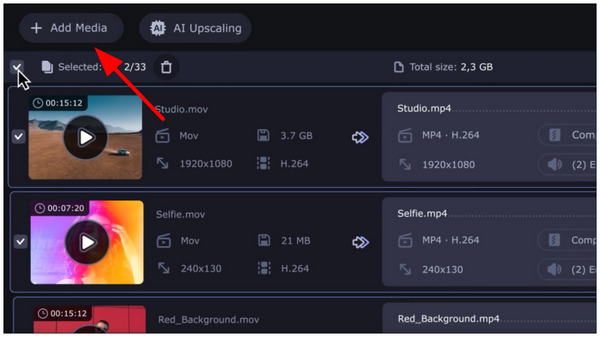
2. Add the AVI file you want to convert by clicking Add Media.
3. Go to the Video tab, then select the AVI category as your output format.
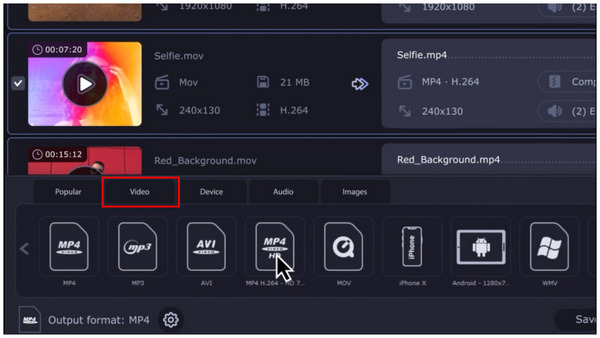
4. Choose the destination folder where you want to save it. Then click the Convert button to begin converting AVI to WMV.
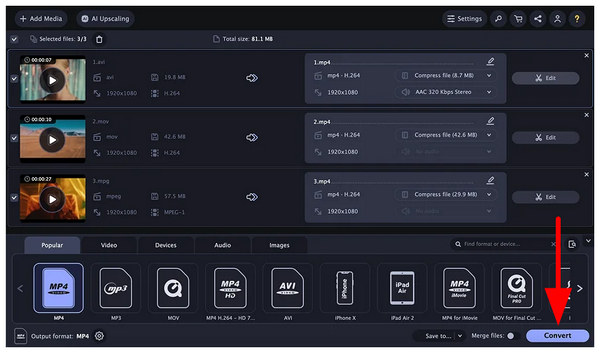
With this simple guide, Movavi makes the program ideal for users who want a clean interface and basic trimming before conversion.
Expert Verdict: Among desktop-based options, Movavi is a good alternative to AnyMP4 Video Converter Ultimate. It is easier to use, but at the expense of subpar preservation of quality.
Finally, the third option in this article is our proposed online and cross-platform choice: none other than CloudConvert. This lightweight program is a good choice for quick conversions since it requires no installation and runs in your browser on your smartphone.
Moreover, the program provides access to cloud storage, automatically deletes uploaded files after 24 hours, and supports advanced codecs for users who want better multimedia control.
To learn how to use the software for AVI to WMV online free conversion, make sure to read our quick guide below.
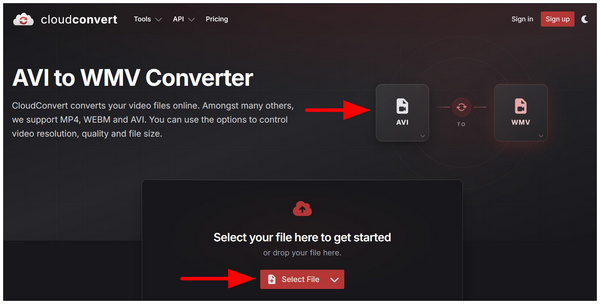
1. Go to CloudConvert and set the conversion format to AVI to WMV. Then, click on Select File to import your AVI.
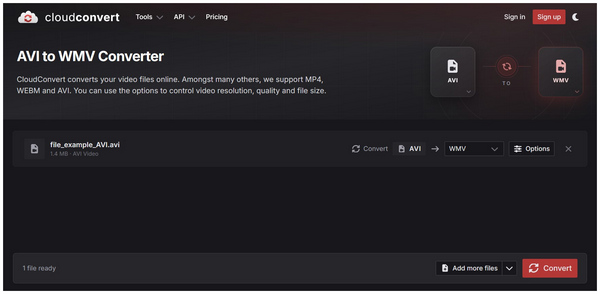
2. Once the AVI file is uploaded, select Convert. Then, wait for the conversion process to finish.
3. Once done, select Download to import the now converted file back to your device.
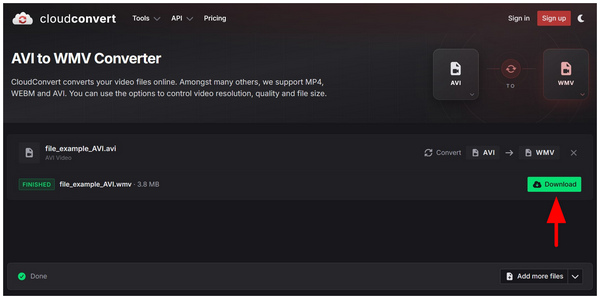
Among the options on this list, this is a good choice, as it is a no-installation video converter. Unfortunately, it has daily conversion limits and has a hard upload limit of only 1GB for free users.
Expert Verdict: CloudConvert is ideal when using a public or shared computer, but AnyMP4 remains the best choice for personal movie collections and large AVI files.
What is the fastest way to convert a large AVI file to WMV on Windows 11?
Desktop tools are the fastest way for Windows 11. It is also the most stable solution. However, if you don’t mind the security risk of online tools, they are also a viable option, such as CloudConvert.
Can I convert AVI to WMV using VLC Media Player for free?
No, you cannot. VLC does not have a conversion profile for WMV. It cannot be used to convert AVI to WMV.
Is WMV better than AVI for PowerPoint presentations?
Yes, they are. This is one of the primary uses of WMV files. PowerPoint natively supports and prefers the WMV format.
How do I convert AVI to WMV without losing video quality?
Use professional-grade multimedia converters. A good example is AnyMP4 Video Converter Ultimate. It is also a solid choice for casual users, as it offers a free version.
Are there any free AVI-to-WMV converters without watermarks?
Yes, there are. All the options in this article are watermark-free. Among them, we highly recommend using AnyMP4 Video Converter Ultimate or CloudConvert.
You will find it so easy to convert AVI to WMV with the methods we recommend. All of these ways are really useful. However, we highly recommend using AnyMP4 Video Converter to convert AVI to WMV easily and professionally, as it is the most powerful, high-quality, and efficient option for basic file conversions. To start using the program, you may download it using the link below.
 Updated by Alice Thorne to Convert Video
More readings
 10 Best AVI to MP4 Converters to Convert AVI
All best AVI to MP4 Converters are here in the post. And you can get one to use.
 Top 15 AVI to MP4 Free Converters You Really Want
This article introduces top 15 Free AVI to MP4 Converters for users to convert AVI.
 Easy to Change WMV to MP4 on Windows and Mac
The easiest ways to change your files from WMV to MP4 are all in this post.
 How to Convert MP4 to WMV on Windows and Mac
Create Microsoft WMV videos with MP4 in high quality on Windows, Mac or online.
 Add your comments to join the discussion here