
Free Download100% Clear & Secure
Free Download100% Clear & Secure
Quick Verdict: Which One Should You Choose?
MP4 remains the gold standard for video compatibility, largely because it plays natively on almost every digital device. While AVI was a desktop staple for decades, it is now considered a "legacy container" that is often too bulky for mobile storage and unsupported by modern social platforms.
If you've struggled with AVI files that won't play on your iPhone or take hours to upload to YouTube, you're in the right place. We have tested and ranked the top 5 best AVI to MP4 converters for Windows and Mac to help you transition to high-efficiency formats without losing a single pixel of quality.
AVI (Audio Video Interleave) was developed by Microsoft in 1992. In 2026, using AVI is like trying to play a cassette tape in a Tesla—it’s possible, but not practical. Here is why users are switching:
Recommended for: Power users needing batch conversion, 4K/8K support, and total privacy for sensitive files.
Avoid if: You only need to convert a single 5MB clip once and don't want to install software.
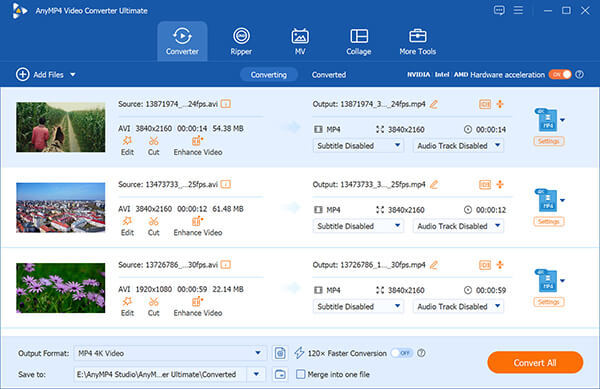
AnyMP4 Video Converter Ultimate is my daily driver whenever I handle large batches of raw AVI footage from legacy hard drives. In our testing, its hardware acceleration was a game-changer; it recognized the RTX 4060 instantly and shifted the heavy transcoding work away from the CPU. The software doesn't just convert; it re-aligns the data streams, which effectively fixed the audio lag I usually encounter with old AVI files. I especially liked the "Lossless Same as Source" preset, which kept the grain and detail of the original video intact. It feels like a professional toolkit hidden behind a very approachable interface.
Secure Download
Secure Download
Recommendation
PROS
CONS
My Experience: I was skeptical about the "70x speed" claim until it turned a 15-minute 4K AVI clip into an MP4 in under 20 seconds. If you have years of family videos to archive, this will save you literal days of work. Besides, when I extract MP3 from AVI files, it processes faster than MP4.
Recommended for: Beginners and social media creators who need fast, device-optimized results without learning video theory.
Avoid if: You are a professional who needs granular control over H.264 Profile levels and GOP settings.
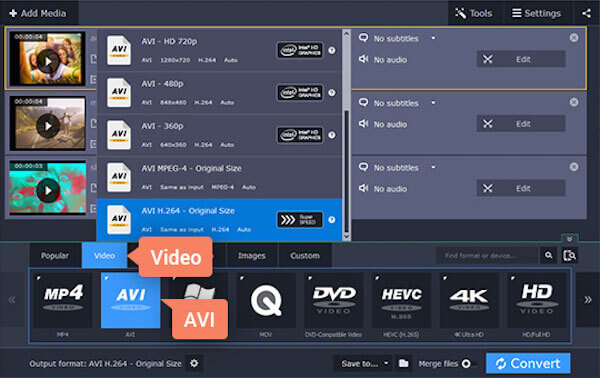
Movavi is the software I recommend to my friends who find technical jargon like "bitrate" or "codec" intimidating. During my test, I was impressed by its "SuperSpeed" mode, which performs a sub-second conversion if the source video doesn't require re-encoding. The interface is incredibly clean, focusing on device-specific presets—you just click the "iPhone" icon, and it handles the rest. While it lacks the deep technical editing tools of AnyMP4, its simplicity is its greatest asset. It’s built for the user who wants the job done in two clicks.
PROS
CONS
My Experience: Movavi is incredibly reliable for quick mobile sharing. I used it to prep an old AVI file for my Instagram Story, and it was ready before I could even finish my coffee.
Recommended for: Students or users on a strict budget who only have 1 or 2 files to convert occasionally.
Avoid if: You have a folder of 50 videos to convert or if you are in a rush.
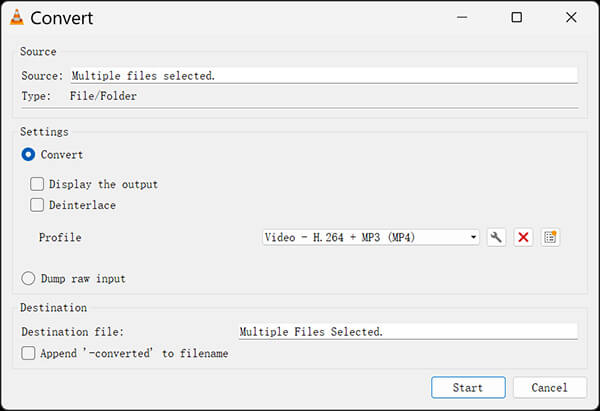
We all know VLC as the king of playback, but its conversion tool is a hidden gem for the budget-conscious. In my testing, I found that VLC requires a bit of "menu diving"—you have to navigate through several layers of settings to get to the conversion panel. Because it’s open-source, it doesn't utilize proprietary GPU drivers as efficiently as AnyMP4, so my 2.5GB test file took about 8 minutes to convert. However, the result was surprisingly clean and free of watermarks. It is a "no-frills" solution that works every single time, provided you aren't in a rush.
PROS
CONS
My Experience: VLC is my "plan B." When other software fails to read a corrupted AVI file, VLC’s robust internal codecs usually manage to salvage it, even if it takes a bit longer.
Recommended for: Mobile users or those on public PCs needing to convert small, non-sensitive clips.
Avoid if: You are converting family memories, large 4K files, or have slow upload speeds.
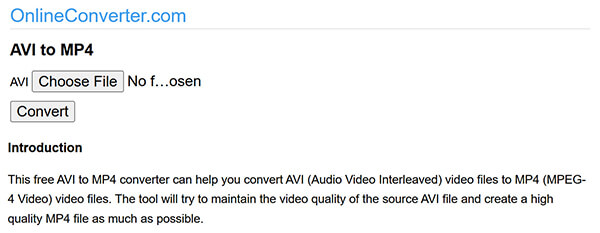
This web-based tool is exactly what the name implies—a straightforward, browser-based utility. During my test, I was limited by my 500Mbps internet connection; uploading a large AVI file took significantly longer than the actual conversion process. It’s perfect for a 50MB clip you need to send over email, but I wouldn't trust it with anything private or high-res. The site is ad-heavy, which can be distracting, but it requires zero installation. It’s the ultimate "one-off" solution when you're on a borrowed computer.
PROS
CONS
My Experience: I tried converting a small 20MB clip on my Android phone. It was fast and easy, but the amount of pop-up ads on the site made me a bit wary of my data security.
Recommended for: Users who keep their files in the cloud and want high-quality control without installing a desktop app.
Avoid if: You have more than 25 files to convert or lack a stable internet connection.
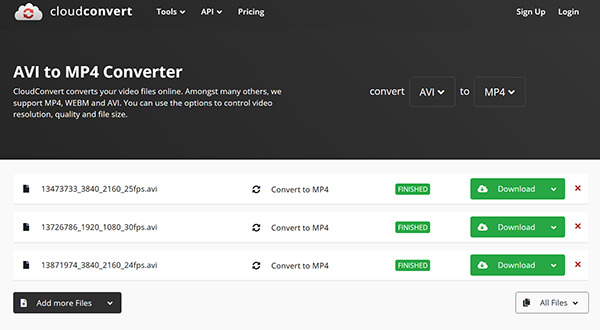
CloudConvert is the most powerful online tool I’ve tested, acting more like a "Web App" than a simple website. It integrates directly with my Google Drive, which allowed me to convert AVI files sitting in my cloud storage without ever downloading them to my local machine. I was particularly impressed by the "Advanced Options" toggle, which let me manually set the H.264 profile and level. For someone who works in a cloud-first environment, this is a sophisticated alternative to desktop software, though it still suffers from slow upload speeds for non-cloud files.
PROS
CONS
My Experience: I used CloudConvert to batch-convert five small AVI clips from my Google Drive. The workflow was seamless because the files never had to touch my local hard drive, saving me both time and bandwidth.
To provide these insights, I conducted a direct side-by-side test on a Windows 11 PC (NVIDIA RTX 4060 GPU, 32GB RAM) and a MacBook Pro M3 Max. I used a 2.5GB AVI file encoded with legacy DivX as the test sample. My goal was to convert this to a 1080p MP4 while monitoring conversion speed, CPU/GPU load, and inspecting the final output for any "audio-out-of-sync" issues or pixelation in dark scenes.
| Best For | Speed (70x) | Privacy Mode | Fix Audio Lag | Batch Support | 4K/8K Support | |
|---|---|---|---|---|---|---|
| AnyMP4 Video Converter Ultimate | Pros & Batch Tasks |  |
100% Offline | |
|
|
| Movavi Video Converter | Beginners & Social Media |  |
100% Local | Partial | |
|
| VLC | Budget/Occasional Use | |
100% Local | |
|
Limited |
| Online Converter | Quick Mobile Fixes | |
Public Server | |
|
|
| CloudConvert | Cloud Workflow/Sync | |
Private Cloud | Partial | |
|
Q: Why is my AVI file not playing on my Smart TV?
Most modern TVs (Samsung, LG, Sony) have dropped support for older AVI codecs like DivX. Converting to MP4 (H.264 or HEVC) ensures 100% compatibility across all smart devices. To play AVI on TV, you need to install an AVI player, or convert AVI to MP4.
Q: Can I convert AVI to MP4 without losing quality?
Yes, but you must use a "Lossless" setting. In AnyMP4, select "Same as Source." This keeps the original bitrate and resolution while simply moving the video stream into a more modern MP4 container.
Q: How do I fix the "Audio and Video Out of Sync" issue?
This is a common AVI glitch caused by variable frame rates. Professional tools like AnyMP4 include a "Sync" feature that realigns the tracks automatically during conversion—a feature VLC and online tools often lack.
Transitioning your video library from AVI to MP4 is the best way to ensure your memories remain playable for the next decade. For most users, AnyMP4 Video Converter Ultimate offers the best balance of professional-grade speed, privacy, and ease of use.
Ready to try it?
Secure Download
Secure Download
 Updated by Alice Thorne to Convert Video
More readings
 10 Tools to Convert MOV to MP4 - Quick and Easy Solutions
Discover the best MOV to MP4 converters. Find the perfect tool for effortlessly converting your MOV videos to a universally compatible MP4 format.
 Top 3 Methods to Convert MOV Video Files to AVI Format in 2026
This is a comprehensive guide of 3 100% working methods to convert your MOV video files to AVI format, so that you can watch them on Windows 10/8/7 smoothly.
 Top 7 Free MP4 Converters Online and Offline
Learn about the features and guides of Free MP4 Converter on Windows and Mac for free.
 7 Proven Ways to Convert MP3 to MP4 for Phone
YouTube or phone rejects MP3 format? Just convert MP3 to MP4 with the best 7 MP3 to MP4 file converter, including free online tools and desktop software.
 Add your comments to join the discussion here