
If you need to enjoy XviD coded high-quality video with your portable device, you should consider AnyMP4 Video Converter. This software is designed with advanced functions and efficient solutions that can convert any video format such as AVI, FLV, WebM, VOB, MP4 and WMV to whatever video format you need. This guide help you convert AVI video to XviD format.
XviD is a video codec library following the MPEG-4 standard, specifically MPEG-4 Part 2 Advanced Simple Profile (ASP). XviD is a popular and promising new codec favored by video fans from all over the world, which possesses multiple advantages such as incredible video quality and small video size. XviD can be used on all platforms and operating systems for which the source code can be compiled.
Secure Download
Secure Download
AnyMP4 Video Converter can be downloaded from the homepage and product page of our website, or by clicking the "Free Trial" button. The downloading and installation process is easy for anyone to finish.
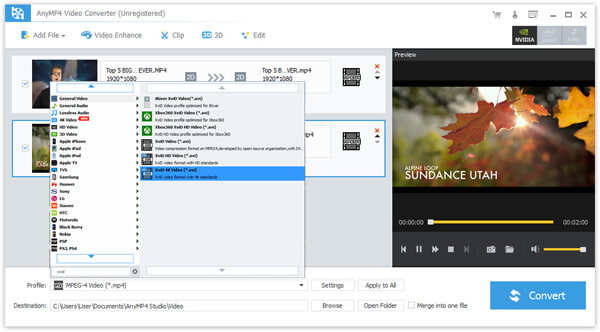
You can click the "Add File" button on the toolbar to load your AVI video to the software. AnyMP4 Video Converter also allows you to load video folder by selecting "File > Add Folder".
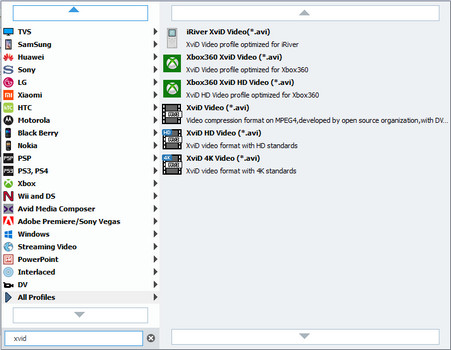
Click the "Profile" drop-down list and input "XviD" in the text area, then the software will find you XviD coded AVI format. Then choose your needed profile.
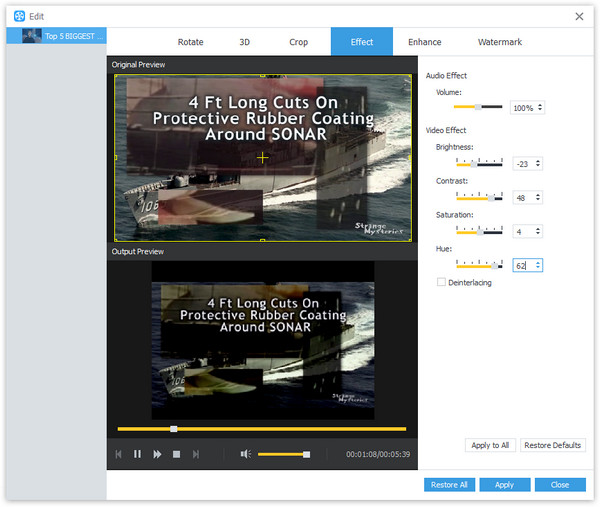
AnyMP4 Video Converter possesses a collection of powerful editing tools that can help you conduct specific video effect customization. You can trim video for your needed length, crop video frame to remove black edges, join several video clips together and add watermarks to personalize the video. You are also free to adjust Video Brightness, Saturation, Hue and Contract.
Not content with the output effect of the video? You can try clicking the "Settings" button to conduct further customizations. You can adjust Video Encoder, Resolution, Bitrate, Frame Rate, Aspect Ratio, as well as Audio parameters such as Encoder, Channels, Sample Rate and Bitrate.
Many video files contains multiple audio tracks for you to choose. AnyMP4 Video Converter enables you to choose your preferred audio track and add downloaded subtitle file to the video according to your needs.

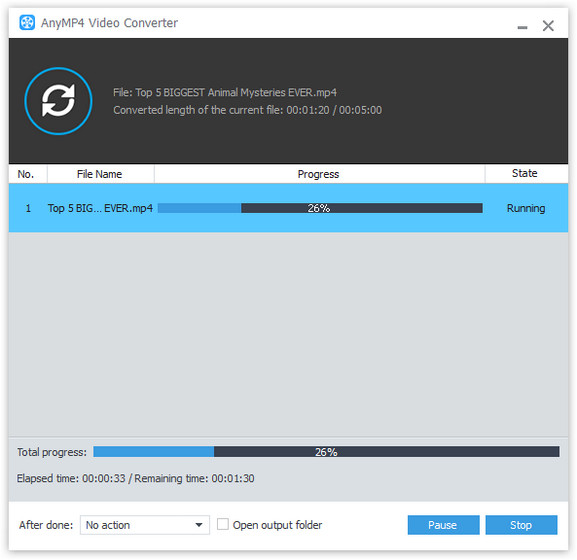
After clicking the "Convert" button, you'll find the progress bar.
When the bar reaches 100%, you can get your needed XviD file. Then you can enjoy it with your video players or portable devices.
 Updated by Joan Aimee to Convert Video
Related Articles
 Top 10 MKV to MP4 Converters Online and Offline
Here we recommend the 10 best MKV to MP4 Converters to achieve your goal.
 Top 15 AVI to MP4 Free Converters You Really Want
This article introduces top 15 Free AVI to MP4 Converters for users to convert AVI.
 How to Convert MP4 to MKV on Mac/PC with Ease
Here are top 5 MP4 to MKV Converters to convert MP4 to high definition videos quickly.
 Top 10 Reverse Video Makers You Should Know
Discover your favorite tool to reverse a video clip on Windows, Mac, Android and iOS.
 Add your comments to join the discussion here
