5 Ways to Convert FLV to WMV in 2026 (Desktop + Online)
Key Takeaways:
How to convert FLV to WMV? The best method depends on your file size and volume:
- For Batch/Large Files: Use AnyMP4 Video Converter Ultimate for secure, offline, and high-speed processing.
- For Quick Online Tasks: Use AnyMP4 Free Online Video Converter, Convertio, or Online-Convert for browser-based conversion.
- For Open-Source/Manual Control: Use VLC Media Player (Go to Media > Convert/Save).
You’ve got a folder of FLV files from an old project, but your current video editing software only imports WMV. Or maybe Windows Media Player just won't play your Flash Video files at all. We’ve all been there. Format conflicts can be frustrating, but they are easy to fix. In this guide, we’ll show you the most reliable 5 ways to convert FLV to WMV, from a professional desktop solution to the best free online tools. Whether you need to process a large batch of videos or just convert one single file to play on your Windows device, you don't need to be a tech expert.
How We Tested These FLV-to-WMV Methods
We conducted these tests in a Windows 11 Pro environment using a standardized set of FLV files (varying from 100MB to 2GB in size). Our testing team focused on three key performance metrics:
- • Conversion Speed: Measured the time taken for both single-file and batch-process conversions.
- • Video Quality: We checked for pixelation and audio-video synchronization post-conversion.
- • Compatibility: Verified if the resulting WMV files played natively in Windows Media Player and could be imported into common editing software without errors.
We prioritized tools that offer hardware acceleration and lossless output, ensuring the best results for both casual users and professional editors
Quick Comparison & Which Method Is Right for You?
Choosing the right tool depends on your specific conversion needs. The table below compares our top 5 solutions based on a 500MB test file (1080p, 5-minute FLV video).
Need help deciding? Follow this guide:
- • Need a large batch or high-resolution files? Go with AnyMP4 Video Converter Ultimate. It is the most reliable way to convert multiple files at once without losing quality.
- • Need a free, manual solution for single files? Use VLC Media Player. It's great if you prefer open-source software and don't mind a few extra steps.
- • Need a quick, no-install way to convert a single small file? Use AnyMP4 Free Online Video Converter, Online-Convert, or Convert.Files.
Method 1 - Desktop Software: AnyMP4 Video Converter Ultimate (Best Professional Way)
AnyMP4 Video Converter Ultimate is our top pick for a reason. Unlike online tools that rely on your internet connection, this software uses your computer's hardware power to handle files, making it the most reliable solution for batch processing or large 4K projects.
Recommendation
- Hardware Acceleration: It leverages your computer's GPU (NVENC/QSV/AMD) to convert files up to 30x faster than standard tools.
- Lossless Quality: You can convert your FLV files to WMV without losing clarity, ensuring your videos look sharp even after format changes.
- Batch Processing: You can add hundreds of FLV files at once and convert them to WMV simultaneously, saving you hours of repetitive work.
1. Add Your FLV Files
Free download the software from the following buttons and follow the quick setup wizard.
Click the Add Files button or just drag your FLV clips into the window. I love how it handles massive folders without freezing-a huge relief compared to other bulky converters.

2. Set Your WMV Output
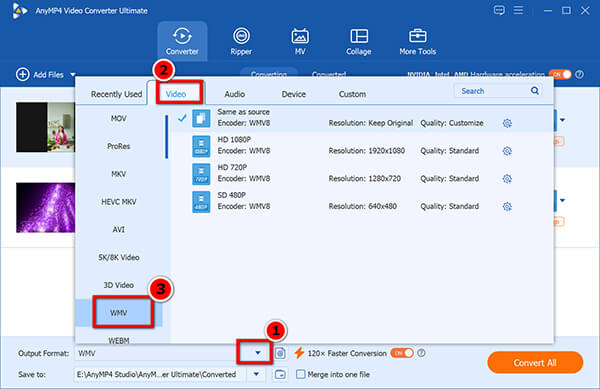
Click the Output Format icon next to your file. Choose Video > WMV as your target. If you’re picky about quality, hit the Custom Profile button to tweak the bitrate-it’s super intuitive, even if you’ve never touched video settings before.
3. Start Conversion
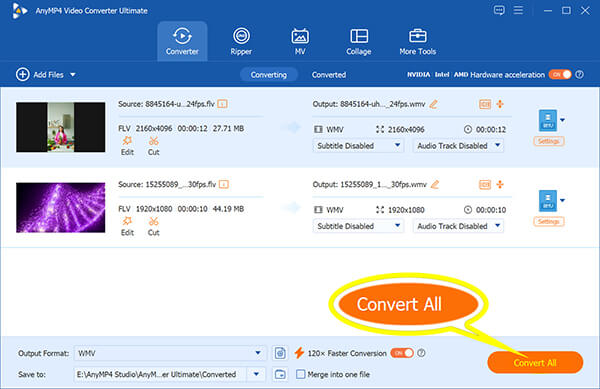
Click Convert All and you're good to go. You'll see your files popping up in the destination folder in no time. Honestly, the batch convert feature here is a life-saver if you’re cleaning up an old project folder.
Tips
Make sure to check the Hardware Acceleration box during setup; it honestly makes a huge difference in speed.
Method 2 - The Free Open-Source Way: VLC Media Player
VLC is basically the Swiss Army knife of video players. Most people don't know it can also convert files. It’s totally free and open-source, which is great, but don't expect a flashy interface. It’s a bit of a hacker experience.
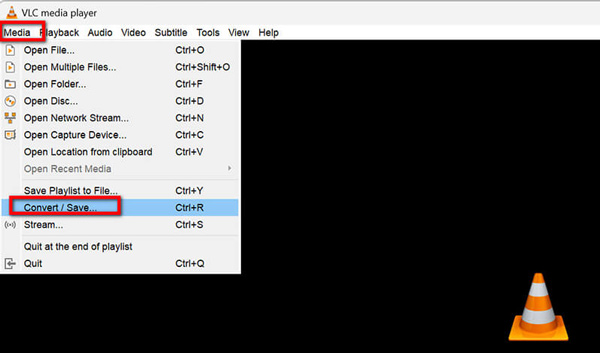
1. Launch VLC, click the Media tab, and select Convert / Save.
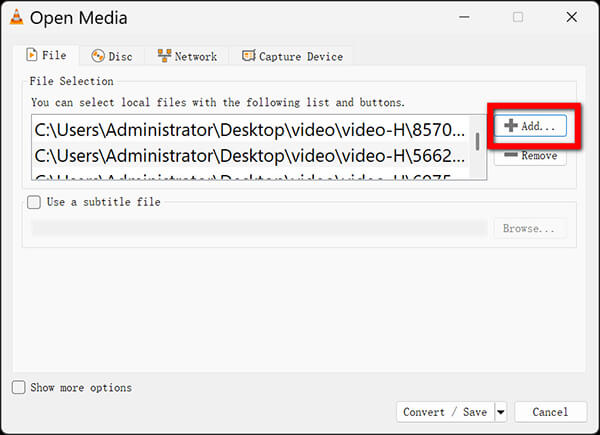
2. Click Add to import your FLV file, then hit the Convert / Save button at the bottom.
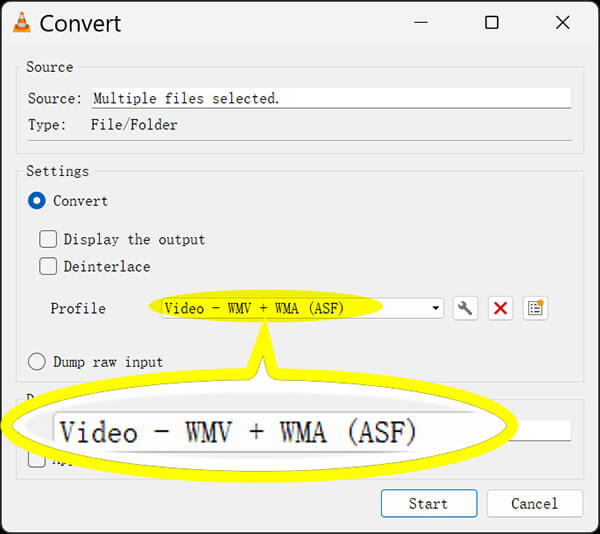
3. In the Profile dropdown, choose Video - WMV + WMA (ASF). Heads up: This menu can be a bit hidden, so take a second to find it.
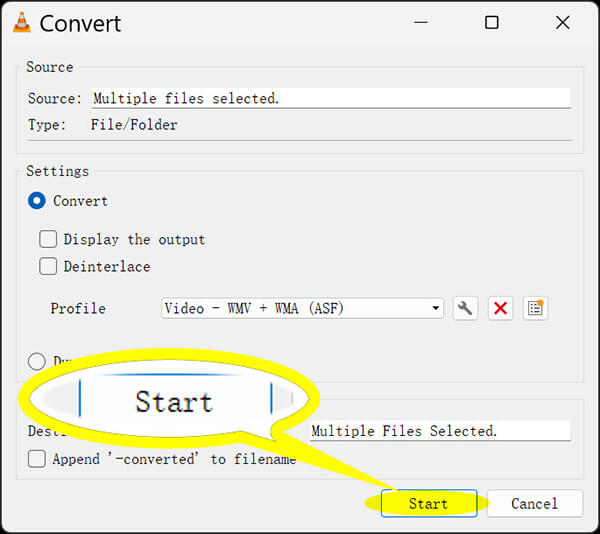
4. Choose your destination file name and click Start.
VLC does work, but honestly, it feels a bit dated. If you're converting a single file, it's fine, but it’s definitely not the most user-friendly process I’ve tried.
3 Best Free Online FLV-to-WMV Converters
If you only have one small file and don't want to install software, these online tools are your best bet.
AnyMP4 Free Online Video Converter (Best for Secure & Fast Conversion)
AnyMP4 Free Online Video Converter is my go-to choice when I’m working on a different computer and need a quick, no-install solution. Even though it runs in your browser, it is surprisingly fast and stable for a web tool, handling FLV-to-WMV conversion without any annoying lag. It’s perfect if you are worried about your privacy, as it feels much more professional and secure than those random, ad-heavy converters you find online.
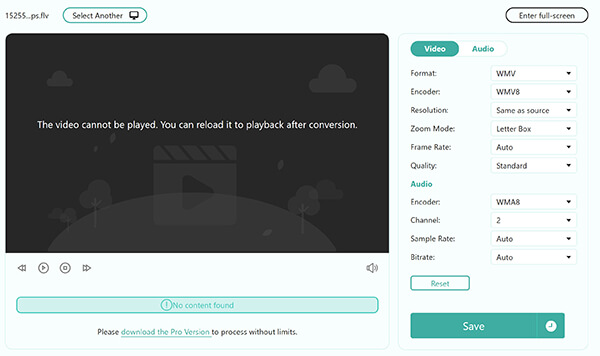
- • How to use: Just open the site, click Upload File, upload your FLV, pick WMV as the format, and click Save.
- • Why I like it: It doesn't nag you with ads, and the privacy protection feels a lot more solid than those random sketchy converters you find on Google.
- • Why I dislike: While it’s fantastic for single conversions, it doesn't support massive batch processing like the desktop software.
Online-Convert (Best for Custom Output Settings)
If you need more than just a basic format change, Online-Convert is the best option for advanced users. It is a powerful online FLV to WMV converter that allows you to tweak video parameters like bitrate, frame rate, and resolution before you start the conversion. While the interface is a bit cluttered with options, it provides the most control you can get from a free web-based tool.
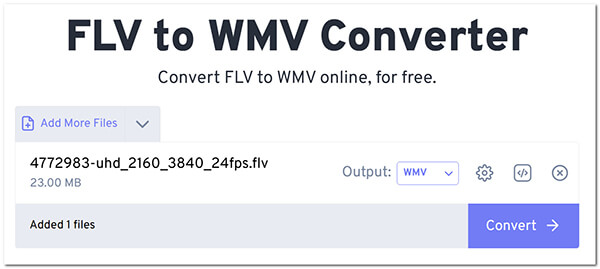
- • How to use: Upload your file, scroll down to the Video settings section to tweak parameters if needed, and hit Start conversion.
- • Personal note: The interface is a bit cluttered, but if you need to fix a video while converting it, this is the best tool on the list.
- • What I dislike: The interface pops up piles of ads.
Convert.Files (Best for Simple, No-Registration Needs)
Convert.Files is the ultimate tool when you are in a rush and just want to get the job done without creating an account or dealing with complex settings. As a straightforward online FLV to WMV converter, it keeps the process incredibly simple for anyone. It is a reliable choice when you have a small file and just want to save it in WMV format as quickly as possible.
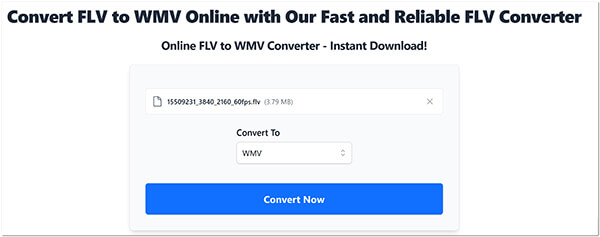
- • How to use: Click Browse to pick your FLV file, set the output to WMV, and click Convert.
- • Truth be told: It’s not the fastest one here, but it's incredibly straightforward. It gets the job done when you're in a rush and don't care about advanced settings.
- • What I dislike: The website design looks quite dated and feels like it hasn’t been updated in years. Also, because it’s a free service, you have to be patient with the upload times.
FLV vs. WMV - What's the Difference and When to Convert?
People often ask me why they should bother converting FLV to WMV in the first place. It really comes down to where you want to play your video.
- • FLV (Flash Video): This was the king of the web back in the day. It’s great for streaming, but most modern devices and editing apps, like Adobe Premiere or Windows Media Player, don't really support it anymore.
- • WMV (Windows Media Video): This is Microsoft’s native format. It’s designed specifically for Windows, meaning it plays natively on almost any Windows PC without needing extra codec packs.
When should you convert?
If you have a collection of old web clips or projects in FLV and you want to edit them or play them on your Windows 11 machine, conversion is basically mandatory. WMV is much more stable for local storage and editing compared to the aging FLV container.
FAQs About FLV-to-WMV Conversion
Can I use VLC to convert FLV to WMV?
Yes, but it’s not the most efficient tool. As mentioned, it lacks the batch conversion feature that AnyMP4 Video Converter Ultimate offers, making it slow if you have more than one or two files.
Is FLV better quality than WMV?
Not necessarily. Quality depends on the bitrate and codec used during conversion. If you use a quality converter like AnyMP4, you can actually retain 100% of the original visual quality during the process.
Why doesn't Windows Media Player play my FLV files?
Windows Media Player was designed for Microsoft formats like WMV and AVI. It simply lacks the native support for the older Flash Video format, which is why a format conversion is the most reliable fix. If you do not want to convert the FLV format, installing an FLV player is OK.
Can I convert FLV to WMV on my iPhone or Android?
While there are some mobile apps that claim to do this, they are often slow, ad-heavy, or result in poor quality. For a project that matters, stick to a desktop tool on your PC.
Does online conversion have a file size limit?
Almost all online tools have a limit, usually around 100MB to 200MB. If you’re dealing with a large file, the online option will likely fail, which is why desktop software is the safer bet.
Final Verdict: Which One Should You Pick?
At the end of the day, the right tool comes down to how much video you need to handle and how much time you have.
- • For the Get it Done Fast professional: If you have a folder full of old FLV files, don't waste time with online sites that might time out. AnyMP4 Video Converter Ultimate is the most reliable way to batch convert everything without worrying about quality loss or file size limits. It’s the only method on this list that respects your time and your data.
- • For the occasional Quick Fix: If you're just trying to play one single clip and don't care about advanced settings, AnyMP4 Free Online Video Converter is my favorite choice because it’s clean and ad-free.
- • For the tech-savvy/frugal user: If you love open-source software and don't mind a clunky interface, VLC Media Player is a solid free alternative that gets the job done.
Stop struggling with unsupported format errors. Pick the method that fits your needs above and get back to your project!






 Add your comments to join the discussion here