
3GP is a video format that is famous for its excellent video quality and small video size, and can be supported by numerous portable devices. If you need to enjoy AVI video with your Mobile Phone, you can turn to AnyMP4 AVI to 3GP Converter for help. It converts AVI video to 3GP file with the original video quality preserved. Then you would enjoy the converted AVI video with portable devices, such as BlackBerry Phone, Mobile Phone and Android devices.
3GP is a multimedia container format defined by the Third Generation Partnership Project (3GPP) for 3G UMTS multimedia services. Most 3G mobile phones use this format but some 2G and 4G phones also supports 3GP.
Secure Download
Secure Download
You can download the top-rank AVI to 3GP Converting software from product page of our website. After finishing the installation, you can open the software and check out the interface.
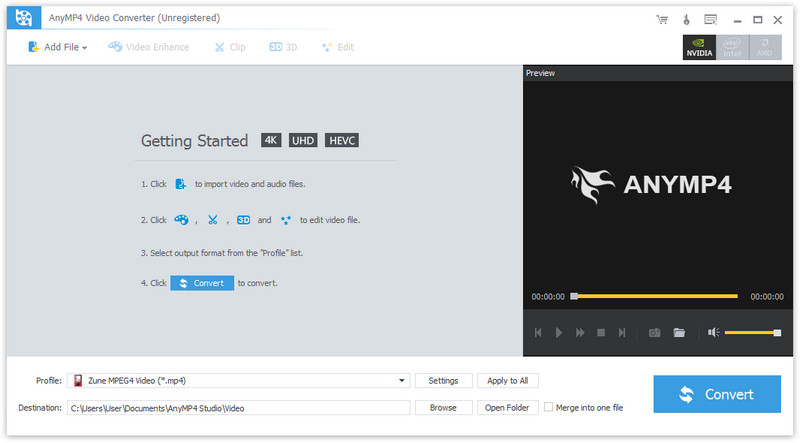
AVI video possesses excellent video quality and is widely used. Click the "Add File" button on the toolbar to load your original AVI video to the software. You can also click the "Add Folder" button to load more than one video file.
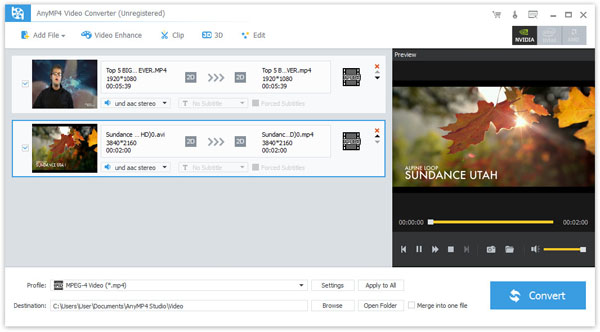
Click the "Profile" drop-down list to select 3GP video. Since it is supported by many portable devices, you can also select the 3GP format that is compatible to your device.
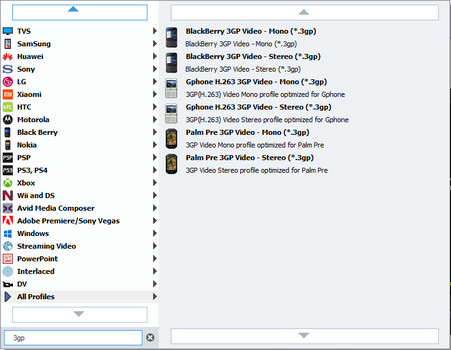
Then you can conduct specific video effect customization for the video you need to convert. You can trim video for your preferred length, crop video frame to get rid of unwanted black edges, merge several video clips into one, add text/image watermarks to the video, and adjust Brightness, Hue, Saturation and Contrast according to your needs. If you think the volume of the video is to low, you can also turn up video volume.
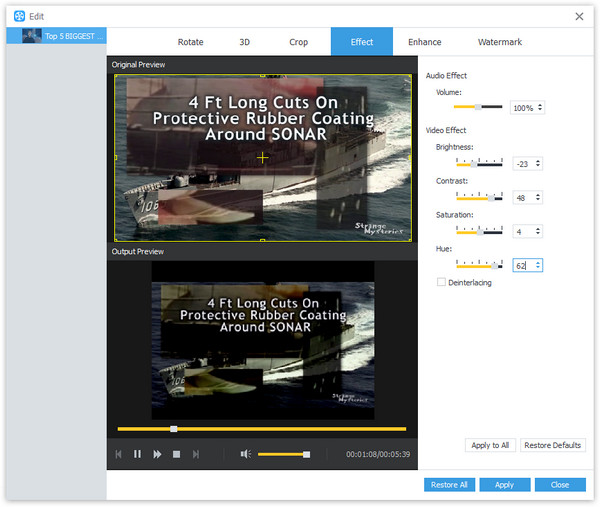
AnyMP4 AVI to 3GP Conversion software also allows you to adjust output settings such as Video Encoder, Resolution, Bitrate, Frame Rate, Aspect Ratio, Brightness, Contrast and Saturation to make the video suitable for the change of DPI. Audio parameters such as Encoder, Channels, Sample Rate and Bitrate are also adjustable.
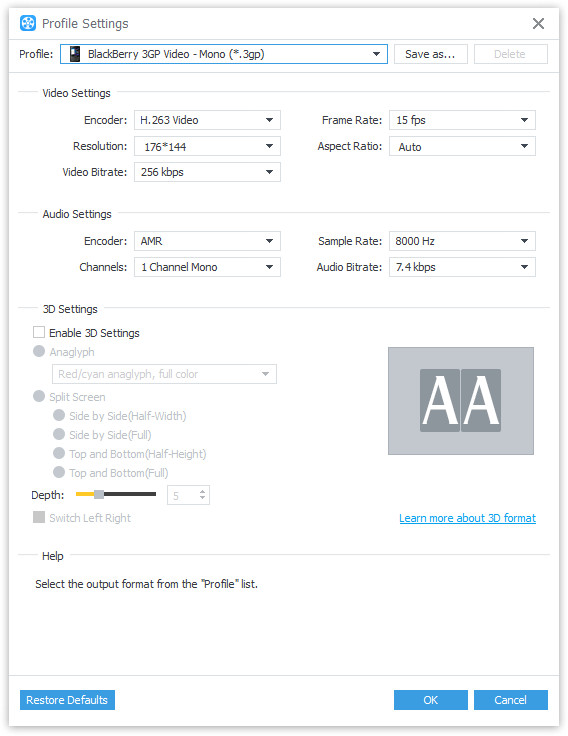
If your video has multiple audio track, you can choose your preferred one. You are also allowed to put downloaded subtitle into the video file.
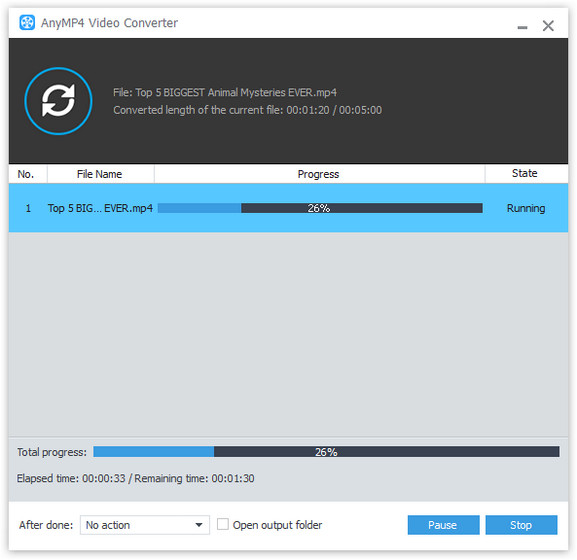
The last thing you need to do is click the "Convert" button to start the conversion process.
 Updated by Joan Aimee to Convert Video
Related Articles
 Top 10 FLV to MP4 Converters You Should Know
Would like to find a useful converter for FLV to MP4? just check out from the article.
 Top 5 Ways to Save iMovie as MP4 Video
Here we offer 5 solutions for you to export video from iMovie to MP4 video.
 How to Turn MP4 into GIF With Top 5 Methods
Ever wonder how to turn your MP4 videos into GIF images? Don't worry. Read on and learn, this article will introduce 5 methods for you to achieve it.
 Top 10 3GP to MP4 Converters Online/Offline
This article has prepared 10 excellent tools for you to convert 3GP ro MP4 file.
 Add your comments to join the discussion here
