Convert AVI to H.264 for Beginners: Zero Quality Loss Guide
Quick Summary:
Choosing the right converter mainly depends on your specific needs. For the best balance of speed, ease of use, and visual enhancement, AnyMP4 Video Converter Ultimate is the premier solution for high-quality AVI-to-H.264 transcoding.
We’ve all been there: you try to upload an old AVI file to Instagram or play it on your phone, and it just... fails. In this guide, we will show you exactly how to transcode AVI to H.264 based on my hands-on testing and comparison of the top 4 converters. Whether you are dealing with massive 4K archives or legacy footage from an old camera, understanding the bridge between these formats is essential. Next, let’s read this tutorial to learn how to perform the conversion without losing quality.
Part 1. Why H.264 is the Standard for AVI Conversion
Although AVI was the mainstream format in the 90s, it lacks the compression efficiency required for modern web. H.264 offers universal compatibility across iPhones, Android devices, and web browsers. Furthermore, H.264 uses advanced mathematics to reduce file sizes by up to 80% without noticeable loss of quality. So, it has thus gradually become the industry standard.
Part 2. Best Method: Using AnyMP4 Video Converter Ultimate (70x Faster)
If you are dealing with high-resolution 4K footage or a massive library of legacy AVI files, AnyMP4 Video Converter Ultimate is the professional choice. It utilizes hardware acceleration (NVIDIA, AMD, and Intel GPUs) to transcode video up to 70x faster than standard software. Beyond speed, it features AI Enhancement tools that can upscale low-res AVI files to 4K and a built-in toolbox, which includes Video Compressor, Metadata Editor, etc. Most importantly, it can maintain the original visual fidelity during the H.264 transcode.
1. Download, install, and then launch it. Click Add Files, or drag the AVI files directly into the interface. It supports quick batch processing for 50+ files at once.

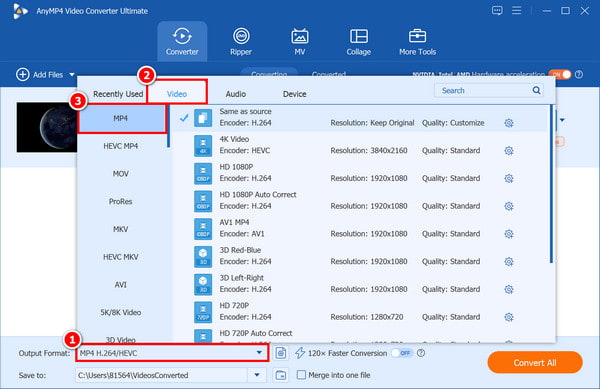
2. Click the Output Format dropdown list > the Video tab, select MP4, and choose one of the options that has H.264 as the encoder.
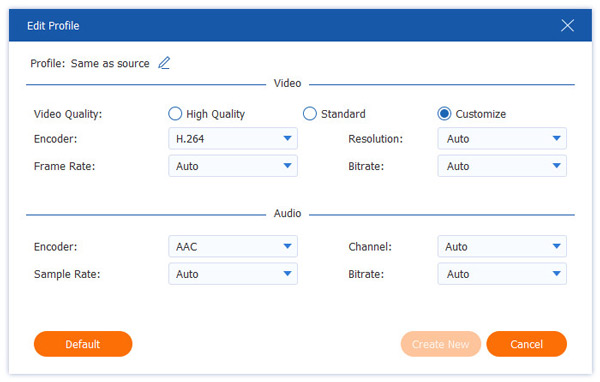
You can adjust the profile settings according to your needs by clicking the gear-shaped Custom Profile button. Adjustable parameters include codec, resolution, bitrate, etc.
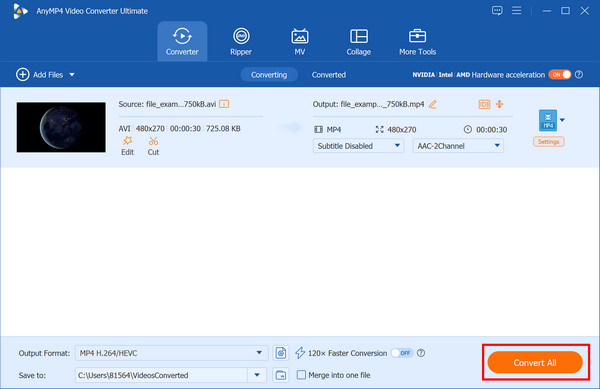
3. Select a path for the converted files. Then click Convert All to start converting AVI files to MP4 on your computer.
Part 3. Best for Open-Source Enthusiasts: HandBrake
HandBrake is a free, open-source converter. It allows you to manually adjust the H.264 compression algorithm to achieve the exact file size you need. This tool is ideal for users who want granular control over video transcoding and need to balance file size with video quality.
Here are the steps to convert AVI to H.264 with it:
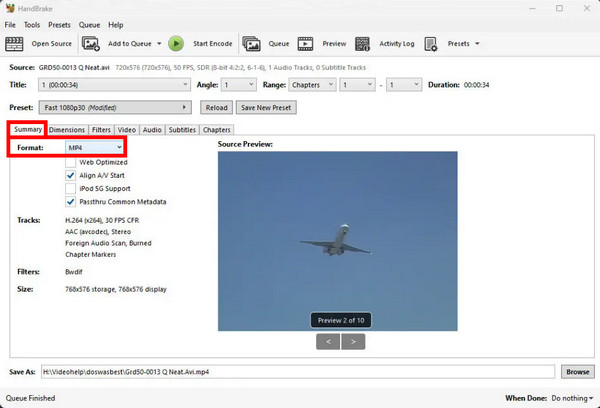
1. Open HandBrake and drop your AVI file into the main interface. In the Summary tab, ensure the format is set to MP4.
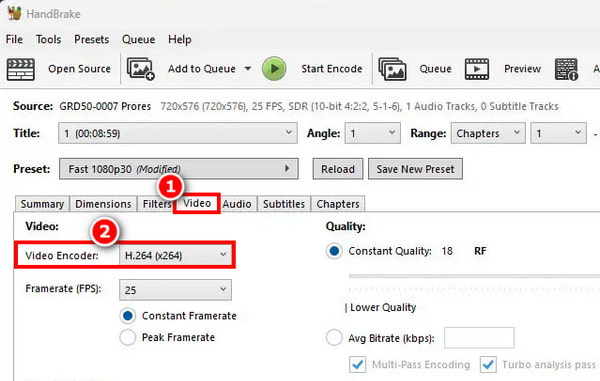
2. Go to the Video tab and set the codec to H.264 (x264). Adjust the Constant Quality (RF) slider between 18 and 22 for good quality.
3. Set the destination folder at the bottom, then click the Start Encode button at the top to begin the AVI-to-H.264 conversion.

Part 4. Best for Quick, One-off Tasks: VLC Media Player
When you need to convert a single file without downloading desktop software, VLC Media Player can help. Although VLC is a video/audio player, it features a powerful conversion engine that is perfect for simple tasks. While it lacks the batch-processing and converting power of AnyMP4 or the depth of settings in HandBrake, its compatibility makes it incredibly convenient.
The following are its steps:
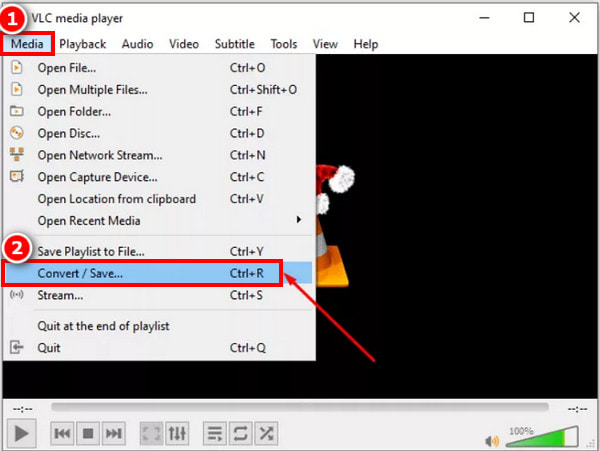
1. Launch VLC Media Player and click Media > Convert / Save (or press Ctrl+R) from the top bar.
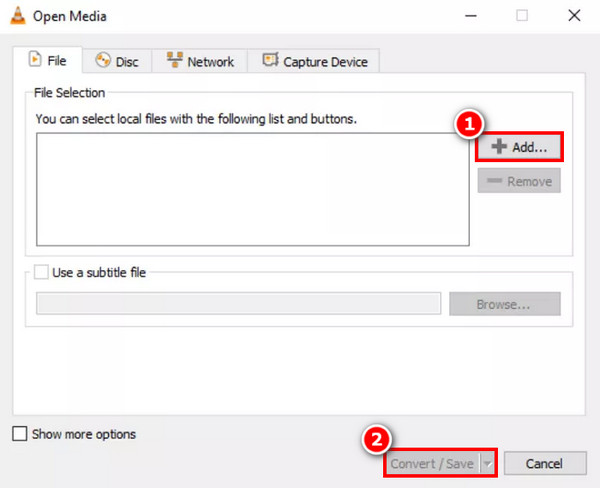
2. Click the + Add... button to browse and select the AVI file you want to convert. Once selected, click the Convert / Save button at the bottom.
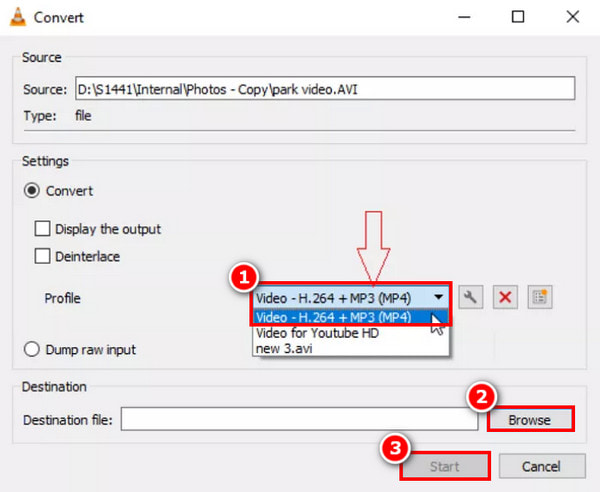
3. In the profile dropdown menu, choose Video - H.264 + MP3 (MP4) to configure the profile. Then, click Browser under Destination to name the converted file and choose the save location. Finally, click Start to begin.
Part 5. Best for No Installation: AnyMP4 Free Online HD Converter
If you only have single and small AVI file that need to convert to H.264, but do not want to download or install any software on your computer, you can try AnyMP4 Free HD Video Converter Online. It is a web-based tool to convert AVI to H.264 MP4 directly within your browser with no data loss and absolutely no hidden watermarks. It is completely free, secure, and requires no registration for quick, on-the-go conversions.
Here are the simple steps to transcode AVI to H.264 online:
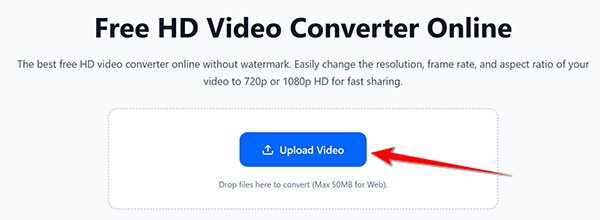
1. Visit the official website of AnyMP4 Free HD Video Converter Online. Then click the Upload Video button to Convert button to upload your AVI video.
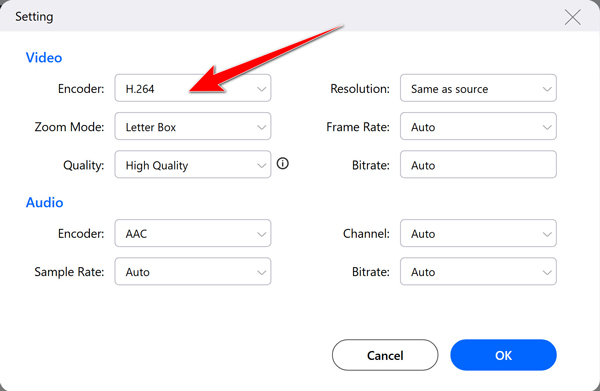
2. Select MP4 as your target output format and ensure the H.264 encoder is applied by clicking the gear option.
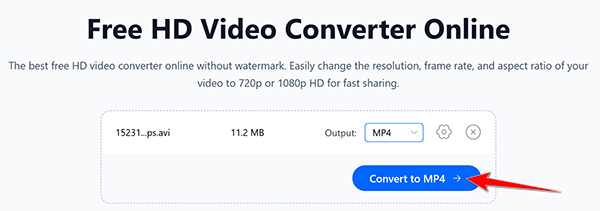
3. Click the Convert to MP4 button to start the AVI to H.264 process, then download your converted high-definition file directly to your local drive.
Part 6. Comparison: Which AVI to H.264 Tool Should You Choose
Selecting the right tool depends on your specific needs: speed, technical precision, or convenience for a one-time fix. Below is a comparison table of the top four picks for your reference:
|
Ease of Use |
Conversion Speed |
Batch Processing |
Other Features |
| AnyMP4 Video Converter Ultimate |
Ultra-Simple (Drag & Drop) |
70x Faster (Full GPU Acceleration) |
Yes (50+ files with one click) |
AI Upscaling, 3D Maker, built-in Toolbox |
| HandBrake |
Moderate |
Standard (CPU Intensive) |
Yes (Using the queue system) |
Deep Bitrate & Chapter Control |
| VLC Media Player |
Simple |
Slow (Basic Transcoding) |
No (One by one only) |
Screen Recording, 8K Playback |
| AnyMP4 Free HD Video Converter Online |
Extremely Simple (Browser-based) |
Moderate (Network dependent) |
No (Single file focus) |
100% Free, No Installation, Watermark-free |
- • Choose AnyMP4 Video Converter Ultimate if: You are a content creator, YouTuber, or professional video editor with dozens of AVI files to convert and do not want to wait hours for the process to finish.
- • Choose HandBrake if: You are an advanced user or a hobbyist on a budget looking to make precise adjustments to every setting.
- • Choose VLC Media Player if: You are in a rush, only have one small file, and happen to have VLC already installed on your device.
- • Choose AnyMP4 Free HD Video Converter Online if: You only have a single file to handle on the go and prefer a zero-installation, browser-based solution without downloading any software.
Part 7. FAQs
Is H.264 the same as MP4?
The short answer is no. While they are closely related and often seen together, they serve two completely different functions in the world of video.
Will converting AVI to H.264 lose quality?
Technically, yes, converting from AVI to H.264 is a lossy process. H.264 is a compressed format designed to save space, so the software has to throw away some visual data to make the file smaller.
Can I convert AVI to H.264 for free?
Yes, you can absolutely convert AVI to H.264 for free using software such as HandBrake, VLC Media Player, and so on.
Why is my AVI file so large?
The reason your AVI file is so large comes down to its architecture and how it handles compression. It is an older format that does not use the hyper-efficient compression math we use today for streaming and mobile devices.
Does H.264 support 4K?
Yes, H.264 does support 4K, but it is generally not the best choice for it. It will become less efficient in terms of storage and processing power once the resolution exceeds 1080p.
Conclusion
In this article, we introduce three tools for converting AVI to H.264: AnyMP4 Video Converter Ultimate, HandBrake, VLC, and AnyMP4 Free HD Video Converter Online. Although HandBrake and VLC Media Player can handle this, they often struggle to process some 4K files. AnyMP4 Video Converter Ultimate stands out as the best AVI-to-H.264 converter for most users. It can ensure that your videos are not only smaller in size but also look even better than the original with 70x hardware acceleration and AI-driven ultra-HD technology. If you are looking for a one-time solution to process dozens of files at once while ensuring lossless image quality, AnyMP4 is undoubtedly the professional choice.





 Add your comments to join the discussion here