7 Best Methods to Convert MOV to WMV Free & Fast (2026 Guide)
For large MOV files, professional desktop software such as AnyMP4 Video Converter Ultimate is the safest and most efficient way to convert MOV to WMV. It offers local processing, faster conversion speeds, better privacy protection, and lossless quality retention compared to most online tools. Converting MOV to WMV can improve compatibility with Windows-based devices, media players, and legacy editing software. Although online converters provide a quick solution for small files, desktop applications are more reliable when handling large videos, batch conversions, or quality-sensitive projects. This guide reviews seven proven methods to convert MOV to WMV, including desktop software, free open-source tools, online converters, and command-line solutions.

MOV vs. WMV: Which Format Should You Choose?
MOV and WMV are both popular video formats, but they serve different purposes. The right choice depends on how you plan to use your video, the devices you work with, and whether compatibility or quality is your top priority.
| MOV |
VS |
WMV |
| Apple |
Developer |
Microsoft |
| Apple devices and editing software, such as Adobe Premiere Pro, Final Cut Pro, and DaVinci Resolve |
Compatibility |
Windows devices |
| High-quality video editing, film post-production, and capturing high-quality footage |
Typical Usage |
Streaming, sharing, and offline playback |
| 1080p Full HD/30fps/H.264 is about 60 MB to 150 MB |
File Size |
20 MB to 50 MB per minute of video |
| Moderate |
Compression Rate |
Higher compression ratio |
Method 1. Best Way to Batch Convert MOV to WMV Without Quality Loss (Recommended)
For users who need to edit on Windows with Premiere Pro or the legacy Windows Movie Maker, AnyMP4 perfectly converts Apple-exclusive MOV codecs to the WMV format, which is natively supported by editing software. AnyMP4 Video Converter Ultimate is a safe offline MOV converter for Windows and Mac.
It lets you convert Apple MOV files to WMV without losing quality. You can also process multiple MOV files simultaneously. It uses hardware acceleration to ensure stable performance even when handling large 4K video batches. Apart from file conversion, it includes an AI Upscaling feature that can enhance older or low-resolution MOV videos. This software processes files entirely offline, ensuring complete data privacy without uploading to the cloud.
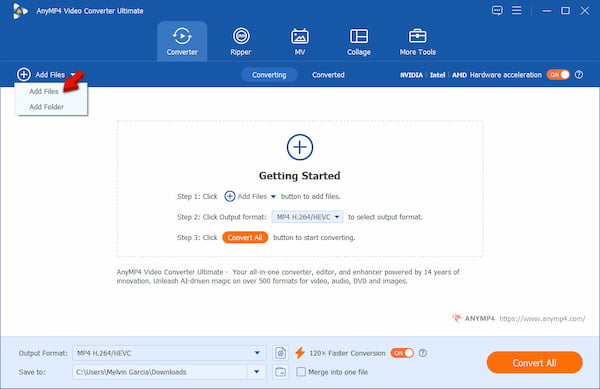
1. Run the AnyMP4 Video Converter Ultimate and head to the Converter tab. Click the +Add Files button to add the Apple MOV files. For faster workflow, drag and drop multiple files directly into the interface for batch processing.
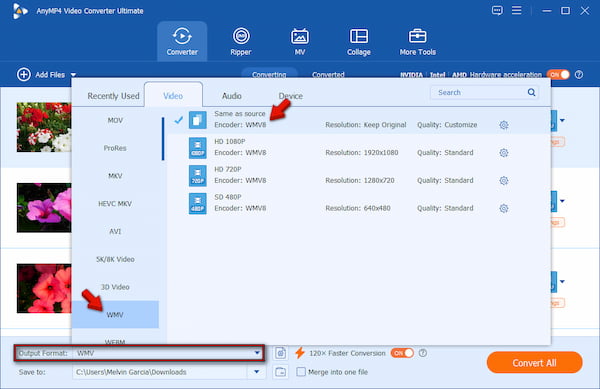
2. Navigate to the Output Format menu, click the Video category, and choose WMV. Next, select a quality preset to convert MOV to WMV without loss of quality. You can choose Same as Source, HD 1080p, HD 720p, and SD 420p. To adjust the video parameters, click the Custom Profile button.
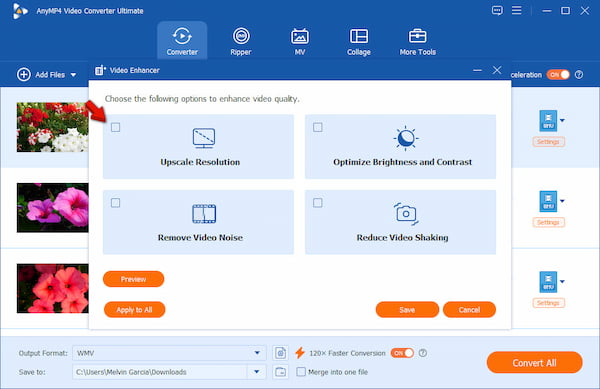
Creative Tip
If you’re working with older or low-resolution MOV files, click the Video Enhancer tool. This feature can upscale resolution, reduce video shake, remove noise, and optimize effects. It can make the WMV output more suitable for professional editing or presentation use.
3. Choose the output directory under the Save To menu. Then, enable the Hardware Acceleration and 120× Faster Conversion buttons to speed up the conversion. Lastly, click Convert All to batch-convert MOV files to WMV.
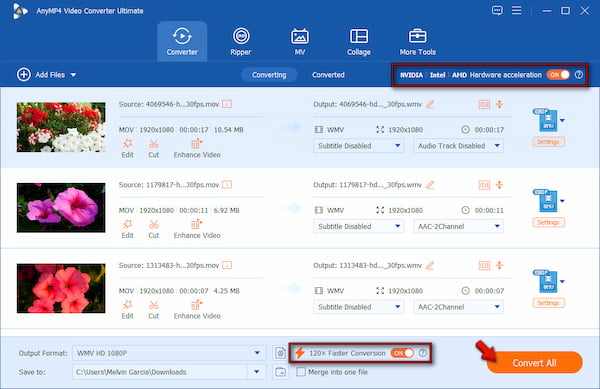
In our latest 2026 tests, we converted a 2GB 4K MOV file to 1080p WMV using AnyMP4 Video Converter Ultimate. It took only 3 minutes and 17 seconds with hardware acceleration enabled, maintaining no visible loss in video or audio quality.
Method 2-3. Free & Open-Source MOV to WMV Converters (Desktop)
Method 2. Use VLC Media Player
VLC Media Player is not about playing media files. It can also perform basic video format conversion, including MOV to WMV. It is completely free and already installed on most computers, including Windows, macOS, and Linux, without extra cost or licensing.
1. Click Media, then select Convert/Save to open VLC's MOV-to-WMV converter. In the Open Media window, click +Add and choose the MOV file you want to convert.
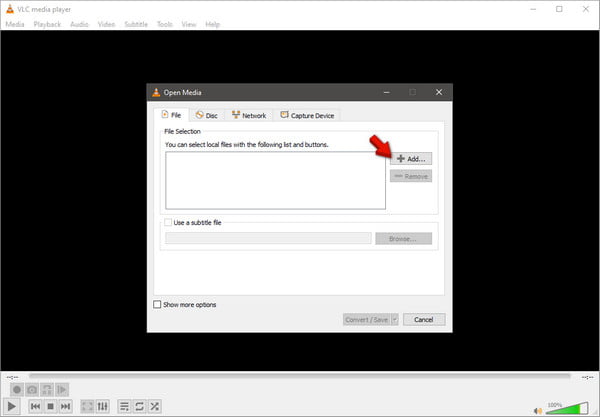
2. Click Convert/Save to open the Convert window and head to the Profile menu. Select Video - WMV + WMA (ASF), specify the folder directory, and click Start to convert.
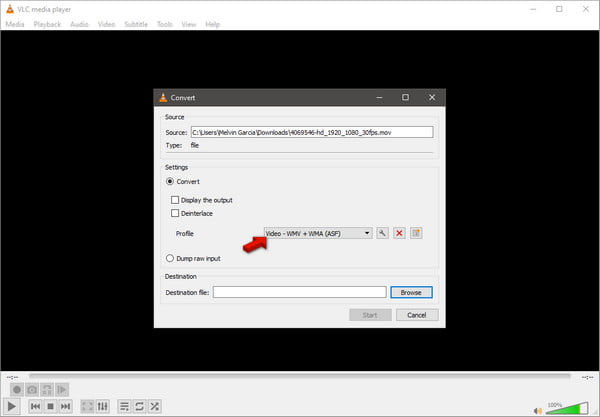
VLC Media Player is a practical free option for quick, occasional conversions. It is already installed on many systems and supports multiple platforms. However, the conversion path is deeply hidden (unintuitive interface), and it doesn't support batch processing multiple MOV files.
Method 3. Try HandBrake
HandBrake is a long-known open-source video transcoder with strong compression efficiency and advanced encoding controls. It is completely free and works on Windows, macOS, and Linux. However, one important limitation is that HandBrake does not natively support exporting to WMV format. It can only output MP4, MKV, and WebM.
1. Upon opening HandBrake, drop your MOV file directly into the upload area. Alternatively, click Open Source from the main interface.
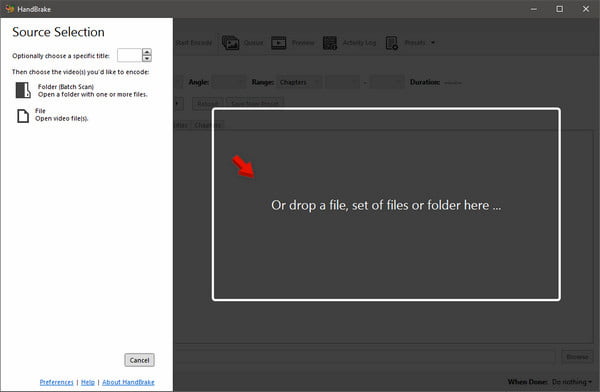
2. Go to the Format section and choose either MP4 or MKV as the output container. Then, click Browse to set the output directory and click Start Encode to begin converting the MOV file.
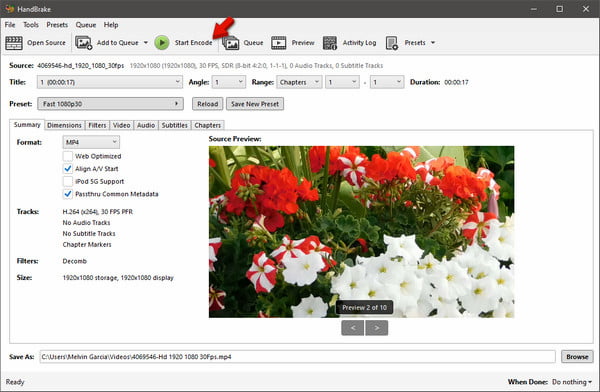
HandBrake is an excellent open-source tool for efficient, high-quality compression. However, it does not natively support WMV output. If you need a direct solution to change MOV to WMV, tools like AnyMP4 Video Converter Ultimate remain more convenient. It can also convert AVI to WMV, making it a versatile conversion tool.
Method 4-5. Best Free Online MOV to WMV Converters
Method 4. AnyMP4 Free Online Video Converter
AnyMP4 Free Video Converter Online is a dedicated online video transcoding tool. It can convert MOV to WMV and 300+ other formats with customizable output settings. You can adjust the video encoder, resolution, zoom mode, frame rate, and quality. You know what the best offer is? It exports a watermark-free, converted WMV file for free.
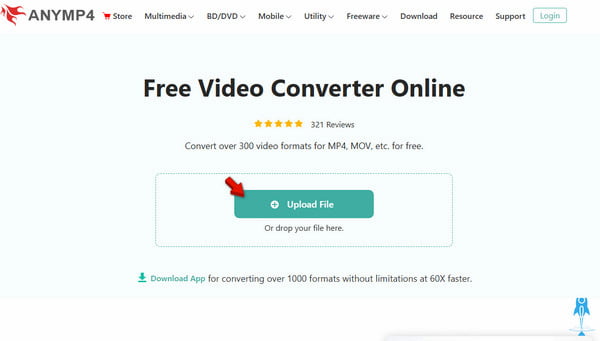
1. Head to the official page of AnyMP4 Free Video Converter Online by clicking the link. On the homepage, click Upload File to select the MOV video you want to convert. You can also drag and drop the file directly into the upload area for quicker importing.
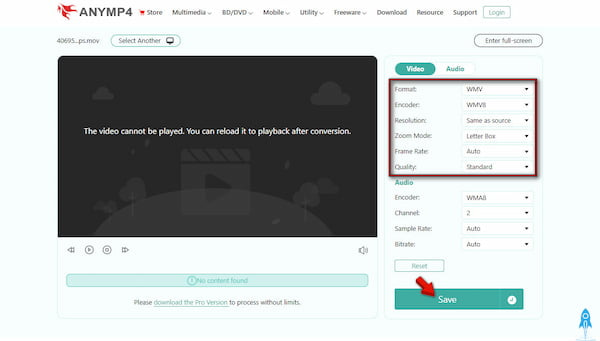
2. After the file is uploaded, locate the Format section and choose WMV. Then set the encoder to WMV8, adjust the resolution to Same as Source, and set the frame rate to Auto. Once all settings are configured, click Save to start the conversion process.
If your MOV files are from an iPhone or a professional mirrorless camera, the file sizes are usually far beyond the free limit. To avoid long upload waits and format restrictions, download the AnyMP4 desktop client for unlimited conversions.
Method 5. FreeConvert
FreeConvert is a browser-based file conversion platform that supports over 500 file formats. It supports batch file uploads and customizable export settings. It includes adjusting video codecs, resolution, frame rate, subtitles, and compression options, as well as trimming.
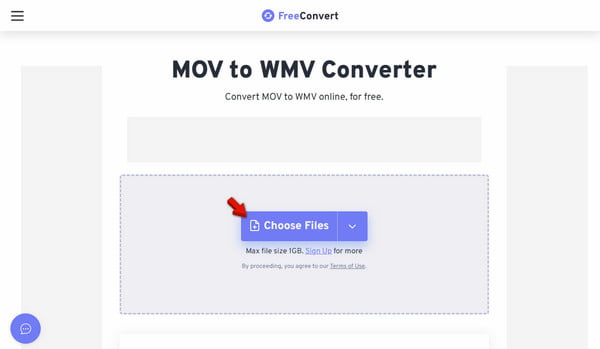
1. Go to the FreeConvert page and click Choose Files to upload your MOV file(s). You can also import Apple videos from Google Drive, Dropbox, OneDrive, or a URL source.
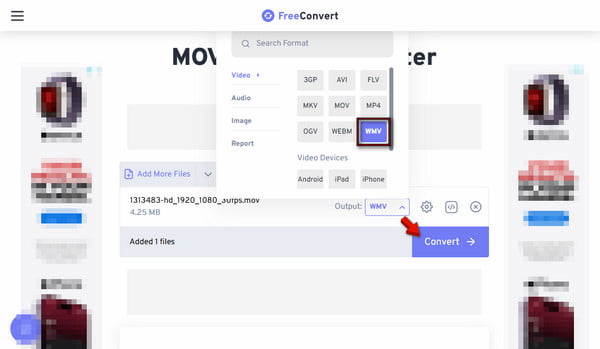
2. After uploading the MOV file, ensure WMV is selected as the output format. Click Convert to process it on its servers and generate the WMV output.
FreeConvert is a convenient online tool for converting MOV to WMV. However, to export MOV to WMV fast, your network performance should be stable. It also limits file size to 1GB and allows 10 daily conversions.
Method 6-7. Advanced Command Line & Native Tools
Method 6. QuickTime (Mac Legacy)
QuickTime is the default multimedia player application for MOV files on Mac systems. The Older version, particularly the QuickTime Pro, allows you to convert MOV to WMV on Mac. However, modern versions no longer provide direct WMV export functionality.
1. Launch QuickTime on your Mac and click the File tab. Select Open File to open your MOV video, or drag and drop the file into it.
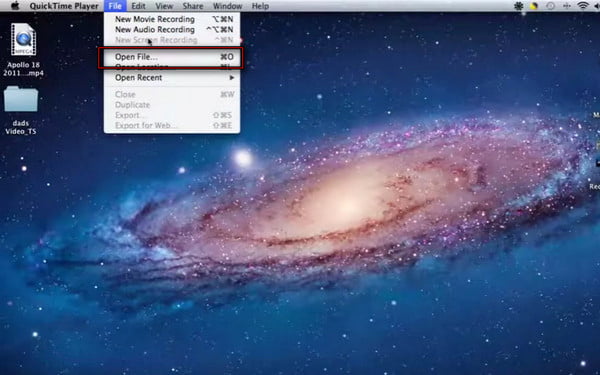
2. After adding the MOV video, click File again, but this time select Export. Choose an available export resolution, and QuickTime will create a new video file using a compatible format.
QuickTime is a solid tool for Mac users because it requires no additional installation and handles MOV files natively. However, modern versions of QuickTime cannot convert Apple videos to WMV directly. If you need WMV output, you must use AnyMP4 after exporting.
Method 7. FFmpeg
FFmpeg is a powerful command-line tool for converting, recording, streaming, and processing media files. You can use it to convert MOV to WMV on Windows 11/10 and Mac systems. It can convert files with a simple command with an option to configure encoding settings.
1. Launch Command Prompt or PowerShell on your Windows. Type the ffmpeg -i /home/user/Desktop/XXX.mov /home/user/Desktop/XXX.wmv command.
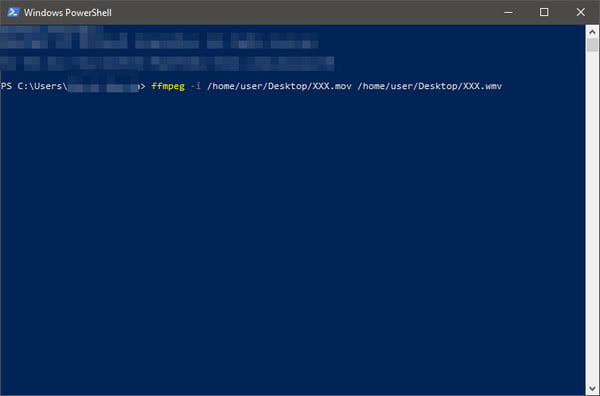
2. Press Enter to run the command. FFmpeg will analyze the source video and begin encoding. After the conversion completes, you can now use it for playback or editing.
FFmpeg is the most capable MOV-to-WMV conversion tool available. It is completely free, highly customizable, and supports all major video formats and codecs. However, you need to manually enter commands and understand file paths, codecs, and encoding parameters.
FAQs About Converting MOV to WMV
Why won't my MOV file play on Windows 10/11?
A MOV file may not play on Windows 10/11 because the issue is with the video codec inside the MOV container. Some MOV files use Apple-specific or professional codecs that Windows Media Player and other built-in applications do not support.
Does converting MOV to WMV lose quality?
Yes, because most video conversions involve re-encoding the video and audio streams. However, the amount of loss depends on the converter and the output settings you used. For the best results, use AnyMP4 Video Converter Ultimate.
How do I batch convert multiple MOV files to WMV at once?
The easiest way to batch convert multiple MOV files to WMV is to use AnyMP4 Video Converter Ultimate. This software supports batch processing, allowing you to process every file in a single operation. Additionally, it ensures that there is no quality loss during conversion.
What is the WMV format?
WMV (Windows Media Video) is a video compression format developed by Microsoft. A WMV file carries image, audio, text, and video data. It is used for streaming apps on the internet. The Windows system and Windows Media Player fully support the WMV format. But you can't open it directly on Macs, and its default player, QuickTime Player, can't play it.
Can VLC convert MOV to WMV?
Yes, VLC Media Player can convert a MOV video to a WMV file. Open VLC, then choose Media. Choose the File tab, then click Add to browse and import your MOV video into VLC. Then click the Convert/Save button at the bottom-right corner. In the new Convert window, select WMV as the target format from the Profile drop-down menu. Now you can start the WMV conversion.
Can I convert VOB files to MOV?
Most video converter software and apps can convert VOB files to MOV format, including the tools we mentioned above. You can use them based on your situation.
Conclusion
Converting MOV to WMV is easy once you choose the right tool. Online solutions are great for quick conversions. However, desktop software provides better performance for large files, batch processing, and quality preservation. If you need a free browser-based option, try AnyMP4 Free Video Converter Online to convert MOV files without installation. For faster speeds, advanced editing tools, AI video enhancement, and lossless batch conversion, use AnyMP4 Video Converter Ultimate. It offers a complete solution for converting MOV to WMV while maintaining excellent video and audio quality.






 Add your comments to join the discussion here