
Free Download100% Clear & Secure
Free Download100% Clear & Secure
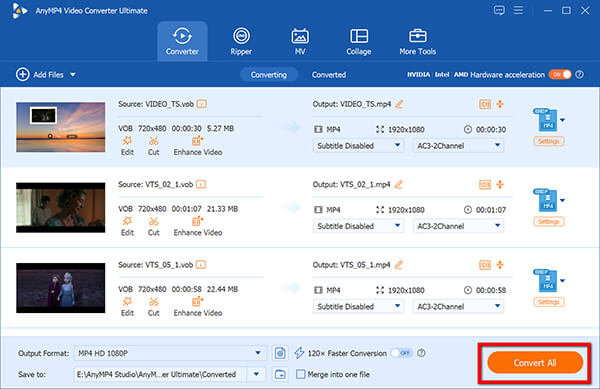
Quick Answer:
QuickTime can't play most AVI files because they use legacy codecs unsupported by modern macOS. The fastest way to fix this is to convert AVI to MOV via AnyMP4 Video Converter Ultimate (for fast/batch conversion), HandBrake (100% free offline tool), or CloudConvert (for small files online without installation).
Trying to play an AVI file on modern systems like macOS Sequoia often leads to QuickTime errors. That is because AVI is an outdated Microsoft container, whereas QuickTime requires modern codecs like H.264 or HEVC. If the AVI file uses a legacy codec, QuickTime cannot open it. Fortunately, this guide covers 3 effective solutions, ranging from professional software to free open-source tools and web utilities, to convert AVI to QuickTime MOV to help you seamlessly play videos on your Mac.

How We Tested
| Method | Speed | Batch Support | Ease of Use | Best For | Cost |
|---|---|---|---|---|---|
| AnyMP4 Video Converter Ultimate | Ultra Fast | Yes | Very Easy | High-quality, large libraries & batch converting | Free Trial / Paid |
| HandBrake | Moderate | Yes | Medium | Tech enthusiasts who want free customization | 100% Free |
| CloudConvert | Slow (Depends on Internet) | Limited | Easy | Single small files, zero installation | Free / Paid Tiers |
As mentioned earlier, AVI (Audio Video Interleave) is just a wrapper, not an actual compression standard. Inside that wrapper, the video could be encoded with DivX, XviD, or older MPEG-4 codecs.
Apple has progressively dropped legacy decoder support in recent macOS releases. Today, Apple ecosystem relies heavily on H.264 and HEVC standards. When you try to convert AVI to QuickTime native formats (like MOV), you're basically taking the old video content and repacking/re-encoding it into something Apple's native player actually understands.
At first, we want to recommend AnyMP4 Mac Video Converter Ultimate, which is a comprehensive tool that allows you to convert, edit, and make other adjustments to your videos. It can efficiently convert AVI to QuickTime format, which is MOV. For the MOV format, it provides multiple profiles of different resolutions for you to choose from. Moreover, you can even manually set the encoder, bitrate, sample rate, and other parameters before conversion. With GPU acceleration, it delivers fast and seamless performance.
Now, let's follow us to see how to use it to make video conversions.
1. Click the buttons below to download and install AnyMP4 Mac Video Converter Ultimate on your Mac.
Secure Download
Secure Download
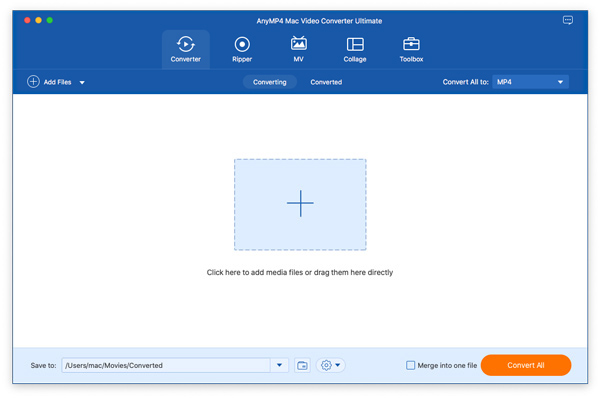
Launch the software and directly drag the AVI files into the tool. Or, you can click Add Files to import them.
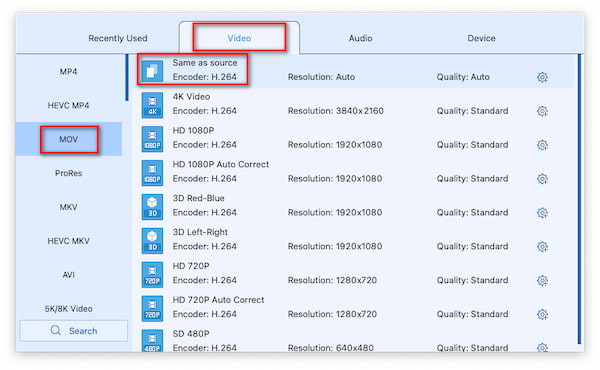
2. Go to the Output Format section. In its drop-down list, choose MOV Same as source as the output profile under the Video tab.
Note: You can configure your video and audio with these exact settings:
3. Lastly, select the editing tools to adjust the video effects as you want. Then, click the orange Convert All button at the bottom to start the AVI to MOV conversion. Once it's done, the download folder will open automatically to facilitate your further playback.
Make sure to leave the Enable Hardware Acceleration option checked in the settings! This utilizes your Mac's GPU to speed up rendering, making it the fastest way to convert AVI to QuickTime without losing quality.
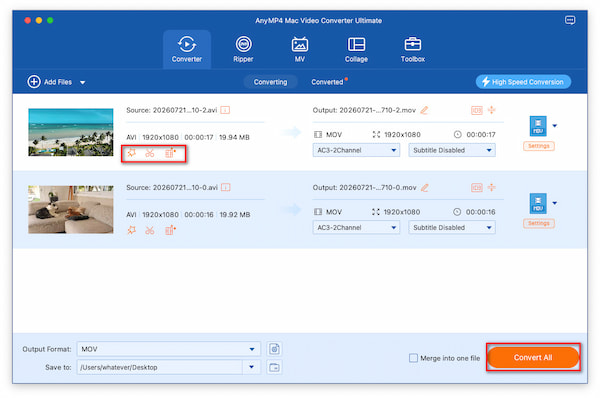
AnyMP4 Video Converter Ultimate is a powerful all-in-one choice to meet all your video/audio conversion needs. Plus its various editing tools, you can easily improve the video effects, like applying filters, adjusting aspect ratio, editing watermarks, etc. It offers a free trial for you to evaluate its features. Have a try!
HandBrake is a free and open-source video converter. It has been trusted by video geeks for years. It allows you to batch input and convert multiple AVI files to a specific format, including MP4, MKV, MOV, and WebM. Moreover, it provides multiple presets for you to choose, like Apple 1080p60 Surround, H.265 MKV 2160p60 4K, and others, which allows you to select directly. Some people may think its interface looks a bit technical. Don't worry. Read on to learn how to use it in detail.
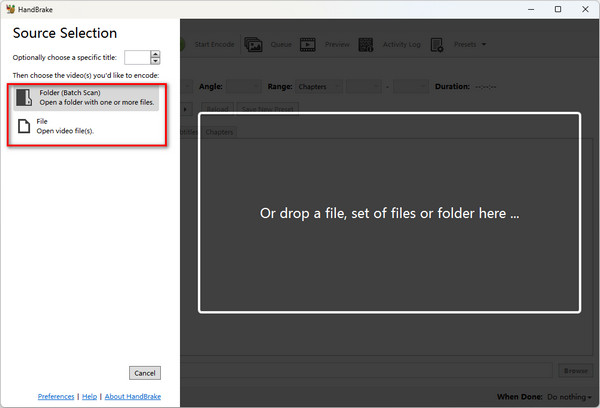
1. Open HandBrake on your Mac. Choose Folder or File to import the prepared AVI files to the tool.
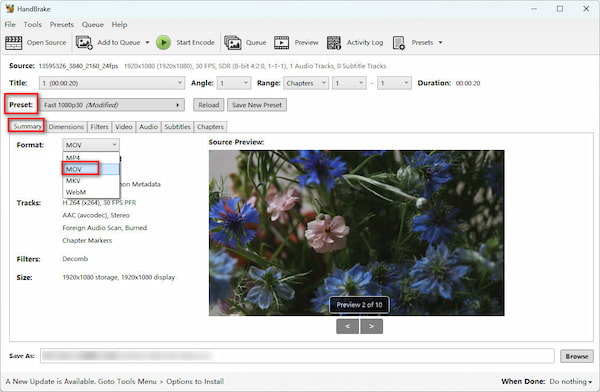
2. After that, select Format as MOV under the Summary section. Then, open the Preset drop-down list to choose one profile, Apple 2160p60 4K HEVC Surround.
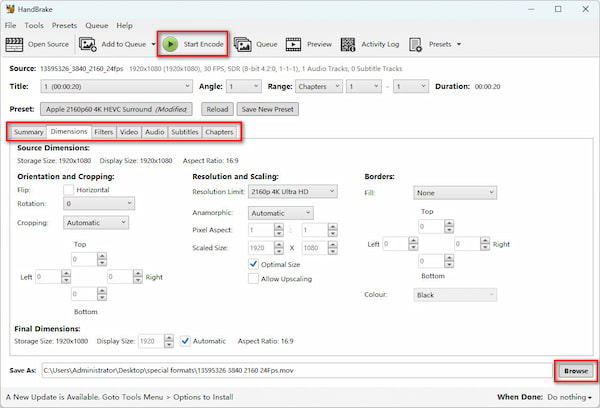
3. Set a download folder via the Browse button at the bottom. Lastly, click Start Encode at the top menu bar to begin the conversion.
If you are familiar with it, you can explore other settings to optimize the videos.
If you just want to make simple conversions from AVI to MOV, HandBrake is an exceptional free option for you. With its complex settings, some beginners may find it difficult to get started. You can follow the above steps to convert videos in several clicks.
If you want a quick conversion, the online converter tool is the best choice. CloudConvert is one of the most powerful online video converter tools that allows for maximum 1GB files for conversion. This free video converter is suitable for users who just need to convert a single small clip right now and really don't want to install any new software on Mac. But you should note that never upload confidential, sensitive, or personal private videos to cloud servers.
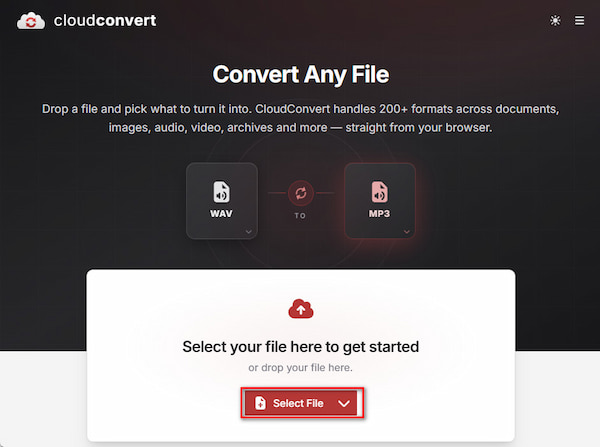
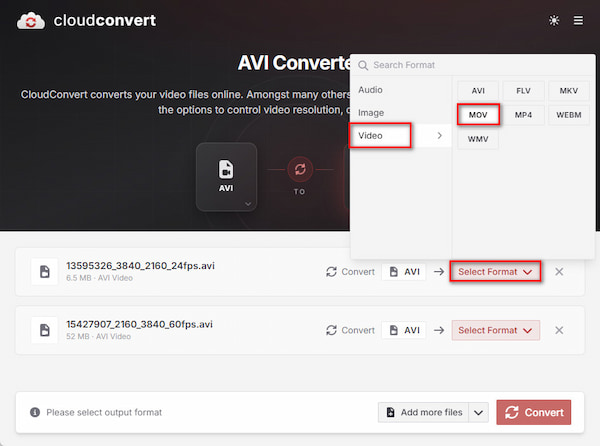
1. Access the CloudConvert official website. Click the central Select File to add the AVI files.
2. Click Select Format to open its format category. Choose Video > MOV to confirm the output format.
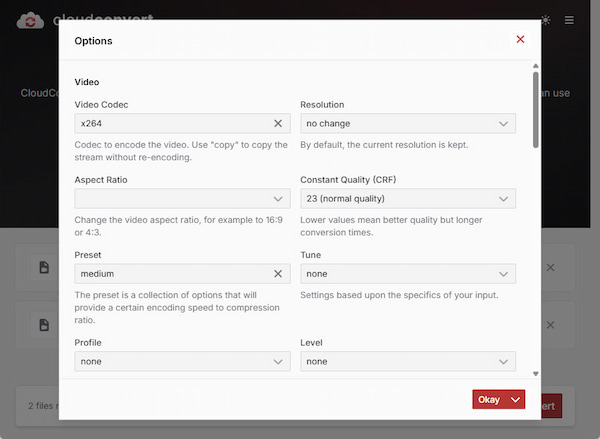
If you need to, you can click the Options button to adjust the video effects.
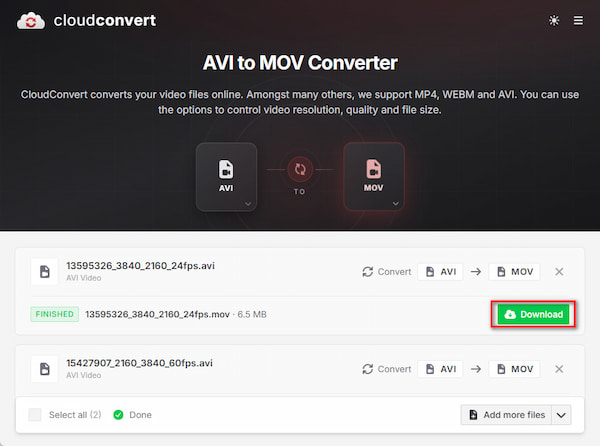
3. Finally, click the bottom Convert button to start the video conversion. After it is done, click the green Download button to save it to your computer.
This online way allows you to convert AVI to QuickTime anytime and anywhere. It is ideal for converting small clips in seconds. It provides limited free usage times each day, which can be enough for occasional video conversion.
Why does my QuickTime player say 'file not compatible' when I open an AVI?
Because QuickTime fails to handle the compressed video stream inside that AVI wrapper.
What is the best free AVI to MOV converter for Mac in 2026?
HandBrake can be praised as the best free AVI to MOV converter on Mac for its batch conversion feature.
How to convert AVI to QuickTime MOV without losing video quality?
Use a converter that supports 'Auto Passthrough' or high-bitrate H.264 encoding. Keeping the original frame rate and resolution while matching the original bitrate ensures no noticeable quality degradation.
Can I play AVI files on Mac without converting them?
Yes. You can use common media players like VLC to watch AVI files on Mac.
Is there a way to batch convert old AVI files to a Mac-friendly format?
Yes. AnyMP4 Mac Video Converter Ultimate supports batch AVI file conversion at a fast speed.
Today, we talked about the QuickTime video compatibility problem and introduced 3 easy and powerful ways to convert AVI to QuickTime MOV for proper playback, covering a reliable professional desktop solution, an open-source choice, and an online tool. With the detailed steps, choose one suitable way and do it in person. You are welcome to share your experience with us.
 Updated by Alice Thorne to Convert Video
More readings
 5 Best Ways to Convert QuickTime to MP4 [Lossless & Fast]
Looking for the best way to convert QuickTime (MOV) to MP4? We tested the top 5 tools in 2026 for speed and quality on Windows, Mac, and web-based tools.
 3 Best Ways to Convert M4A to MP3 Without Quality Loss
Learn how to convert M4A to MP4 without losing audio quality. Discover the fastest free online tools and pro desktop methods to add custom podcast images.
 2026 MP4 to M4V Guide: 4 Best Ways for Desktop & Online
Read the post to master the 4 best MP4 to M4V methods for desktop and online, so that you ensure perfect Apple ecosystem compatibility and lossless quality.
 AVI to H.264 Guide in 2026 [100% Lossless Conversion]
Want to convert AVI to H.264 with ease? Read this guide now to learn how to do it with zero quality loss. Choose one that suits you best from the three methods.
 Add your comments to join the discussion here