
Key Takeaway:
Can HandBrake convert video to AVI? No, modern versions of HandBrake do not support AVI. HandBrake removed AVI support after version 0.9.3. If you want to use HandBrake for AVI, you must download a very old 2008 version. But we found it crashes a lot on Windows 11. For a fast and safe fix, we suggest using AnyMP4 Video Converter Ultimate. It easily turns MKV, VOB, and DVD into AVI with H.264 and XviD codecs.
When you just downloaded the newest HandBrake, and want to convert MKV to AVI HandBrake style, you look at the format list, and... wait. Where is AVI? It is just not there. Even if you pull your hair out trying to find a hidden setting, you find nothing.
Here is the truth: HandBrake kicked AVI out a long time ago. Modern HandBrake only makes MP4, MKV, and WebM. But do not worry. We will show you why they dropped it, and how to force HandBrake convert to AVI by using an ancient version. Finally, we will share the modern alternative tool we actually use in our office today to save time.

Before we wrote this guide, we wanted to see if the old HandBrake AVI trick still works today. We did not just guess. We installed the old HandBrake 0.9.3 and the newest HandBrake 1.8 on our Windows 11 PCs. We threw big MKV movies, old DVD rips, and VOB files at them. Here is what we found in our test:
| HandBrake 0.9.3 (Old) | VS | AnyMP4 Video Converter Ultimate |
| Tech fans who like tinkering with old 2008 software. | Best For | Everyone who wants fast, easy, and high-quality video conversion. |
| Free | Price | Free trial available (Premium upgrade for full features) |
| Windows only (Crashes often on Windows 11) | Supported Systems | Windows 11/10/8/7 and all modern macOS |
| Basic old codecs | AVI Codecs | Modern AVI H.264, XviD, and DivX |
| Very slow (Uses CPU only) | Conversion Speed | 70x faster (Uses hardware acceleration) |
| Complicated (Queue system) | Batch Conversion | Easy (Drag and drop whole folders) |
| None | Extra Tools | Video compressor, editor, and DVD ripper |
We see a lot of people asking why HandBrake is not supported AVI anymore. Here is the short answer: the AVI format is just too old. HandBrake dropped it after version 0.9.3 way back in 2008. Let’s be real for a second. We hate it when our favorite tools remove good features. It is super frustrating. But the team behind HandBrake had to do it. The old AVI code was a mess. It could not handle new HD video formats. So, they dumped it to make the app run faster and crash less. Today, modern HandBrake only lets you save as MP4, MKV, or WebM.
STOP AND READ: This method uses HandBrake 0.9.3 from 2008. We do not recommend this for modern PCs. It crashes a lot and has zero security updates. If you want a fast, safe way, skip down to our modern AnyMP4 guide. If you still want to try the old way, here is how we did it in our test. It works for both DVDs and digital files.
1. Download the old app safely
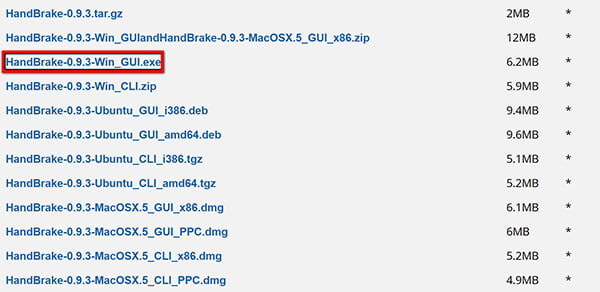
You cannot get this old version from the official HandBrake site anymore. We got ours from a safe archive site called VideoHelp.
When you look at the download page (https://www.videohelp.com/software/HandBrake/old-versions), the list of files looks crazy. If you are on Windows, download HandBrake-0.9.3-Win_GUI.exe. Are you a Mac user? Stop right here. The old Mac file (MacOSX.5_GUI_x86.dmg) is a 32-bit app. Modern Macs completely block 32-bit apps. If you download it, it will not open. Mac users must skip to the AnyMP4 method below to get AVI files!
2. Load your DVD or video
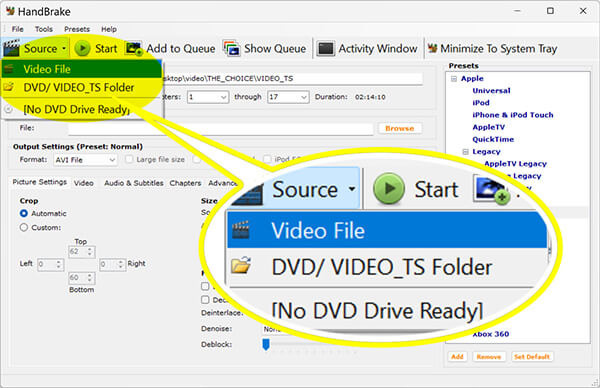
Install the software and open it. Click the Source button at the top left.
3. Pick the AVI format
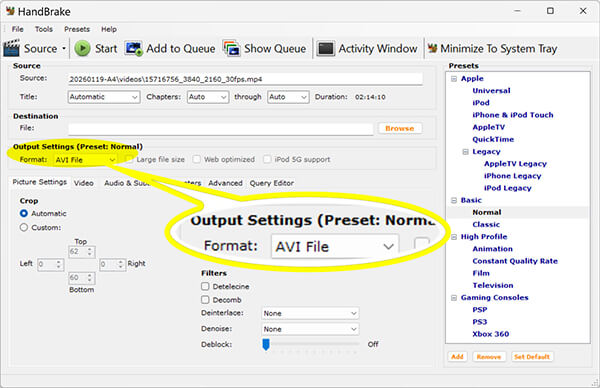
Look down at the Output Settings box. Click the format list. You will finally see AVI File here. Pick it. We suggest leaving the video size alone so the app does not freeze.
4. Convert DVD/Video to AVI in HandBrake
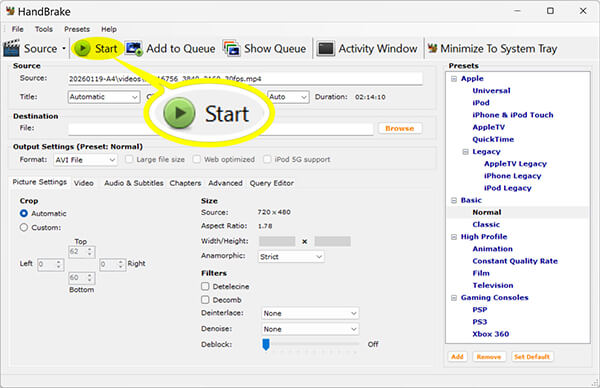
Hit the big Start button at the top. Now, go make a sandwich. This old app takes a very long time. Also, if you try to convert MKV to AVI in HandBrake with a huge movie file, the app might just close by itself. If it fails, you really need a newer tool.
Let’s be honest. Nobody wants to use a buggy 2008 app today. We just want our AVI files fast. That is why our office uses AnyMP4 Video Converter Ultimate. It is the best HandBrake-to-AVI alternative we have tested. It runs perfectly on Windows 11 and modern Macs. Why do we actually like it better than HandBrake? Here are the main reasons:
Secure Download
Secure Download
Here is how easy it is to use (and why it beats the old way):
1. Add your video
Unlike the old HandBrake where you have to click through folders and wait for it to scan, here you just drag and drop. Grab your MKV, VOB, or MP4 file and drop it right into the middle of the screen. Got a whole TV show? Drop the whole folder to batch convert them at once.

2. Pick AVI output
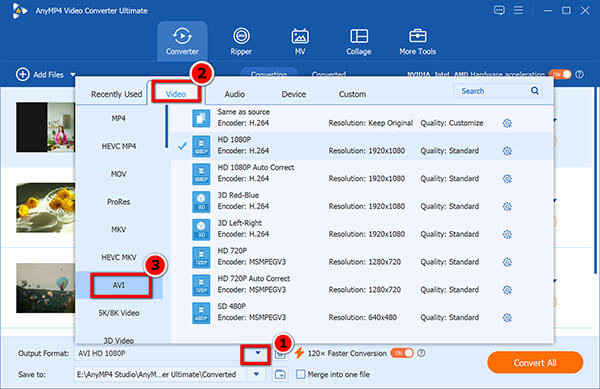
Click the Output Format menu on the bottom-left corner. Pick Video, then click AVI. That is it.
You do not have to tweak bitrates or worry about breaking the file like you do in HandBrake. Just pick the HD 1080p profile and let the app do the hard work.
3. Convert video to AVI
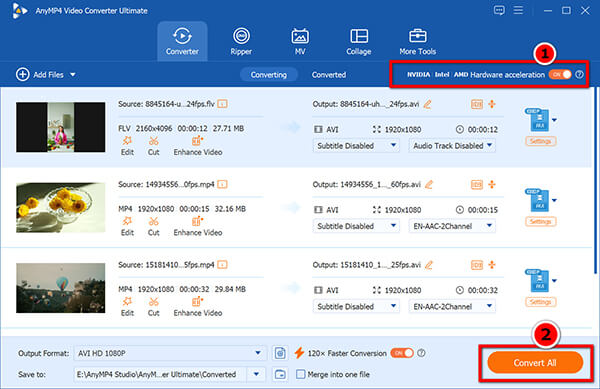
Click the big Convert All button. To speed up the conversion process, you can enable GPU acceleration at the top-right corner.
Remember that annoying ‘HandBrake no valid source’ error from the old method? You will never see it here. You can actually sit and watch the progress bar zoom across the screen instead of going away to make a sandwich.
How to batch convert files with HandBrake?
HandBrake lets you batch convert using the Add to Queue button. You load a file, set the format, click Add to Queue, and repeat. But remember, modern HandBrake will only batch convert to MP4, MKV, or WebM, not AVI.
HandBrake keeps crashing on large AVI files, why?
The old HandBrake 0.9.3 has a 32-bit memory limit. If your movie file is too big, the app simply runs out of memory and shuts down. To fix this, you must use a modern 64-bit converter like AnyMP4.
How to speed up HandBrake conversion?
You can make it faster by changing the video preset to ‘Fast’ or ‘Very Fast’. However, if you are using the 2008 version for AVI, it will still be slow because it cannot use your modern computer's hardware acceleration.
Is HandBrake AVI compatible with Windows 11?
No, not officially. The last version to make AVI files came out way before Windows 11 existed. You can force it to run using Windows compatibility mode, but expect random bugs and weird screen glitches. So you have to try the HandBrake alternatives.
Can I use HandBrake to convert AVI to MP4?
Yes! Modern HandBrake is actually great at reading old AVI files and turning them into fresh MP4 files. Just drop your AVI video in and select the MP4 profile. It works great for this direction.
That is everything you need to know about converting to AVI files in HandBrake today. If you have a super old PC from 15 years ago, that 2008 HandBrake trick might be fun to try. But for the rest of us on modern computers, just grab AnyMP4 Video Converter Ultimate. It is the fastest way to get your video ready without pulling your hair out.
Secure Download
Secure Download
 Updated by Alice Thorne to Convert Video
More readings
 Convert MKV to MP4 Using HandBrake: 2026 Best Tutorial
Learn how to convert MKV to MP4 using HandBrake with our 2026 step-by-step guide. Master the detailed steps, the best settings, and fix common errors.
 2026 Convert MOV to MP4 Using HandBrake in 4 Easy Steps
Looking for the fastest way to convert MOV to MP4 with HandBrake? Follow our expert guide to process 4K videos with zero loss of quality in 4 easy steps.
 How to Convert MP4 to MP3 with HandBrake [Detailed Steps]
Are you looking for an MP4 to MP3 converter? HandBrake is a good choice. Today, we will introduce the detailed steps for its single and batch conversion.
 Detailed Guide on How to Trim Video with HandBrake
Do you need to trim the video? If so, this article is suitable for you. It will offer a handy tutorial on how to trim a video using HandBrake.
 Add your comments to join the discussion here