
 Store
Store- Multimedia
For Windows
- Converter Tools
- Video Converter Ultimate

- Video Converter
- 4K Converter
- MP4 Converter
- Audio Converter
For Mac
- BD/DVD
For Windows
- DVD Tools
- DVD Ripper
- DVD Copy
- DVD Creator
- DVD Converter
- DVD Toolkit
For Mac
- Mobile
For Windows
For Mac
- Utility
- Freeware

Installation Succeed!
Thanks for installing AnyMP4 iPhone Unlocker.
We now provide you a 50% Off for AnyMP4 iPhone Unlocker. It is valid for only 7 days.

 Buy Now
Quick Start
Wipe Passcode
Step 1. Select the Unlock iOS Screen option when you launch iPhone Unlocker.
Step 2. Use a USB cord to connect your device to the computer. Then, select Start Now to proceed.
Step 3. After that, you'll need to patiently wait for iPhone Unlocker to finish downloading the firmware package. In order to remove your screen passcode, please click Start Removing if the download was successful.
Go to Tutorial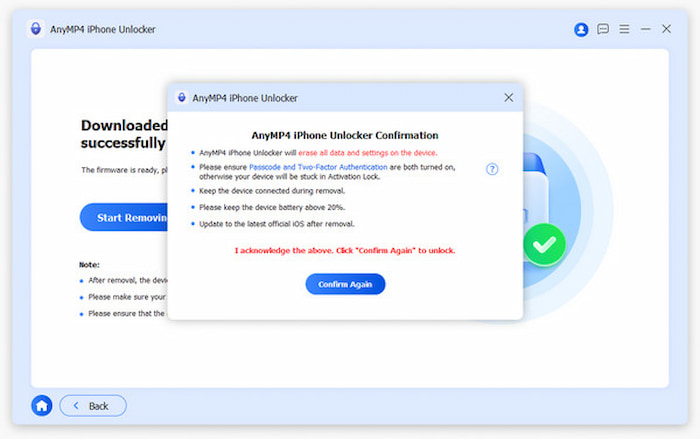
Remove Apple ID
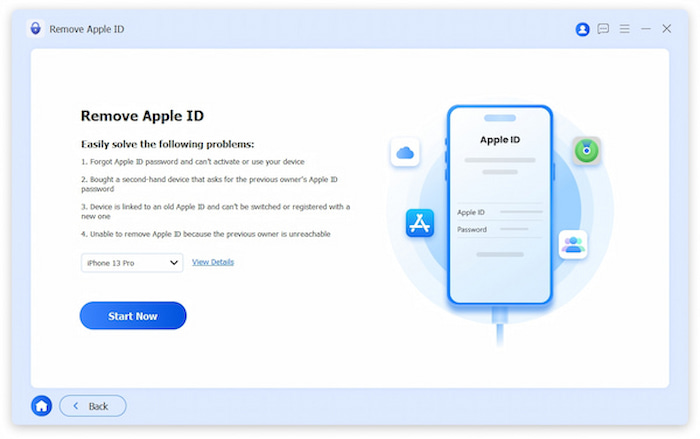
Step 1. Select the Remove Apple ID mode while launching iPhone Unlocker.
Step 2. Use a USB cord to connect your device to your computer. On your iOS device, remember to trust your computer.
Step 3. Select the Start Now button to begin the process and wait a moment. You will find your Apple ID will be removed.
Go to TutorialRecover/Remove Screen Time
Step 1. Start iPhone Unlocker and select the Unlock Screen Time option.
Step 2. Use a USB cord to connect your iPhone to your computer.
Step 3. Click the Start Now button to remove the Screen Time passcode or Restrictions passcode on your device. Lastly, click Finish to end.
Go to Tutorial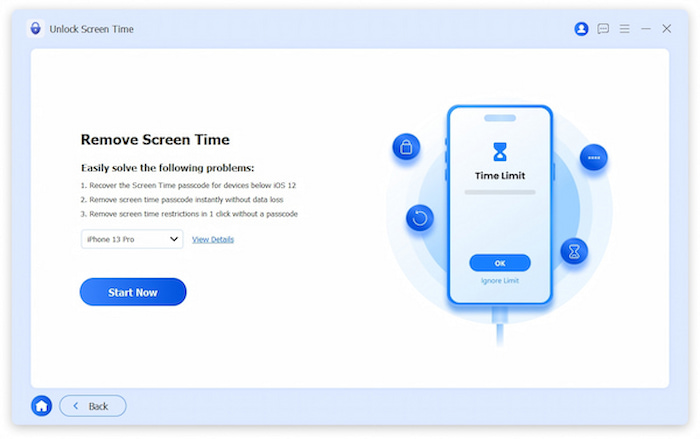
Remove MDM
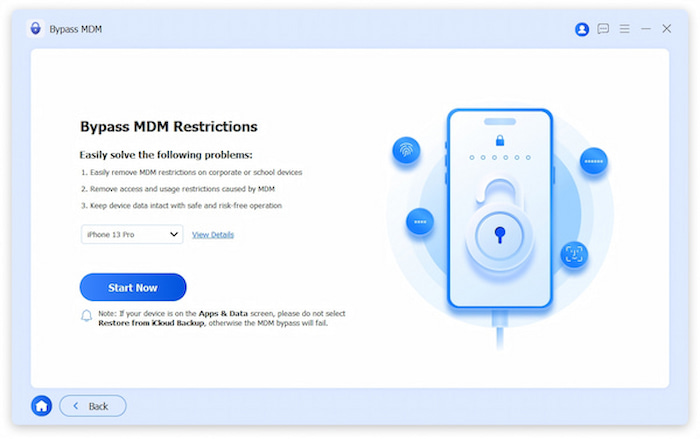
Step 1. Launch the computer program iPhone Unlocker and select the Bypass MDM section.
Step 2. Use a USB cord to connect your device to the computer. To proceed, tap Trust.
Step 3. To begin the process of eliminating MDM, click Start Now.
Go to TutorialRemove iTunes Backup Encryption Settings
Step 1. On your PC, start the iPhone Unlocker. A USB cable can be used to link an iPad or iPhone to a computer.
Step 2. Choose the Remove iTunes Backup Encryption Settings mode from the bottom right of the main interface to go ahead.
Step 3. Click Start Now to begin the removal process. Once done, click Finish to end and return to the main interface.
Go to Tutorial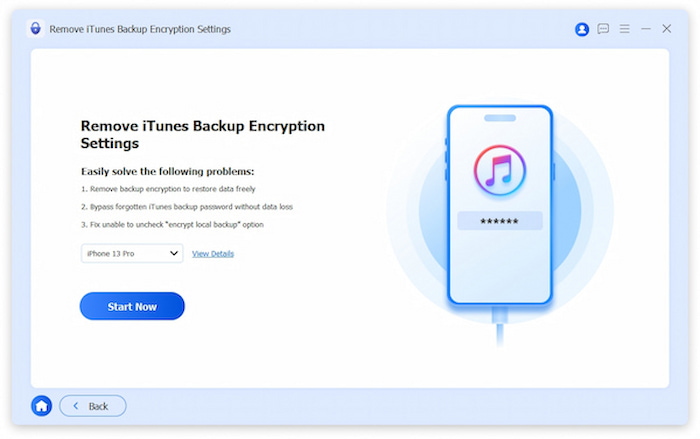
Unlock SIM Card
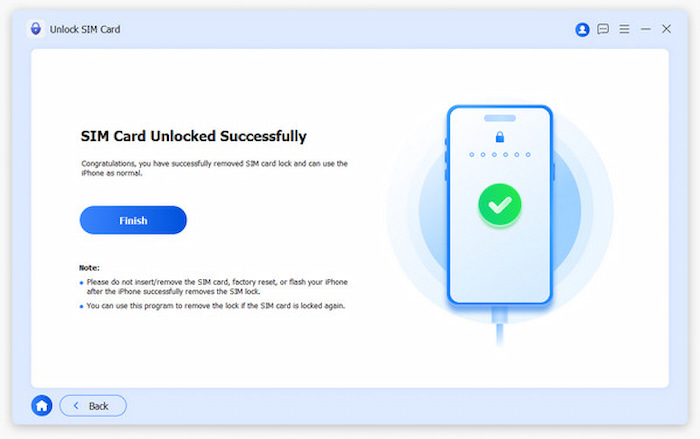
Step 1. Launch the unlocker and select the Unlock SIM Card mode from the main interface.
Step 2. Connect the iOS device you want to unlock to the computer via a USB cable and click Start Now to begin the unlocking process.
Step 3. Once the SIM card removal is done, it will show 'SIM Card Unlocked Successfully', and you can click Finish to end.
Go to TutorialBig Discount for Hot Bundle
11-in-One Bundle 77% OFF – Save more than $515.35


Related Hot Articles
- How to Hide and Lock the Private Photos on Your iPhone How to Enable or Disable the Safe Mode on iPhone 2 Methods to Update iPhone without Any Wi-Fi Connection How to Invert Colors or Enable Dark Mode on Your iPhone 4 FREE Solutions to Finding Your Wi-Fi Password on iPhone/iPad How to Jailbreak Your iPhone without Losing Data
- Complete Guide to Change Apple ID on Your iPhone or iPad How to Reset iPad Mini/Pro and iPhone to Factory Settings How to Activate and Set up an iPhone without SIM Card How to Locate, Merge and Delete Duplicate Contacts on iPhone How to Delete Search History on iPhone or iPad Easy Way to Transfer MOV Files from iPhone to Computer